


Import via Sharing Cart (Pilot)

The block "Sharing Cart" allows lecturers to put individual activities, materials and entire course sections into a temporary storage area and transfer them to other course rooms. It is a clear and easy-to-use alternative to course import and course restore.
Sharing Cart will be made available to interested teachers for testing and evaluation in the summer semester of 2026 as part of a pilot phase. If you would like to use the block, please contact RWTHmoodle Support at the IT Service Desk.
General information and notes on the pilot phase can be found in the general conditions for participation in the pilot phase (PDF).
In this manual, you will learn about the Sharing Cart in detail and how to use it:
What is the Sharing Cart?
Using the “Sharing Cart” block, you can copy individual activities, resources, and the content of entire course sections to a temporary storage area and add them to another course room in the “Manager” role. This allows you to reuse course content in the same way as with course import and course restore. When using the Sharing Cart, however, the selection of content in the course room that is to be transferred to another course room is made directly via the familiar course view. All copied items are clearly displayed in the Sharing Cart.
The block must be activated in each course room in which it is to be used. Anyone who is assigned the role of “Manager” in the course can use the Sharing Cart independently of other managers of the course room. As a manager, you will therefore only see the content in the Sharing Cart of a course room that you have added there yourself. The content in the Sharing Cart is available to you in every course room in which the block is activated and you are registered as a manager.

When copying items, user data such as grades or forum posts are not transferred for data protection reasons.
Please note: As with course import, videos cannot be transferred from the RWTH streaming server to the target course. You must therefore re-upload or import them there. Please also note that when copying test activities, the entire question bank is transferred from the source course to the target course and, when copying H5P activities, the content bank of the target course will contain all H5P content from the source course. For detailed information, please refer to section 1. Copy items from the course room to the Sharing Cart.
How can I reuse course content with the Sharing Cart?
You can reuse course content according to the following principle:
- In the source course, copy items from the content area to the Sharing Cart.
- In the target course, copy items from the Sharing Cart to the content area.
The Sharing Cart also offers functions for organizing the items in the Sharing Cart (delete and adjust order).
1. Copy items from the course room to the Sharing Cart
- Open the course room from which you want to transfer content to the Sharing Cart (source course).
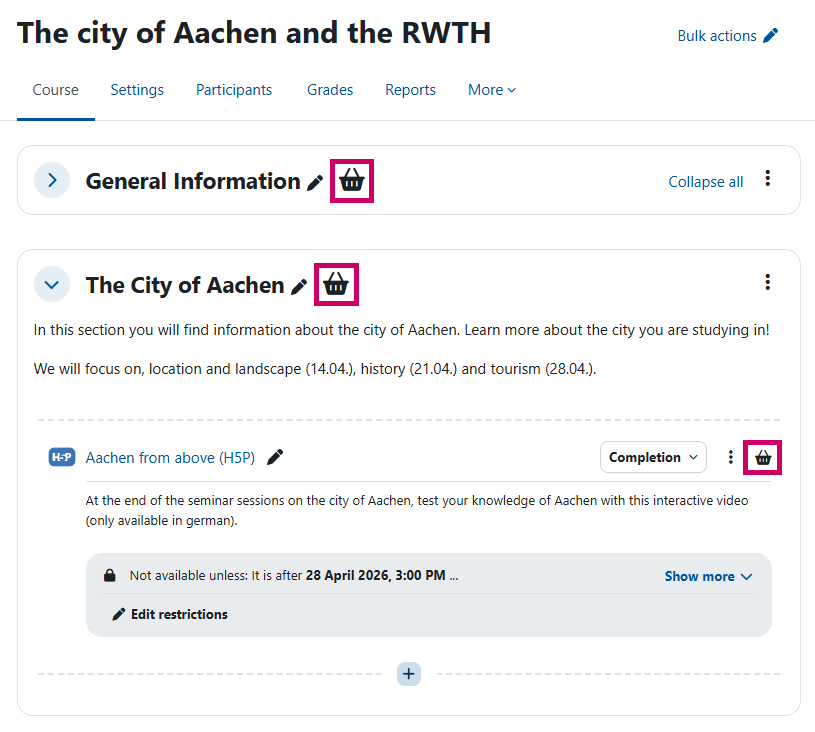
- Switch the course to edit mode using the slider in the top right corner. The Sharing Cart block will appear in the block drawer, and the shopping cart icons for copying course sections, activities, and resources will be displayed next to the names of these items in the content area.
- Click on the shopping cart icon to select the course sections, activities, or resources you want to transfer to the Sharing Cart. Alternatively, you can copy the items by dragging and dropping them into the Sharing Cart. A window opens.
- Hit the button Copy to perform the copy operation.

Alternatively, you can copy course sections via the Sharing Cart by selecting the desired course section from the drop-down menu and clicking the Copy section button.

2. Insert items from the Sharing Cart into the course room
- Open the course room to which you want to transfer content from the Sharing Cart (target course).
- Switch the course room to edit mode using the slider in the top right corner. The block Sharing Cart will appear in the block drawer, and the shopping cart icons for copying course sections, activities, and resources will be displayed next to the names of these items.
- In the Sharing Cart, click the copy icon next to the item you want to insert into the course.

Arrow icons are now visible in all course sections.
- In the desired section of the course, click on the arrow icon to insert the item you copied from the Sharing Cart.

Activities and resources are placed at the end of the section. You can then move them within the section using drag and drop or the three-dot menu. When copying course sections into the course, only the activities and materials contained therein are inserted into the selected section, not the section name. Adjust this as needed.

Please note:
- As with course import, videos cannot be transferred from the RWTH streaming server to another course; only the associated activities in which the videos are embedded (video activity, text and media area, page, etc.) can be transferred. In order to be able to use the streaming videos in the target course, you must re-upload or import them into the target course after transferring the activities in which they are integrated in the source course. The instructions Reuse videos from the RWTH streaming server (Opencast) describe the exact procedure.
- When copying the test activity, not only are the questions used in the test transferred from the source course to the target course, but the entire question bank from the source course is also transferred.
- When copying an H5P activity, not only is the H5P content linked to the activity transferred to the content bank of the target course, but all H5P content from the content bank of the source course is also transferred.
Delete items from the Sharing Cart and adjust order
You can organize the items in the Sharing Cart by deleting them or adjusting the order in which they are shown.
- Delete items
- Single items: click on trash can icon
- Multiple items: click on Bulk delete
- Adjust the order of the items: Drag and drop items to the desired location in the Sharing Cart

