Creating a Conference Call using the Cisco Telephone

A direct conference using the Cisco Telephone System allows a maximum number of 4 simultaneous video/audio participants. Sharing Desktops is currently not possible.
You can initiate a conference via the telephone as follows:
Step 1
Call the first participant.
Step 2
During the call use the physical conference button (12) on your phone.
The participant has been added to a new conference call. The initial call is put on hold.
Step 3
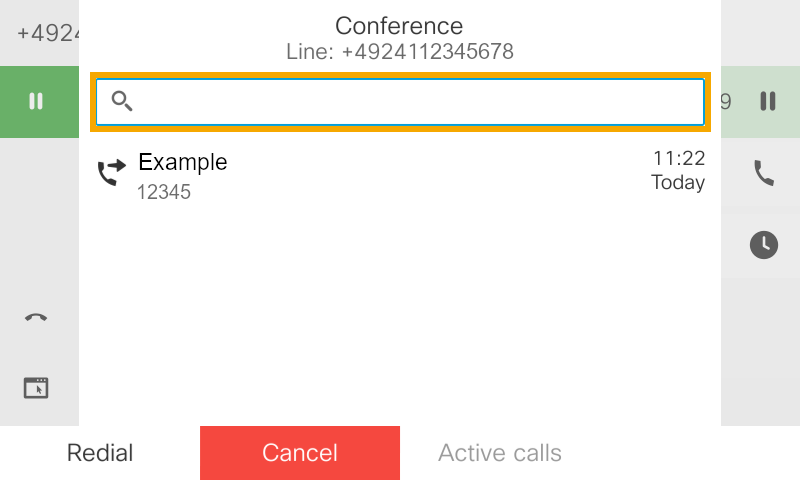
Add an additional participant to the call by typing their number using the search function.
Step 4
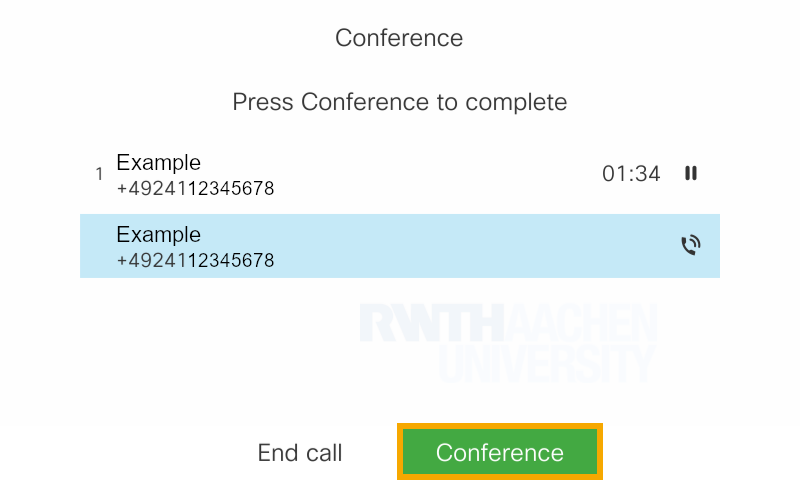
After entering the number, press the softkey below "Conference" to add the participant and add them to the conference call.
Repeat the process for a third participant.
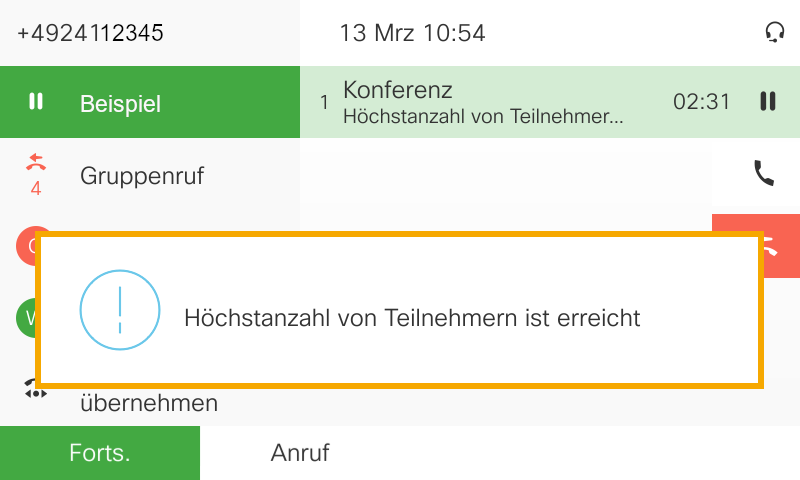
If you want to add more than 4 (creator + 3 others) participants to a conference, you will get the following advice.