


Set up and Use Speed Dials on a Cisco Phone

You can set up the speed dials on your telephone via the TK-Portal (Access only with employee status).
You can then use the speed dial numbers you have set up in various ways.
Set up Speed Dials
To set up speed dials via the TK-portal, proceed as follows:
Step 1
In the TK portal, click on the gear icon next to “Speed dial destinations.”
Step 2
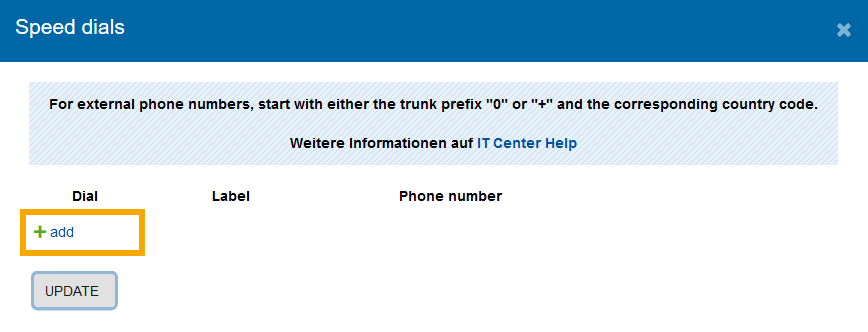
A new window will open where you can set up your speed dials.
To do this, press the +add button.
Step 3
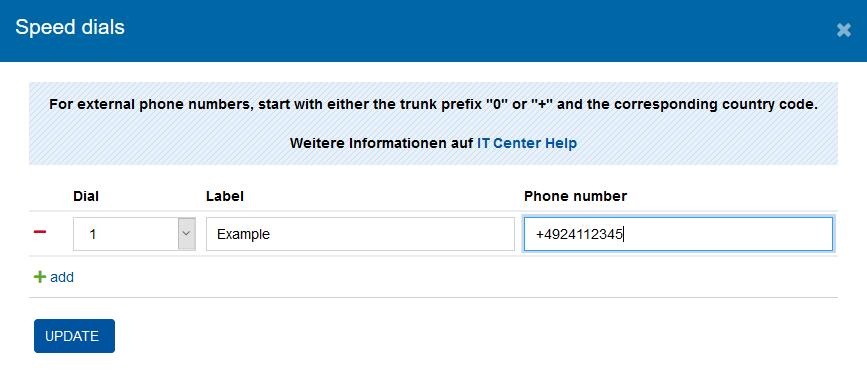
Select the parameters for your new speed dials:
- Speed dial: 1-99 (maximum of 99 possible speed dials)
- Name: Name of the speed dial
- Number: Field for the number of the target of the speed dial. Uses the international format, and will only accept numbers in this format, e.g. "+492418024680"
Click on refresh to save your selection.
A maximum of 99 speed dials can be set up.
Use speed dials
To be able to use the speed dials on the phone, the following 3 options are available.
Speed dial via Button
To access speed dial using a key on the telephone, proceed as follows:
Step 1
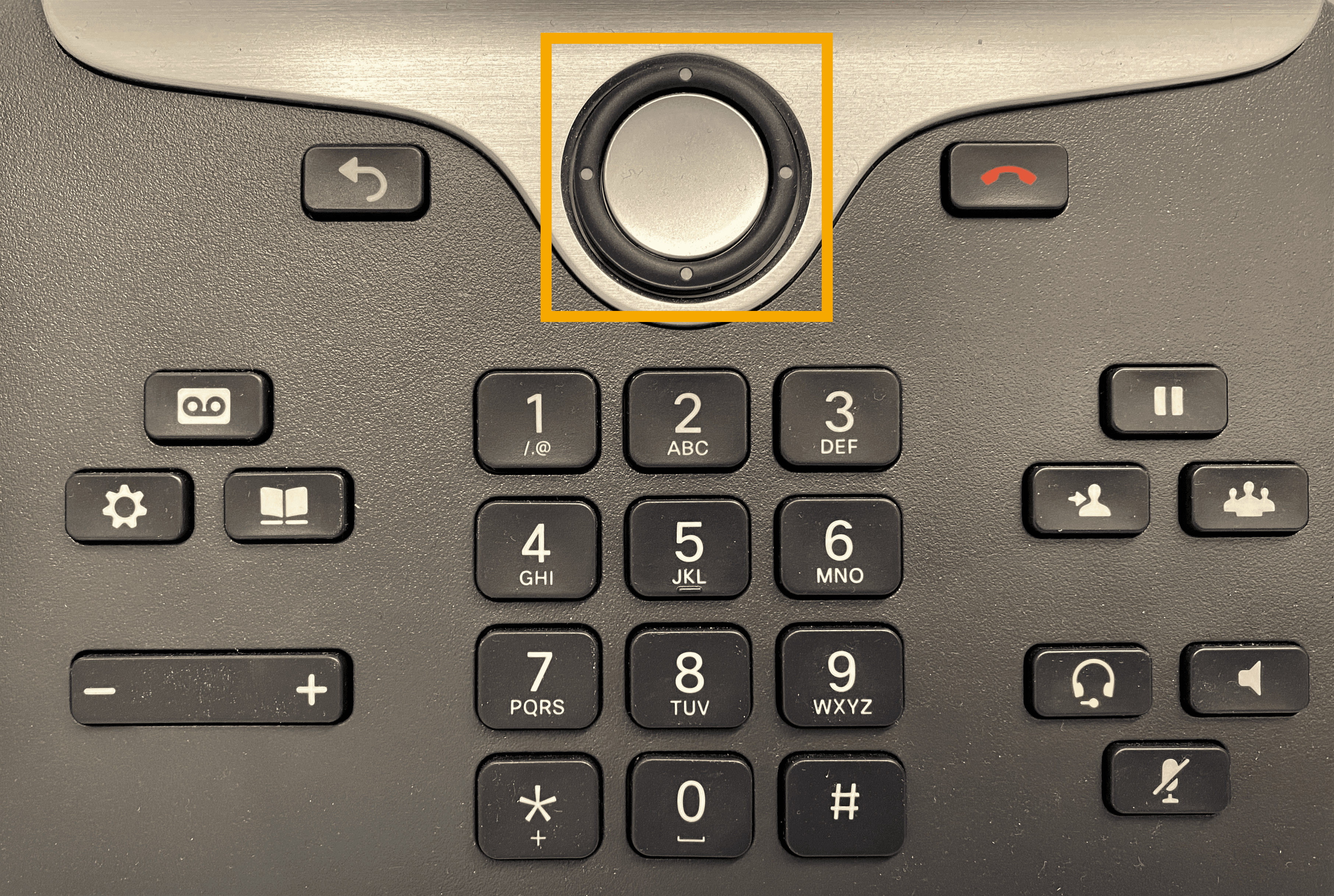
Press down on thecontrol pad on your phone.
Step 2
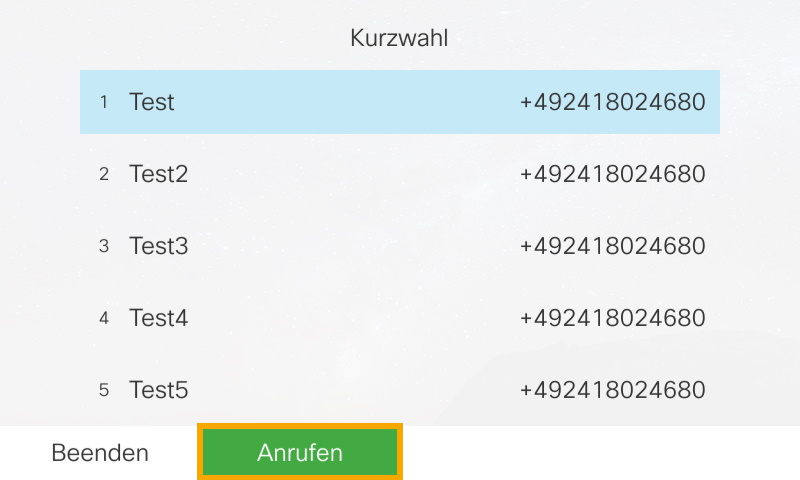
Then the list of your speed dials is displayed and you can scroll through them using the control pad.
Step 3
To make a call, press the silver button in the center of the control pad or the Call button.
The call will start immediately.
Speed dial via KWCodes
The second way to use speed dials is via the corresponding KWCode.
Step 1
Type the speed dial number of your contact on the telephone keypad.
The display will change and a menu item with 2 dots will appear at the bottom right.
If you press on these 2 dots, you can change the view and reach a second function page where you can select KWCodes.

Step 2
Select KWCodes.
After pressing KWCodes, the stored contact with the corresponding speed dial will be called.
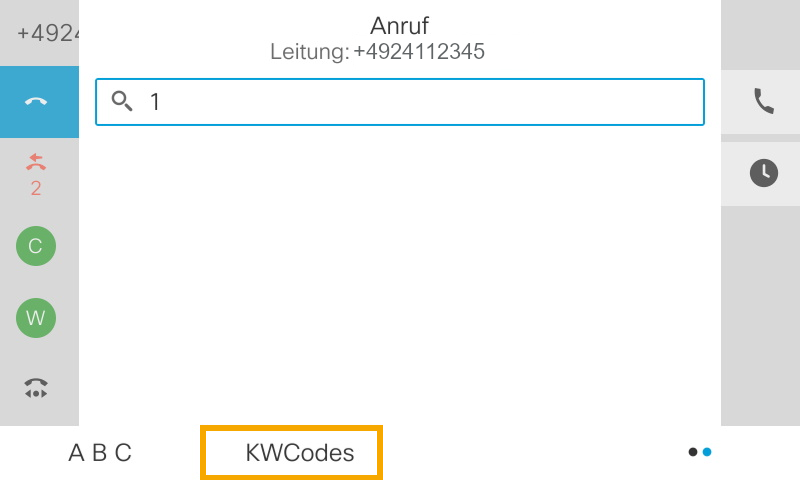
Example list for speed dials:
If you have dialed 1 on the phone and pressed the KWCodes key as in the previously described way, a call to the desired number will be established directly.
| Speed Dia | Name | Number |
| 1 | SD | +492418024680 |
| 2 | Management | +49241801 |
Extended speed dials
Extended speed dials allow you to use speed dials within conferences or pickup groups and for call forwarding. The following instructions illustrate this function using call forwarding as an example.
To use speed dials for call forwarding, proceed as follows:
Step 1
Start the forwarding process with the Transfer ("Übergabe") softkey or the hardware key (17).
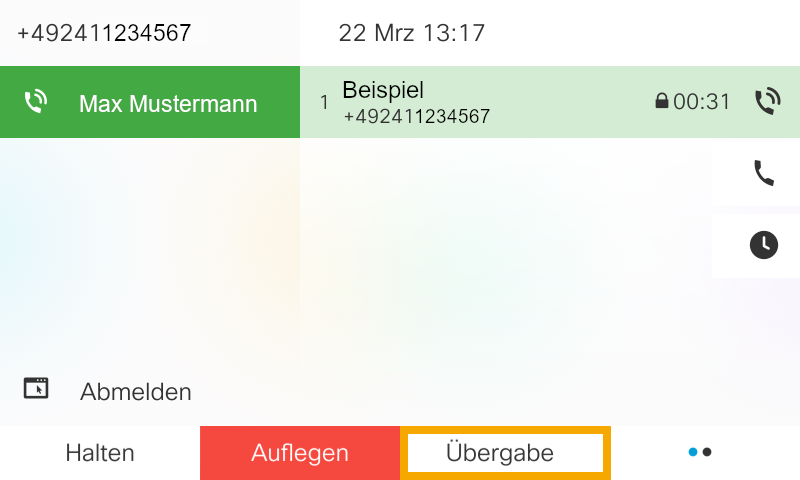
Step 2
Instead of entering a number manually, press the Speed Dial ("Kurzwahl") softkey.
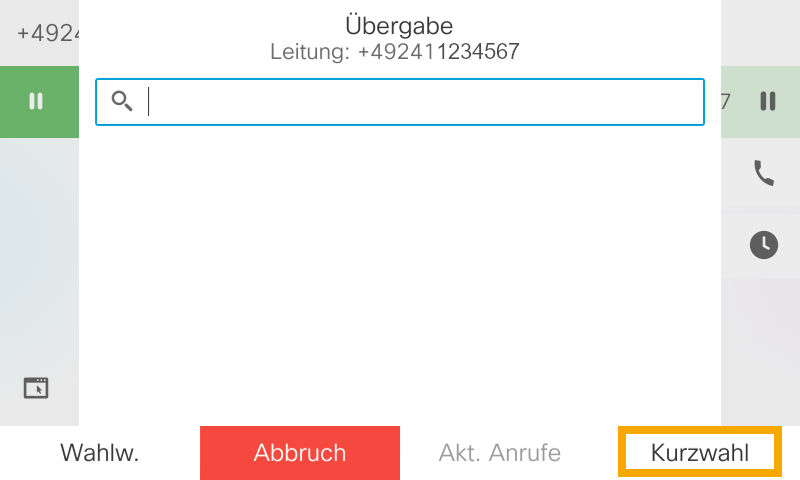
Here, you can select from your defined speed dial numbers as usual and forward the call to the desired number.

Speed dial via add-on module
If your telephone has an add-on module, the speed dials will (by standard Chef-Sec-function) be displayed on the second page of the module.
You can switch pages by pressing the built-in keys 1 and 2.
In order to call a speed dial, simply press the key on the add-on module, and the call will be made.
