


Setting up a Conference via the TK-Portal

The CISCO Meeting Server (CMS) allows video and audio conferences using RWTH systems.
These meetings can be joined using a phone, SIP-Services, or a web browser.
To create a conference via the TK-portal, proceed as follows:
Step 1
Call up the conference portal.
Step 2
You will find an overview of your created conferences, as well as permanent conferences for which you have administrative privileges.
Then click on create conference.

Step 3
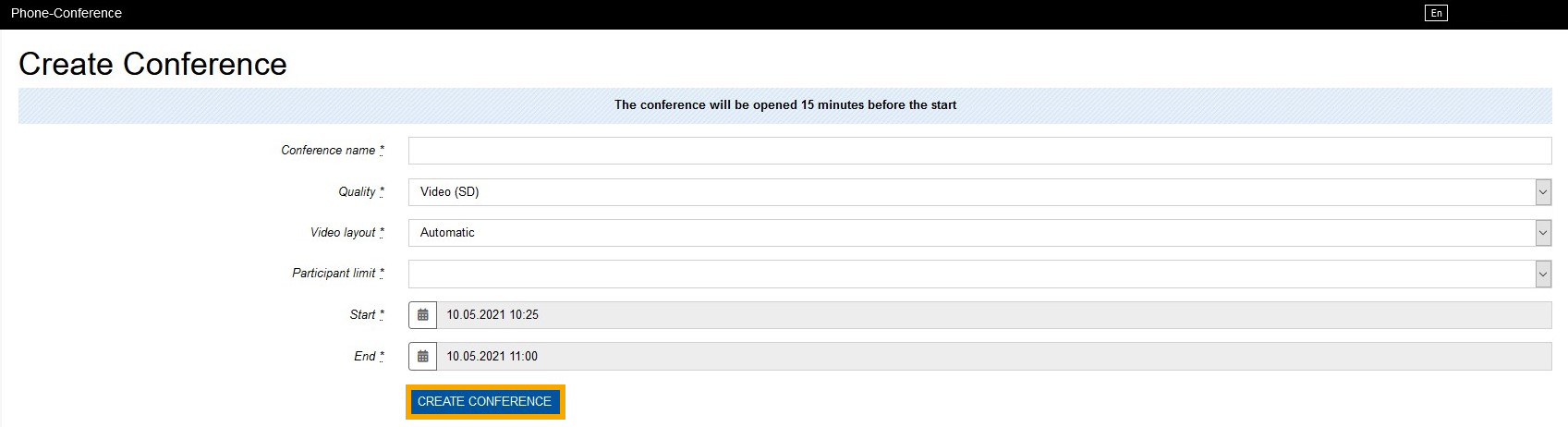
This window allows you to set the parameters for the new conference:
Conference name: Name of the conference
Quality: Select Video quality (SD / HDready / HD)
Video order: Defines the order of participant video screens
Participant Limit: Enter the maximum number of meeting participants
Start: Start date/time
End: End date/time
After clicking on create conference to confirm the chosen options, you will be returned to the conference overview page.
Step 4
The overview will now show all relevant information for the new conference.

