


Filter configurations with TK-Portal

To establish a filter configuration via the TK-Portal, you can use instructions below:
Activate Filter configuration
To activate the filter circuit in the TK portal, perform the following steps:
Step 1
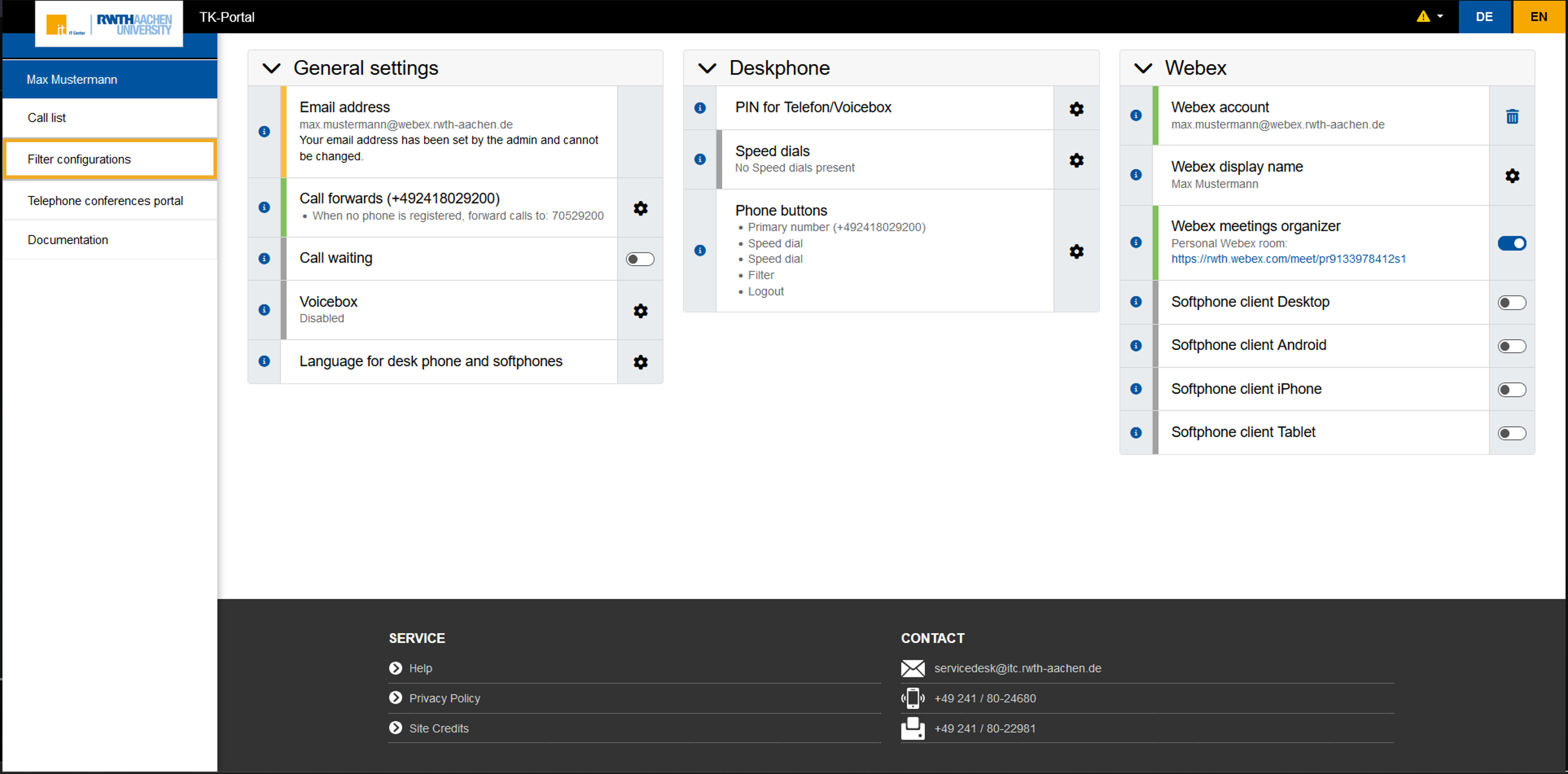
Call up the TK-Portal and navigate on the left-hand side to the point "Filter configurations".
Step 2
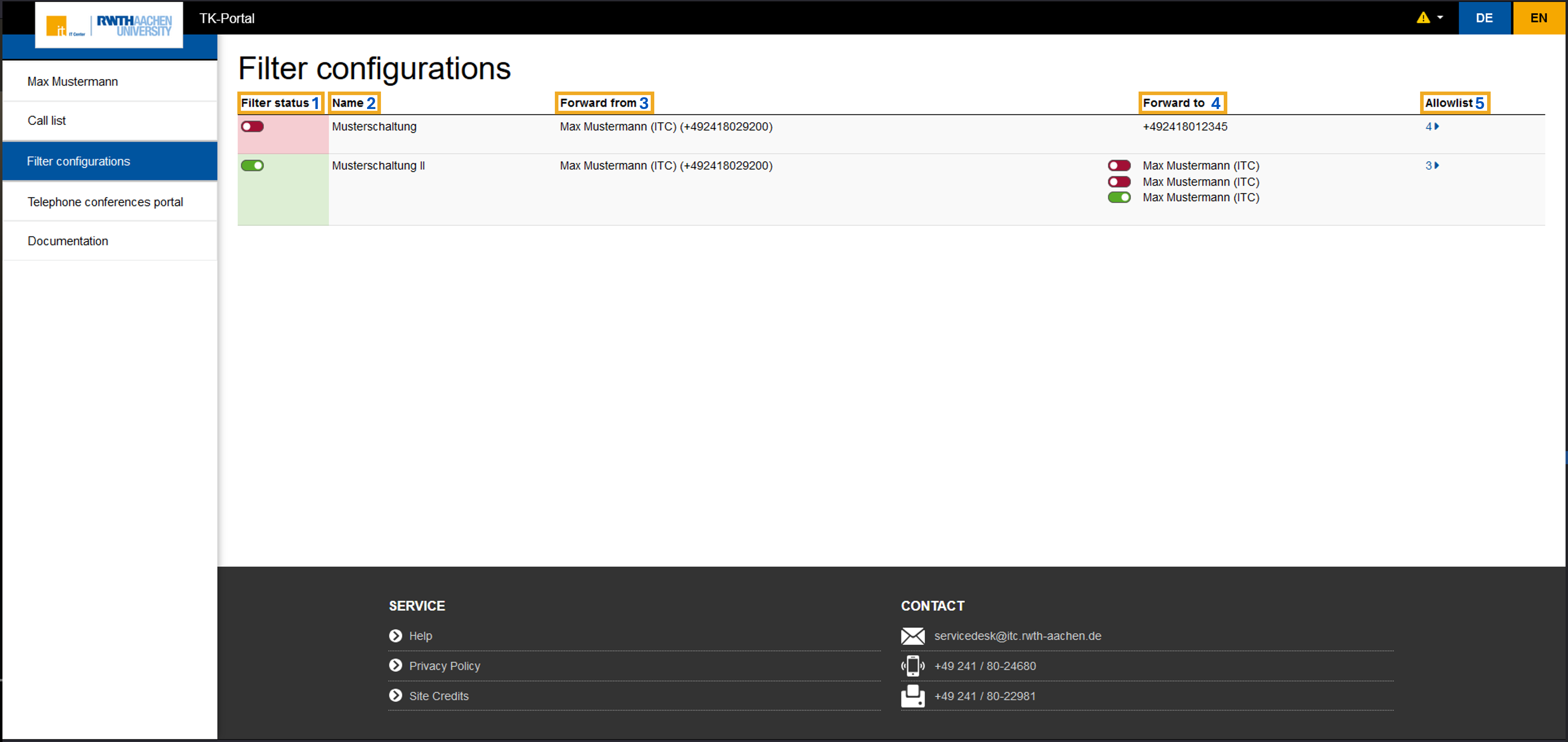
To activate the Filter configuration, click the slider in the Filter status area. If the displayed area is red, all calls go directly to the boss. If the area is green, the calls are forwarded to the selected person.

You can use the sliders at Forward to to specify who should be forwarded to (green) and to which people should not be forwarded (red).

Overview of Filter configuration
The view is divided into 5 areas:
Filter status (1): Defines to whom calls should forwarded to. Green means that the filter is active, red means the filter is not active.
Name (2): Name of the filter.
Forward from (3): Specifies the person for who this connection is active.
Forward to (4): This can be used to control the people to whom calls are forwarded when the filter is active.
If there is only one person listet, this cannot be activated or deactivated.
If there is more than person listet, the forwarding destination can be changed using the button in front of the name if the filter is active.
Allowlist(5): The Allowlist column shows which people/numbers are not blocked despite being actively connected.
These values can be changed centrally by the administration. For appropriate adjustments, please contact the IT-ServiceDesk.
Read also
