


Setup HPC VPN (externals only)


Important
This manual is intended for external cluster users who do not have direct access to the RWTH VPN.
RWTH members please consult our guide for RWTH VPN.
Connecting to the HPC cluster as an external user requires access to the HPC VPN. This manual describes how to register for, configure, and connect to the HPC VPN.
Before continuing, make sure you have:
- An existing HPC account or are currently in the process of setting up your HPC account.
- Set Up Multifactor-Authentication
Proceed with the following steps to configure HPC VPN.
Step 1
Log in to the RWTH Regapp by following the instructions in the manual Login RWTH RegApp.
Step 2
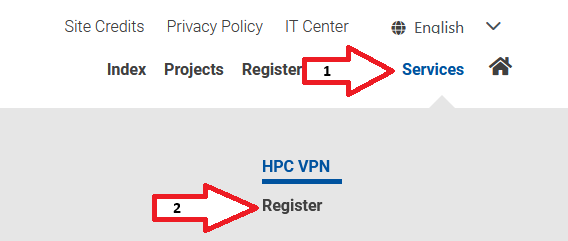
You will now see the RWTH RegApp dashboard as shown in the screenshot below. Select the menu entry Services and locate the HPC VPN entry. Click the Register button beneath it.
Step 3
Accept the terms of use and then click the button Register.

Step 4
Set the password for your HPC VPN service by following the instructions in the manual Change HPC VPN Password.
Step 5
Download the VPN client (wird in neuem Tab geöffnet) and install it by following the Cisco Secure Client (AnyConnect) installation guide. The linked guide covers Windows; instructions for other operating systems are available in the navigation menu on that page.
Step 6
Open Cisco Secure Client and enter the following server address and click on connect
vpn.hpc.rwth-aachen.deWhen prompted, enter the HPC VPN service password you created in Step 3, followed by your 2FA token from the multi-factor authentication setup.
If the connection fails, contact our service desk at (E-Mail schreiben an:) servicedesk@itc.rwth-aachen.de.
You have now successfully enabled access to the HPC VPN.
