


Change HPC VPN Password (externals only)

This manual describes how to (re)set the password for your HPC VPN service.
This manual requires that you either have an existing HPC account or are currently in the process of setting up your HPC account.
To (re)set the password for your HPC VPN service, follow the steps below.
Step 1
If you are already logged into the RWTH RegApp, proceed directly to Step 2. Otherwise, follow the manual Login RWTH RegApp.
Step 2
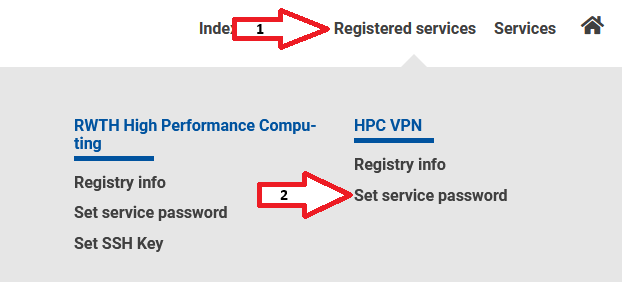
On the RWTH RegApp dashboard, click on the "Set service password" button below the HPC VPN service description, as highlighted in the screenshot.
Step 3
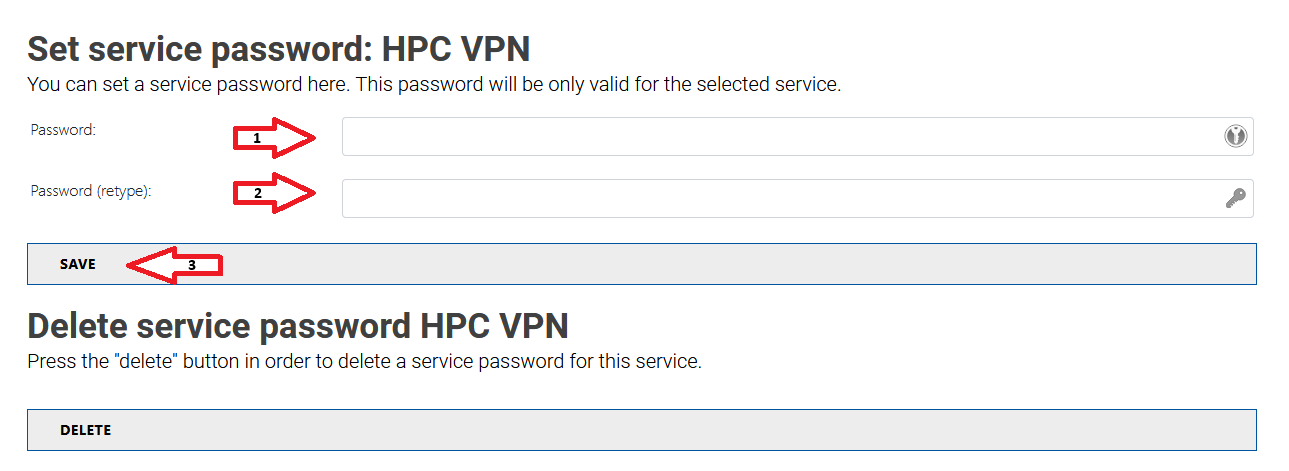
You will be redirected to a page where you can enter your new password. Type the password twice in the respective field to confirm it, then click the "Save" button.
You have now successfully (re)set your HPC VPN service password.
