
You are located in service: RWTH High Performance Computing (Linux)

Login to RegApp

Login to RegApp

guide

This article describes how to log in to the RegApp.

Please follow these steps:

Step 1
Open the RegApp in your browser.

Step 2
Use the search field to select your home organization and click "Proceed".
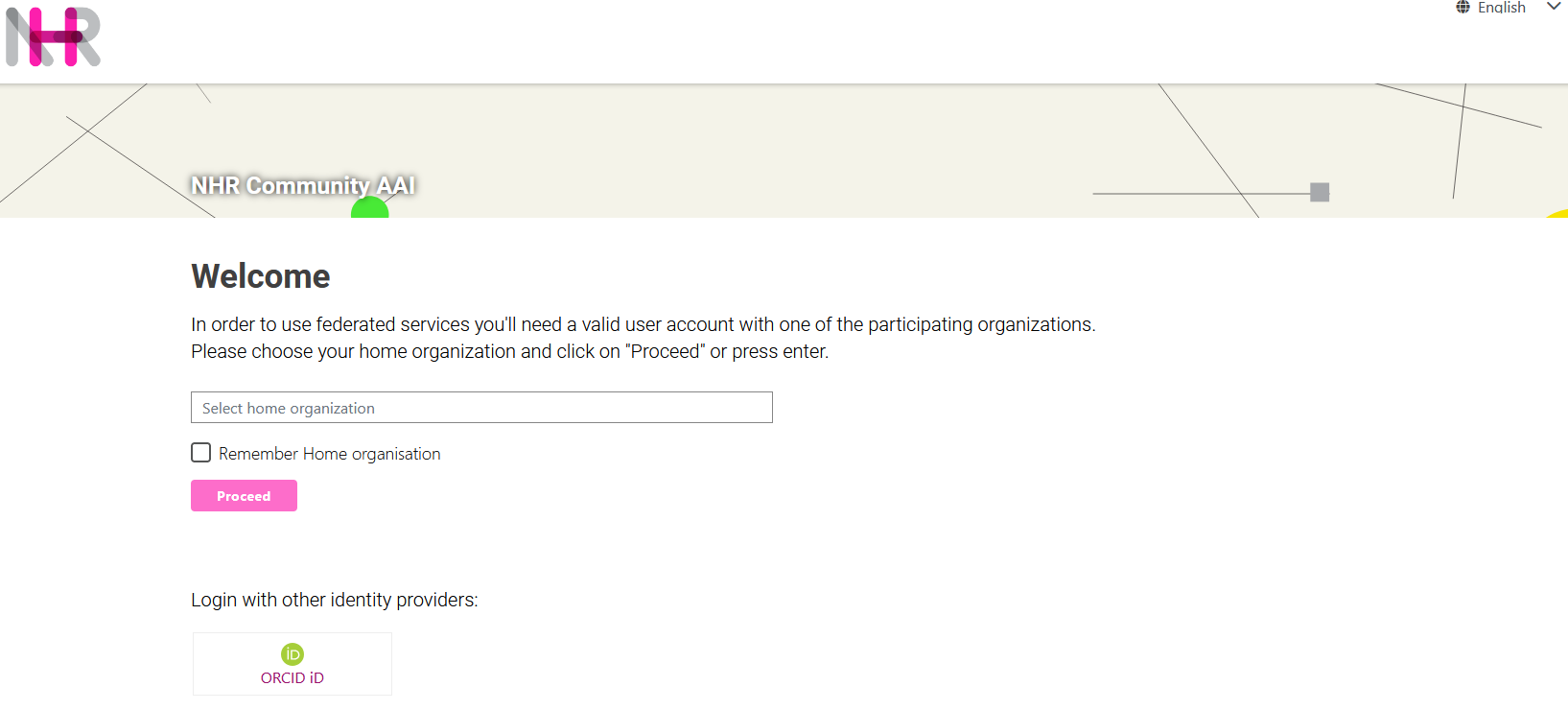
Screenshot of the Loginpage for the RegApp. At the top, the NHR logo is displayed, and a language selection menu shows “English” as the active language. Below, a banner contains the text “NHR Community AAI.” The main heading reads “Welcome.” Under the heading, text explains: “In order to use federated services you'll need a valid user account with one of the participating organizations. Please choose your home organization and click on ‘Proceed’ or press enter.” A drop-down menu labeled “Select home organization” is visible. In the search field, the text “RWTH” is entered. In the dropdown list, “RWTH Aachen University” appears, highlighted with a mouse cursor above it to indicate it as the selected home organization. Below the menu, a pink button labeled “Proceed” is shown. Further down, text reads “Login with other identity providers.” At the bottom, a white button labeled “ORCID iD” with a green ORCID logo is displayed.

Step 3
You will be redirected to your home organization’s authentication procedure. Enter your corresponding login credentials there.

Users from RWTH Aachen University are redirected to the RWTH Single Sign-On (SSO).

After successful login, you will see the RegApp Dashboard. From here you can proceed to:

  • Register an HPC account
  • Manage Multifactor Authentication (MFA) for your HPC Account 
  • Add an SSH-Key to your HPC account

last changed on 11/28/2025

How did this content help you?

Creative Commons Lizenzvertrag
This work is licensed under a Creative Commons Attribution - Share Alike 3.0 Germany License
