


Set Up Multifactor-Authentication

Connecting to the HPC cluster requires a second authentication factor in addition to the HPC account username and password. This manual describes how to set up multifactor-authentication (MFA).
In the following, the second authentication factor will be referred to as a 2FA token.
- Start Here: Access and Manage Your 2FA Tokens
- How to Create a TAN-list
- How to Create a Smartphone Token
Access and Manage 2FA Tokens
Step 0
This manual requires that you either have an existing HPC account or are currently in the process of setting up your HPC account.
Step 1
If you are already logged into the RWTH RegApp, proceed directly to Step 2. If not, please follow the manual Login RWTH RegApp.
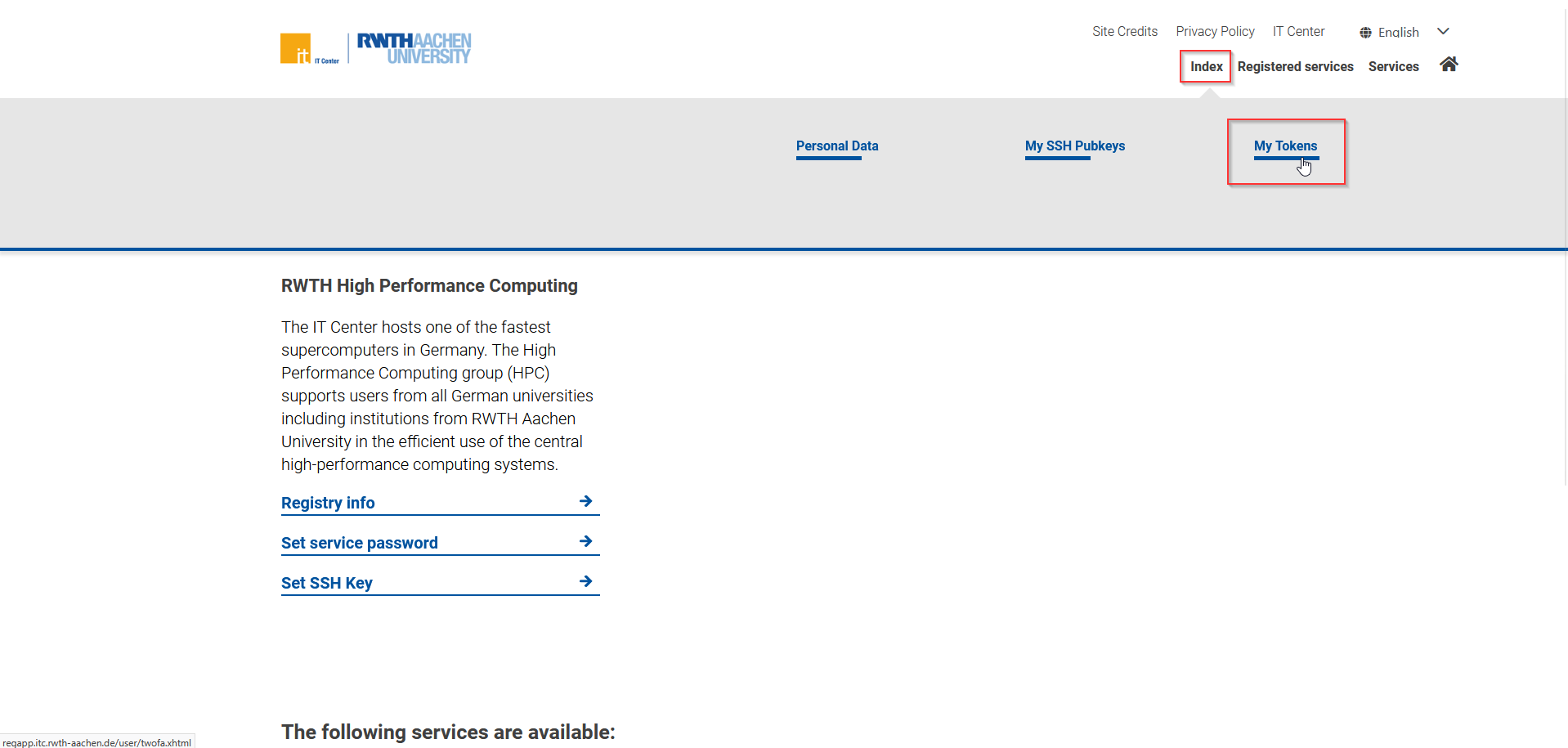
On the RWTH RegApp dashboard, navigate to the top-right corner. Hover your cursor over the "Index" button and click on "My Tokens" in the menu that appears.
Step 3
Depending on whether this is your first time following this manual or you have previously set up 2FA tokens for your HPC account, proceed accordingly:
- If this is your first time, proceed directly to Step 4.
- If you have previously set up 2FA tokens, you will be prompted to authenticate using one of your configured tokens. If you have lost access to all listed 2FA tokens you cannot proceed. Please reach contact us.
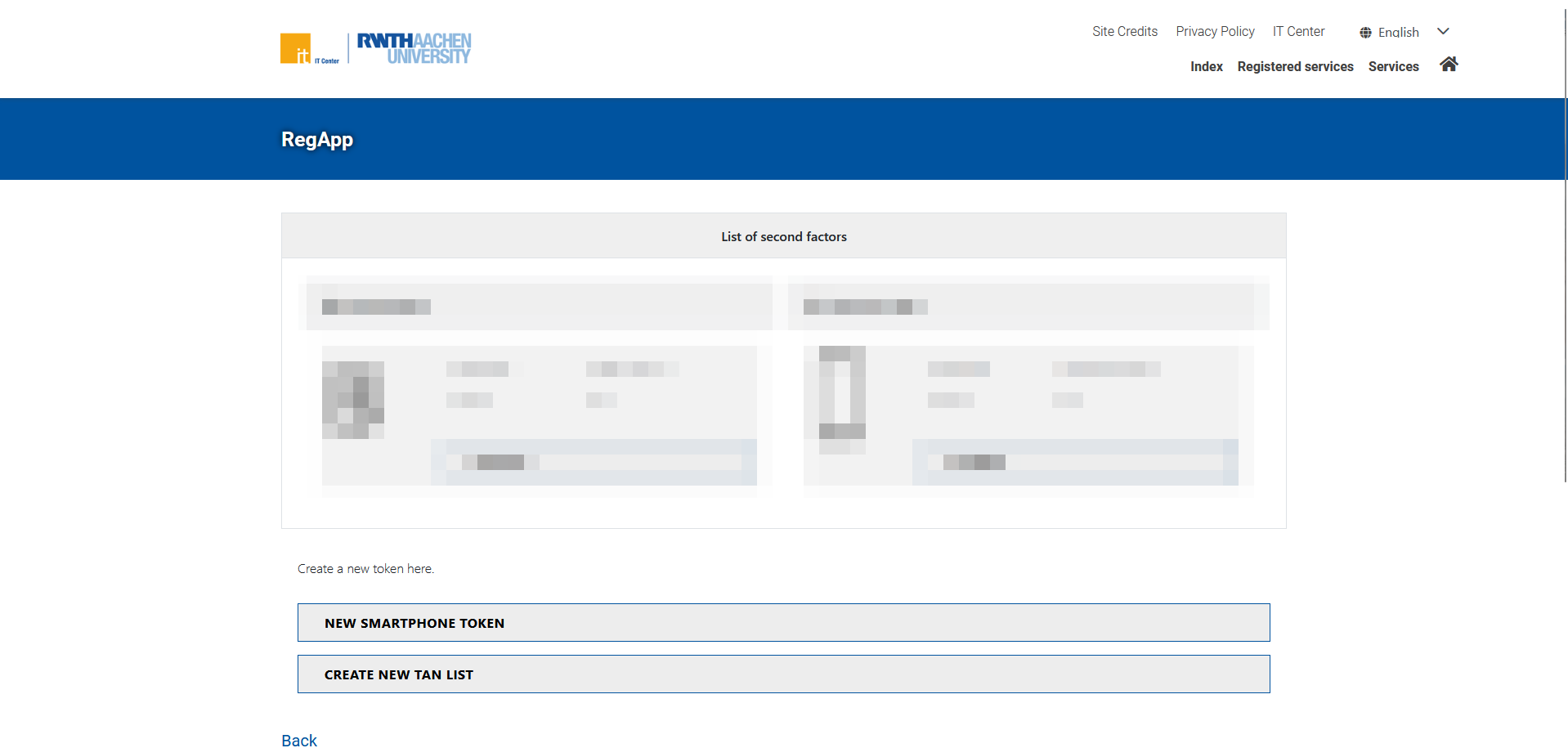
You will be redirected to a page that shows any previously registered 2FA tokens and allows you to configure a new 2FA token.
Previously registered 2FA tokens can be deleted or disabled.
For new 2FA tokens you can configure two types: TAN lists and smartphone tokens.
We recommend setting up both:
- Create a TAN list as a backup solution in case other 2FA tokens are lost
- Create a Smartphone Token for your everyday work
Please follow the corresponding sections on this page to see how to create these 2FA tokens.
Create a TAN list
Step 1
To generate a list of TAN-Tokens, click the button CREATE NEW TAN LIST.
Step 2
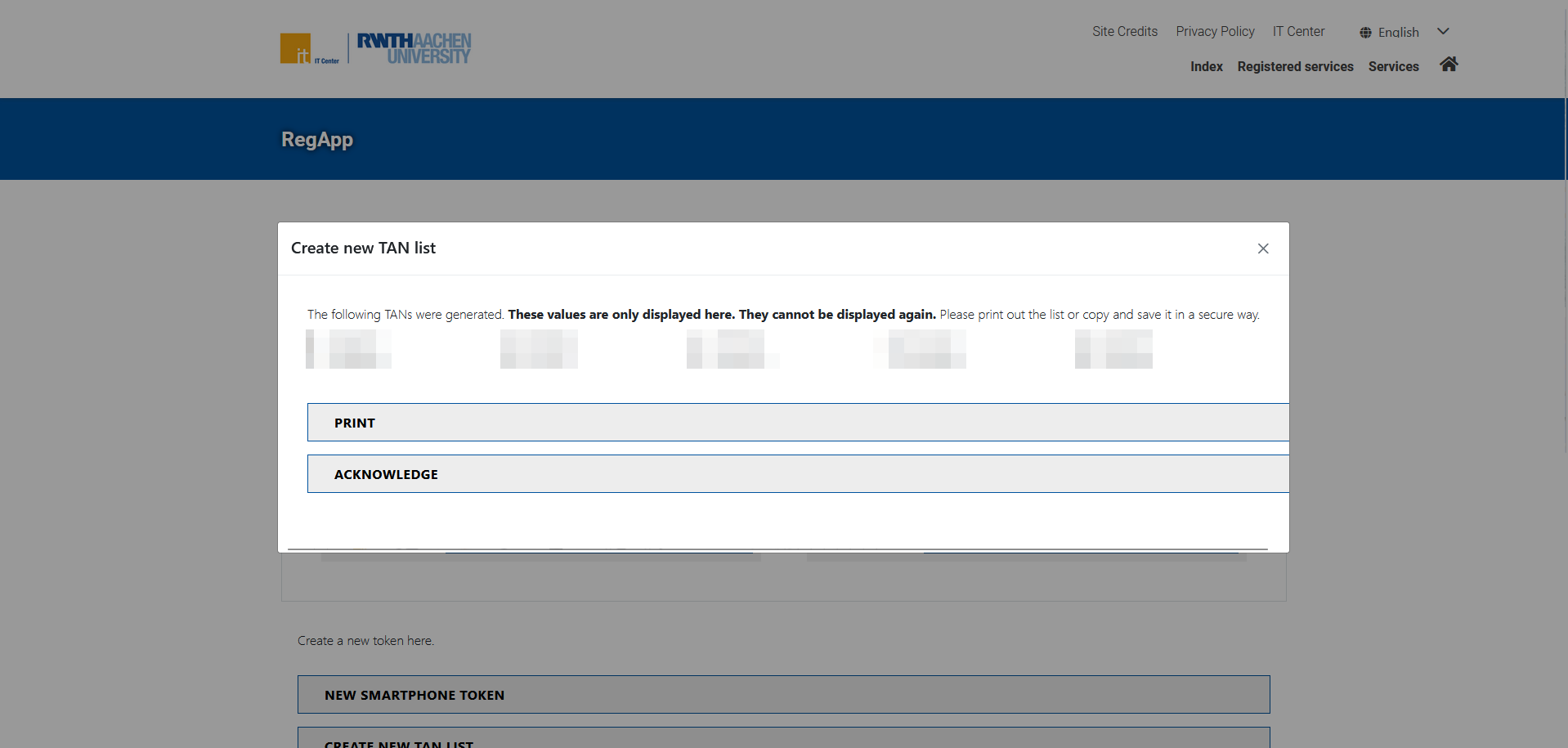
The dialog displays your TAN list. Download or print the list now and store it securely so that no third party can access it.
Important: The list is shown only once. After you close the dialog, it cannot be displayed again. Make sure you keep a local copy.
Create a Smartphone Token
Step 1
To generate a smartphone token, click the button NEW SMARTPHONE TOKEN.
Step 2
Wait a few seconds for the setup dialog to appear. If nothing happens after about 10 seconds, reload the page; inactivity may have timed out your session.
Step 3
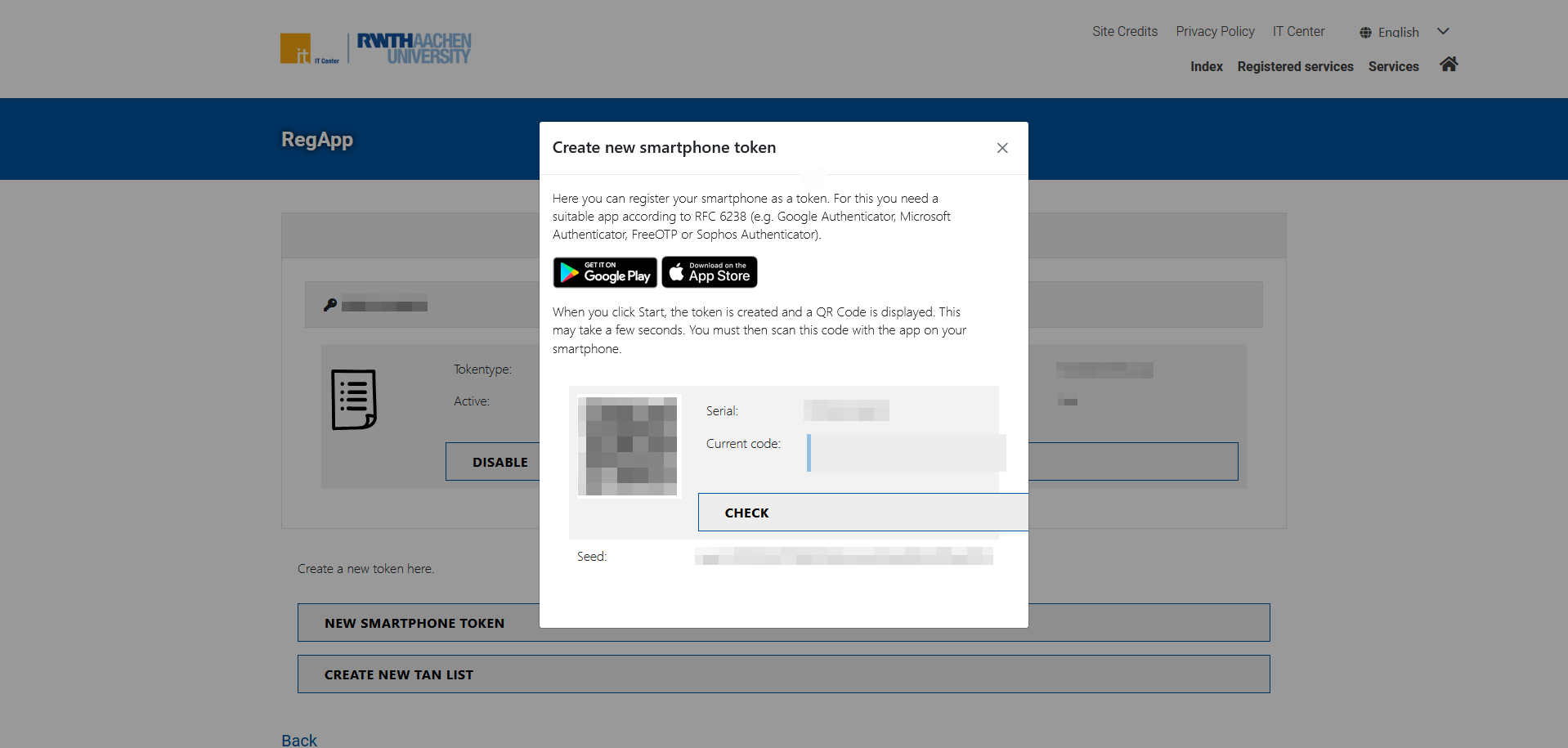
Open your authenticator app (e.g., FreeOTP, Google Authenticator) and scan the QR code.
Alternatively, you can enter the seed manually. Note: The seed is not base32-encoded, so some authenticator apps may not accept manual entry. Scanning the QR code is recommended.
You will also see a “Serial” string. This is the unique identifier the RegApp uses for your token; it is not the seed.
Step 4
To confirm the setup, enter the one-time code shown in your authenticator app into the “Current code” field in the RWTH RegApp.
Step 5
After confirmation, you can use this token as your second factor during authentication.
Optional: Set up a token on multiple devices (e.g., a smartphone and a tablet) to avoid losing access if a device is lost, stolen, damaged, or has a dead battery.
You have now successfully configured your 2FA token.
