


Change Your RWTH RegApp Identity Provider


Important
This manual applies only to external cluster users who:
- are not originally affiliated with RWTH Aachen University,
- created an RWTH account solely for the purpose of accessing the HPC cluster, and
- used that RWTH account to create their HPC cluster account in the RWTH RegApp.
This article describes how to change the Identity provider for an existing RWTH RegApp account.
An Identity Provider (IdP) is the service that verifies your identity when you log in to the RWTH RegApp. We also refer to this as your home organization - for example, the university or institution you are affiliated with.
Changing the IdP allows users to sign in to the RWTH RegApp using an IdP other than RWTH. This enables external users to access their RWTH RegApp account via their home organization, instead of relying on a dedicated RWTH Account.
Please follow these steps:
Step 0
Before you begin, please note: Adding a new Identity Provider for the RWTH RegApp is carried out within the NHR RegApp, which acts as a proxy for the former. The NHR RegApp is only needed for completing this change. Afterwards, you will continue to use the RWTH RegApp to manage your HPC account as usual.
Step 1
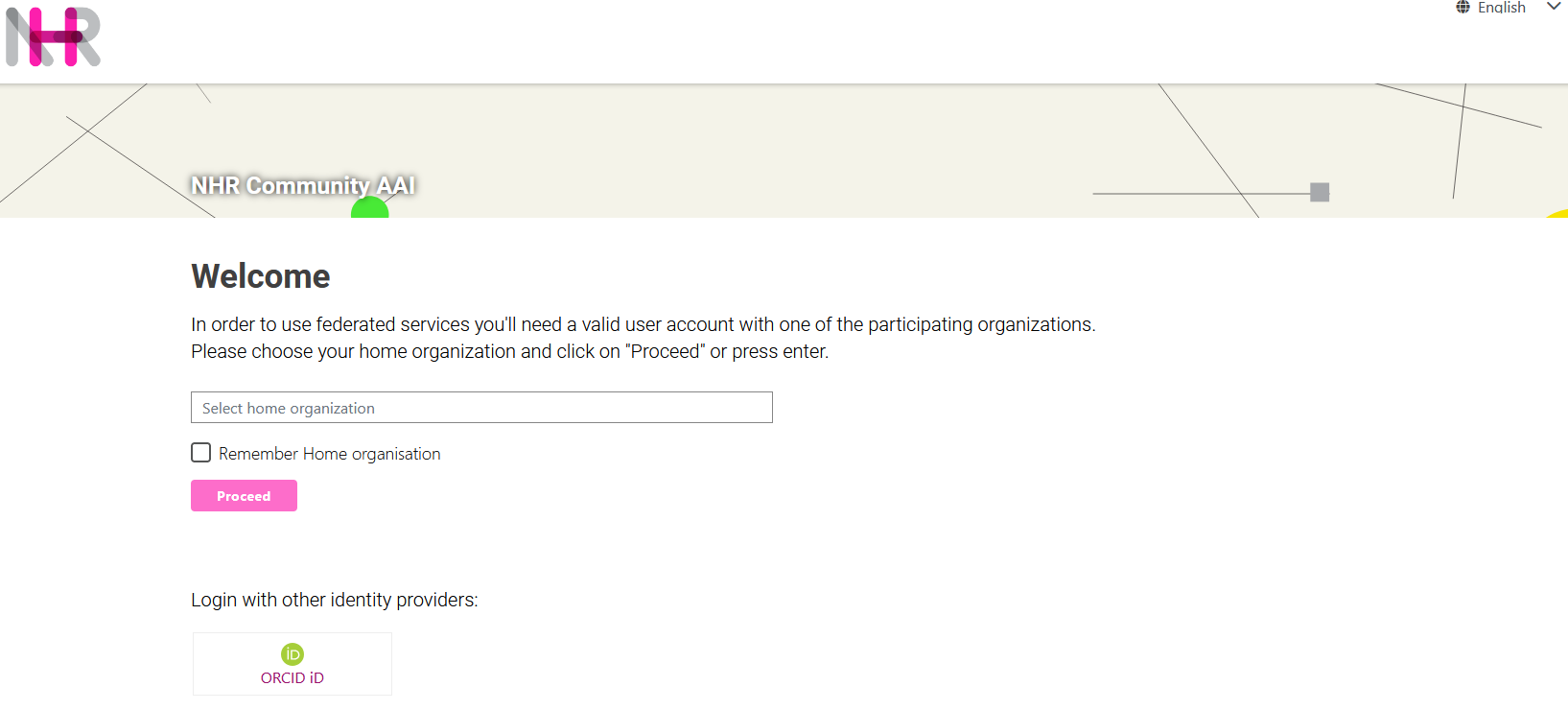
Open the NHR RegApp in your browser.
Step 2
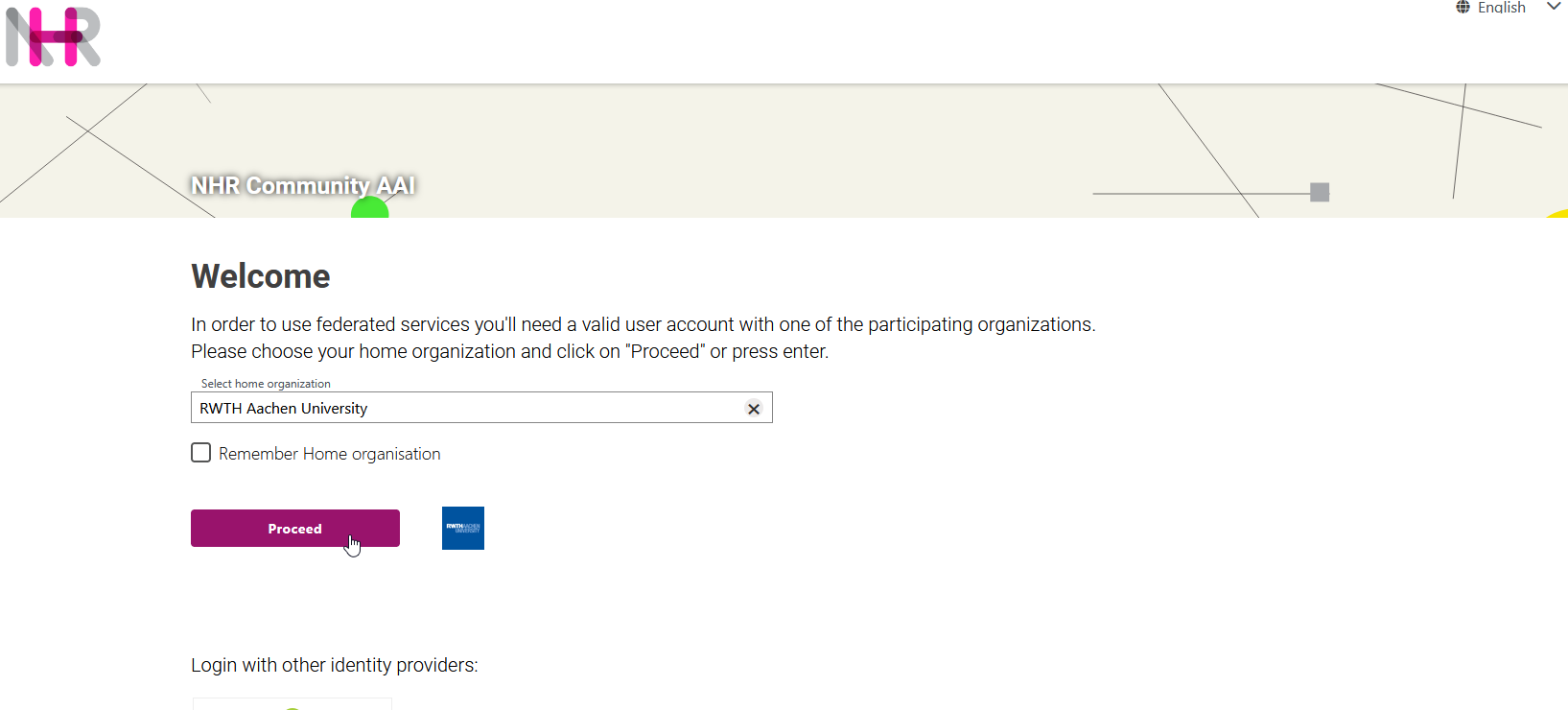
To login please select "RWTH Aachen University" as your home organization. Click on the "Proceed" button to continue.
Step 3
You will be redirected to the RWTH Single Sign-On (SSO). Please enter your login credentials to login.
Step 4
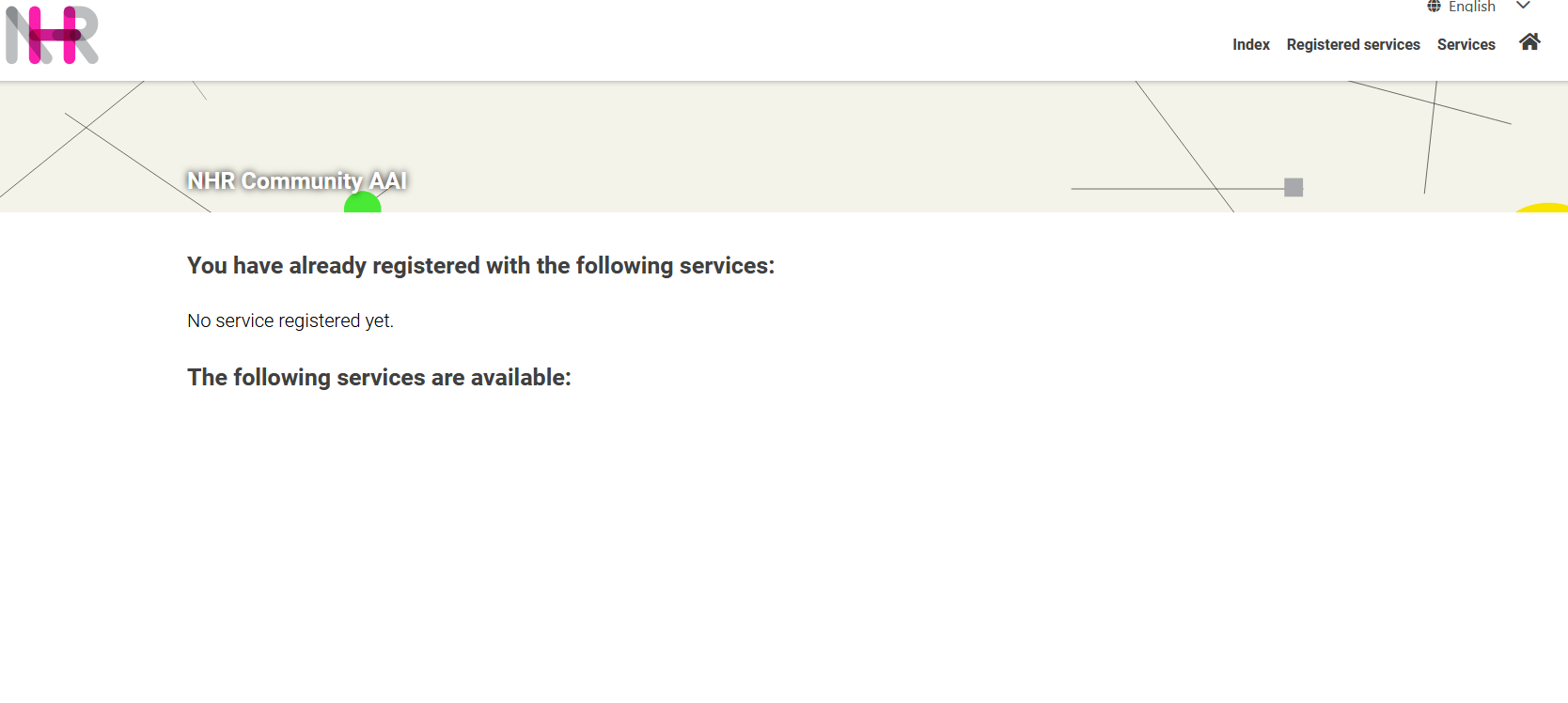
After successful authentication you will see the following page. Please open the following URL to add a new Identity Provider.
Step 5
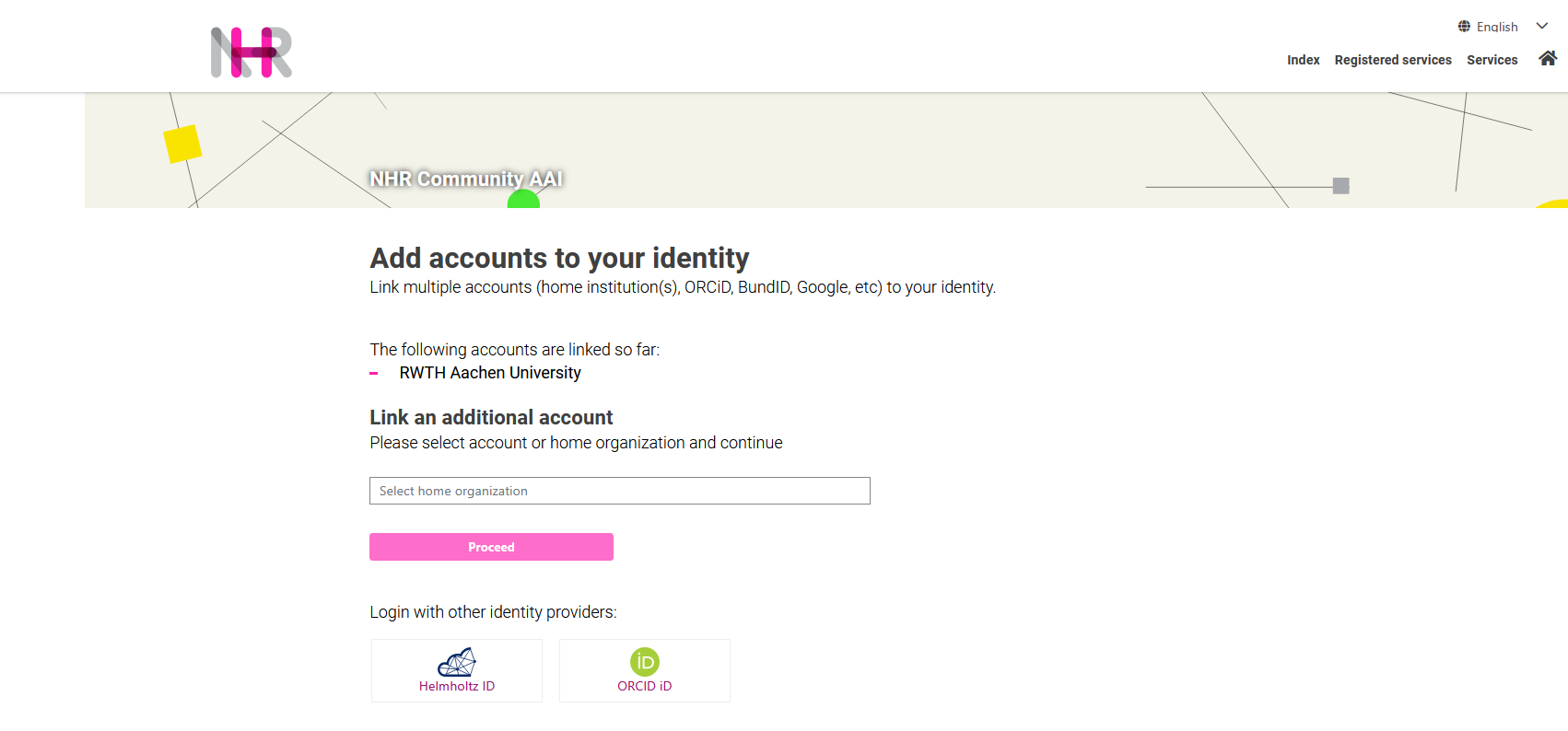
You will see an overview of accounts currently linked to your RWTH RegApp account.
If this is your first time following these instructions, the overview will only show your RWTH account as a linked account.
If this is not the case, please stop here and reach out to us.
Step 6
You can now link an additional account. Select your home IdP from the search bar and click "Proceed" to continue.
Only IdPs connected to the DFN-AAI are available for selection. If your IdP does not appear in the list, please use ORCID as your IdP instead. You can select ORCID by clicking the ORCID iD icon located below the heading "Login with other identity providers". Please note that if you do not yet have an ORCID account, you will need to register for one beforehand.
Step 7
You will be redirected to your chosen IdP's authentication procedure. Please follow the required steps to authenticate.
Step 8
After successful authentication, the next step depends on whether you have already used the NHR RegApp with your home IdP before.
Please continue with a) or b) respectively.
a) You have never used the NHR RegApp with your home IdP
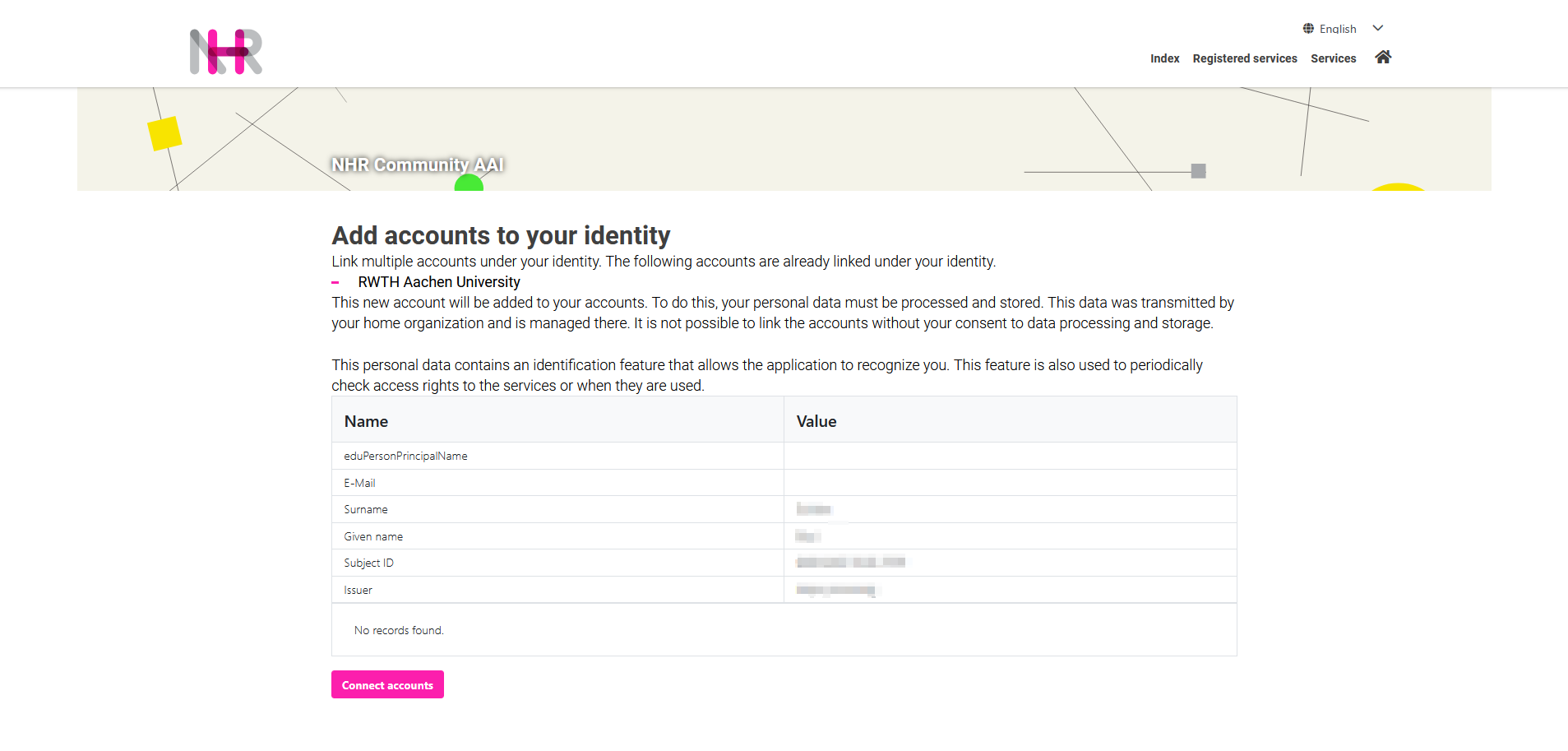
In this case, you will be required to acknowledge the personal data your selected IdP transmits. A summary as shown in the screenshot will be displayed. Please note that the transmitted attributes depend on the respective IdP. Additional or different attributes may appear compared to the screenshot.
If all information is correct, click "Connect Accounts" to complete the linking process.
b) You have previously used the NHR RegApp with your home IdP
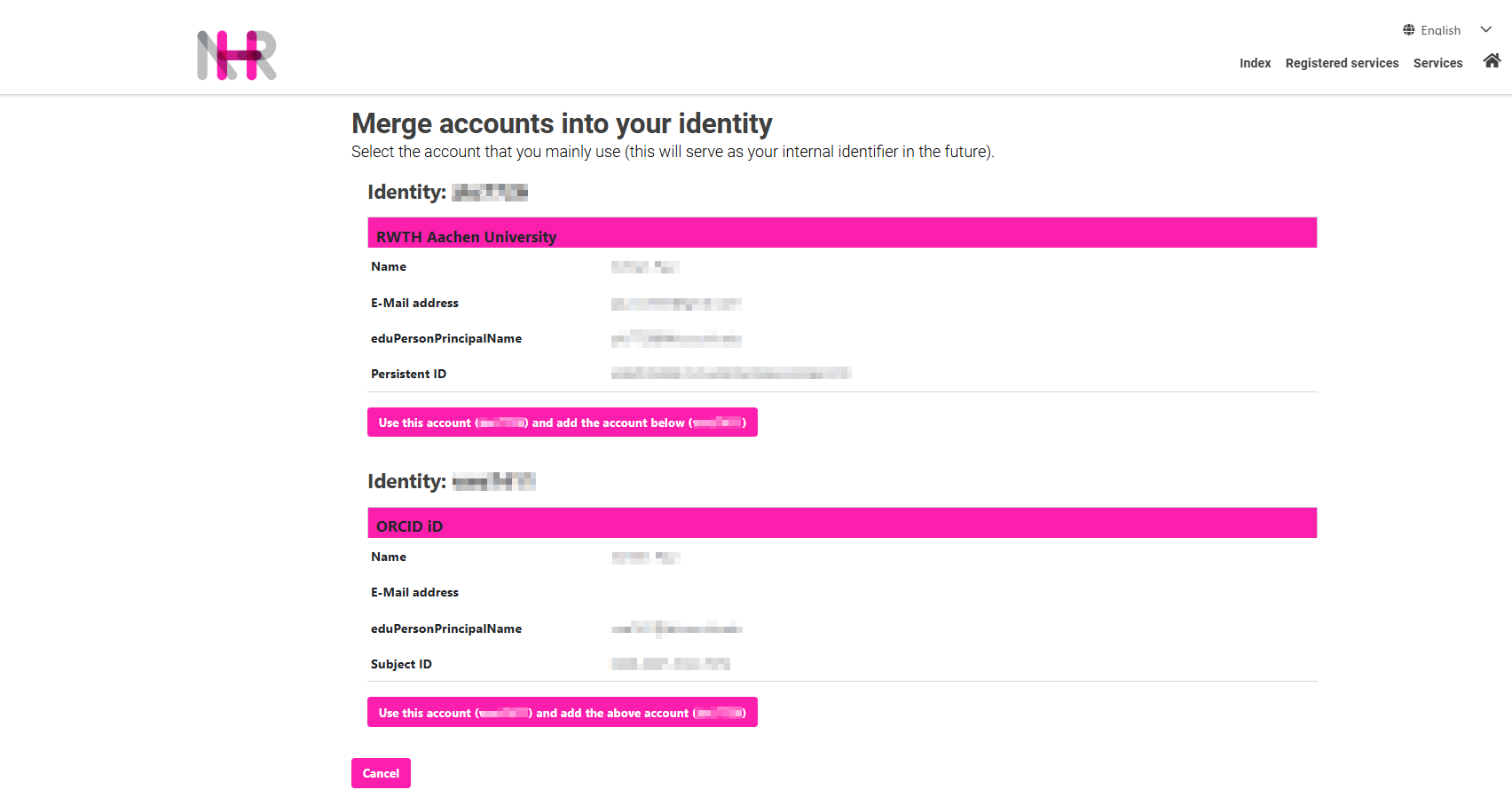
In this case, the system will detect that an identity already exists in the NHR RegApp for your account at the selected IdP. The website will prompt you to merge the identities: the identity automatically created after Step 3 (associated with your RWTH Account) and the already existing identity (associated with your home IdP Account).
Please select the button directly below the RWTH Aachen University entry to merge.
Step 9
You will be redirected to an overview of accounts linked to your RWTH RegApp account. Compared to Step 5 you should now see the newly linked account listed.
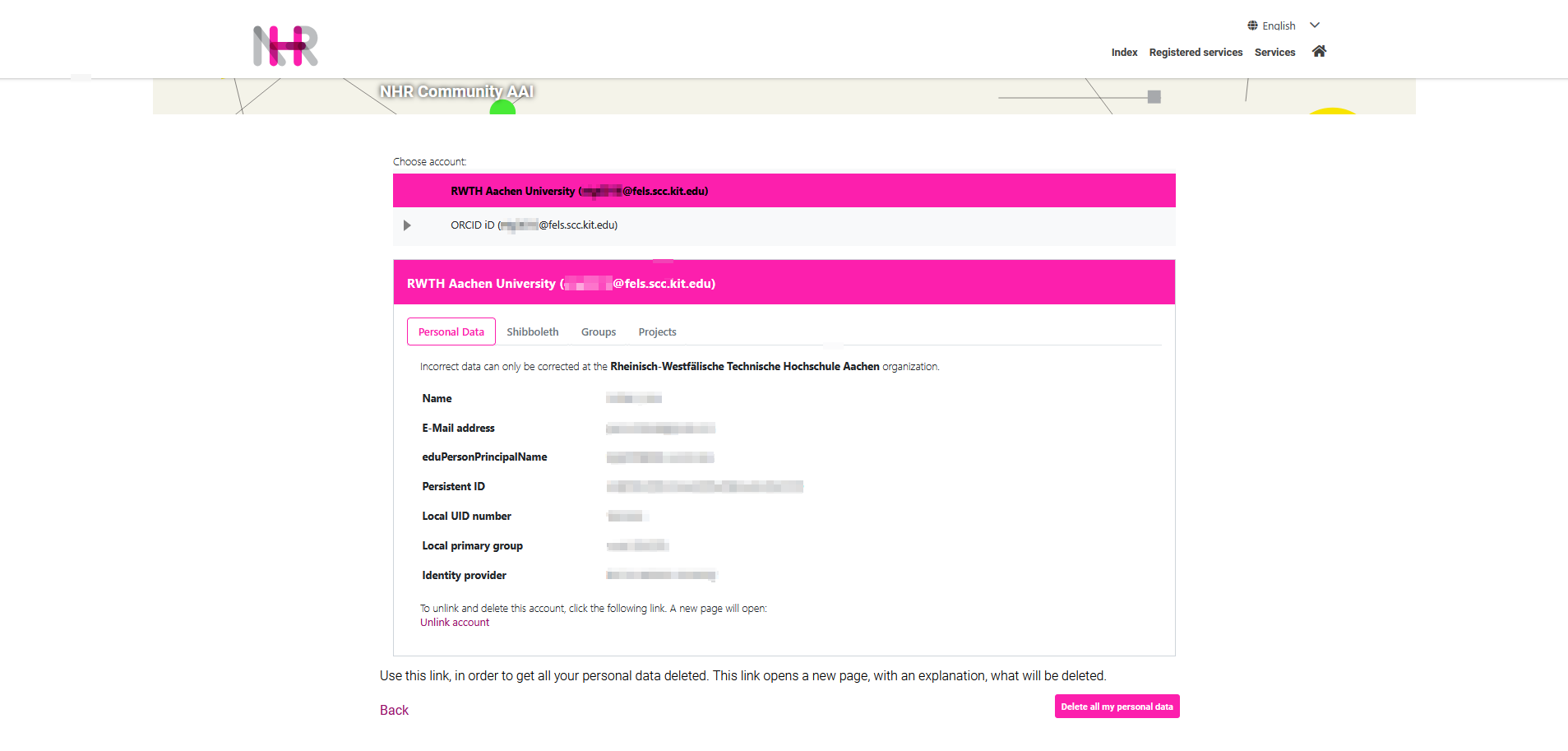
You can now use this newly added account to log in to the RWTH RegApp.
