


Setup the HPC Account with the RWTH RegApp

This article describes how to setup your HPC account for accessing our clusters. HPC accounts are created and managed via the RWTH RegApp.
Step 0
Please make sure that you have carefully read about the access requirements to our clusters before following this manual.
Step 1
Log in to the RWTH Regapp by following the instructions in the manual Login RWTH RegApp.
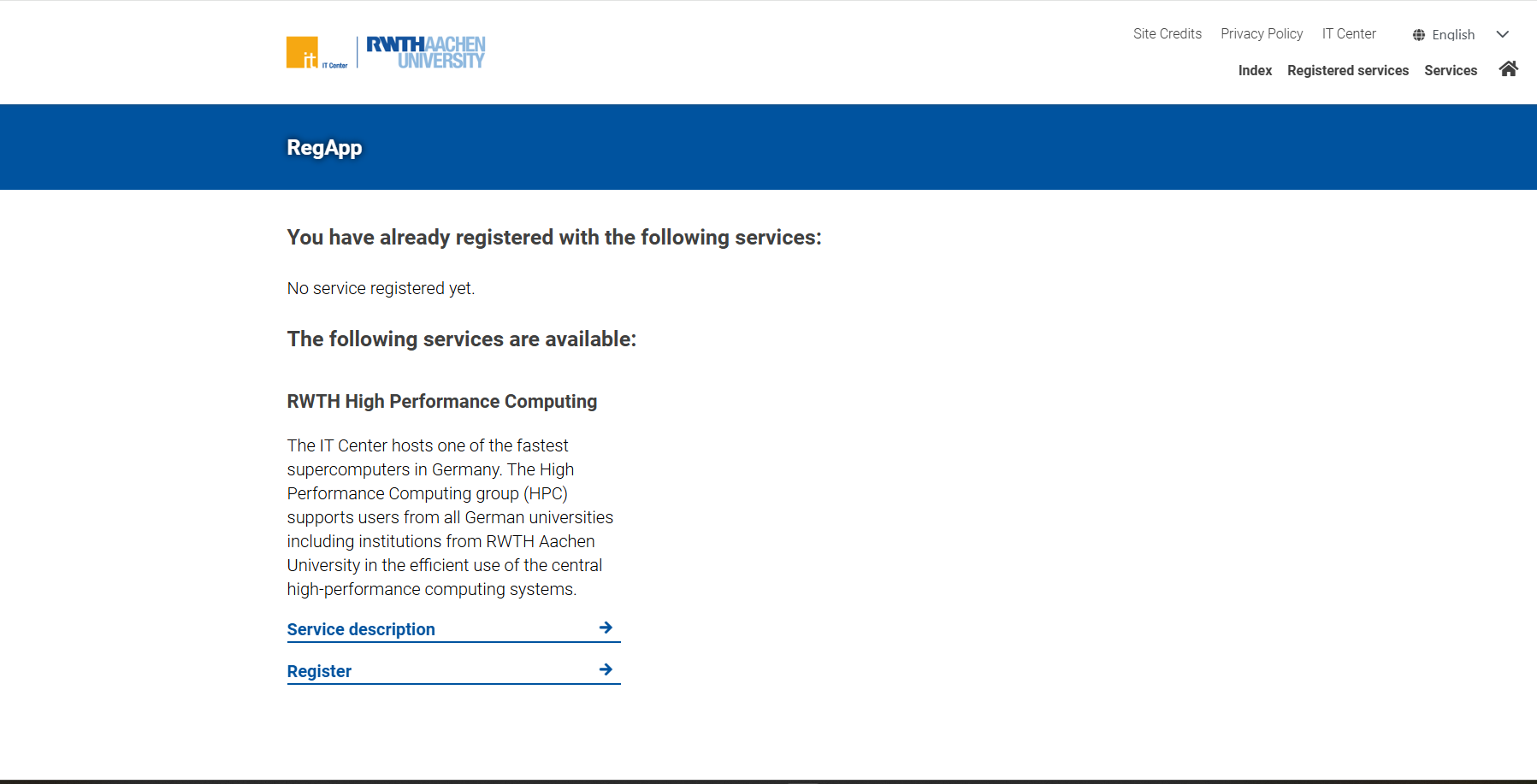
You will now see the RWTH RegApp Dashboard as shown in the screenshot below.
Check that under the heading "You have already registered with the following services" it says "No services registered yet".
- If this is the case, click the "Register" button below the RWTH High Performance Computing service description.
- If this is not the case, you already have an HPC account. If you have registered for an account but have not completed all the steps in this manual, you can continue with Step 4.
Step 3
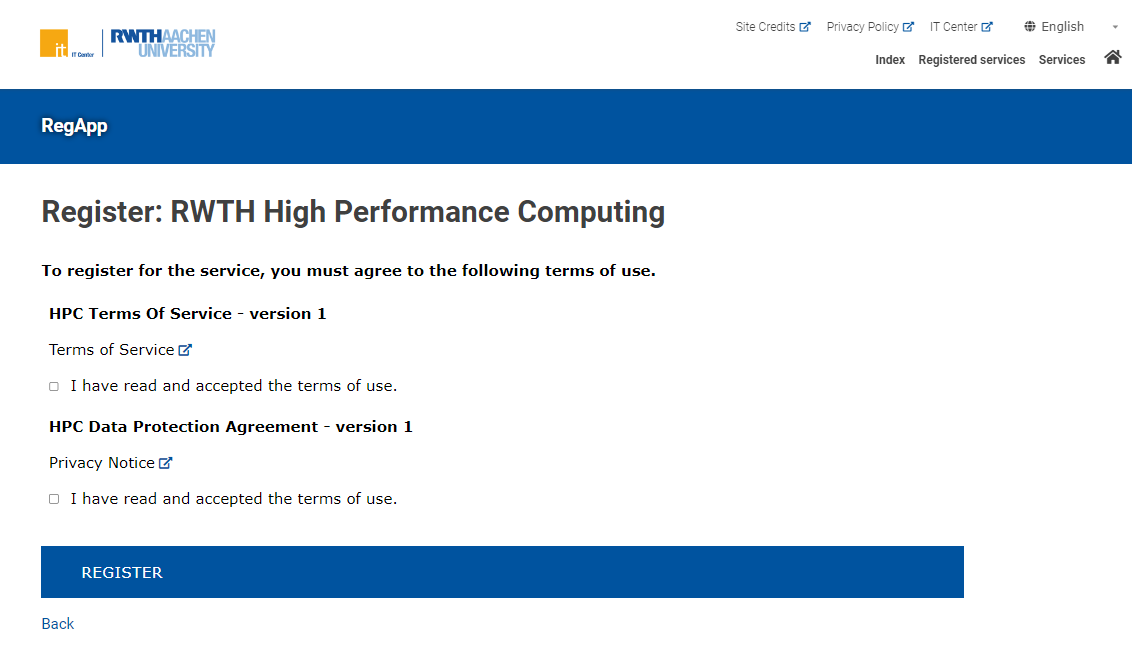
You will be redirected to the registration page where the Terms of Service and Data Protection Agreement are listed. Please read both carefully and accept them by ticking the respective checkboxes. Finally, click the "Register" button at the bottom of the page.
If you see a banner stating "Error: You are not allowed to use an HPC account",This means the account you used to log in to the RWTH RegApp does not provide the required attributes for HPC account registration. If you are unsure, please contact us for assistance.
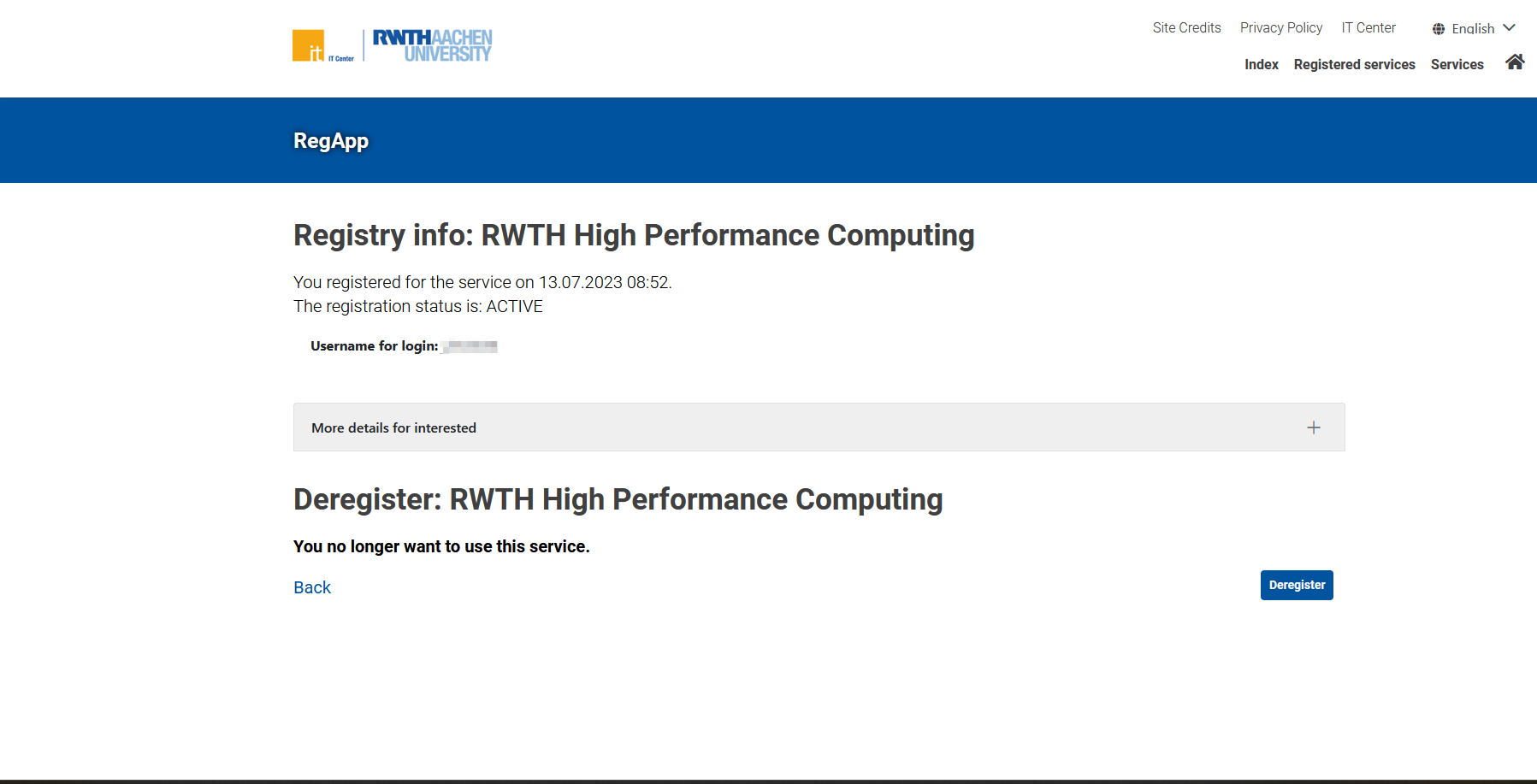
The page you are redirected to will list your registration details, such as the registration time and your HPC account username.
If you reached this step directly from Step 2 and cannot recall your HPC username, please refer to the manual Find HPC Account Username. It leads to the page shown in the screenshot below, where you can retrieve your HPC account username and proceed.
To continue, return to the RWTH RegApp Dashboard by either clicking the "Back" or "Index" button on the top right.
Now set the password for your HPC account by following the instructions in the manual Change the Password.
Connecting to the HPC cluster does additionally require multifactor-authentication. To configure a respective 2FA token please follow the instructions in the manual Set Up Multifactor-Authentication.
Step 7
You have now successfully registered an HPC account. For connecting to the HPC cluster you will need
Next Steps
- There are several ways to connect to the cluster. Please refer to the following guides for detailed instructions:
- To simplify the connection process, you may optionally configure SSH keys for authentication. See the following guide for instructions:
