


Download Software

After purchasing the software via the shop, you will receive an email containing the necessary license and software information. This email includes links to the license server.
You can also access the download link and product key directly in the software shop.
Step 1
To do this, click on your profile and a drop-down menu will open. Select Orders from the menu.

Step 2
Select the desired software from your orders and click on Show details.

Step 3
A summary of your order will now be displayed.
If you want to download the product, click on Download. You will then be redirected to the download area.

Step 4
The download server is accessible via RWTH Single Sign-On. After successful login, you will be redirected to the server. A connection to the RWTH network is not required to access it.
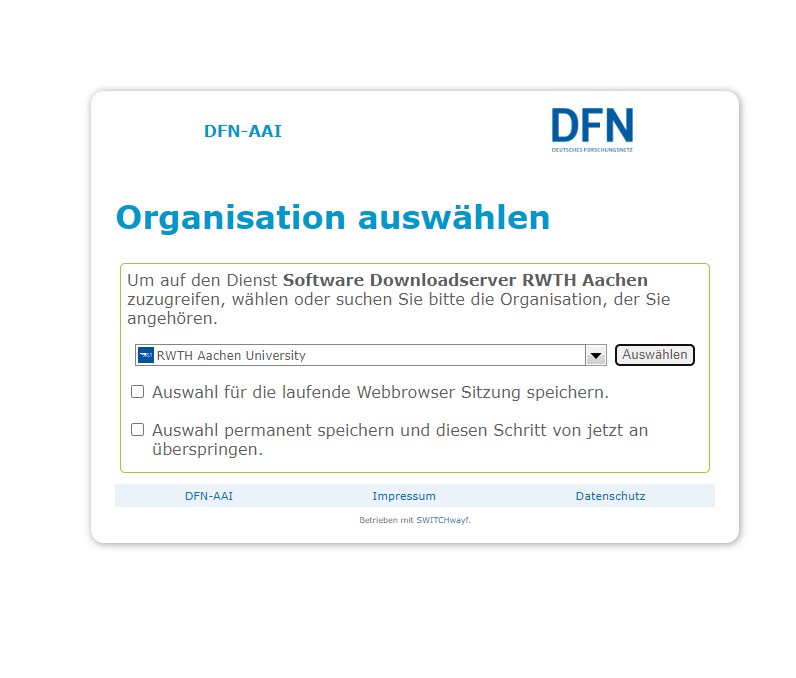
Step 5
The installation files can be obtained here.
Instructions and important information regarding installation can be found in ITC_README_Lizenzinformationen.txt.
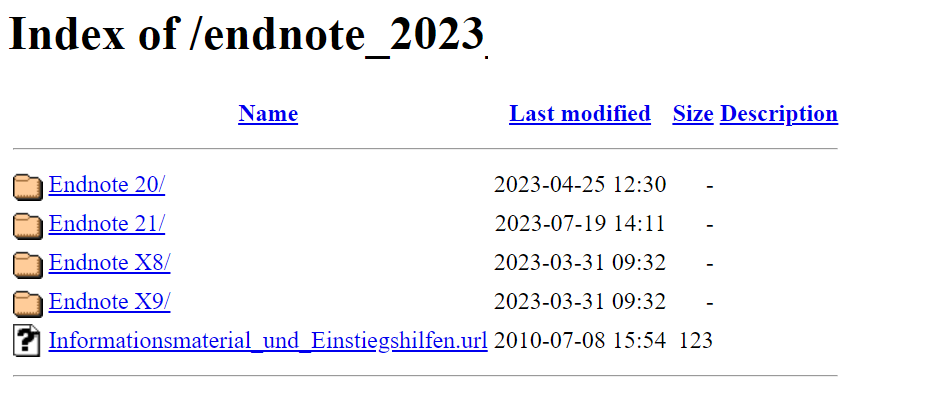
Step 6
If the software requires a product key, you will also find it in the same field as the link to the download server on the order confirmation. Simply click on the small arrow to display the information.


