


Order From the Software Shop


Note
On this page, you will learn how to place an order in the Software Shop (opens in new tab).
Please note that only persons with the role Bestellung IT or persons with the status Student (RWTH) can order products from the RWTH Software Shop. You can find a list of available price groups below. All RWTH members can view the products in the Software Shop as viewers. If you have questions regarding role assignment, please contact the person with the role Verwaltung Rollen at your institution.
Step 1
Open the Software Shop website (opens in new tab) and enter your RWTH email address or egal@rwth-aachen.de. Confirm your entry by clicking on Log in:
Step 2
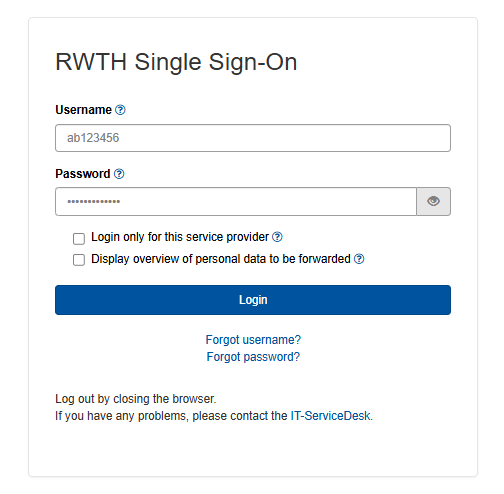
You will now be redirected to the RWTH Aachen Single Sign-On (SSO) to log in:
Step 3
As an option, you can click on the filter to narrow down the products by price group. Depending on your role or status, you can use the filter to see which products you can order or only view:
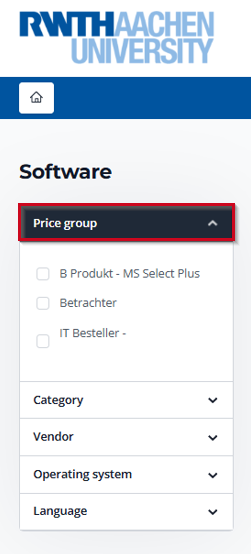
Depending on your permissions, different price groups may be available to you, for example:
- Viewer
- Student
- IT Orderer – General
- IT Orderer – (Parent term of your organizational unit)
- B Product – MS Select Plus
It is possible that multiple price groups will be displayed.
Note: Price groups are merely higher-level groupings. They only indicate which products can be ordered based on the role assigned by your institution, not which cost center the order is assigned to. Assignment to the cost center occurs in a later step.
Step 4
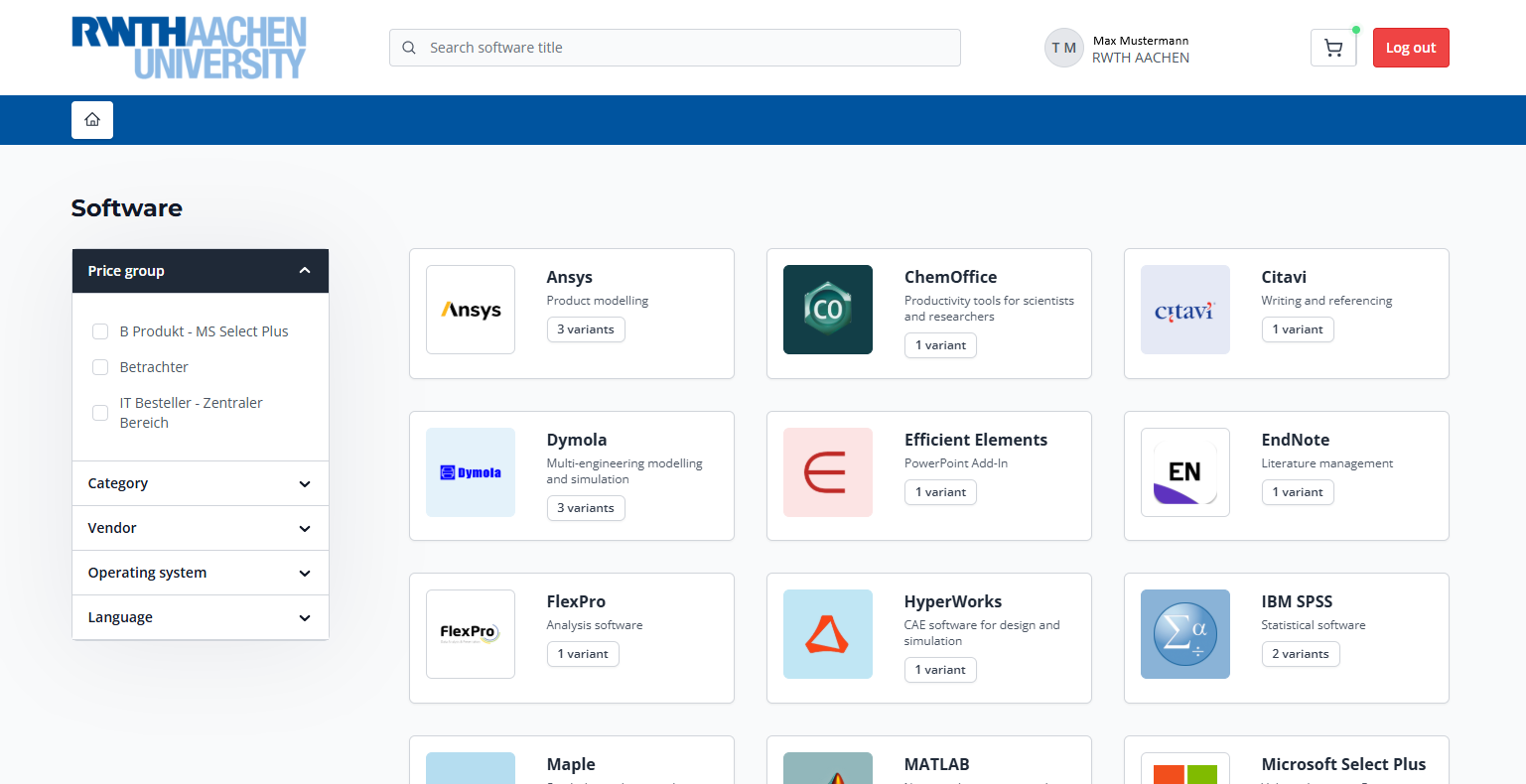
You can now select the desired software:
Notes:
- For each product, the price group for which it can be ordered is displayed (see next two screenshots).
- If you have multiple price groups, the same product will be displayed multiple times. In this case, select the product for the desired price group.
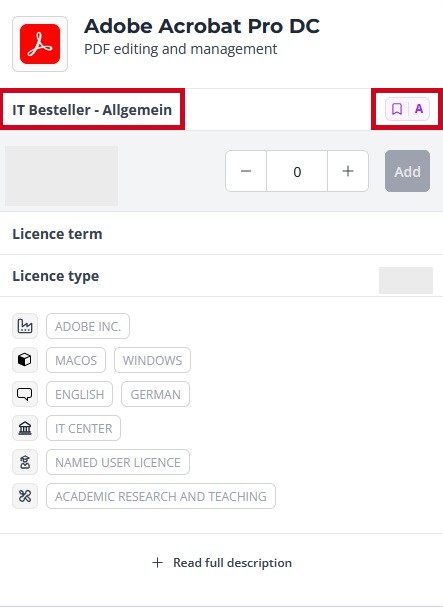
- A and B products are marked differently:
A products are marked with a purple flag bearing the letter A. In this example, persons from the price group IT Besteller - Allgemein can order this product:
B products are marked with a green flag bearing the letter B. In this example, persons from the price group B Produkt - MS Select Plus can order this product:

Step 5
Click on Add to add the software to your shopping cart:

Step 6
Click on the shopping cart icon on the top right corner to review your shopping cart:
Step 7
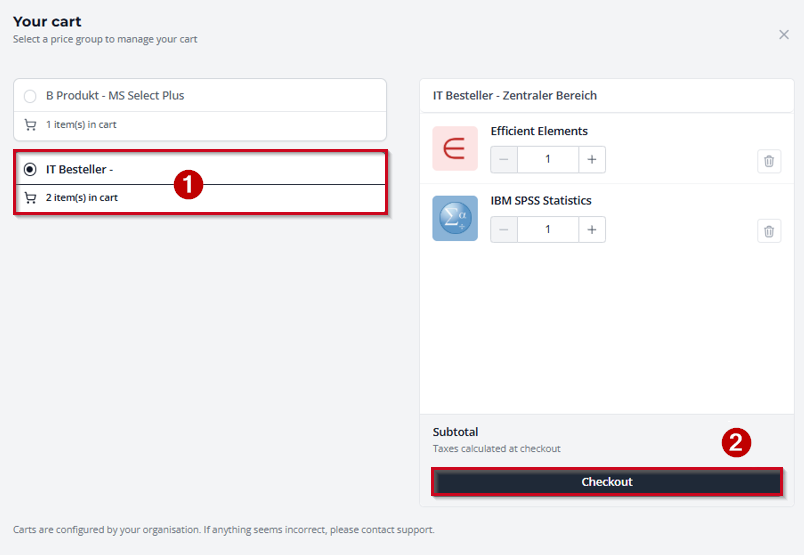
- Select the desired price group to complete the order for that group. Please note that products are displayed separately in the shopping cart depending on their price group.
- Click on Checkout to proceed to the next step of the payment process.
If you have additional products from a different price group in your shopping cart, they will remain there and can be ordered in a later payment process.
This way, you will receive a separate invoice for each order process and price group.
Step 8
Accept the Terms of Use. Depending on which price group you belong to, the subsequent process differs for
A) Student orders and
B) Orders for persons with the role Bestellung IT:
A) Student orders
- Check the box next to I agree with the General Terms and Conditions
- Click on Continue:

B) Order for persons with the role Bestellung IT
- Select the costcenter for which institution you wish to place the order. If you are an IT purchaser for multiple institutions, a multiple-selection option will be displayed.
- Price Group IT Purchaser: For software that requires payment, a PSP element must also be specified. This ensures the correct allocation of costs within the respective institution. The image below shows this scenario.

- Price Group B Products – MS Select Plus: In this case it is not necessary to specify a PSP element. The image differs only in that external verification (PSP) is missing for orders in this price group.

Step 9
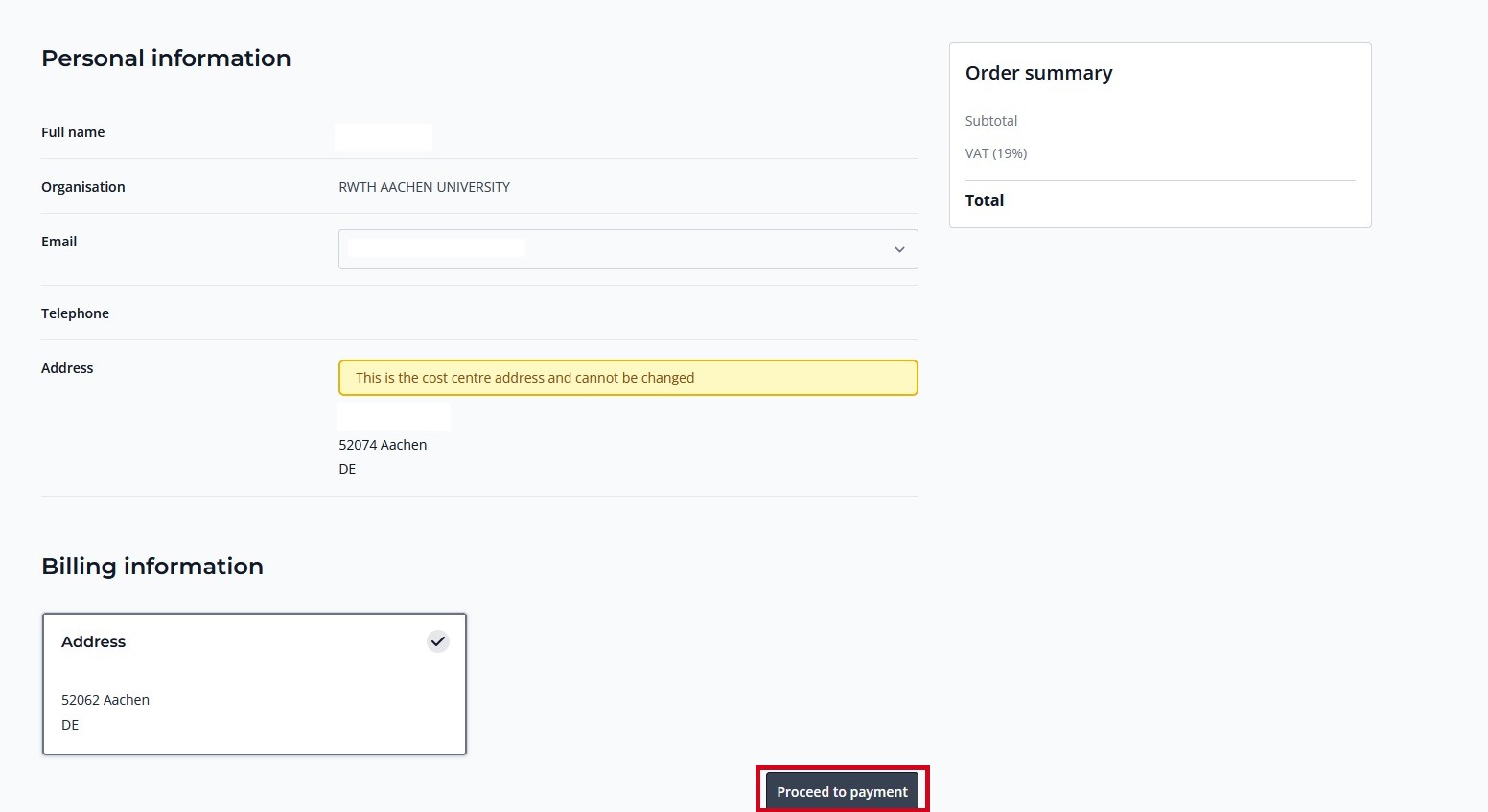
Click on Proceed to payment to complete the purchase:
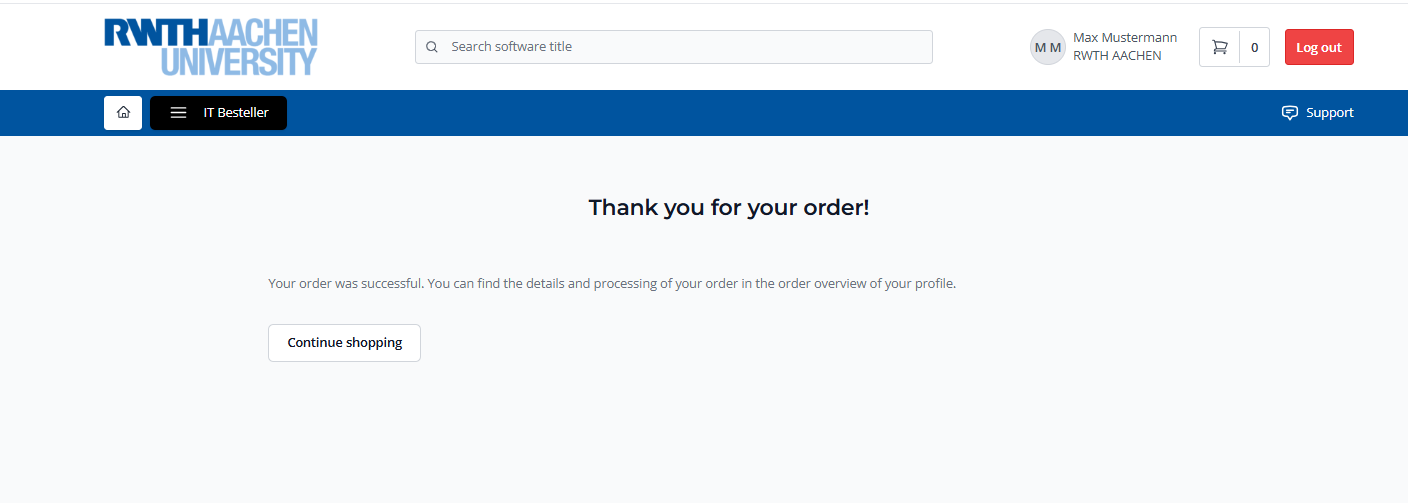
You will receive the message Thank you for your order. The ordering process is complete:
Step 10
You will receive an order confirmation by email. It contains a link to download the software. If you ordered a product for which a product key is required, you will receive it in a separate email.
Under Download Software you will also find instructions on how to find the download link and, if necessary, the product key directly in the Software-Shop.
