


Ordering A products

On this page, you will find instructions on how to place an order via the Software-Shop (Academic Software).
Please note that you can only order products in the Software-Shop for A-Products if you hold the role "Bestellung-IT" or "Studierende" (Students). All members of RWTH can view the products in the Software-Shop for A-Products as viewers. If you have questions regarding role assignment, please contact the role manager of your institution.
Step 1
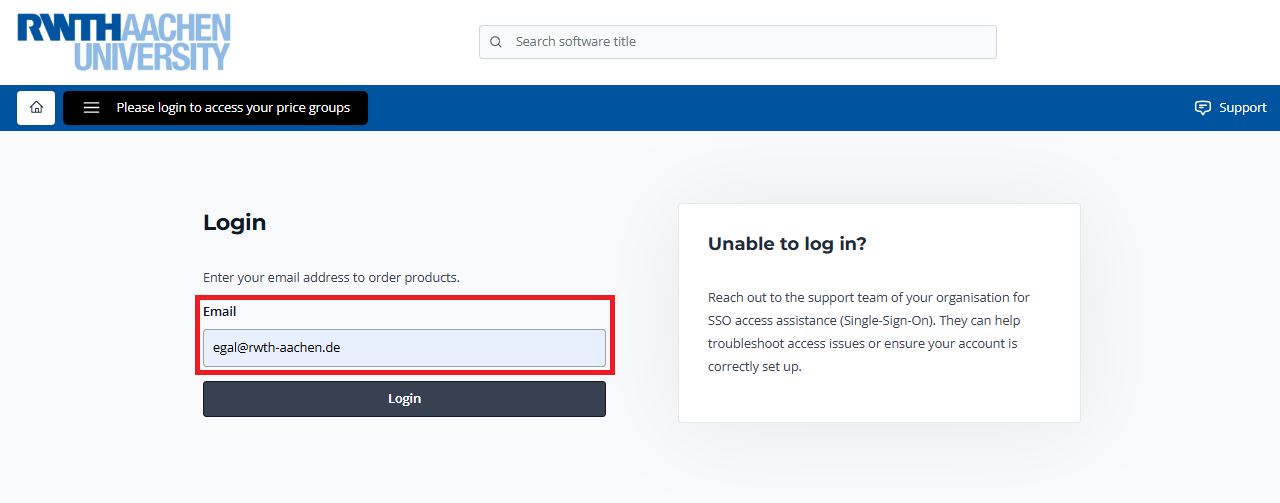
Open the Academic Software website and enter the email address egal@rwth-aachen.de.
Step 2
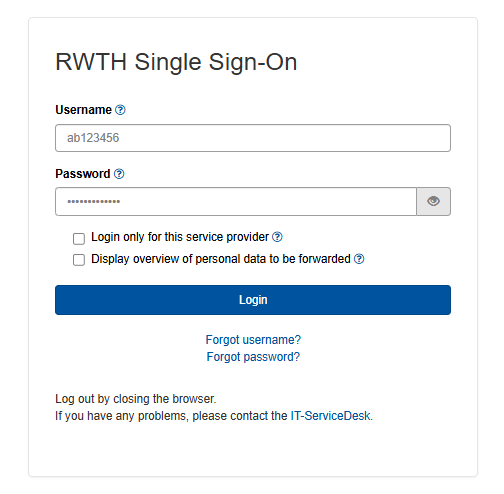
You will now be redirected to the RWTH Aachen Single Sign-On (SSO) to log in.
Step 3
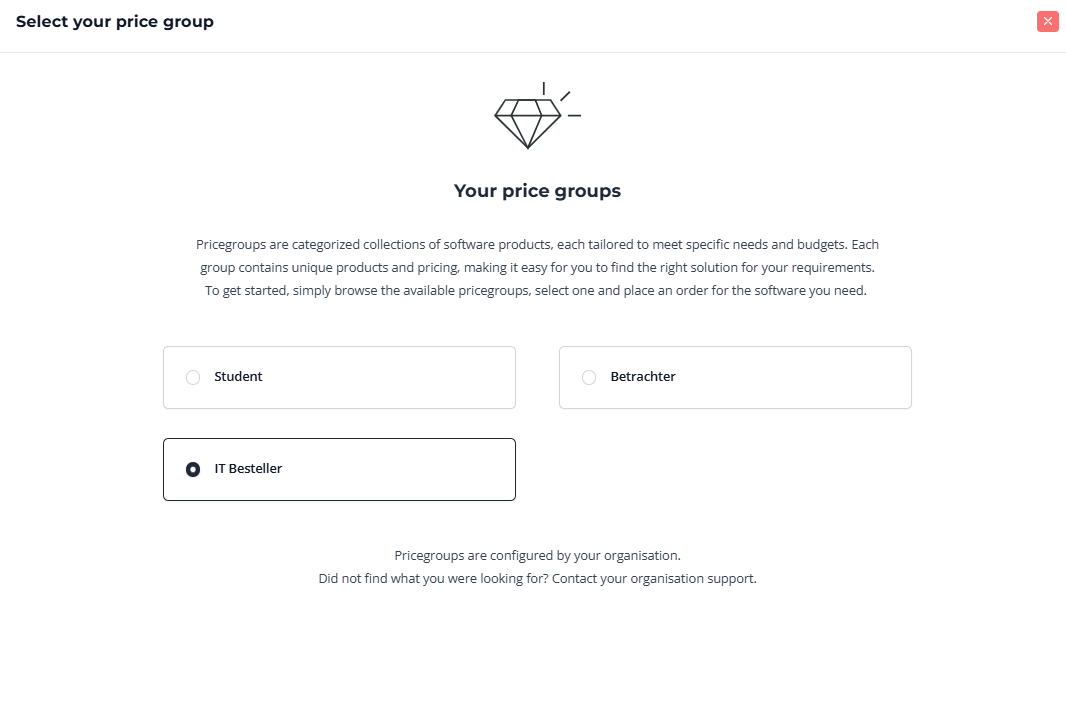
To the right of the Home button, you have the option to select and switch the person group you received through the role assignment at RWTH.

Select the respective price group you wish to order with.
- Students: Price group Student
- IT Purchasers: Price group IT-Besteller ORG-ID
If you are an IT purchaser for several institutions, select the appropriate price group for each.
Note:
The price groups are merely higher-level groupings representing your institution's affiliation. They only indicate which products can be ordered, not which cost center the order will be assigned to. The assignment to the cost center takes place in a later step.
Step 4
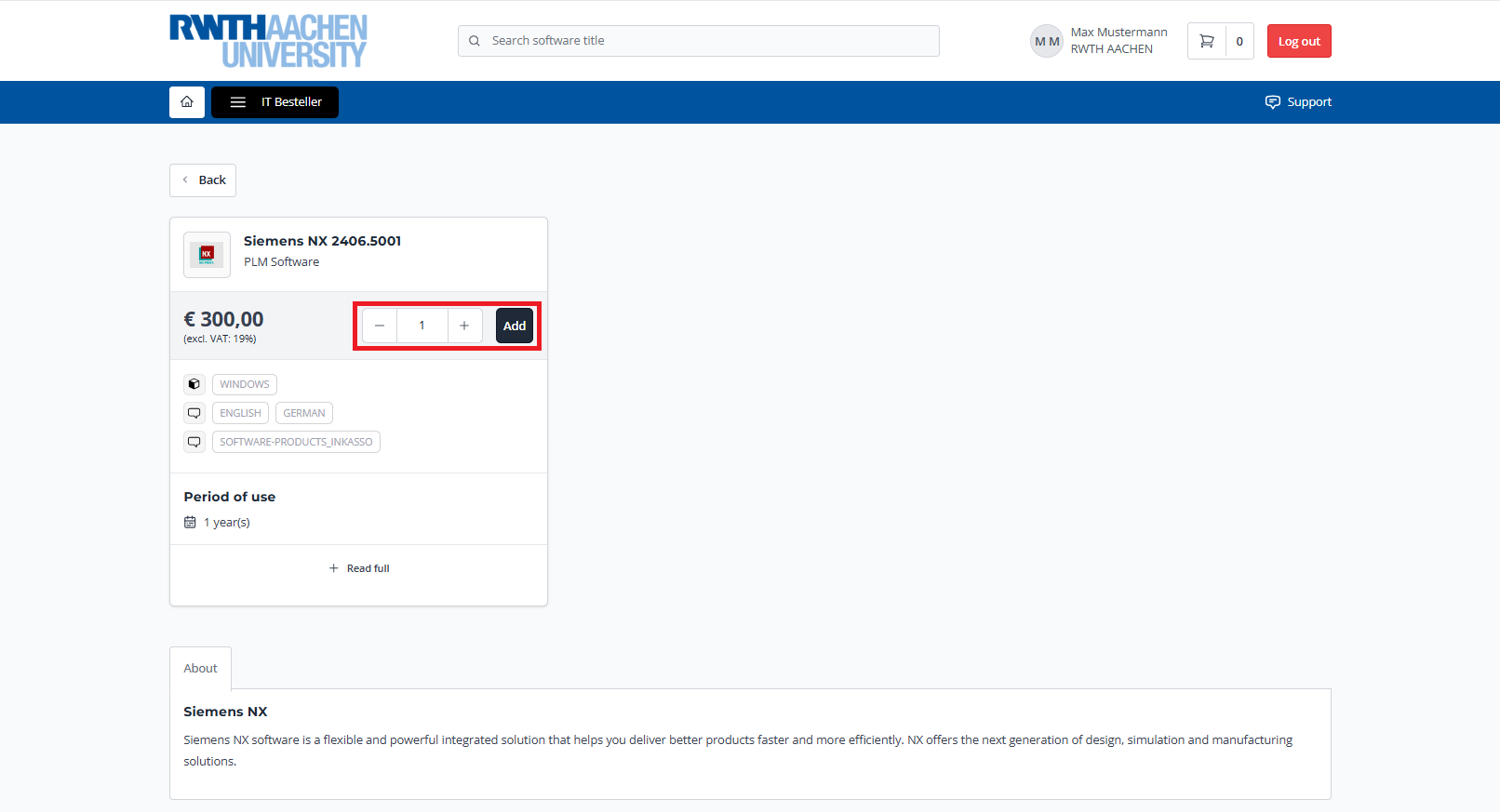
Now you can select the desired software.
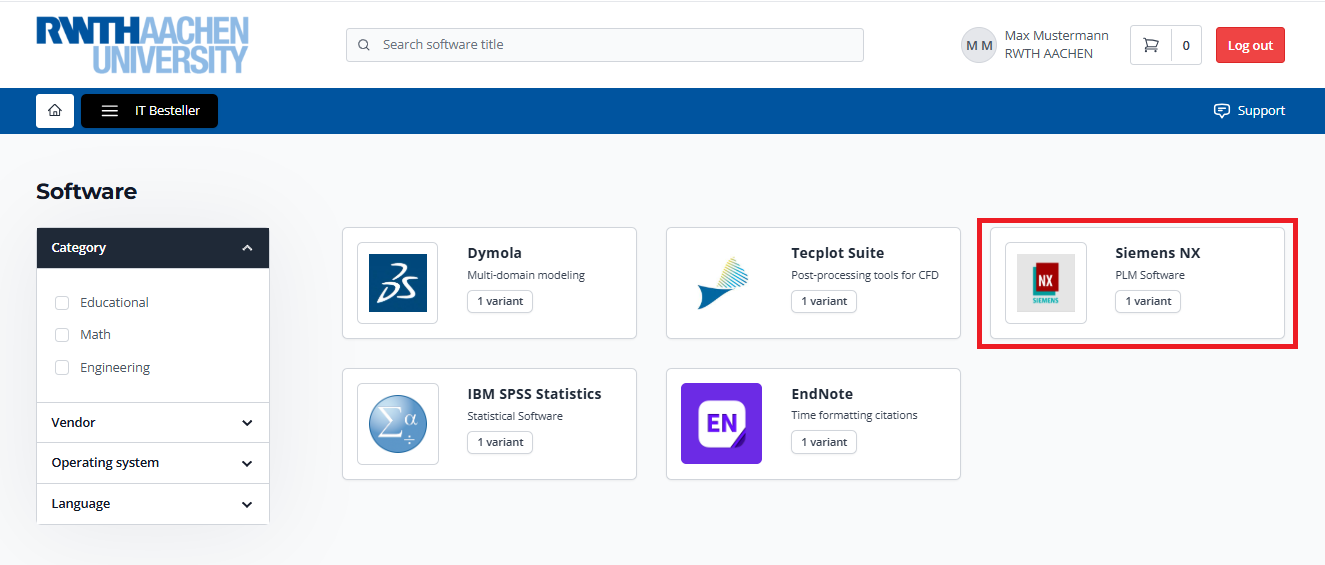
Add the software to the shopping cart.
Step 5
To check the shopping cart, click on the "shopping cart symbol" in the top right.
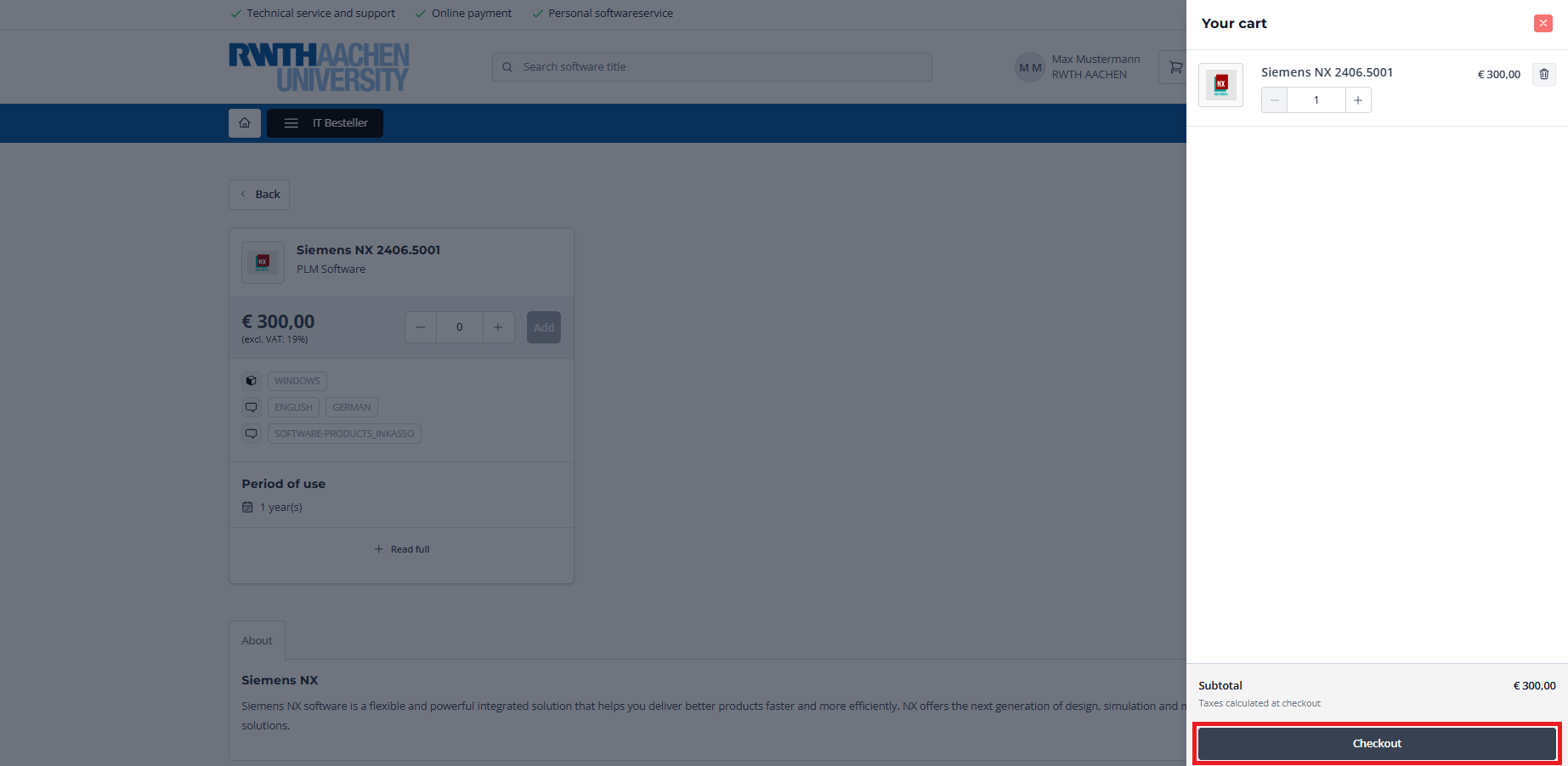
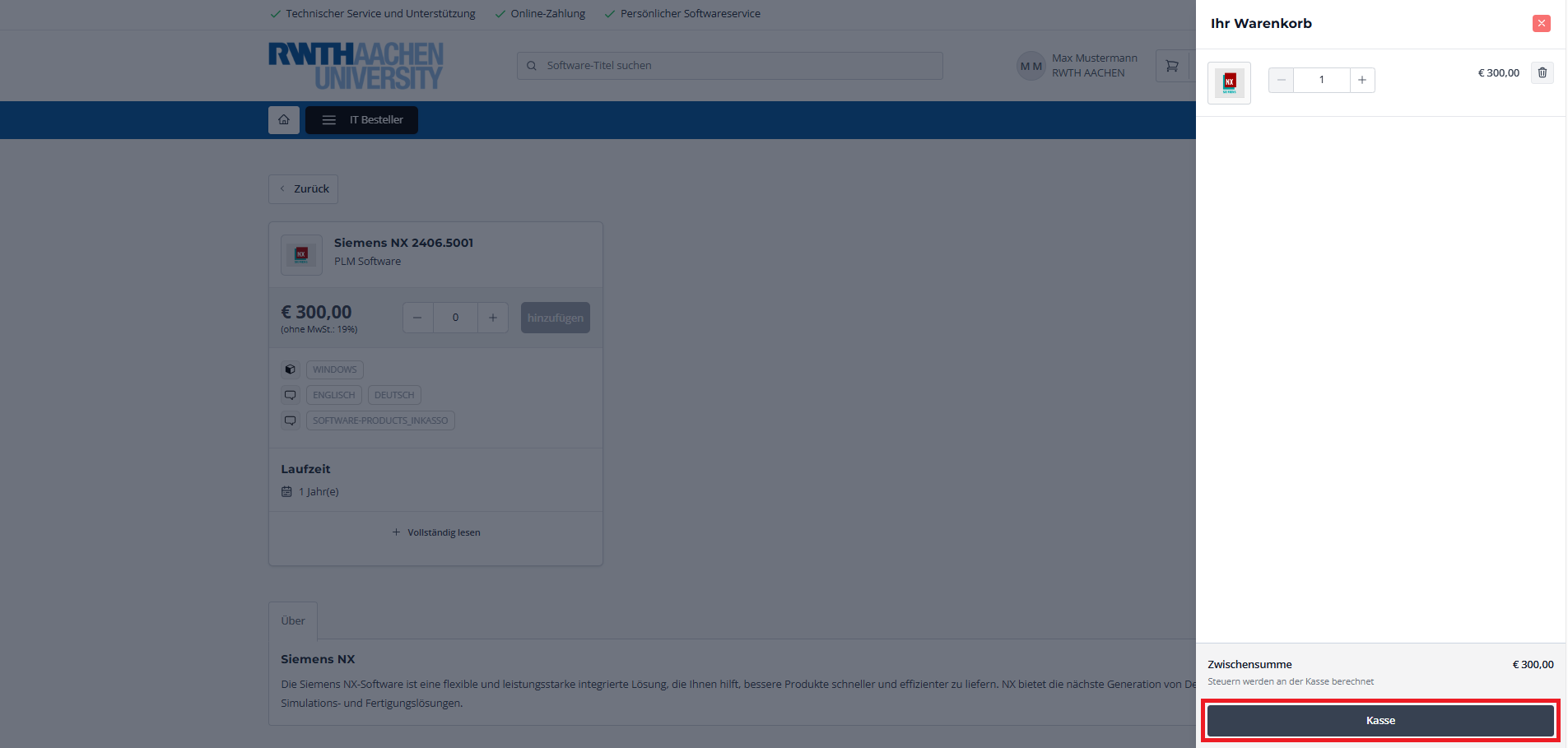
To continue the order, select "Checkout".
Step 6
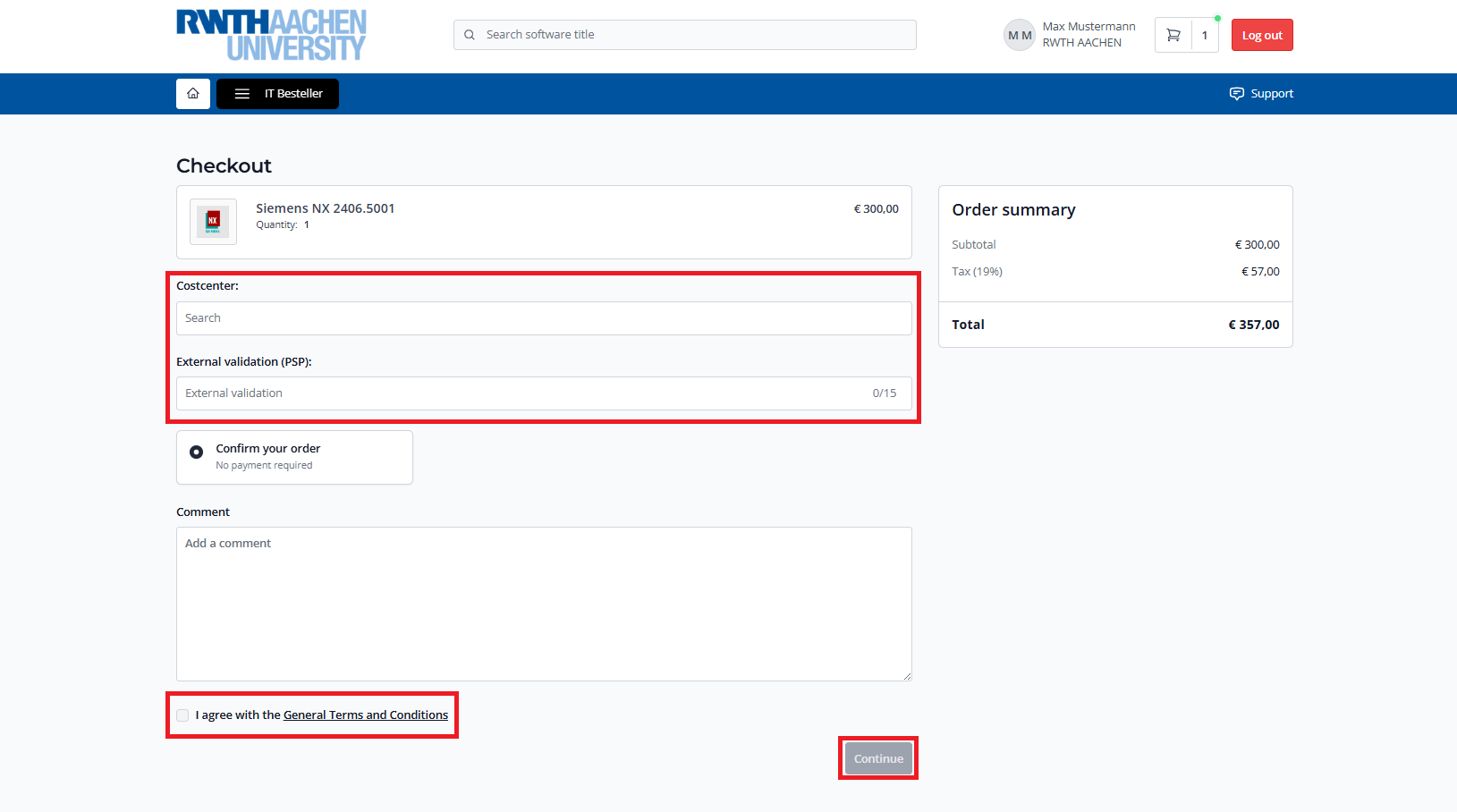
Confirmation of the terms of use:
Please note that the completion process differs between the previously selected price groups. Split into: A) Order for Students / B) Order for persons with the role "Bestellung-IT".
A) Order for Students

B) Order for persons with the role "Bestellung-IT"
Select the cost center for which institution you want to place the order. If you are an IT purchaser for multiple institutions, a multiple selection will be displayed.
For chargeable software, a PSP element must also be specified.
This serves the correct allocation of costs within the respective institution.
Step 7
Complete your purchase by selecting "Proceed to payment".
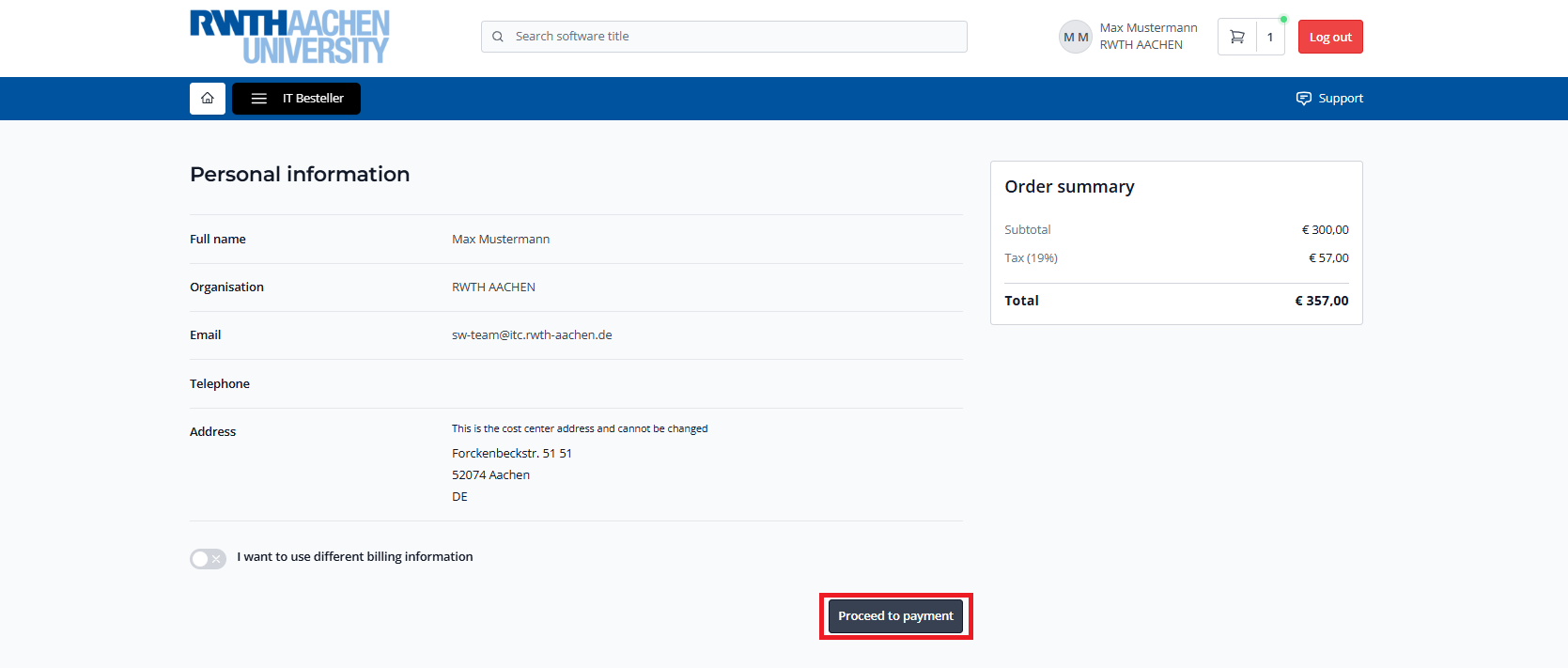
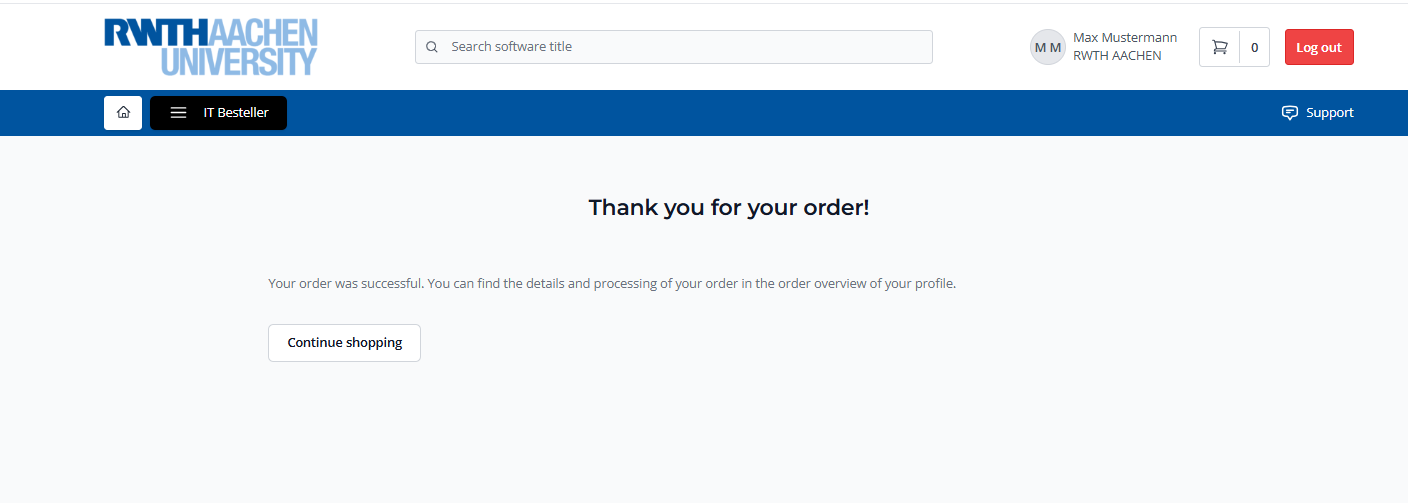
You will receive the message "Thank you for your order" and the ordering process is complete.
Step 8
You will receive an order confirmation by email. This contains the link to download the software. If you ordered a product for which a Product Key is required, you will receive this in a separate email.
Under Download Software you will also find instructions on how to find the download link and, if necessary, the Product Key directly in the Software-Shop.
Q: I did not receive an email or there is no download link/product key in the email. Where can I find this information?
A: You can also access the download link and product key directly in the software shop.
To do this, click on your profile, select "Orders", and search for the desired software. For more information on downloading the software and viewing the product key, see Download Software.
