Self-Management of Adobe Users by IT-Procurement Personnel

Instructions for self-administration of Adobe users by IT purchasers.
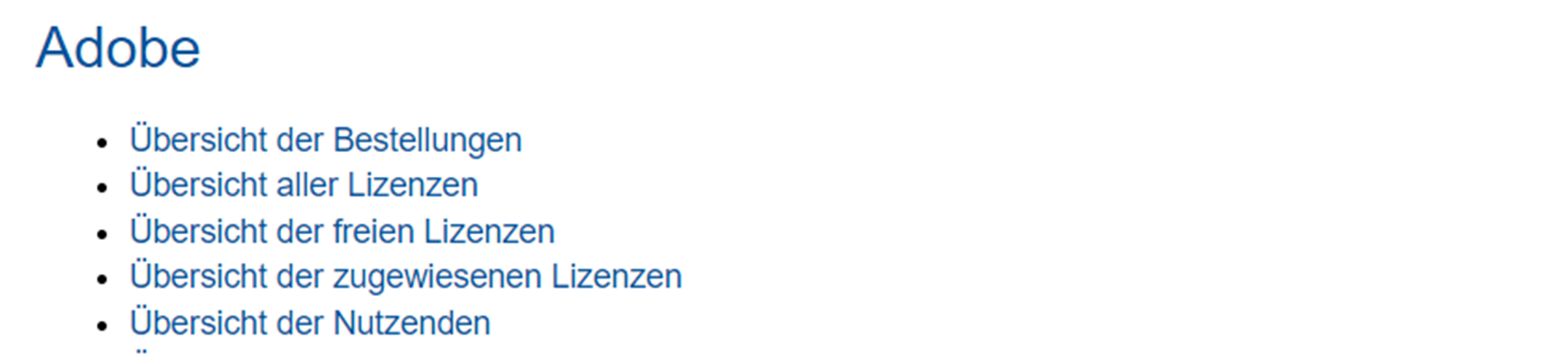
1. Link to access and overview
2. Overview of orders
3. Overview of all licenses
4. Overview of free licenses
5. Overview of assigned licenses
6. Overview of users
Link to access and overview
Attention: Orders are updated overnight. This means that licenses can only be assigned the next day.
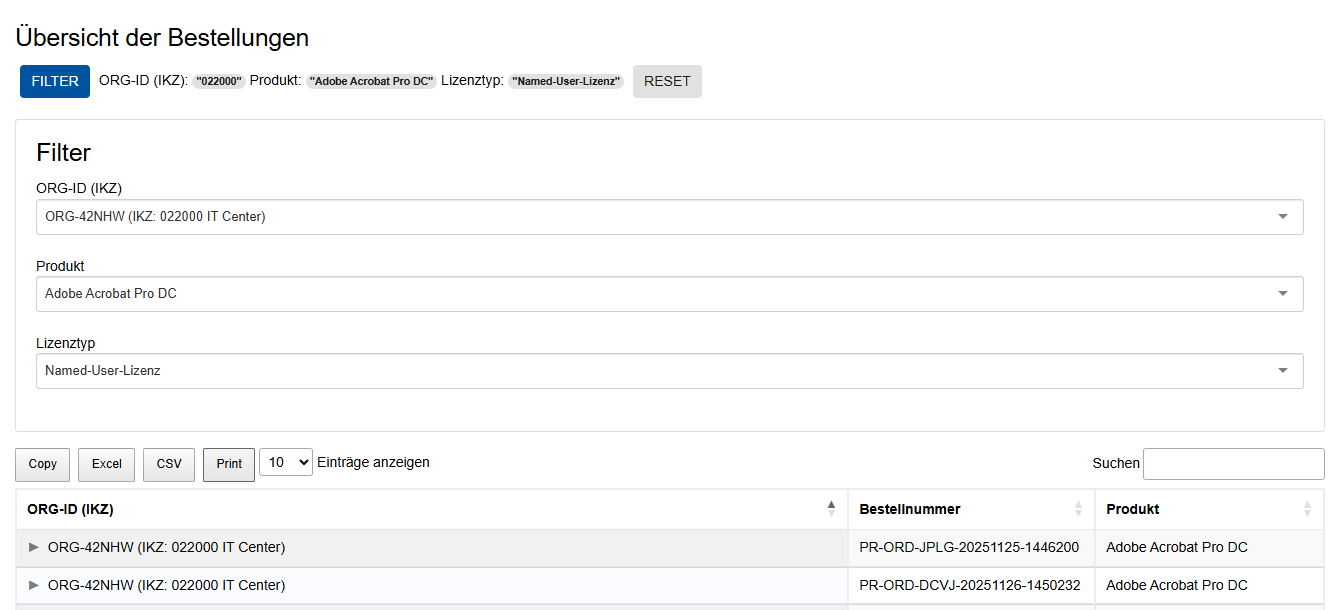
Overview of orders
Here you will find all your orders with the corresponding order numbers.
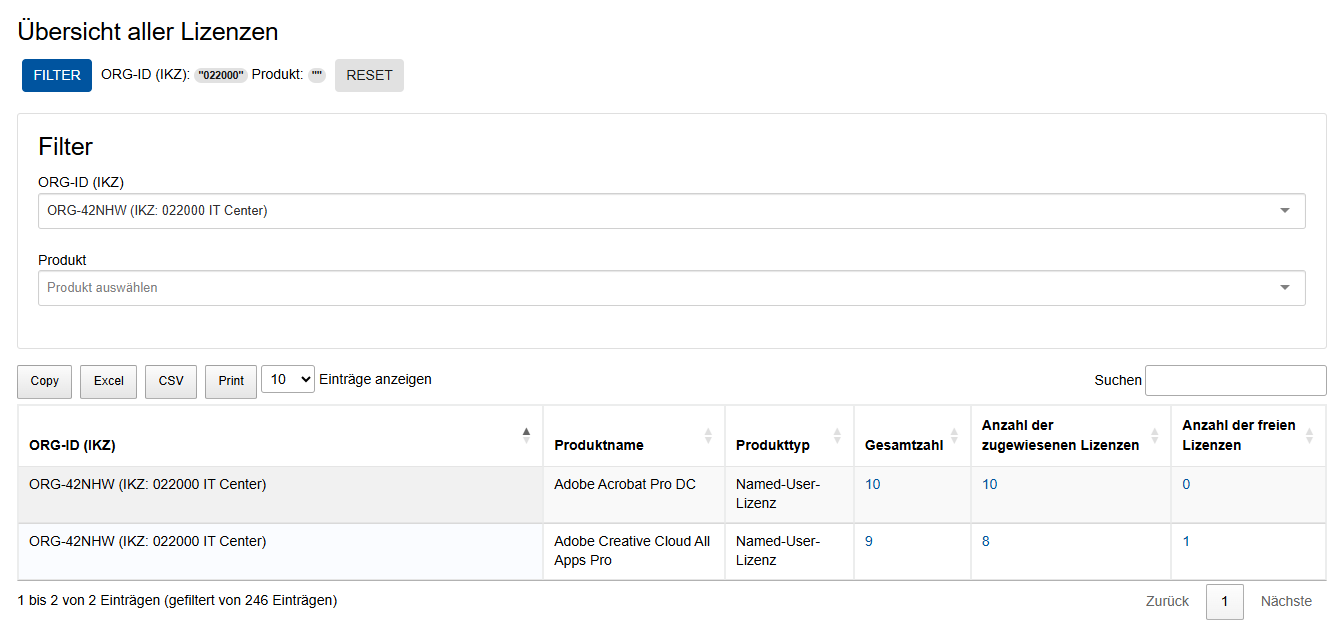
Overview of all licenses
Under "Overview of all licenses" you can see how many licenses you have purchased and how many of them are assigned or still free.
Shared Device Licenses can be assigned to any number of devices as they are not user-bound.
Overview of free licenses
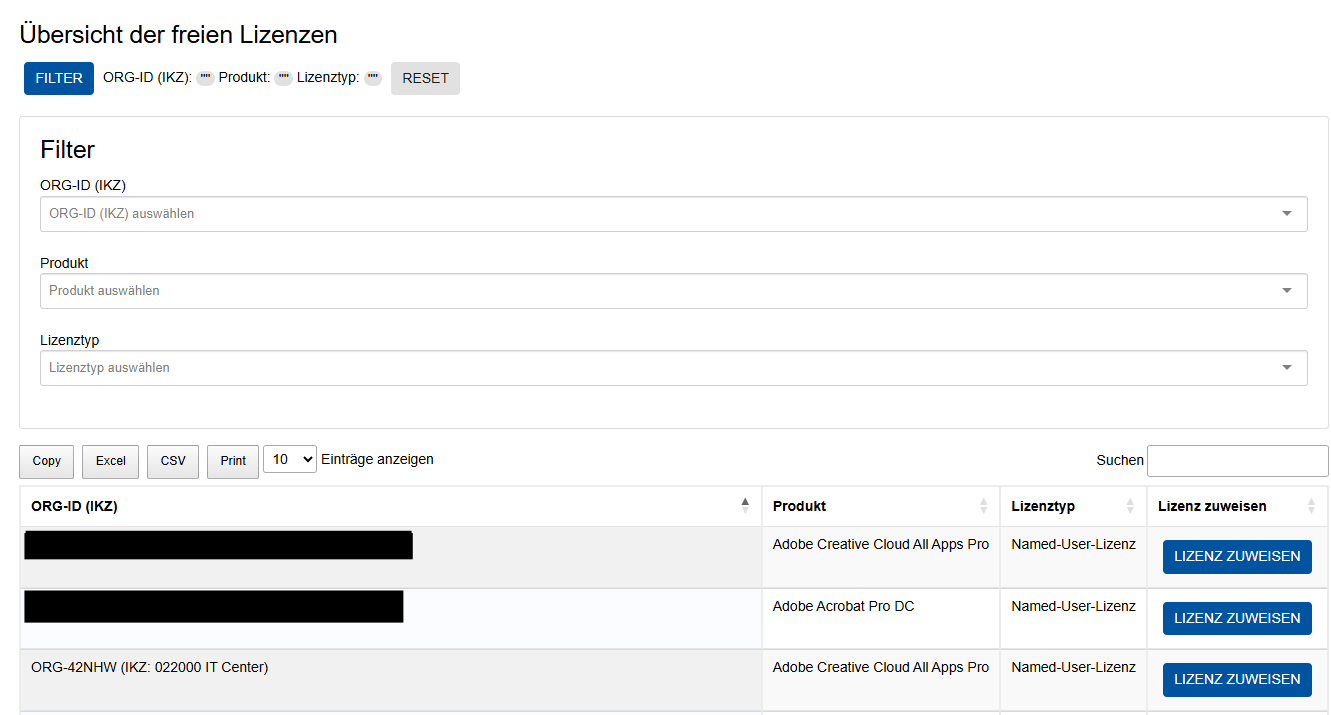
- In the overview of free licenses, you can create new users.
- If you do not see a product, you have no more free licenses available.
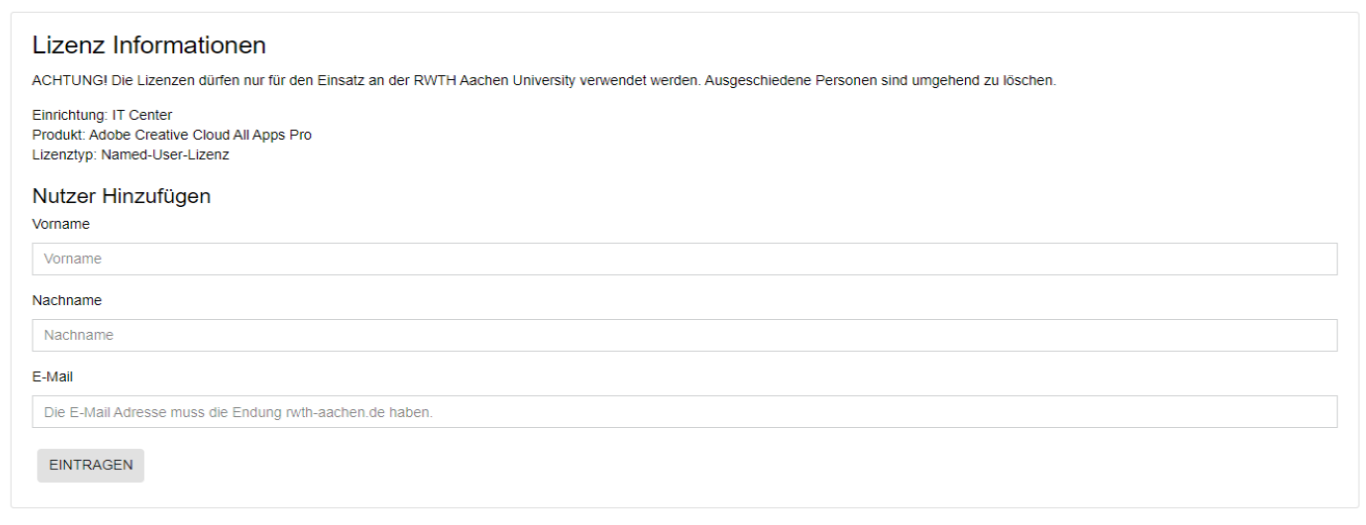
You can create a new user via "Assign license".
After clicking, a new window opens. Enter the user's first and last name as well as the primary email address here. The email address must end with "rwth-aachen.de". Clicking on "Submit" creates the user and they will receive an information email.
Overview of assigned licenses
Under "Overview of assigned licenses" you can see who is licensed at your institute. You can use the filter to select a specific product and the corresponding license type to display the licensed users.
Product:
- Adobe Acrobat Pro DC
- Adobe Creative Cloud All Apps Pro
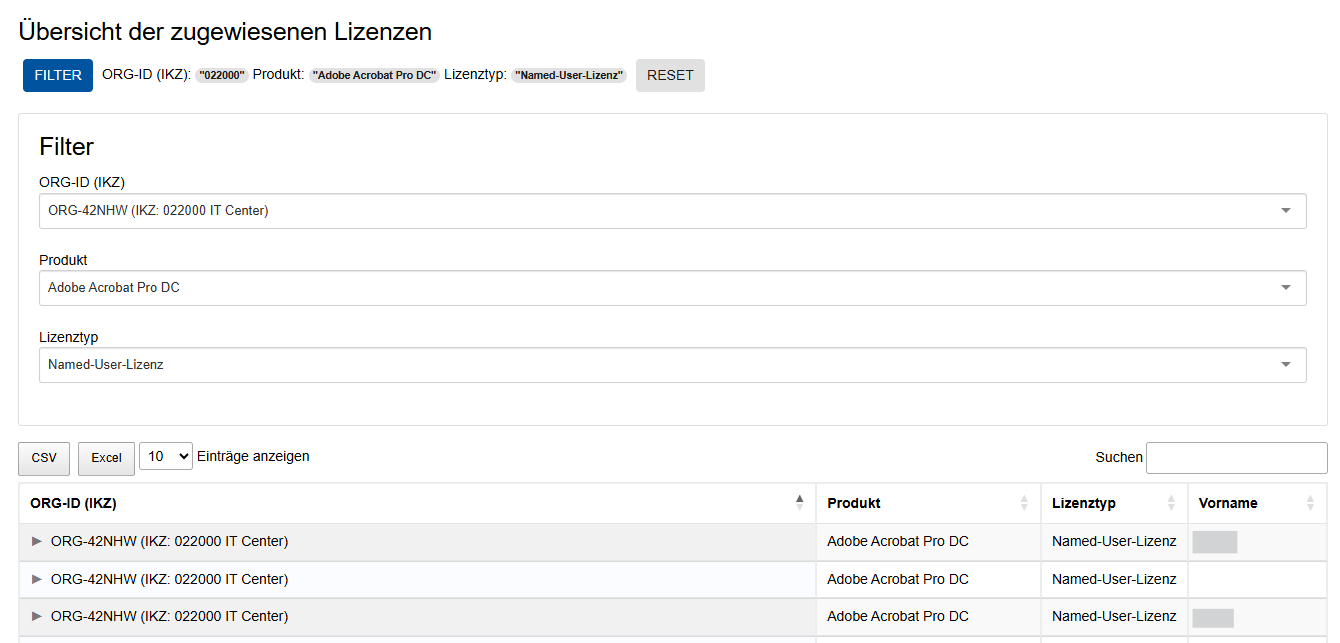
In the "Overview of registered users", you can also revoke Named User licenses.
Click on the green plus. The following window will open:
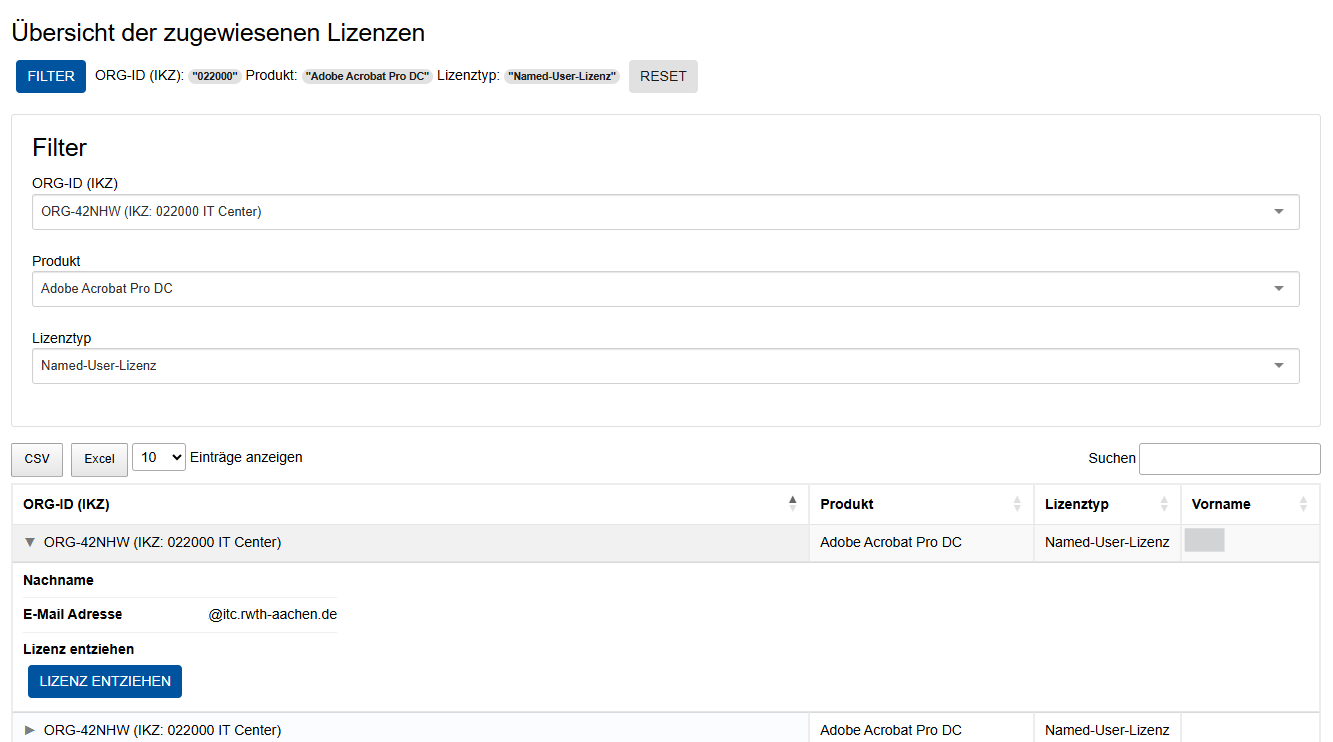
Click on "Revoke license". As soon as you do this, the product will reappear in the overview of free licenses, or you can use it to assign a new user.
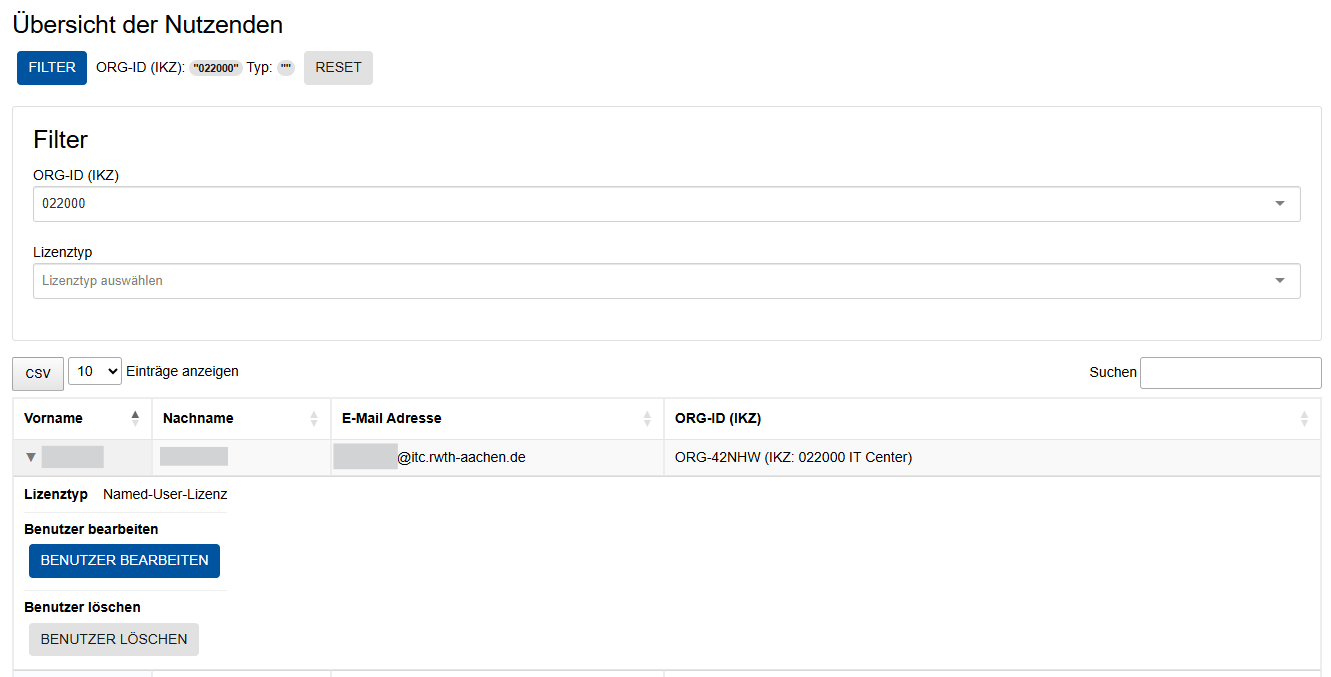
Overview of users
Here you can delete users or manage names/first names. If an email address has changed, please write a corresponding email with the name of the user and the new email address to the IT-ServiceDesk.
You can find users under "Search". You can also see which ORG-ID the users belong to and which licenses have been assigned to them.