


Integrate user certificates into email applications

On this page, you will learn how to integrate user certificates into supported email clients and use them for encryption and signing.
If you do not yet have a user certificate, you can apply for one via the RA portal.
- Integrate user certificates in Outlook
- Integrate user certificates in Thunderbird
- Integrate user certificates in Apple Mail (iOS)
Integrate user certificates in Outlook
GÉANT/TCS certificates for functional email addresses are issued without a CN (common name). This makes it difficult to configure these certificates via the Outlook Trust Center.
If multiple (functional) email addresses are used, it is not possible to identify which certificate belongs to which email address.
To solve this problem, you can customize the display name of certificates.
Import p12 files
To sign documents electronically, send signed emails, or receive encrypted emails, you must first import your personal user certificate into the Windows certificate store.
Step 1
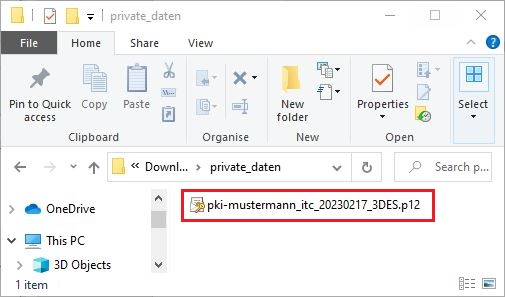
To do this, locate the certificate file (.p12 file) on your computer and double-click to run it:
Step 2
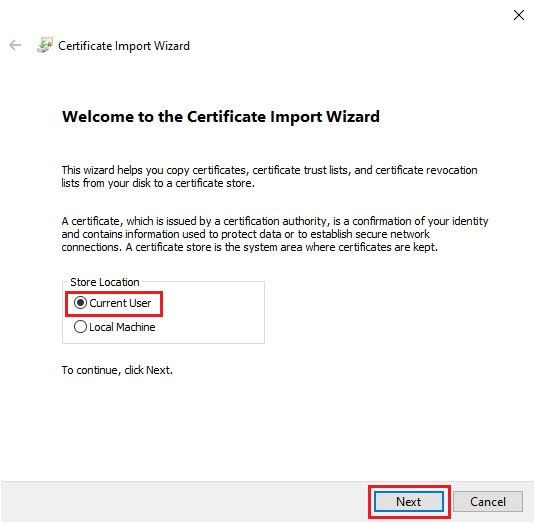
This will launch the Certificate Import Wizard:
Step 3
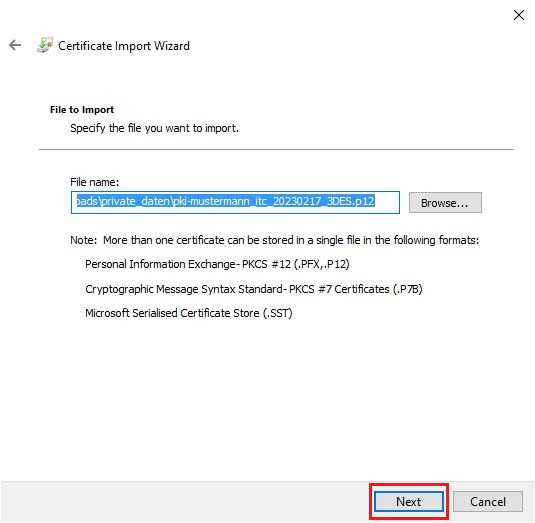
After clicking Next, you will be redirected to the file selection screen.
The field should already be filled in if you have already selected the file.
Alternatively, click Browse and locate the file in its storage location.
Then click Next:
Step 4
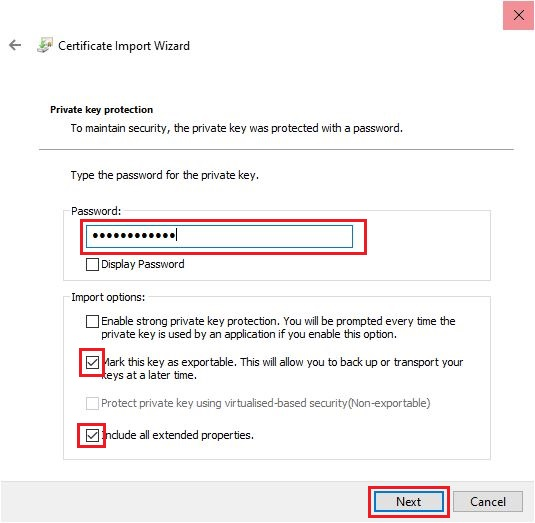
In the next step, enter the password you set when you created the .p12 file.
You can also select the import options:
- Please DO NOT activate High security for the private key. Nevertheless, always ensure that your computer is adequately protected against access by third parties.
- If you select High security, you must also set a CryptoAPI password. This password must then be entered each time you send a digitally signed email.
- You can select Mark key as exportable so that you can later create a .p12 file from the Windows certificate store.
- This option is useful as a backup in case you accidentally delete your .p12 file.
Once you have made the desired settings, click Next:
Step 5
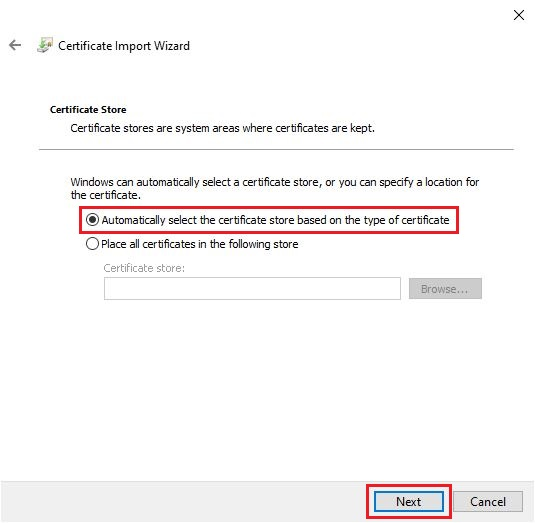
In the next window, select Automatically select certificate store.
Then click Next:
Step 6
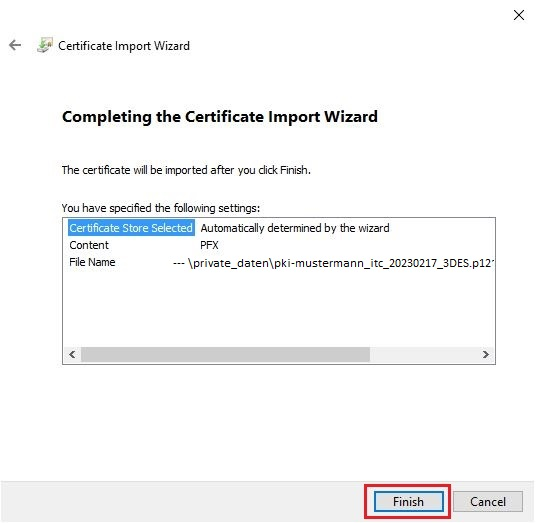
You can review the selected data once more.
If everything is entered correctly, click Finish:
Step 7
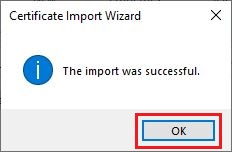
Confirm the successful import process with OK:
Configure automatic signature
Digital signatures allow the recipient of an email to verify...
- the identity of a sender
- that an email has not been modified while being transmitted
Old certificates can also be replaced with new certificates.
To configure an automatic signature, please follow these steps:
Step 1
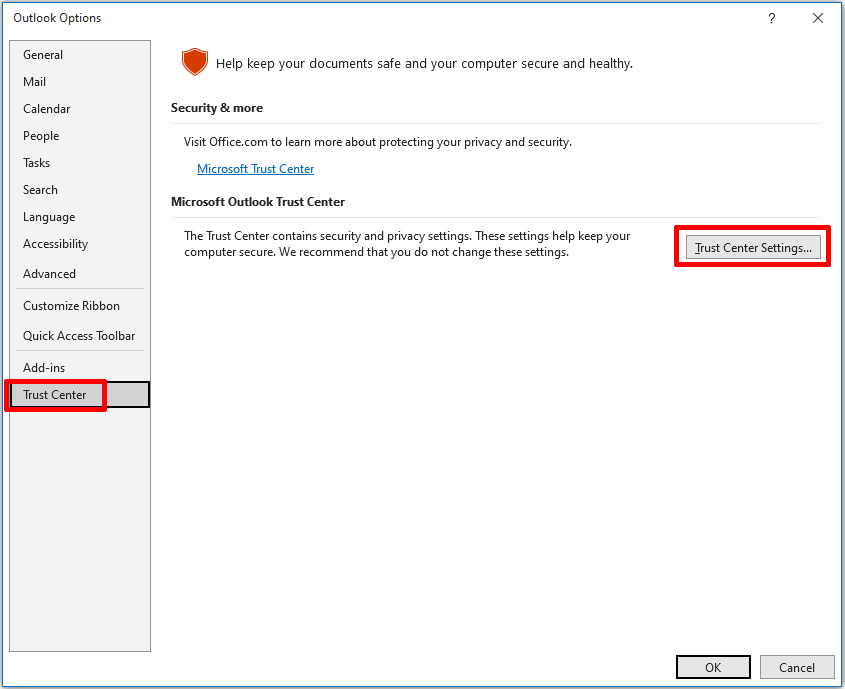
Open Outlook and go to File > Options > Trust Center:
Step 2
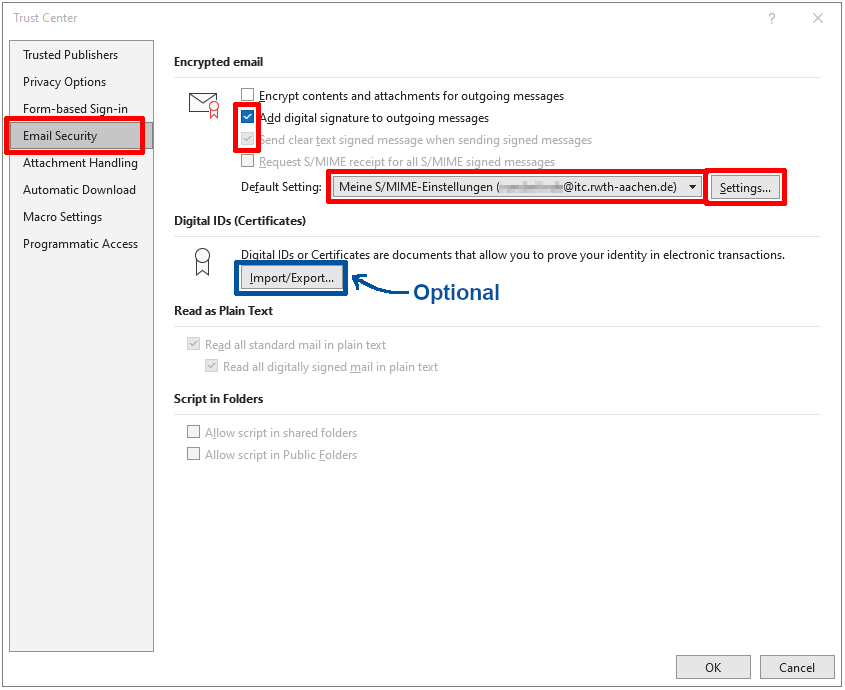
Choose Email Security and select the following options in the Encrypted email messages field to sign your messages automatically:
- Add digital signature to outgoing messages.
- Send signed messages as plain text.
If you have not yet imported your certificate into Windows, you can do so using the Import/Export button. You will then need to search for your p12 file and enter the appropriate password.
Then select Settings:
Step 3
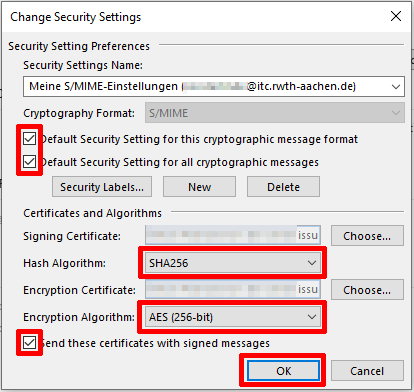
Via Settings, you can select a new certificate or replace an existing certificate (e.g., if an old certificate expires).
- Check the two boxes in the Cryptography Format field.
- If you want to add a user certificate for another email address, you can do so by clicking New. This will clear all fields and allow you to add a new security setting.
- By clicking Select, you can select a certificate as a signature certificate and encryption certificate.
- Set the hash algorithm and encryption algorithm:
- Select the hash algorithm SHA256
- Select the encryption algorithm AES (256-bit)
- Check the box Send these certificates with signed messages.
Click OK to complete the process:
Verify certificates
Step 1
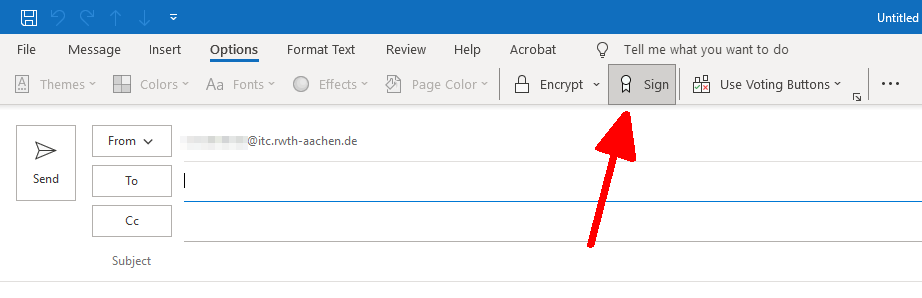
If you selected the option for automatic signing when configuring Outlook, your messages will always be sent signed:
Step 2
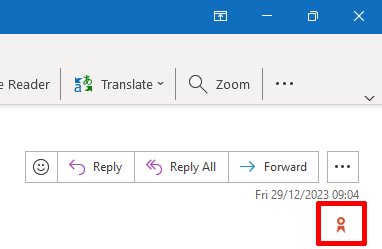
The digital signature is attached to the email and can be verified by clicking on the signature icon:
Step 3
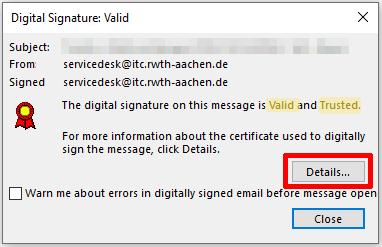
In the window that opens, you can check the status of the signature.
- Valid means that the hash value of the electronic signature is correct, i.e., the email content has not been altered en route.
- Trusted means that the sender's corresponding public RSA key would be included in a user certificate issued by a PKI whose certificate chain is anchored in Outlook's Trust Center.
Step 4
To see the sender's identity, click Details:
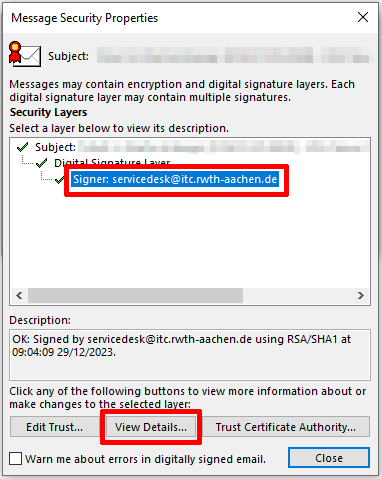
Step 5
Select the signer and click View Details:
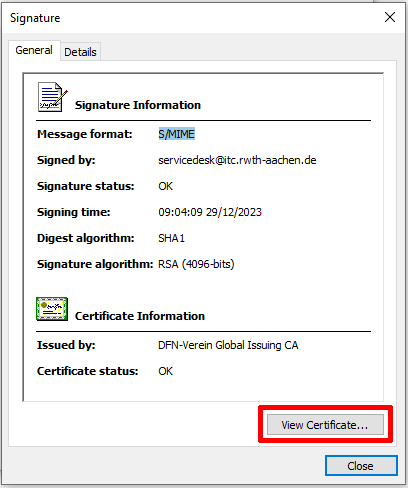
Step 6
Under General, you can view the certificate.
Click View Certificate... to display the certificate details:
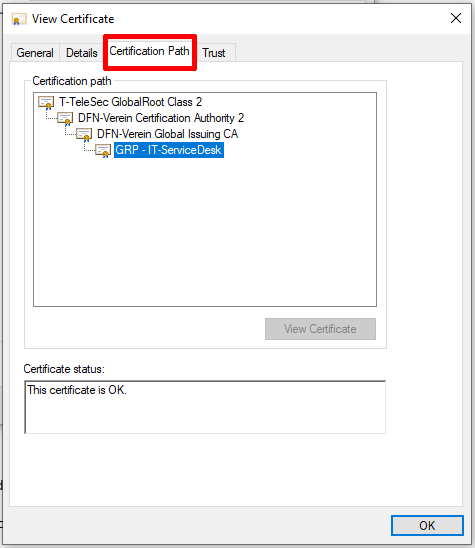
Step 7
On the Certification Path tab, you can see the certificates in the certificate chain and the sender's certificate at the end of the chain.
- T-TeleSec is the root certificate (preinstalled in Outlook)
- DFN-Verein are the two intermediates
- the sender's user certificate is at the bottom of the chain
In this example, the sender is using a group certificate, denoted by the "GRP" prefix. The field for their certificate displays the value for the Common Name in their certificate, this is the proof of identity part. This would usually be the sender's name:
Configure e-mail encryption (optional)
Step 1
Open Outlook and select File > Options > Trust Center.
Step 2
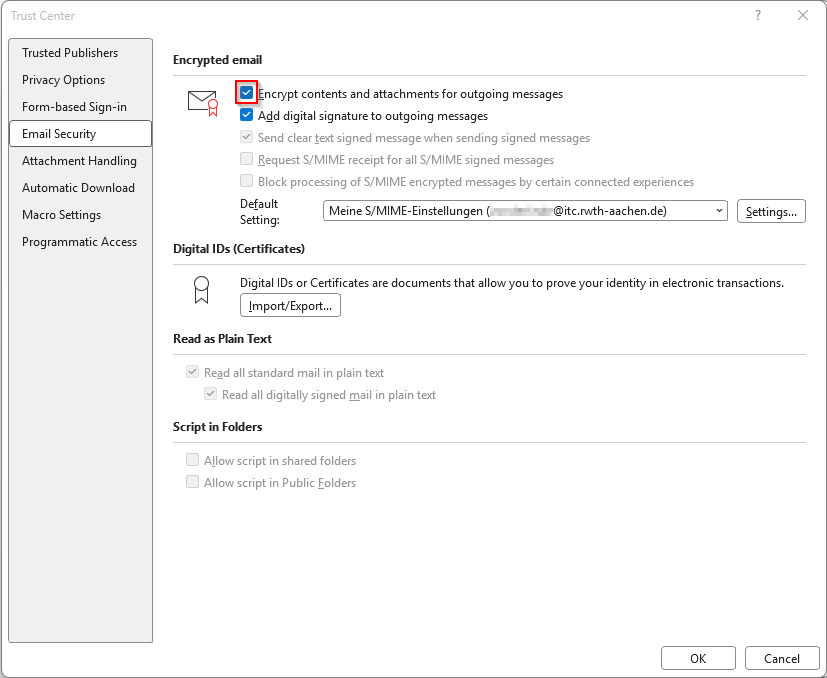
In the window that opens, select the Email Security option.
Check the box next to Encrypt content and attachments for outgoing messages.
With this setting, Outlook will attempt to encrypt all outgoing emails. Encryption is only possible if Outlook knows the recipient's public RSA key.
To do this, either a handshake must have taken place (i.e., you have already received a signed email from the recipient) or you have saved the recipient's user certificate in Outlook using the PKI LDAP server.
In both cases, the recipient must be explicitly saved as a separate contact:
Step 3
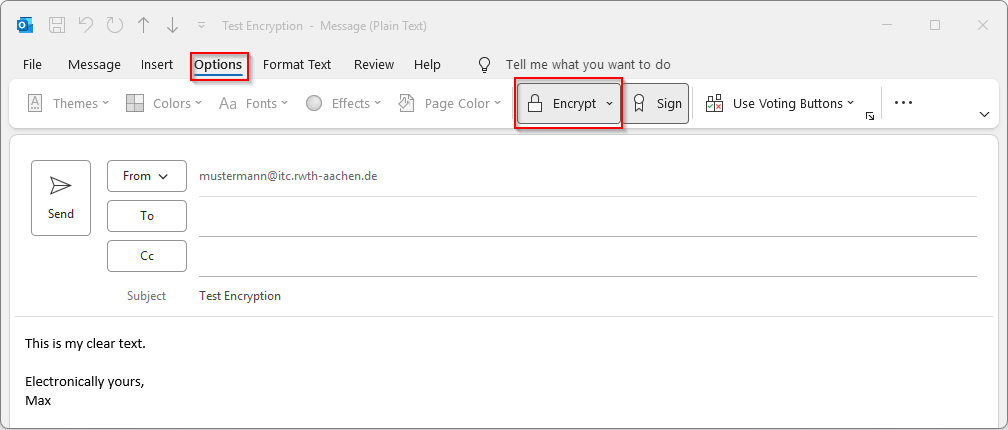
If you want to send an email and encryption was set in step 2 via the Trust Center, this option is already preselected.
Alternatively, you must select this for each email:
Step 4
If everything has been configured correctly, emails that are sent will now be automatically encrypted and signed.
The subject line is never encrypted. The text can only be read if Outlook knows the recipient's own user certificate.
If the email cannot be encrypted, e.g. because Outlook does not know the recipient's public RSA key, you will receive an error message.
One way to get around this problem is to use DFN-LDAP as your address book.
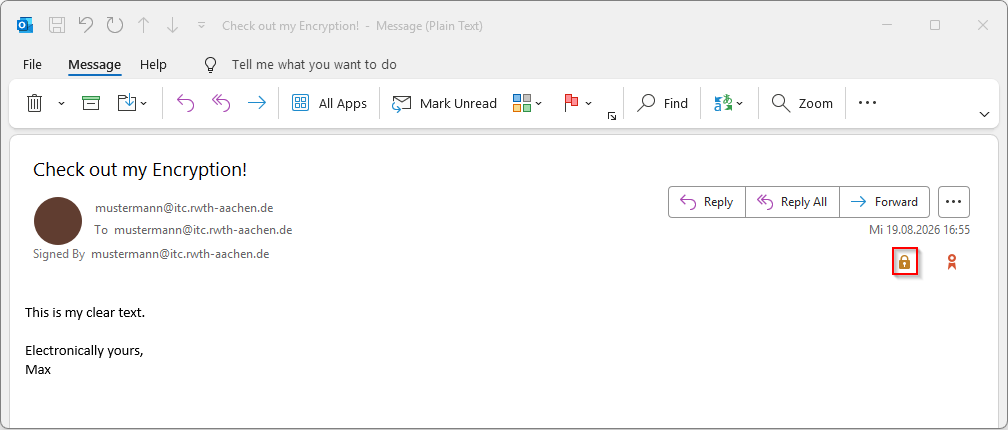
To check the encryption, you can select the lock icon:
Step 5
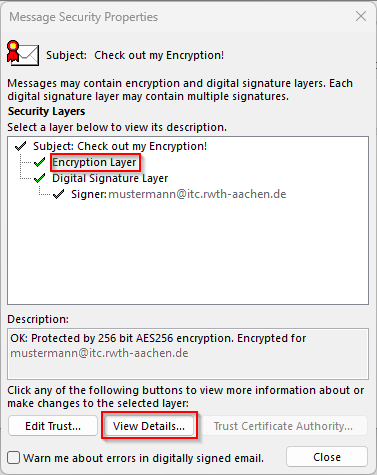
A new window will open where you can view the signature properties.
In this example, the email is encrypted and signed.
Select Show details to view additional information about the encryption:
Integrate user certificates in Thunderbird
Integrating user certificates in Thunderbird
You should set a Master Passwort (opens in new tab), to ensure only you can use this thunderbird.
Import p12 file
The p12 file, which was created via the RA portal, contains not only the certificate itself but also all certificates in the chain. However, if, for example, OpenSSL was used, the CA certificates for the respective CAs must be downloaded explicitly. These can then be imported. To do this, follow these steps.
Step 1
Open Thunderbird and go to Menu > Options:

Step 2
In the Options window, select Privacy & Security and then click Manage Certificates:
Step 3
In the Certificate Manager, you will see certificates that are already active.
Make sure you are in the Your Certificates tab.
Click Import to add a new certificate and select the appropriate file:

Step 4
Search for the certificate file in the format .p12 on your device and click Open.
The certificate is now integrated.
Configure automatic signature
Step 1
Open Thunderbird and go to Menu > Account Settings:
Step 2
Then select the End-to-End Encryption menu item and click Select to select a certificate.
If desired, check the box Add my digital signature by default if you want the signature to be active for every email you send:

Integrate user certificates in Apple Mail (iOS)
To import a user certificate onto an iOS device and sign e‑mails with your digital signature, follow these steps:
- Download the .p12 certificate file to your device. The file should contain both your cryptographic key, your S/MIME certificate, and the relevant certificate chain. A notification will then appear indicating that a profile has been loaded.
- Go to Settings > VPN & Device Management and select Identity Certificate in the list of loaded profiles.
- Install the profile.
- Confirm that you want to Install the profile even though it is not signed.
- Enter the password for your certificate file.
- Tap Done to complete the installation.
To use the certificate for signing e‑mails, follow these steps:
- Go to Settings and search for Mail Accounts.
- Select the account you wish to configure for using your certificate; it should be the e‑mail address for which the S/MIME was issued.
- Open Account Settings > Advanced Settings.
- Choose the option Sign and enable it.
- Select from the list of certificates installed on the device which certificate should be used.
When you return to the advanced settings, Sign should be set to Yes.
You can exit the settings. Apple Mail is now configured to sign e‑mails with your user certificate.
