


Evolution

In this guide you will learn how to integrate RWTH-E-Mail into the Evolution email client under Linux.
To successfully integrate your RWTH-E-Mail under Linux, you will need the Evolution-ews package in addition to the Evolution mail software.
These instructions were created with Evolution 3.54.2 under Ubuntu 24.10, so the appearance may differ for other Linux distributions and other versions of Ubuntu.
To set up your email in the Evolution email client, follow these steps:
Step 1
Proceed as follows to install the Evolution-ews package:
- Open the terminal.
- Enter the command sudo apt-get install evolution-ews and press Enter.
- Enter your administrator password.
- Confirm the installation with J.
Step 2
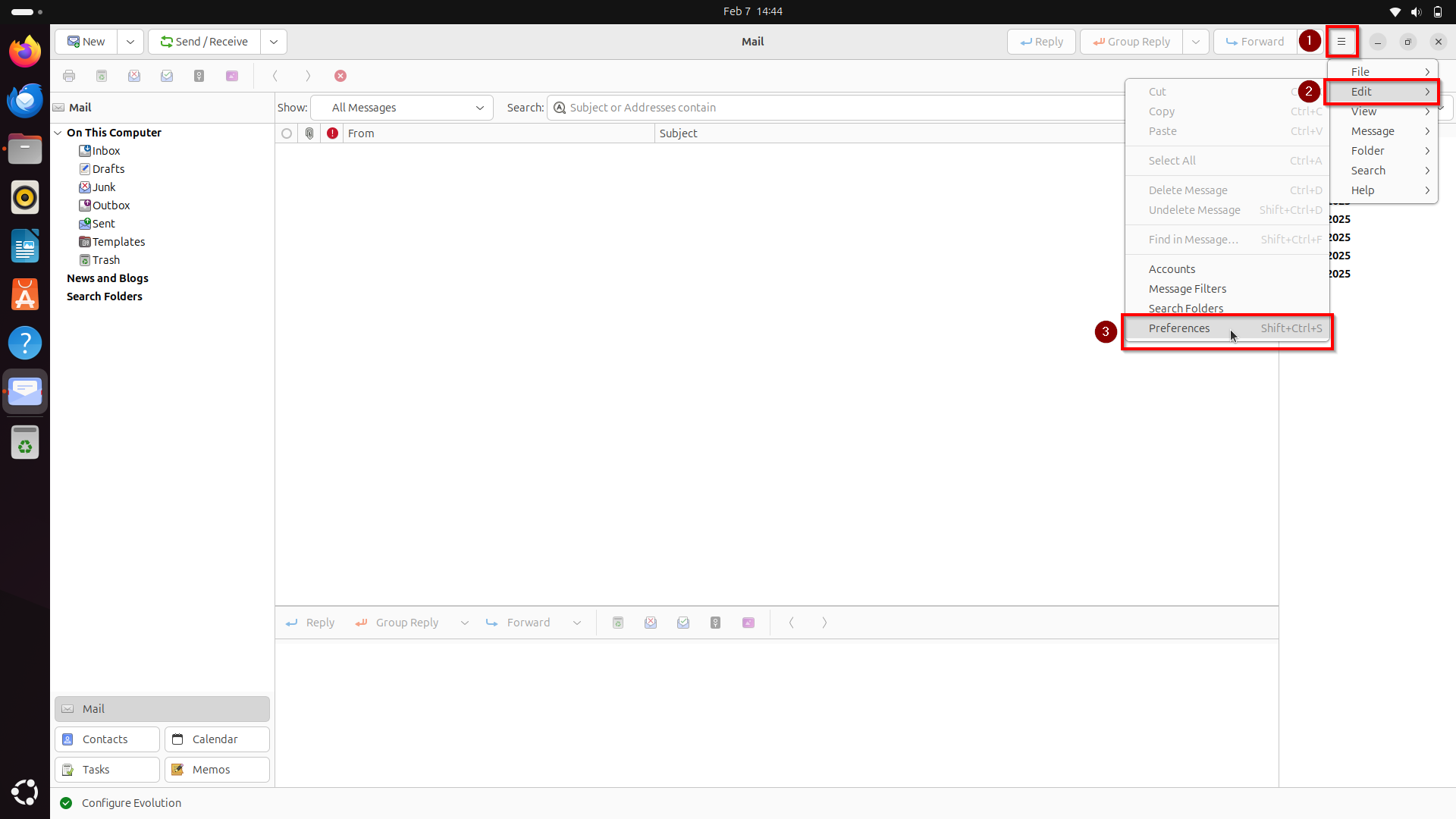
Start Evolution and click in the Menu > Edit > Preferences.
Step 3
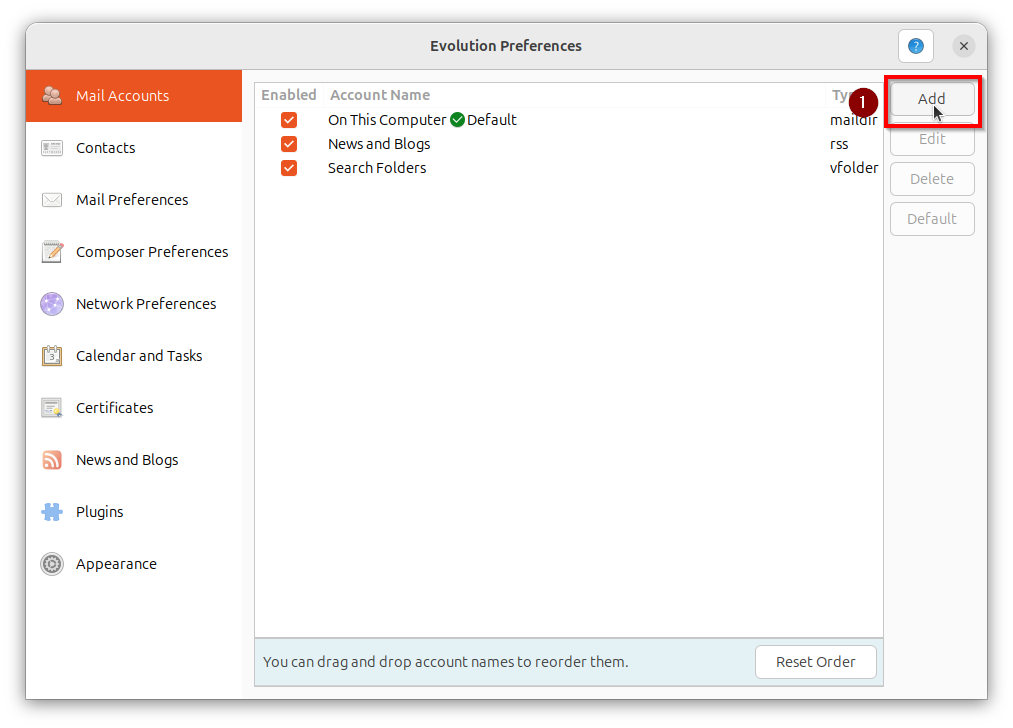
In the Evolution Preferences window, click on Add.
Step 4
In the Welcome window, click Next.

Step 5
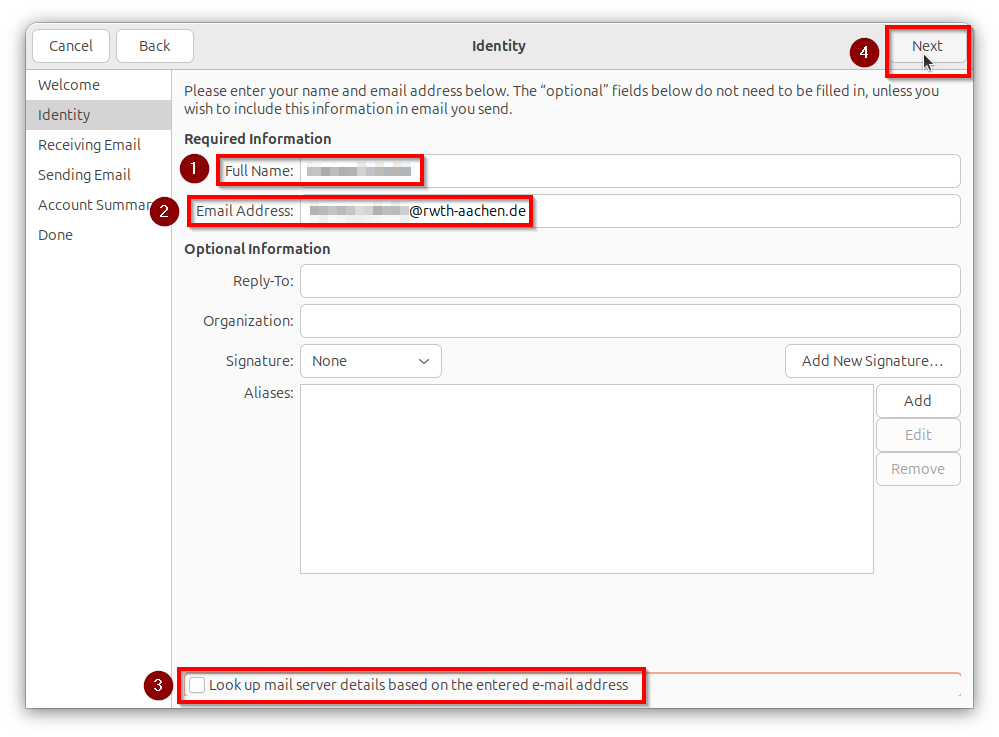
Enter the following information under Identity > Required information:
- Full name: First name Last name
- Email address: firstname.lastname@rwth-aachen.de
- Remove the tick from Look Up mail server details based on the entered email adress at the bottom of the window.
Then click on Next.
Step 6
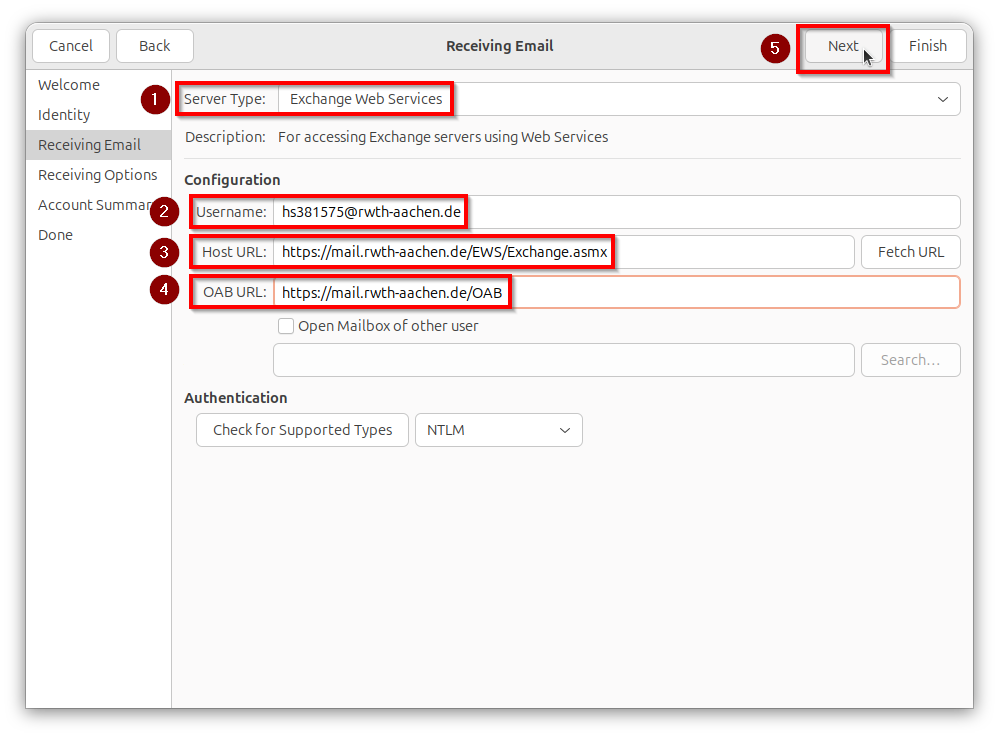
Enter the following information in the Receiving Email window:
Server type: Exchange Web Services
Username: ab123456@rwth-aachen.de
Host URL: https://mail.rwth-aachen.de/EWS/Exchange.asmx
OAB URL: https://mail.rwth-aachen.de/OAB
Then click Next.
Step 7
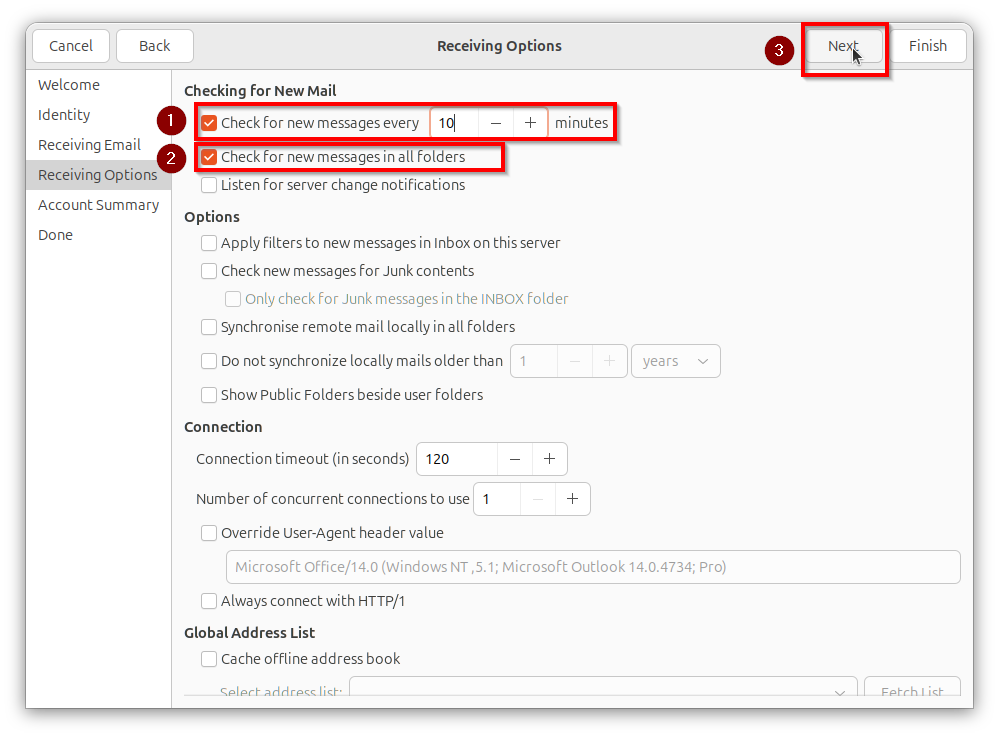
Select the following options in the Receiving Options window under Checking for New Mail:
- Check for new messages every X minutes
- Check for new messages in all folders
Then click Next.
Step 8
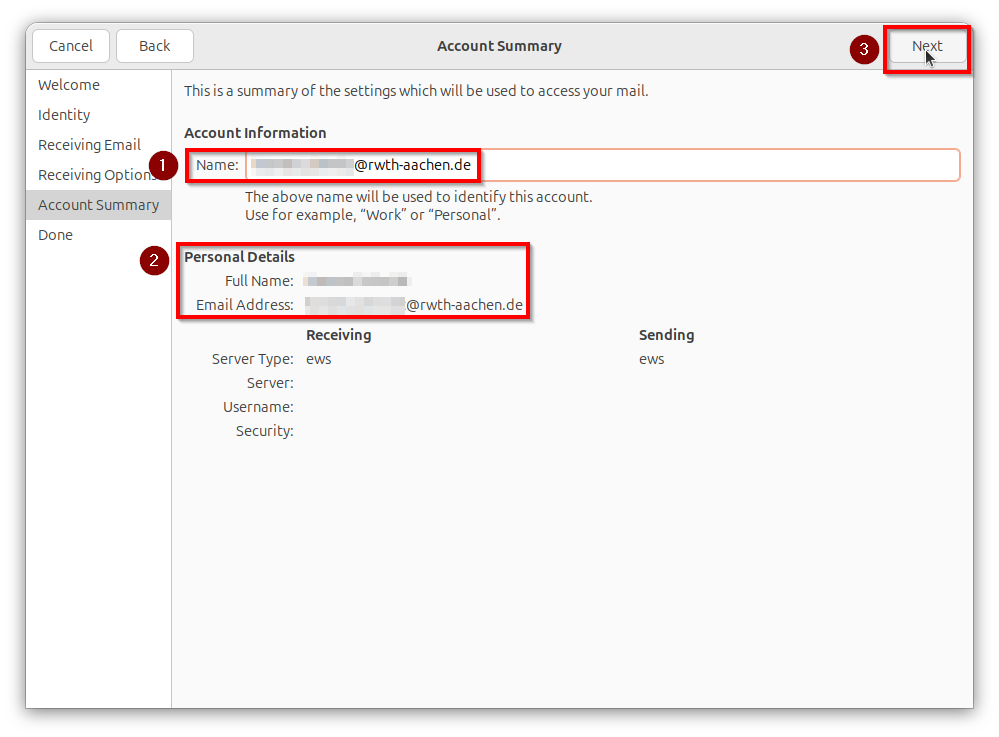
In the Account Summary window, enter a name for your email account in the Account information area and check the details under Personal details. Then click Next.
Step 9
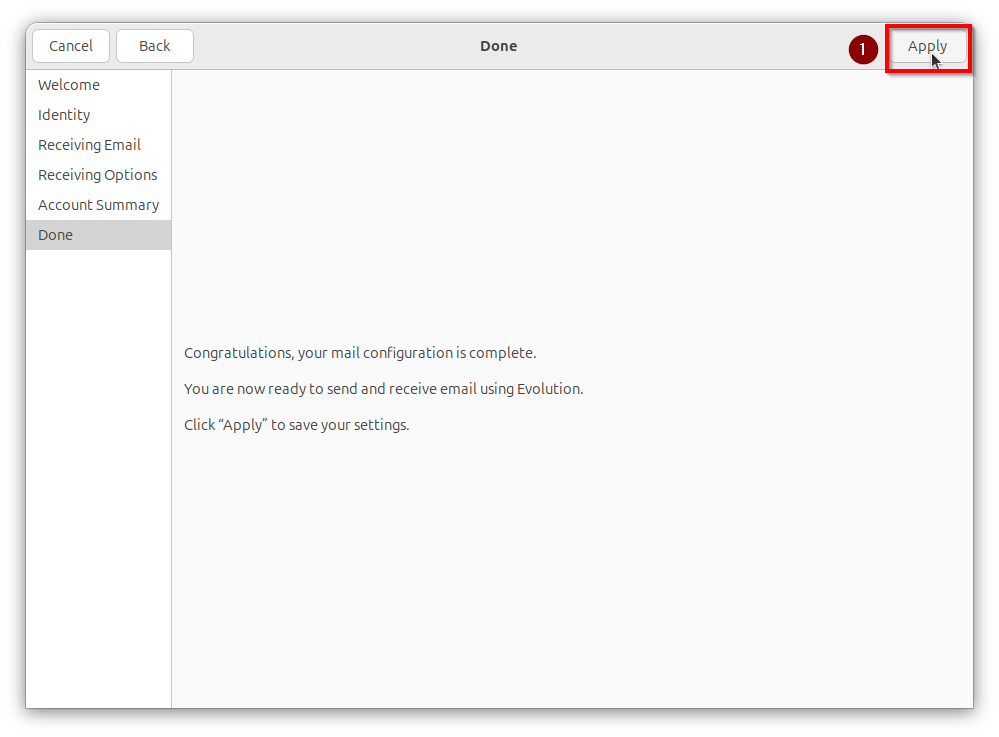
In the Done window, click Apply.
Step 10
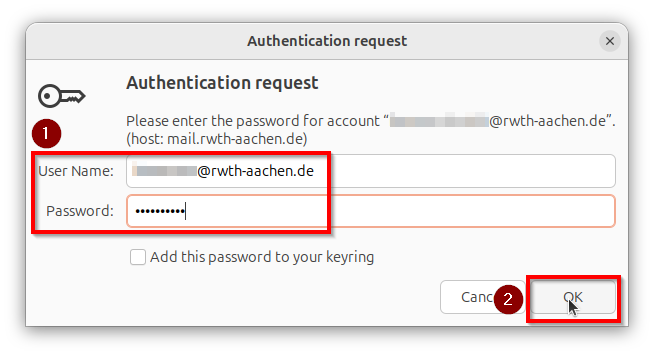
In the Authentication request window, enter your user name in the format ab123456@rwth-aachen.de and the corresponding password. Click OK to confirm.
Your RWTH email is now set up in your Evolution email client.
