


Voicemail general information

If you are unable to answer a call, a voice message can be left on your voicemail.
You can use your answering machine or voicemail (voicebox) via the “Voicemail” menu item. The Voicemail button is only visible if the function has been activated in the TK-Portal (opens in new tab) beforehand.
To activate the voice mailbox, click on the gear icon next to “Voicebox” and select “Offer callers the option to leave a voice message.”
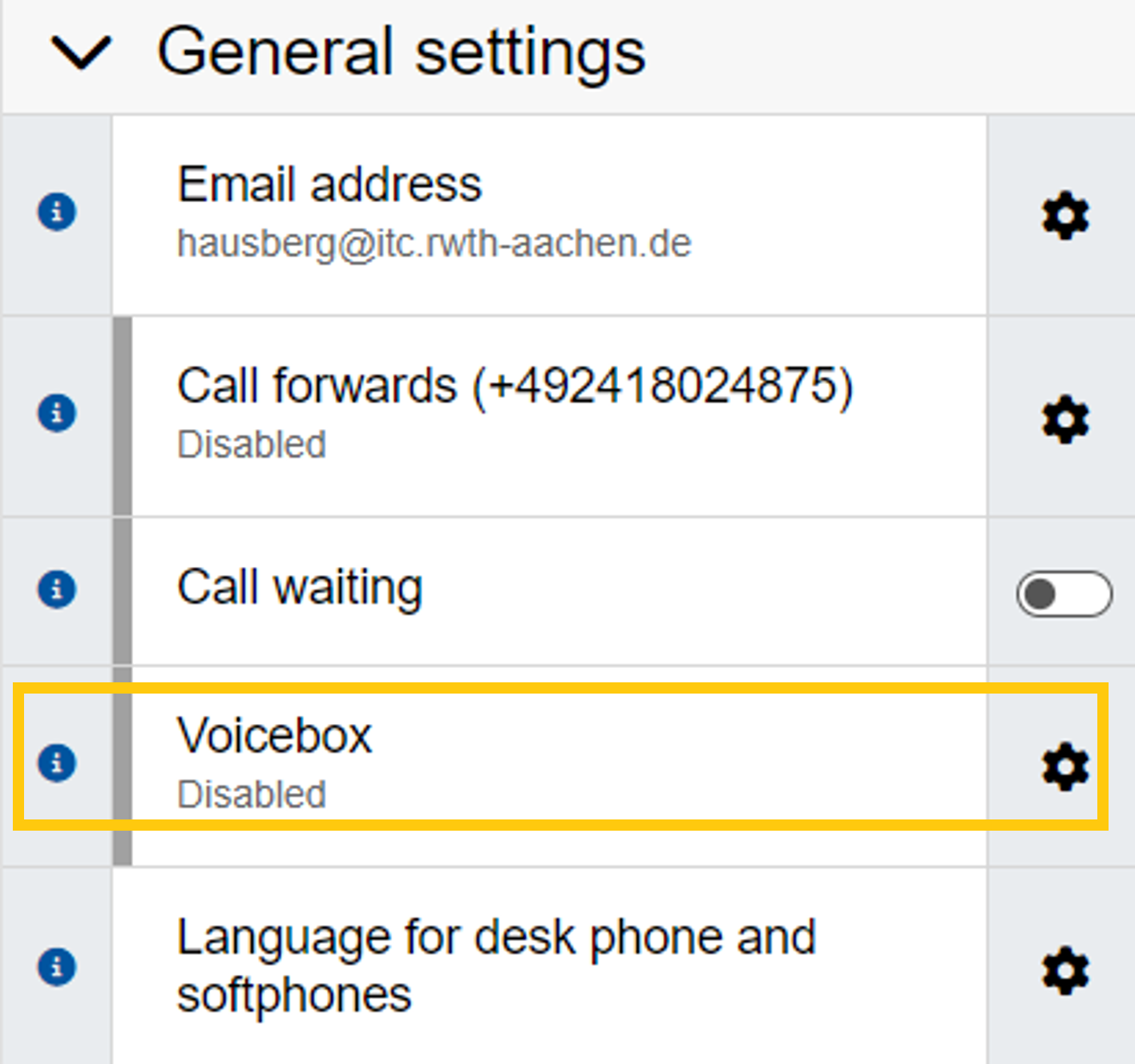
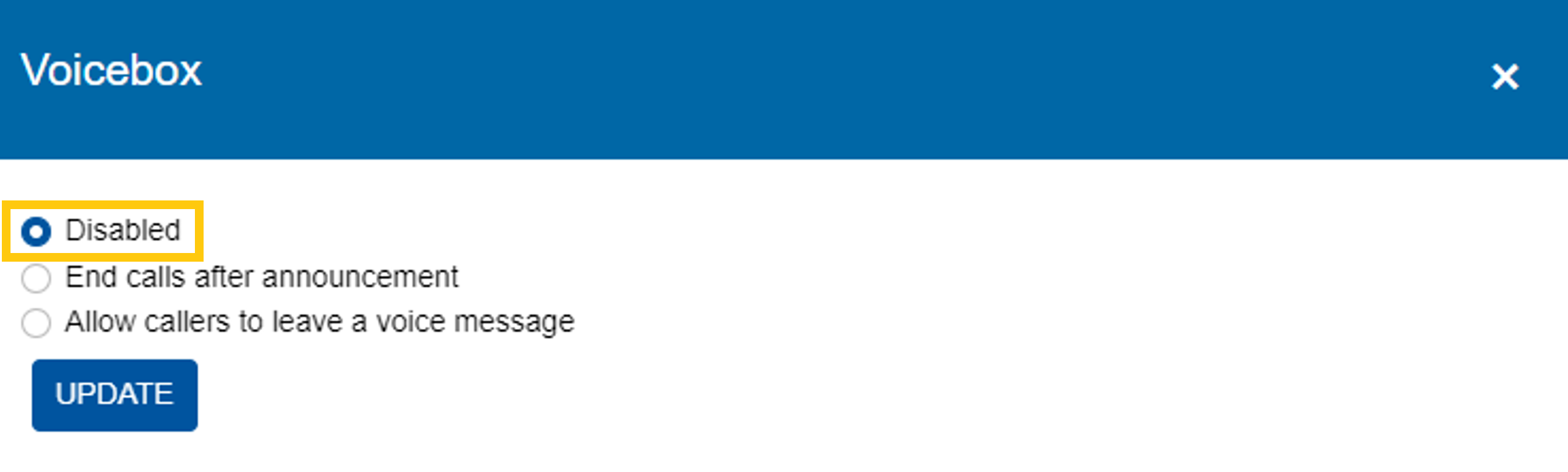
As soon as someone has left you a message on your voicemail, you will see a red signal counter that tells you the type of message you have received. You can then check your voice mailbox directly in the app.
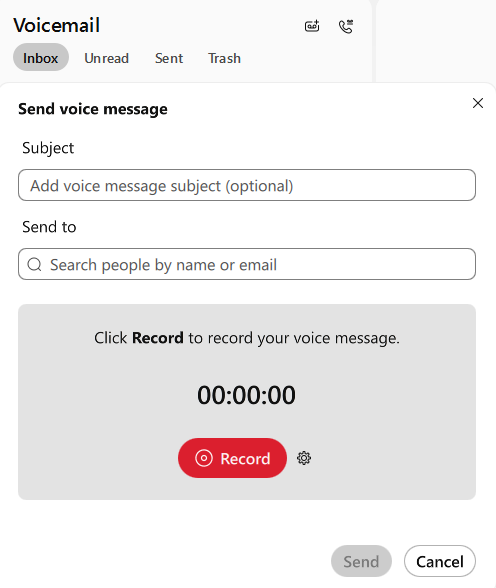
The received and sent voice messages are also displayed here. You can record and send voice messages using the plus button.
Additional information:
Explanatory videos:
- Getting started with Webex Messaging - Part 1 (opens in new tab)
- Getting started with Webex Messaging - Part 2 (opens in new tab)
- Profile and status settings (opens in new tab)
- Making calls (opens in new tab)
- Creating a space (opens in new tab)
- Getting started with Webex Meetings (opens in new tab)
- Screen sharing (opens in new tab)
- Audio settings as host / co-host (opens in new tab)
- Joining a meeting (opens in new tab)
- Schedule meetings on behalf of someone else (opens in new tab)
