


Meeting base functions

On this page, you'll learn how to schedule and create a Webex meeting.
The Meetings menu item offers the following options:
The subtitling function is available for barrier-free meetings.
Start Webex meeting
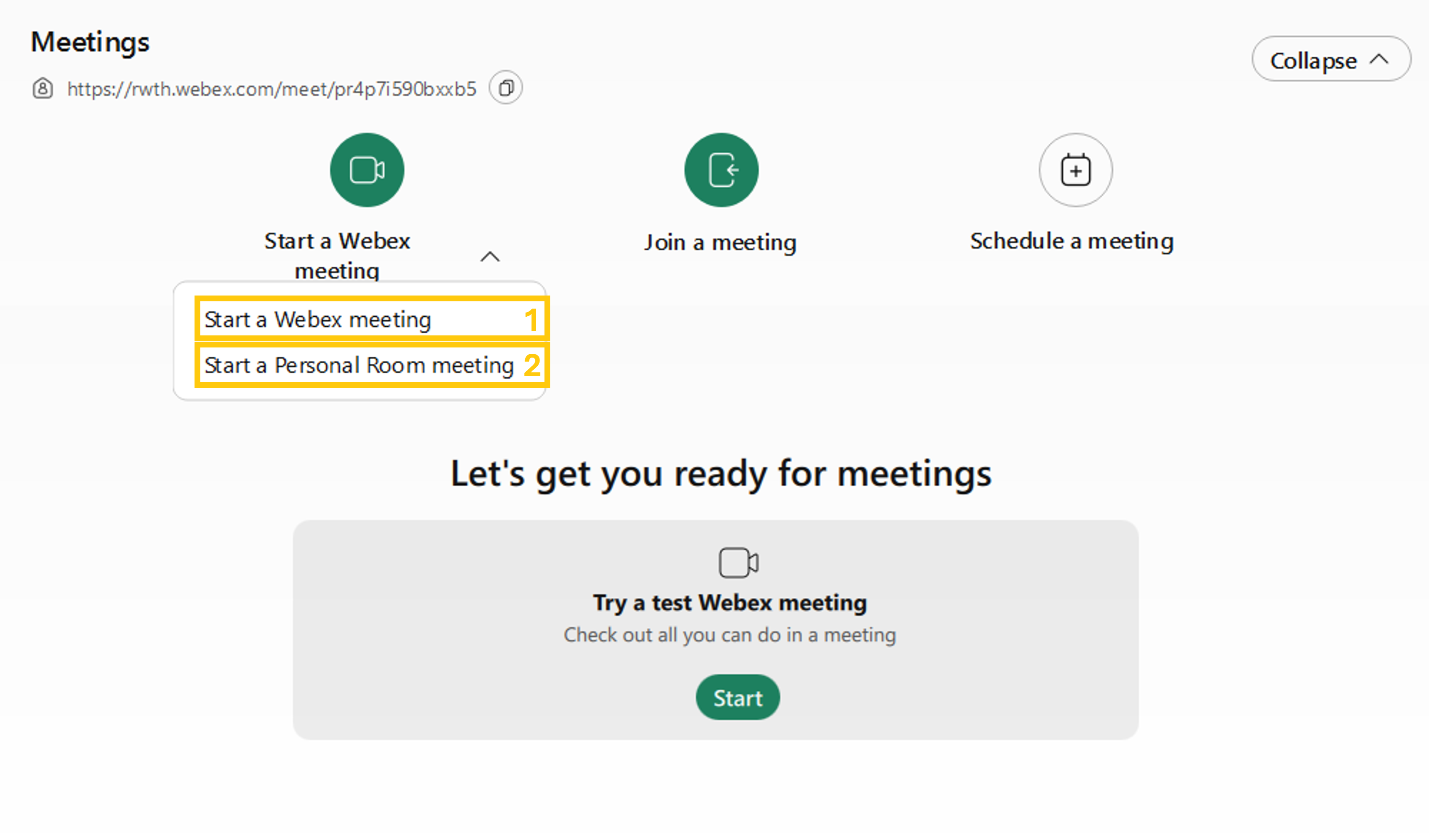
To start a Webex meeting, proceed as follows:
Step 1
Select Start a Webex Meeting (1).
If you want to start the meeting in your personal room, select Start a meeting in a personal room (2).
Step 2
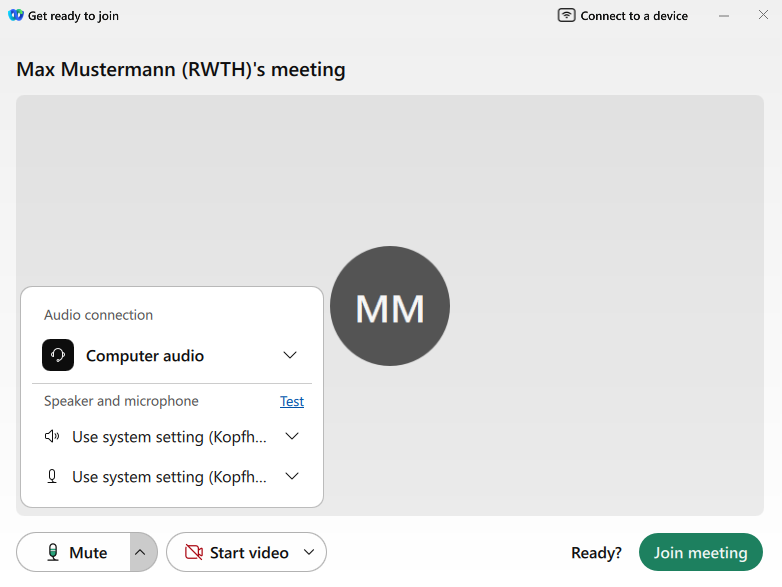
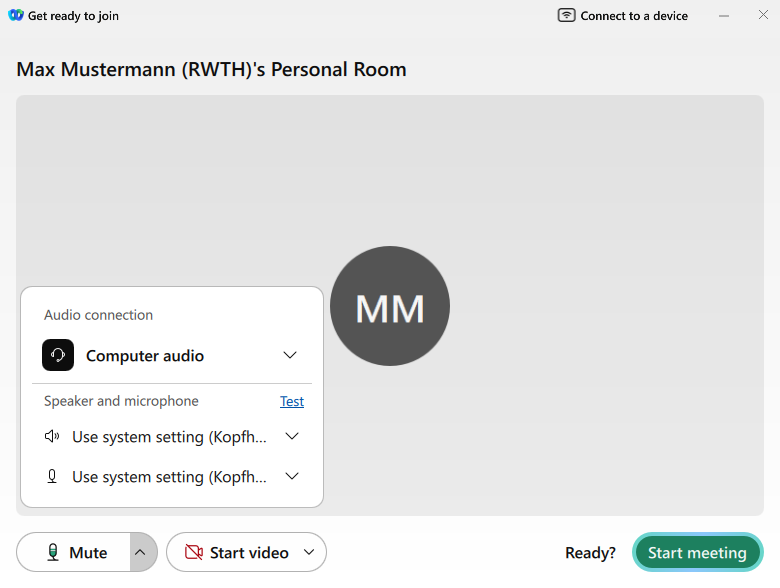
In the next window, select your audio and video settings.
Step 3
Click Start Meeting to begin the meeting.
Join Webex Meeting
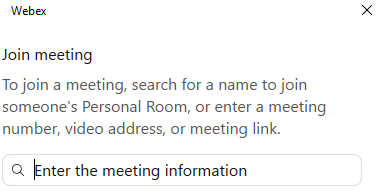
To join a Webex meeting, follow these steps:
Step 1
Click Join a Meeting.
Step 2
Enter the meeting information in the search field.
Step 3
Click Join Meeting to join the selected meeting.
Schedule Webex Meeting
To schedule a meeting, proceed as follows:
Step 1
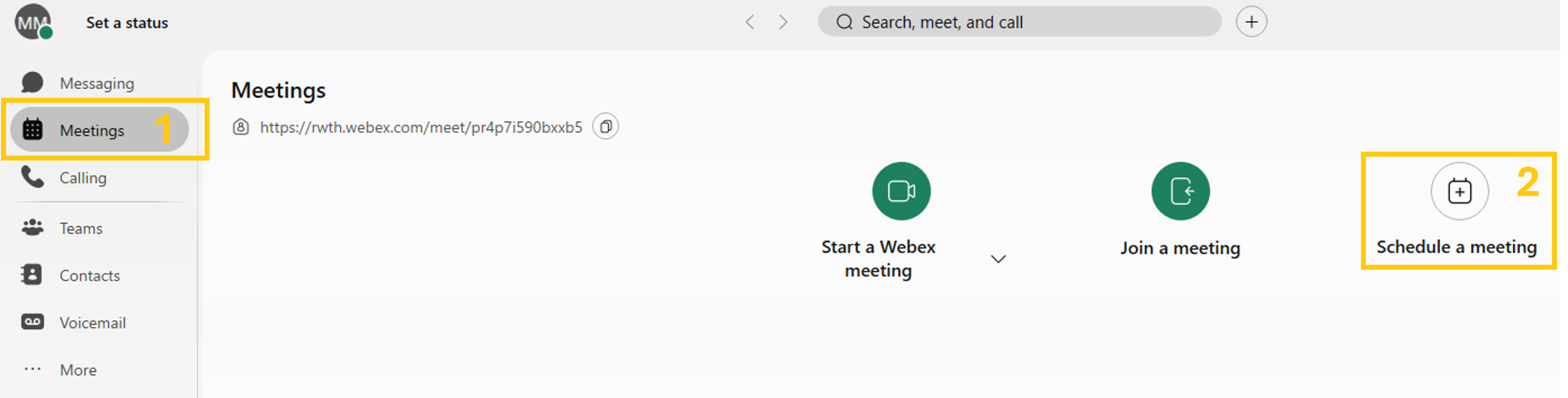
Click on Meetings (1) and then on Schedule a meeting (2).
Step 2
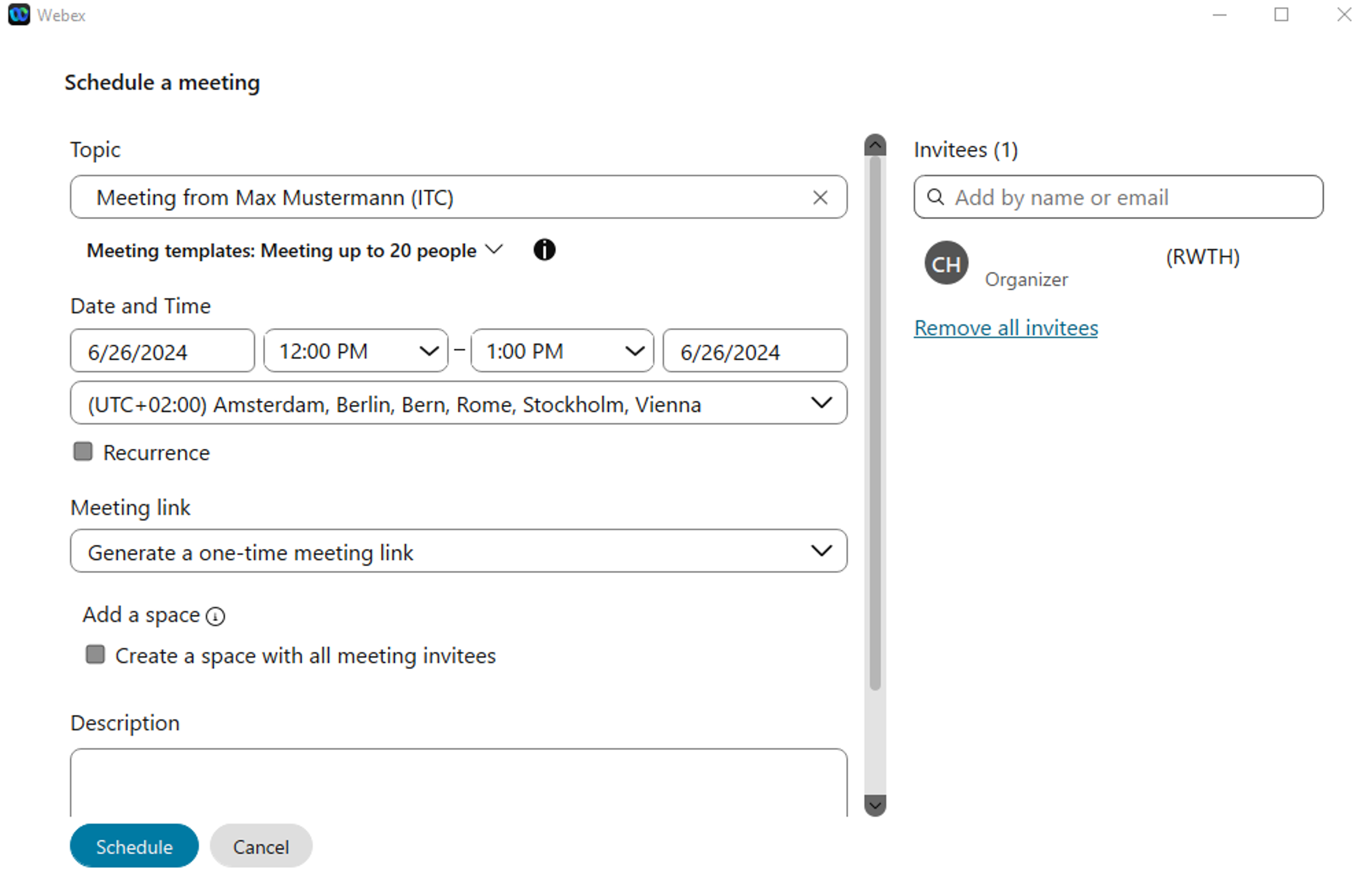
Enter your information and add all participants.
Step 3
Click Schedule to schedule the meeting.
Create Private Meeting
If you want to schedule meetings with the highest possible security, you can create a private meeting. This type of meeting is restricted to people who are registered at RWTH and are also connected either to the RWTH data network or via VPN.
To schedule a private meeting, proceed as follows:
Step 1
Click on Meetings (1) and then on Schedule Meeting (2).
Step 2
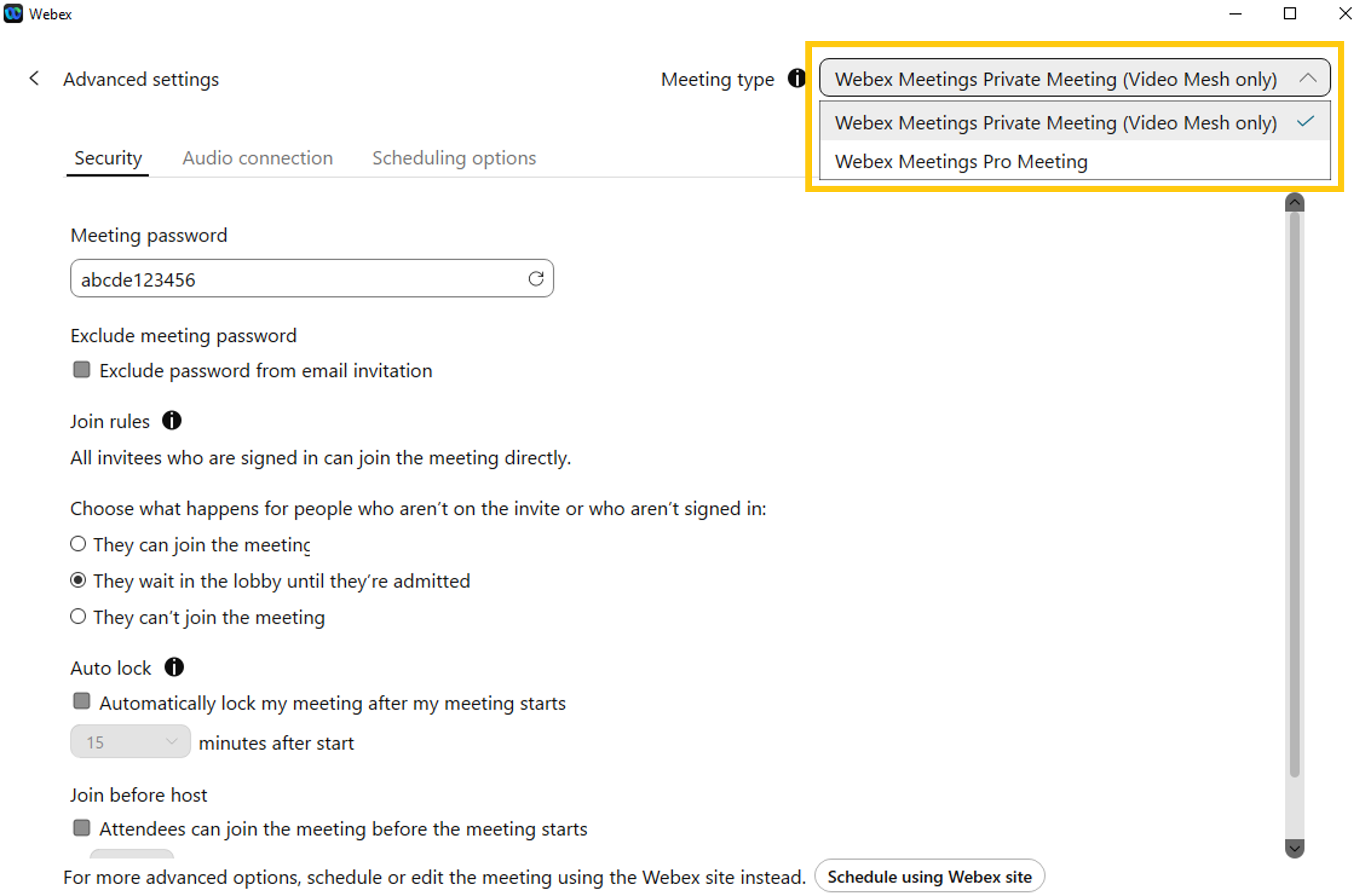
In the next window, click on Advanced options and select the meeting type Webex Meetings Private Meeting.
Step 3
Click the arrow to the left of Advanced Settings.
Step 4
Enter your information and add all participants.
Step 5
Click Schedule to schedule the meeting.
Additional information:
Explanatory videos:
- Getting started with Webex Messaging - Part 1 (opens in new tab)
- Getting started with Webex Messaging - Part 2 (opens in new tab)
- Profile and status settings (opens in new tab)
- Making calls (opens in new tab)
- Creating a space (opens in new tab)
- Getting started with Webex Meetings (opens in new tab)
- Screen sharing (opens in new tab)
- Audio settings as host / co-host (opens in new tab)
- Joining a meeting (opens in new tab)
- Schedule meetings on behalf of someone else
