Creation of Webex account and login

As an employee of RWTH Aachen University, you can create your Webex account via the TK portal. You can then use Webex via the app and via the website (cloud). Follow the instructions below to create your account. You can see whether you have the status "Employee" in the Selfservice under RWTH data.
People with another status can create an account via the Webex webpage. In this case, you can only use Webex via the website (cloud).
To use Webex as an employee, you need to do the following:
Create a Webex account in the TK portal
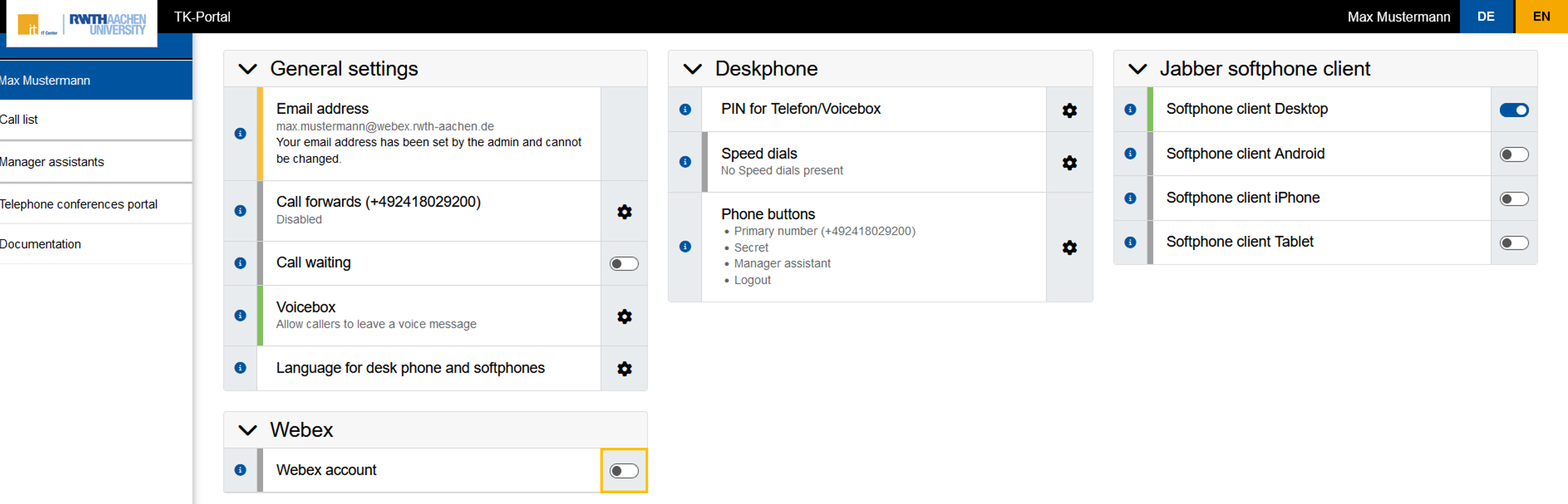
In the TK portal, under the Webex tab, click the slider next to “Webex Account.”
Install the Webex client
Download the Webex installation file from the Webex website and run it, or install Webex via the shared software distribution of the respective institution.
Mobile downloads are available for mobile devices in the Apple App Store, the Google Play Store for Google and for Android.
Please note that the "Webex" app is sufficient for telephony and chats on mobile devices. If you would like to take part in meertings on mobile, you will also need the "Webex Meetings" app.
Log in to Webex
To log in to Webex, follow these steps:
Step 1
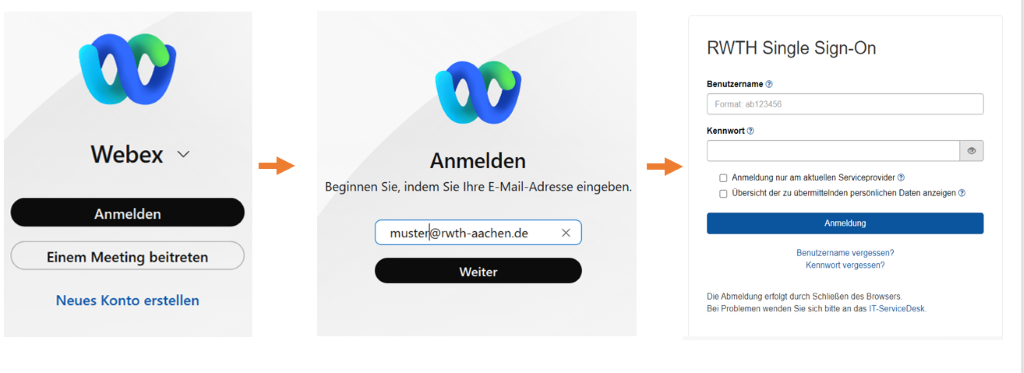
Open Webex and select Log In.
Step 2
Enter the primary email address for your TK portal account.
You can find the primary email address in the TK portal under “Webex Account.”
Step 3
You will be redirected to the RWTH Single Sign-On.
Log in with your user ID in the format ab123456 and the corresponding password.
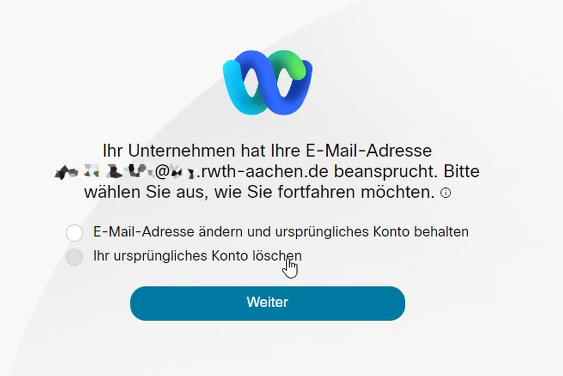
If you already have a Webex account with the specified e-mail address, this must be transferred to the RWTH Webex. If you see the following message, please select "Ihr ursprüngliches Konto löschen" (Delete your original account). All data stored in the original account will be lost.