


Schedule Meeting from Webex

You can plan and schedule meetings from the Webex application itself. Currently, we recommend scheduling meetings from Outlook if Outlook is used.
To schedule meetings from Webex, proceed as follows:
Step 1
Activate the "meeting organizer" via the TK portal.

Step 2
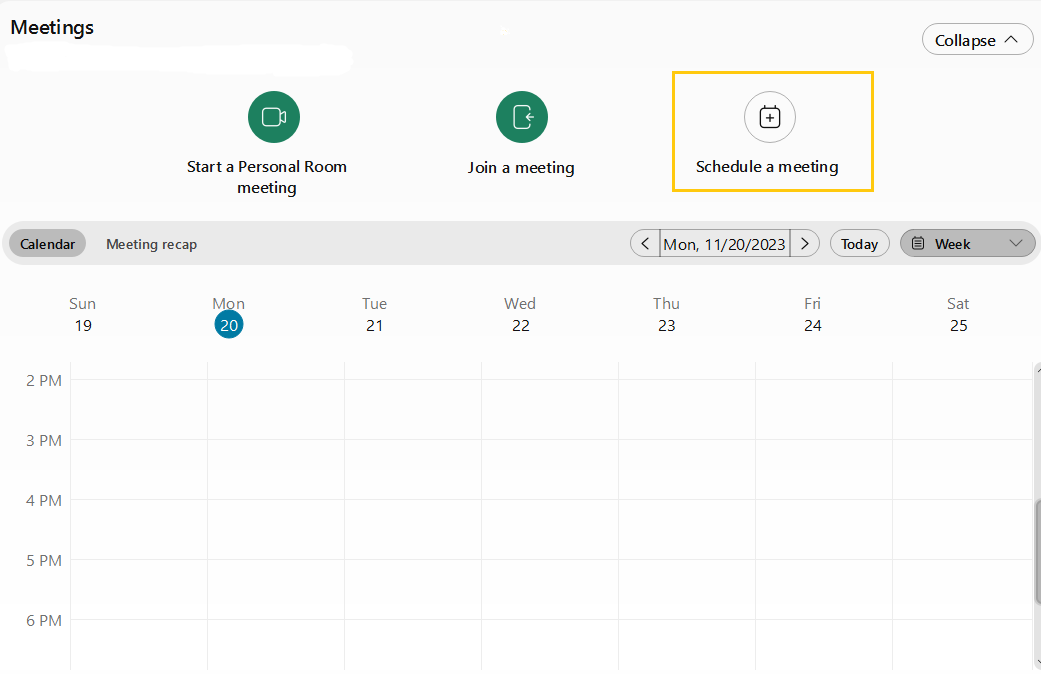
Click on the Meetings button in the Webex user interface. The following view will appear:
Step 3
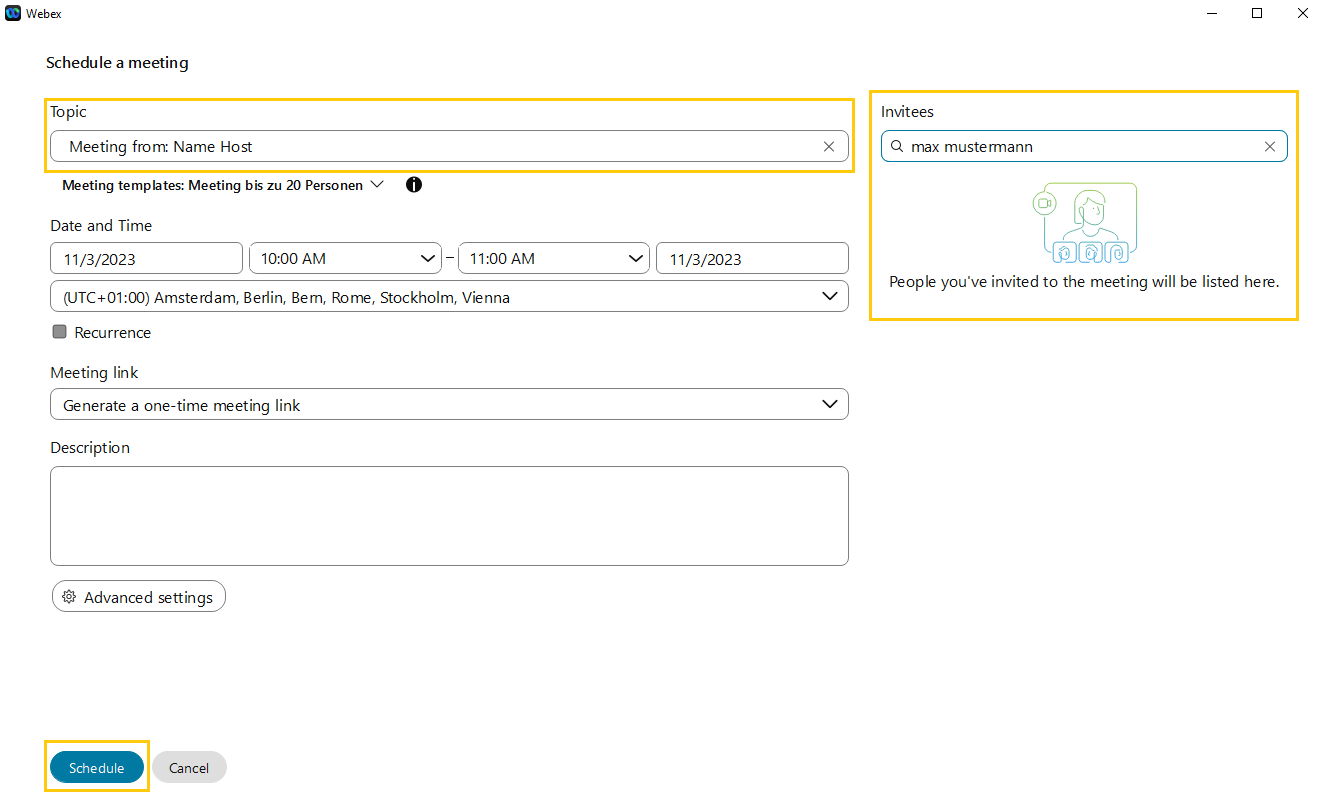
Click on Schedule a meeting.The following screen appears, where you can add or remove participants. You can set your topic for the meeting as well as the date and time. You will also find the Advanced settings button at this point.

Step 4
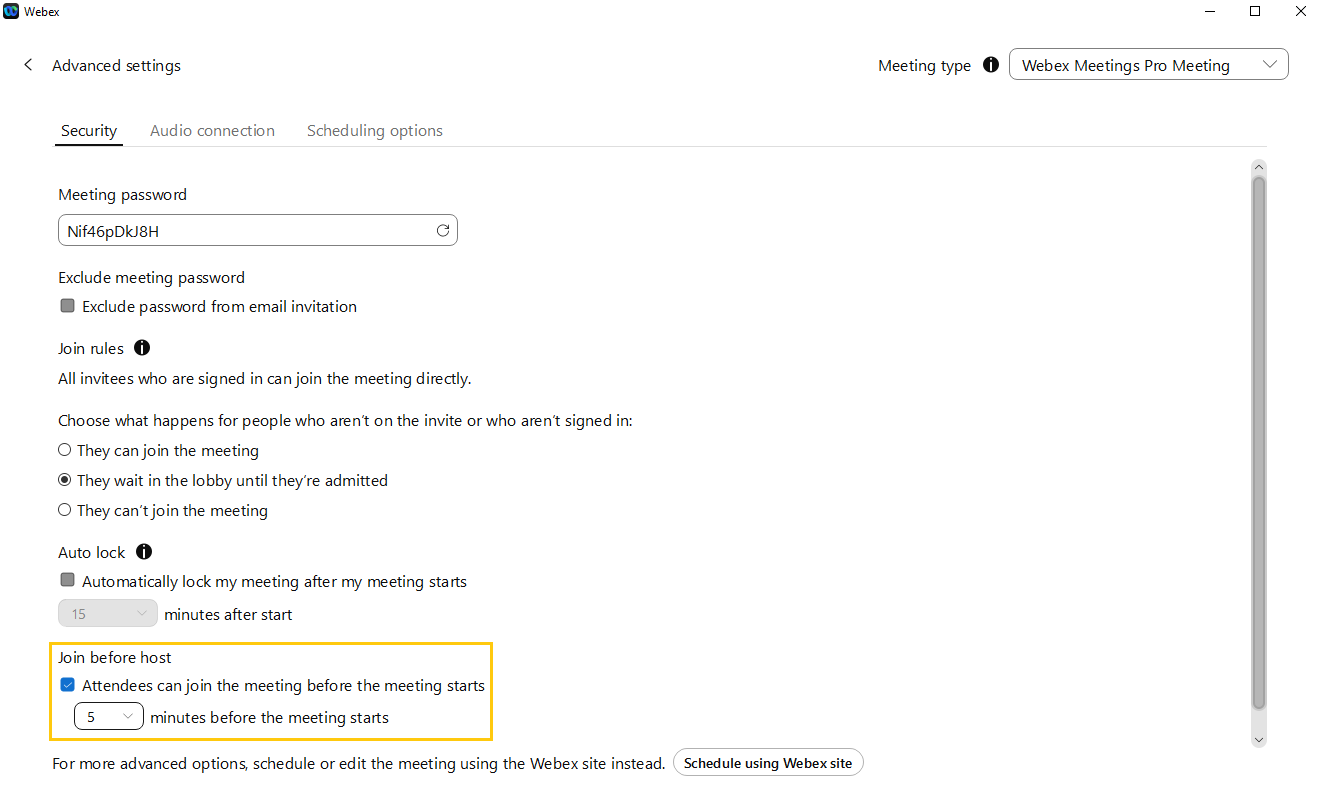
Under “Advanced settings,” you can set options such as allowing participants to join the meeting before you, as the host.
To do this, you need to tick the box before "Attendees can join the meeting befor meeting starts" and select the desired time in minutes (5, 10 or 15 minutes).
Step 5
Once you have made all the desired settings, the meeting is ready to be sent to the participants. On the right side you can check who the participants are.
If all the information is correct, click on Schedule and the meeting will be sent to the participants by mail.
If you now look at your Webex user interface under "Meetings", the created meeting will be displayed there in the Webex calendar. At this point you can Edit or Delete the meeting if necessary.

