


Webex integration in Outlook


Important
You can schedule meetings via Outlook for Windows. To do this, you need the “Webex Scheduler.” To activate the Webex Scheduler, the meeting organizer must be activated in the TK portal.
You can then activate Webex Scheduler in two ways and link it to Webex:
- Activate Webex Scheduler via the Outlook client
- Activate Webex Scheduler via Outlook Web Access
- Link the Outlook add-in to Webex
Activate Webex Scheduler via the Outlook client
To activate the Webex Scheduler from the Outlook client, follow these steps:
Step 1
Open Outlook and click on "File" register.

Step 2
Click Manage Add-Ins. This will open a browser window and redirect you to Outlook Web Access (OWA).

Step 3
Log in to the OWA. You can find separate instructions for logging in to OWA here.
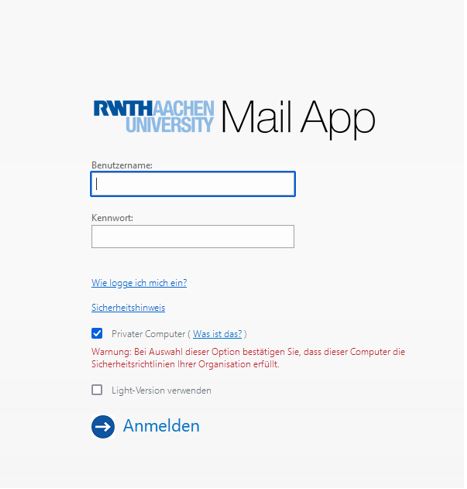
Step 4
Click on the gear icon in the upper right corner.
Step 5
Under Manage Add-Ins, tick the box next to "Cisco Webex Scheduler".
Hereby you activate the Webex plugin for creating meetings.
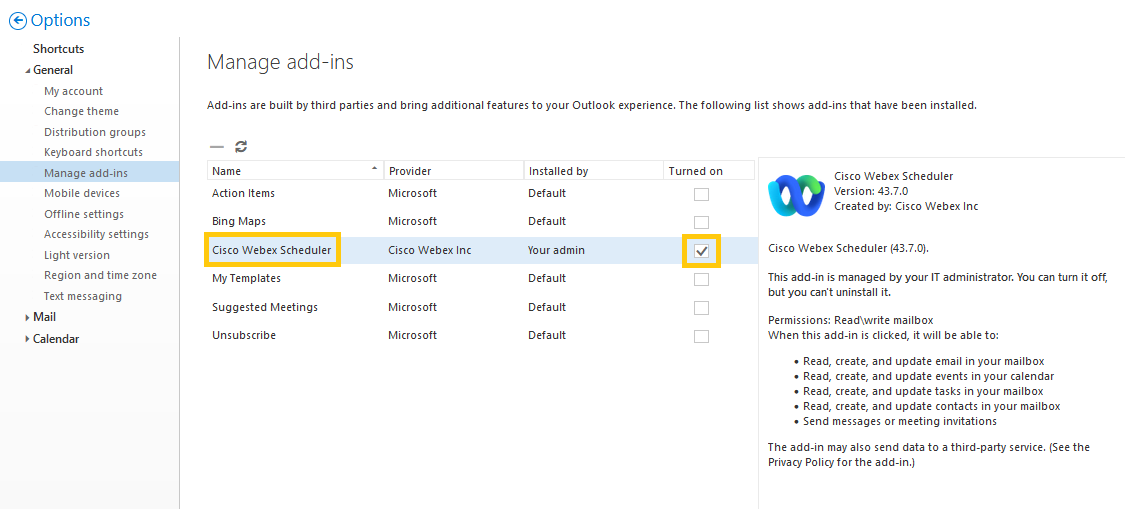
Step 6
Log out from OWA and close the browser window.
Quit your Outlook client and restart it.
Activate Webex Scheduler via Outlook Web Access
If you do not use Outlook Client, you can set up the Webex Scheduler directly via Outlook Web Access (OWA).
To do so, follow these steps:
Step 1
Open Outlook Web Access (OWA) and log in with your data.
Step 2
Click on the gear wheel in the upper right and then on "Manage Add-Ins".
Step 3
Check the box for "Cisco Webex Scheduler".
Hereby you activate the Webex plugin for creating meetings.
Link the Outlook add-in to Webex
To link the “Webex Planner” add-in to Webex, proceed as follows:
Step 1
Open your Outlook client.
Step 2
Create a new appointment.
Step 3
Click on Webex preferences.

Step 4
Click on the "Get started"-button.

Step 5
A new browser window will open where you will need to log in to Webex.
Here you need to select the first item "rwth.webex.com"or enter "rwth.webex.com" in the empty field.
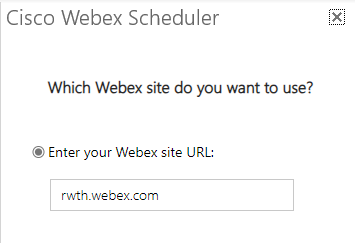
Step 6
Then enter your email address, which is displayed in the TK portal, and log in via RWTH Single Sign-On.
After signing in, you can close the window and your Outlook is now connected to the Webex planner.
