


Collaborative work with Microsoft Teams

On this page, you’ll learn how to collaborate with each other using Microsoft Teams.

Important
The following situations may arise:
Collaborative work between RWTH staff and students
Collaborative work between RWTH members and external parties
- An RWTH member wants to invite an external member
- External member wants to invite RWTH member
- Notes on sharing files
Collaborative work between RWTH staff and students
Inviting students to a team
There may be instances where staff members need to schedule meetings with students who are not student assistants, or where students need to be added to a team in Microsoft Teams.
Since the tenants for staff and students are separate, a special invitation process is required. Staff members invite students from the Students tenant as guests using their Microsoft account names.
First, the student must find out their Microsoft account name so they can provide it to the staff member(s). To do this, the student follows these steps:
Step 1
Sign in at Login page for office (opens in new tab) using your M365 Login for students.
Step 2
Click the profile icon at the top.
Step 3
The account name is now displayed and has the format: abtdebg163h8j@students.rwth-aachen.de.
Step 4
The employee invites this account name. The invitation process may take up to one minute.
Step 5
To display the team (or the other organization), the student must sign in to Teams again. After that, the organization (tenant) can be changed via a drop-down menu in the top-right corner.
Using MS Teams as student assistant
Student assistants are in a special situation in that they are assigned two statuses in Identity Management via ConnectMe. They have the status RWTH student as well as RWTH Employee and can therefore use both M365 services and connect to both tenants. You receive the RWTH Employee status via the ConnectMe coupon, which is issued by the Human Resources Department (opens in new tab) at RWTH Aachen University after signing your contract.
Alternatively, student assistants (provided they are RWTH Aachen University students) can also be invited to a team via the student M365 login.
Collaborative work between RWTH members and external parties
An RWTH Member wants to invite an external member
There may be instances where employees or students need to schedule meetings with external parties, or where these parties are to participate as members of a team. In general, guests (meaning: non-RWTH members) can be invited to a team using their email address. To do this, the RWTH member should follow these steps:
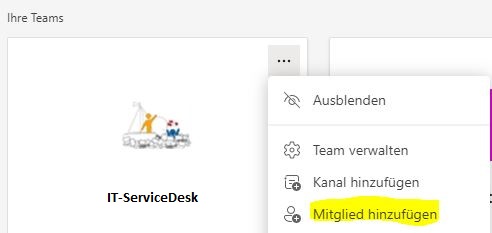
Step 1
Open Microsoft Teams and click the icon in the Teams tab: 
Step 2
Using Add Member, you can invite new members using their email address (not an RWTH address):
External member wants to invite RWTH member
As an RWTH member, you may be invited to join an external team in Microsoft Teams (e.g., collaboration partners or companies). Since the Microsoft tenants are separate from one another, a special invitation process is required.
External users can invite RWTH students or employees as guests using the respective Microsoft account name.
To find the Microsoft account name, follow these steps:
Step 1
Login at the Login page for office (opens in new tab) using your M365 Login for students or your M365 Login for employees.
Step 2
Click on the profile icon at the top.
Step 3
The account name is now displayed and has the format: abtdebg163h8j@students.rwth-aachen.de or abtdebg163h8j@m365.rwth-aachen.de for employees.
Step 4
The external user invites this account name. The invitation process may take up to one minute.
Schritt 5
For the team (or the other organization) to appear, the respective student or staff member must sign in to Teams again. After that, the organization (tenant) can be changed via a drop-down menu in the top-right corner.
Notes on sharing files
Please note that files stored in a team can only be shared with members of that team.
