You are located in service: Microsoft 365

Back up files from SharePoint Online

Back up files from SharePoint Online

guide

On this page, you will learn how to back up your files from SharePoint Online.

To back up your data, follow these steps:

  1. Check how much storage space is occupied
  2. Back up your data

1. Check how much storage space is occupied

Step 1
Log in to the Office Portal with something@students.rwth-aachen.de:
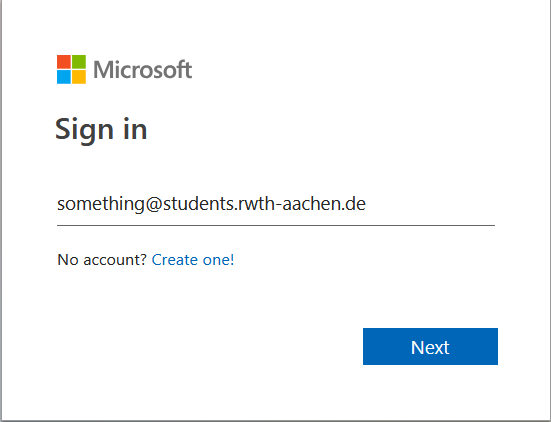
Screenshot of the M365 login screen.

Step 2
Select Apps > All Apps > SharePoint.

Step 3
Select the site with the storage space that needs to be checked:
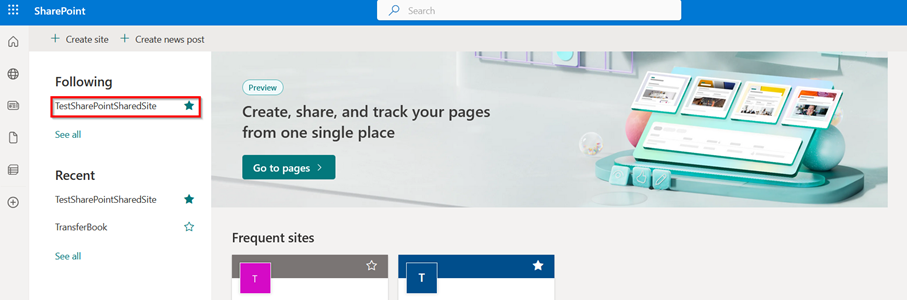
Screenshot of the SharePoint home page. Your SharePoint sites are listed in the section

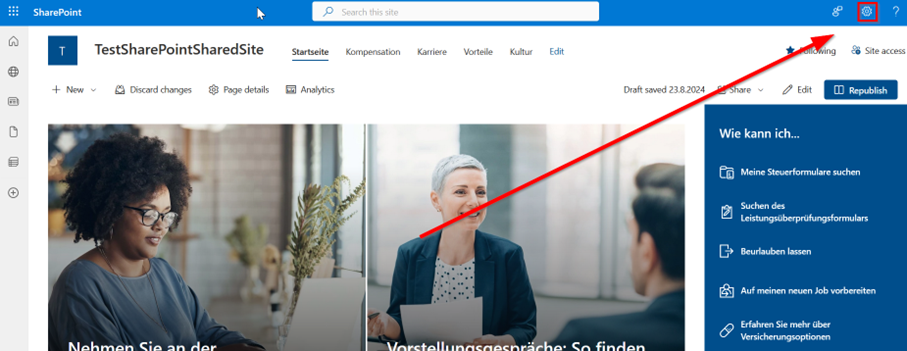
Step 4
Click on the settings icon.

Screenshot of the SharePoint start page. The settings are located in the top taskbar, before the help button.

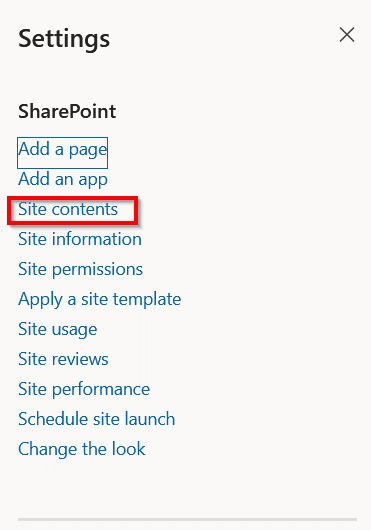
Step 5
Click on Site contents:

Screenshot of the settings.

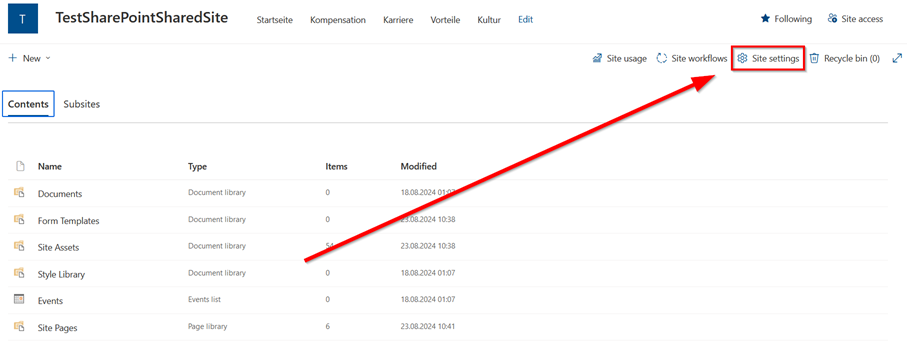
Step 6
Click on Site settings:

Screenshot of the

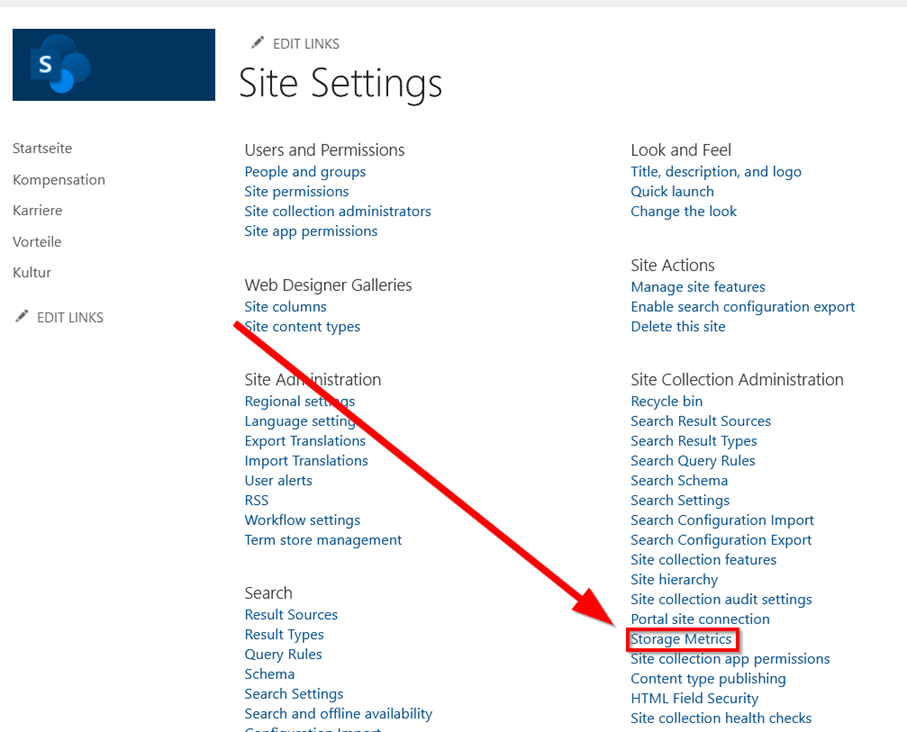
Step 7
Click on Storage metrics:

Screenshot of the website settings. The storage metrics are located in the

Step 8
The storage space used by the site is displayed here:
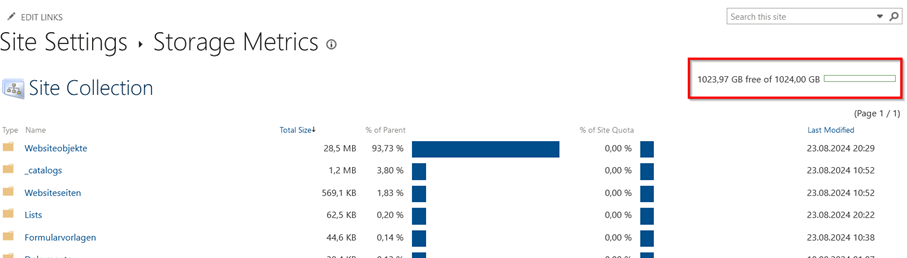
Screenshot of the storage metrics. Your folders are listed in a table. The

Step 9
If the storage space is larger than expected, it is probably due to older file versions. You can check this by clicking on Version History of the respective file:
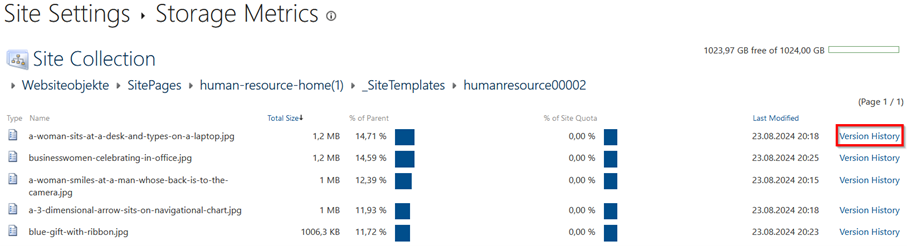
Screenshot of the content of the folder

Step 10
In order to delete all versions except for the current one, click on Delete all Versions:
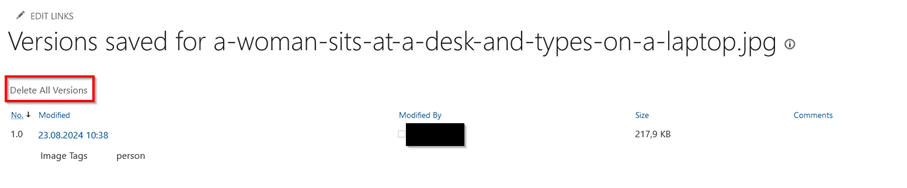
Screenshot of the version history. The versions are listed in a table. The


Please note:

It is not immediately displayed that less storage space is being used. This can take up to 24 hours.

2. Back up your data

Step 1
Open the SharePoint Online site in the web browser. If you are a member of a SharePoint Online site, this will be displayed on the website.

Step 2
On one of your SharePoint Online sites, click on Documents on the left:
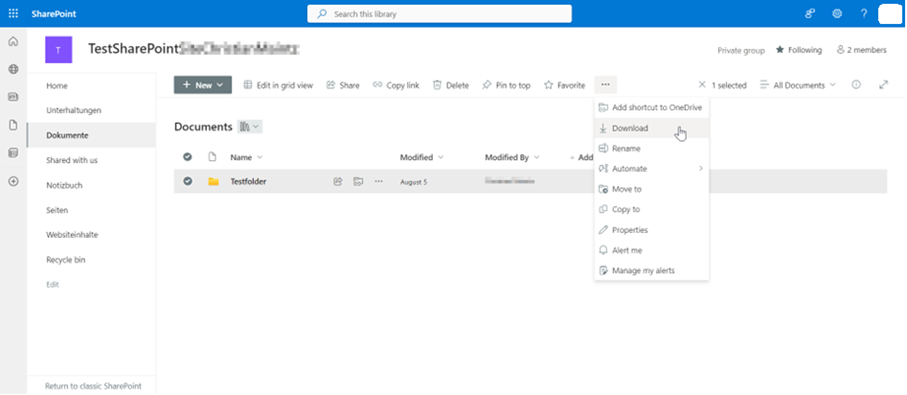
Screenshot of the start page of a test SharePoint. The documents are located in the home menu between

Step 3
Select all files, then download them by clicking on the three dots.


Note

Only the latest versions from the version history will be downloaded. Older files from the version history will not be saved.

Additional information:

last changed on 07/15/2026

How did this content help you?

Creative Commons Lizenzvertrag
This work is licensed under a Creative Commons Attribution - Share Alike 3.0 Germany License