Manage Account

This page explains how to edit your personal details and link multiple email addresses to your Mailman-account.
Edit personal details
First, open your account settings. Click on your profile picture in the top right-hand corner and select Account.
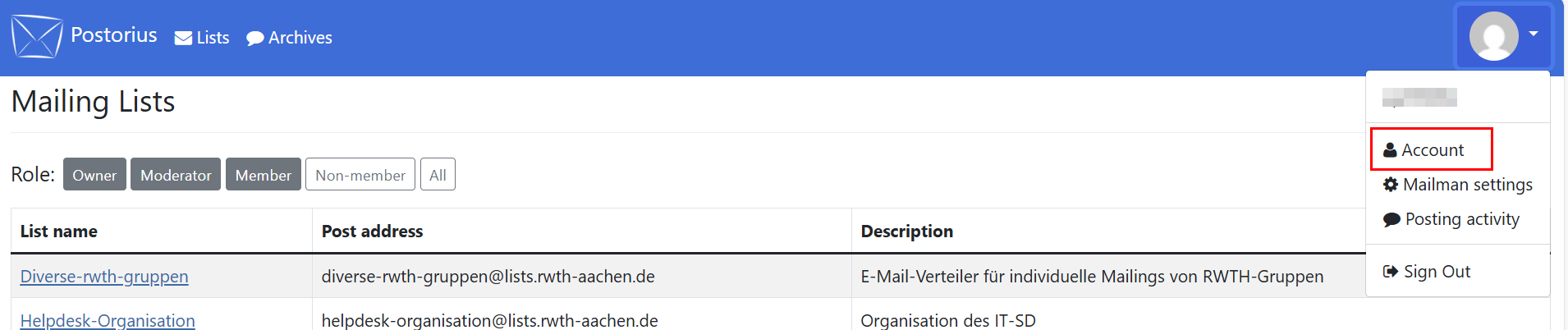
You can now see your user profile. You can edit your username, first name and last name, as well as change the time zone.
![Screenshot of the "User profile for [username]" page in the "Account" tab. Below the aforementioned fields, you will find your primary and other email addresses, as well as the registration date. Below that is the "Update" button.](https://api.app.rwth-aachen.de/v3/sabio/Manual/File/documents%2f0962a984657bb2e901657bc9e2810004%2f1jifm42ljvvhw%2f48542148c632455d852bc50d6355d40a%2fMailing_EN_Benutzerprofil.png)
Manage email addresses
First, open your account settings. Click on your profile picture in the top right-hand corner and select Account.
You now see your user profile. You can do the following:
Link a new email address
If you are signed up to different mailing lists with different email addresses, you can link them all to your account. This allows you to manage all your subscriptions from just one account.
Please note:
Functional email addresses can be linked to only one account.
Step 1
Click Link another address next to "Other emails".
![Screenshot of the "User profile for [username]" page in the "Account" tab. "Other emails" is located between "Primary email" and "Joined on."](https://api.app.rwth-aachen.de/v3/sabio/Manual/File/documents%2f0962a984657bb2e901657bc9e2810004%2f1jifm42ljvvhw%2fb0a23eb53a4e499fbcbbf59d1b3792c1%2fMailing_EN_Andere_Adresse.png)
Step 2
Enter your new email address under "Add E-mail Address" and click Add E-mail.
![Screenshot of the "User profile for [username]" page in the “Email addresses” tab. First, the email addresses that are already linked are displayed. Below that, there is an input field where you can add a new email address.](https://api.app.rwth-aachen.de/v3/sabio/Manual/File/documents%2f0962a984657bb2e901657bc9e2810004%2f1jifm42ljvvhw%2f00e452c34305414f9fb747b75ffdcef0%2fMailing_EN_Email_hinzufuegen.png)
Step 3
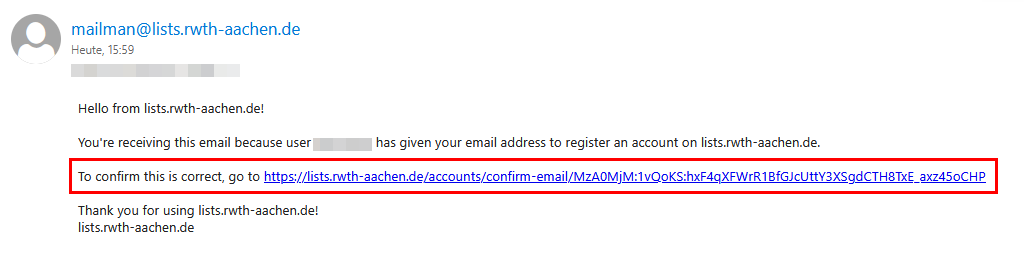
You will receive an email with the subject line "[lists.rwth-aachen.de] Please Confirm Your Email Address". Click the link in the email.
Step 4
Click Confirm.
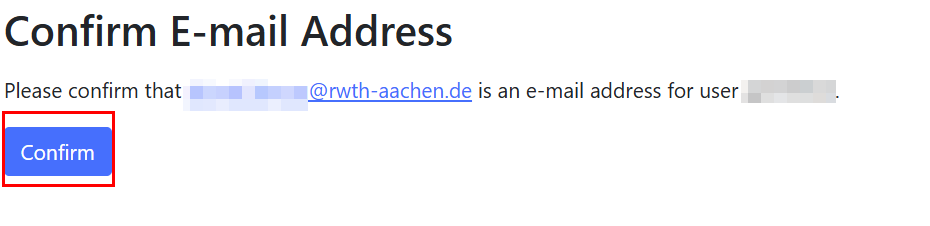
Your email address is now linked to your account.
Select a primary email address
The primary email address is the one you use to log in to Mailman.
Step 1
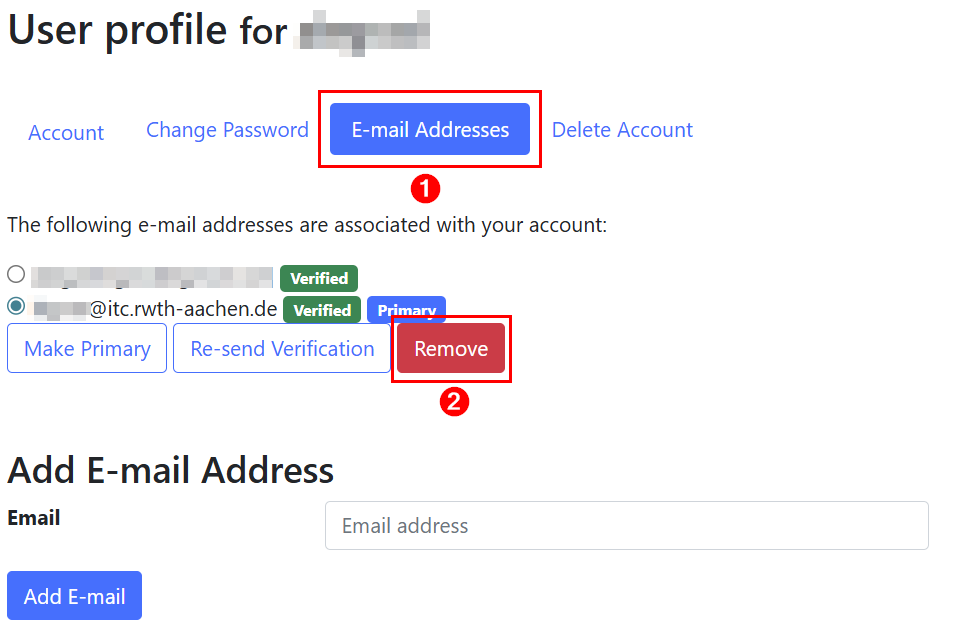
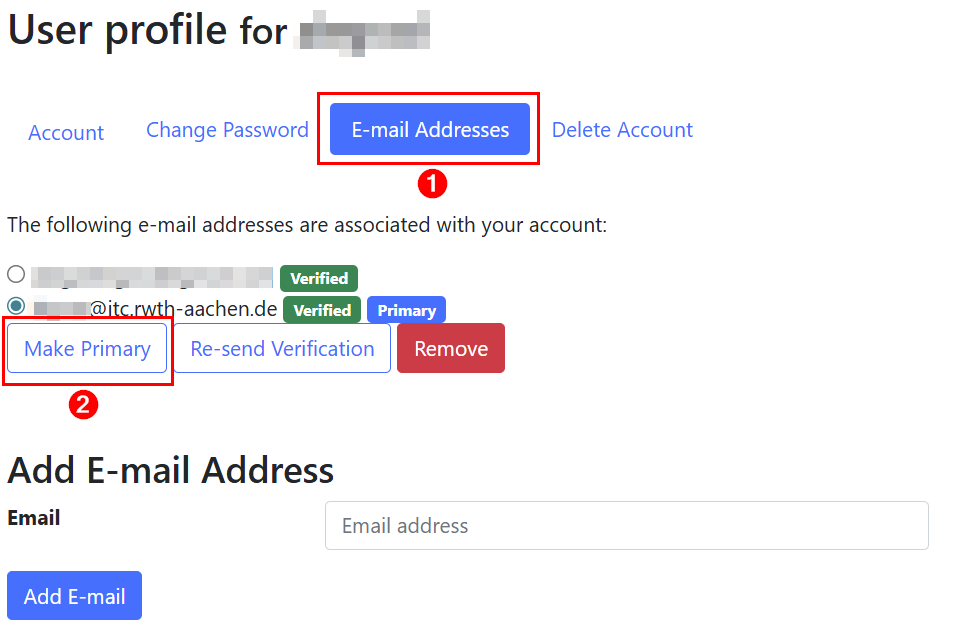
Click E-mail Addresses in the navigation.
Step 2
Select an email address in the list.
Step 3
Click Make Primary.
Delete an email address
Please note
Deleting an email address will automatically unsubscribe you from all mailing lists connected to that address.
Step 1
Click E-mail Addresses in the navigation.
Step 2
Select an email address in the list.
Step 3
Click Remove.