


Subscribe and remove multiple users to and from a mailing list

On this page you will learn how to add multiple subscribers to a mailing list at once or how to remove them from the mailing list.
Subscribe multiple users to a mailing list
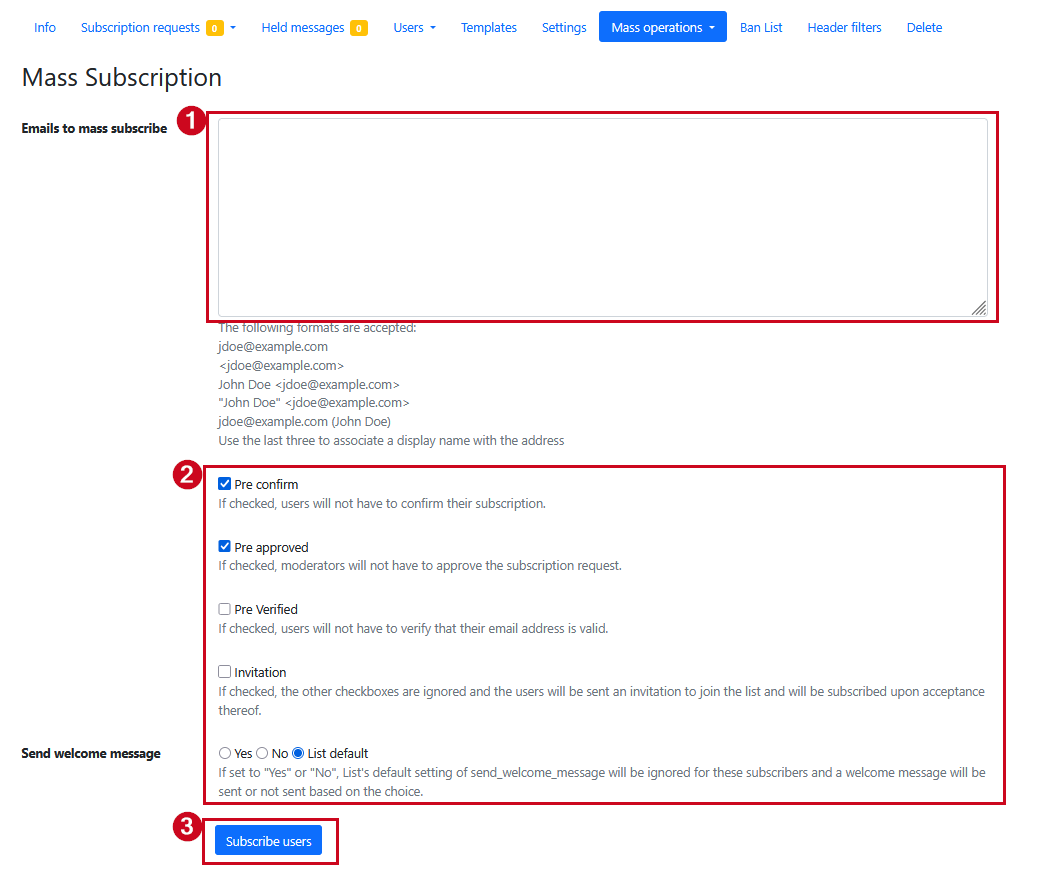
To add subscribers to a list, choose Mass operations >Mass Subscription:
- Enter the e‑mail addresses of the people into the field Email to mass subscribe;
- Check the desired options for adding them to the list:
- Pre confirm: If checked, subscribers do not have to confirm to be added to a list.
- Pre approved: If checked, moderators do not have to approve the subscription request.
- Pre verified: If checked, users do not have to verify their email address. The users usually need to verify their email address when new addresses are added that do not have a user account.
- Invitation: If checked, users will receive an invitation to a maling list and should accept it to be added to the list.
- Send welcome message: Choose if a welcome message should be send to the added users. If you choose List default, the usual list setting will be used.
- Click Subscribe users:
Remove multiple users from a mailing list
To remove subscribers from a list, choose Mass operations >Mass Removal:
- Enter the e‑mail addresses of the list members in the field Emails to Unsubscribe.
- Click Remove listed users to unsubscribe the list members.

Please note:
The button Remove ALL members deletes all list members from the list, so it should only be selected when the entire mailing list is being deleted.
