


Requesting changes for a VM

This page describes how to request changes for virtual machines (VMs) via SeviRe.
Go to Virtual Serverhosting > VM List to see an overview of all VMs assigned to your institution.
Click on the name of the VM to access VM details:
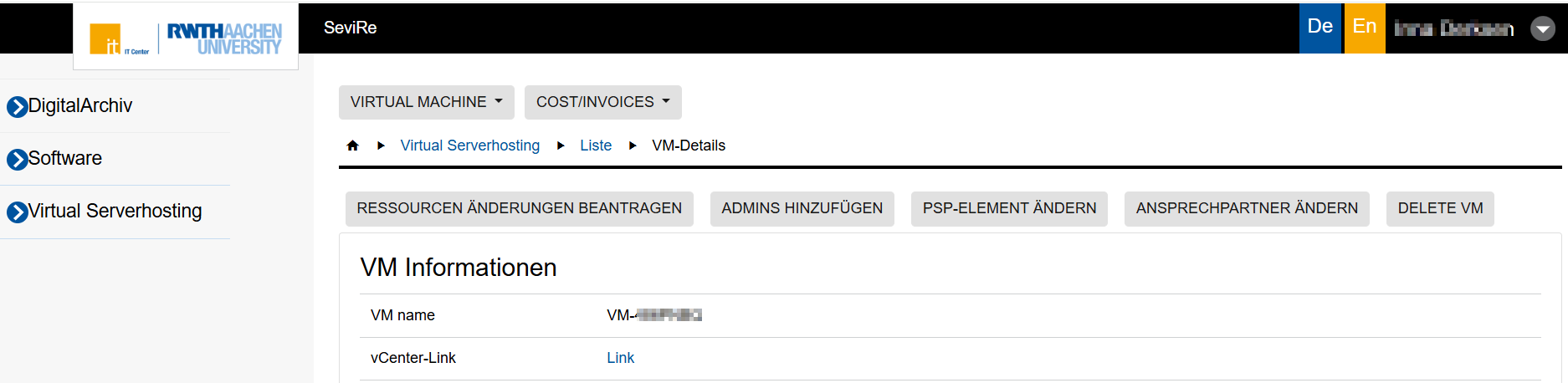
On this page, you can request the following changes:
Change of VM admins
The role VM Admin allows you to perform technical administrative actions on VMs through the associated vCenter server.
To add or remove (overwrite) a VM Admin, please follow these steps:
- Click on Admins hinzufügen (add admins) under VM Details.
- Select the desired action:Administratoren hinzufügen (add administrators) or Administratoren überschreiben (overwrite administrators). By overwriting administrators, you can remove administrators by not selecting the individuals who should be removed.
- Select individuals from the drop-down list: The list includes individuals who have logged into SeviRe at least once and have a server hosting account.
- If you are not a VM contact, select someone with this role to confirm your request. If you possess this role, this step is omitted.
You also have the option to add individuals who do not belong to the organization to which the VM is assigned. This enables cross-organizational collaboration. To do so, you need to type in your colleagues' official e-mail addresses. After that, it will be checked in real-time whether the requirements are met (the corresponding person must have logged into SeviRe at least once and possess a server hosting account).
Change of VM contacts
To add or remove a contact person for the VMs of your organization, please proceed as follows:
- In the VM details, click on Ansprechpartner ändern.
- Under Request addition of contact persons, you can add a new contact person. Please select a person from the drop-down list. Only persons who have logged into SeviRe at least once and who belong to the same organization as the VM can be selected.
- Under Request removal of contact persons you can select the persons you want to remove. If you want to undo your selection, simply click the selected entry again.
- If you are not VM contact or IT purchaser(role Bestellung IT), select a person from the list to confirm your request. If you have one of these roles, this step is omitted.
- Click Änderung jetzt beantragen to see a summary of your request.
- Click Confirm to submit the request.
Only one request can be submitted per VM at a time. After submitting your request, you must wait until it is approved or rejected.
It will be checked whether the VM still has at least one contact person after the changes. This ensures that a VM always has at least one contact person.
Change of resources
To request a change to your VM's resources, please proceed as follows:
- In the VM details, click on Ressourcen Änderungen beantragen.
- If you do not have the role Bestellung IT (IT purchaser), select a person from the list to confirm your request. If you have the rol, this step is omitted.
- Accept the terms of use.
- Click Submit to send the request.
If any actions are required from your side after the order has been authorized by the person with the role Bestellung IT (IT purchaser), e.g. shutting down the VM, you will be contacted separately.
Change of the PSP element
To request a change to the PSP element of your VM, please proceed as follows:
- In the VM details, click on PSP-Element ändern.
- Select the date from which the change should be valid and type in the new PSP element. The PSP element is always exactly 15 characters long.
- If you do not have the role Bestellung IT (IT purchaser), select a person from the list to confirm your request. If you have one of these roles, this step is omitted.
- Click Anfragen to send your request.
After confirmation, the request will be processed and the PSP element will be changed.
Note:
As with ordering a new virtual machine, cooperation between different RWTH institutions is supported. This means that a VM from institution A can be paid for using a PSP element from institution B. The SeviRe ordering process will automatically handle obtaining the required authorizations from the involved institutions A and B.
