


List Settings

This page explains how to set specific delivery settings for a list in Mailman
If you do not set any delivery settings for a list, the address-based or global settings will be applied automatically instead.
Step 1
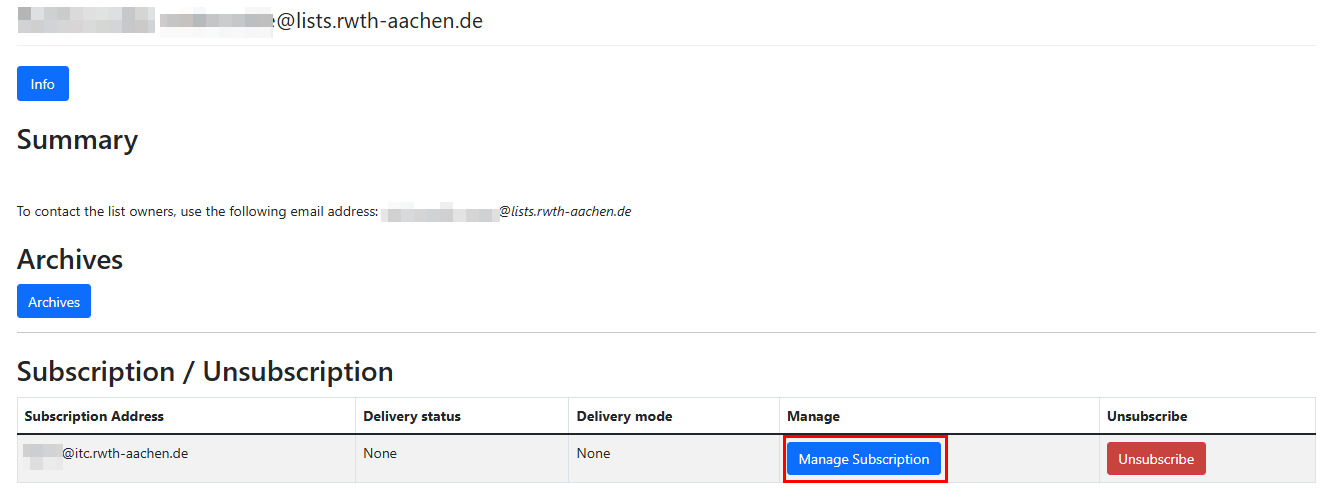
You can find your subscriptions on the start page. Click on the list whose settings you want to manage.
Step 2
Click Manage Subscriptions.
Step 3
You can set the following settings:
- Select email: If you added alternative email addresses to your account, you can select to which one the messages should be sent.
- Delivery status: Change this setting if you would like to stay subscribed to the list, but not receive any messages from it (e.g. when you are on vacation).
- Delivery mode: You can choose whether to receive the messages bundled together or one by one.
- Receive own postings: If you send a message to the list, you can select whether you will receive a copy of it.
- Acknowledge posts: Select whether you would like to receive a confirmation email when you send a message to the list.
- Hide address: Select whether other subscriber can see your email address.
- Receive list copies: Choose whether you get a copy of the message when someone entered your email address in addition to the list address.
- Preferred language
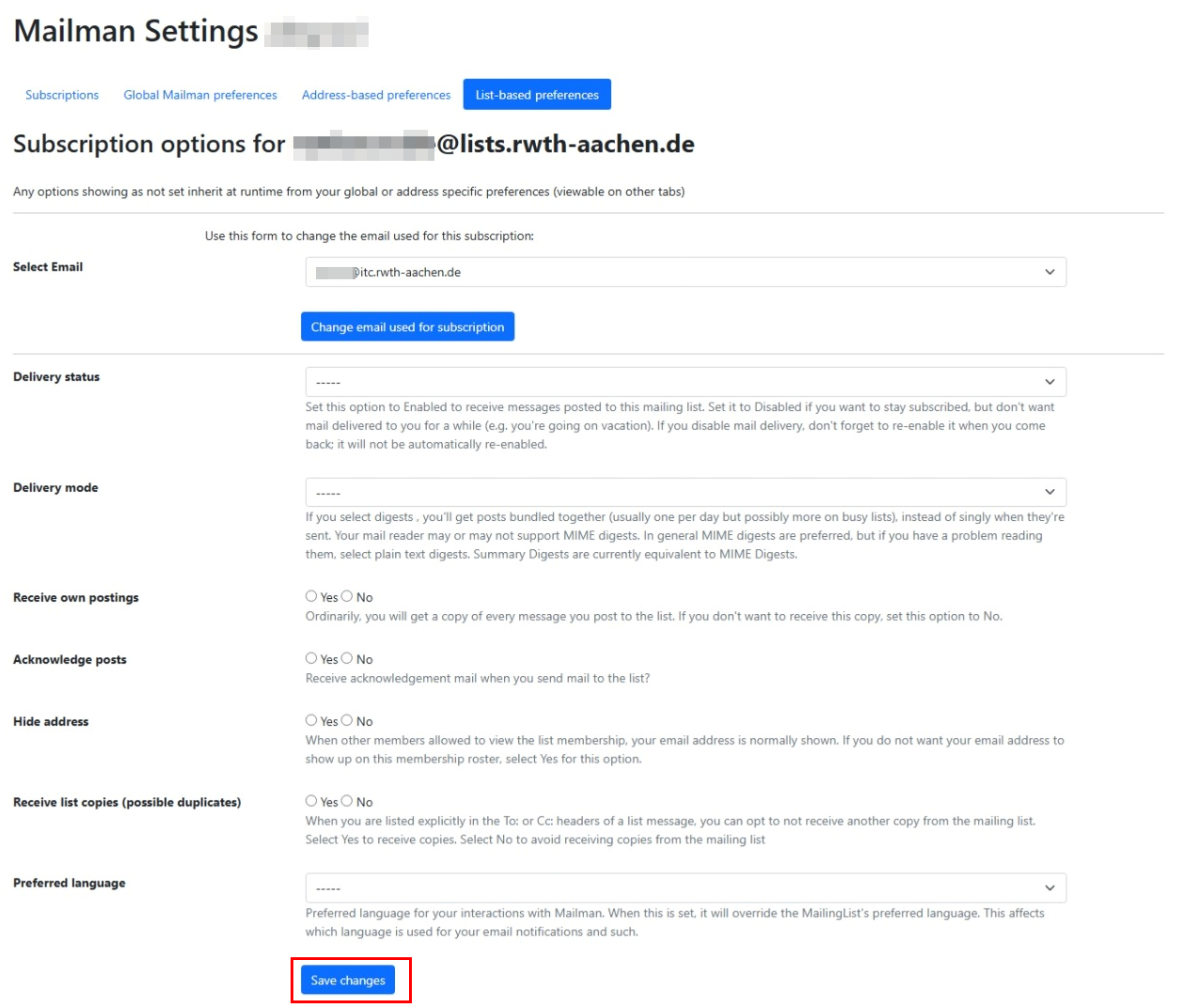
Click Save changes.
