


Registration and Login

This page explains how to create and sign into a Mailman account.
Registration
Please note
If you have several email addresses, you do not need a separate account for each one. You can add them to your existing account.
Step 1
Open Mailman.
Step 2
Click Sign Up in the top right corner.
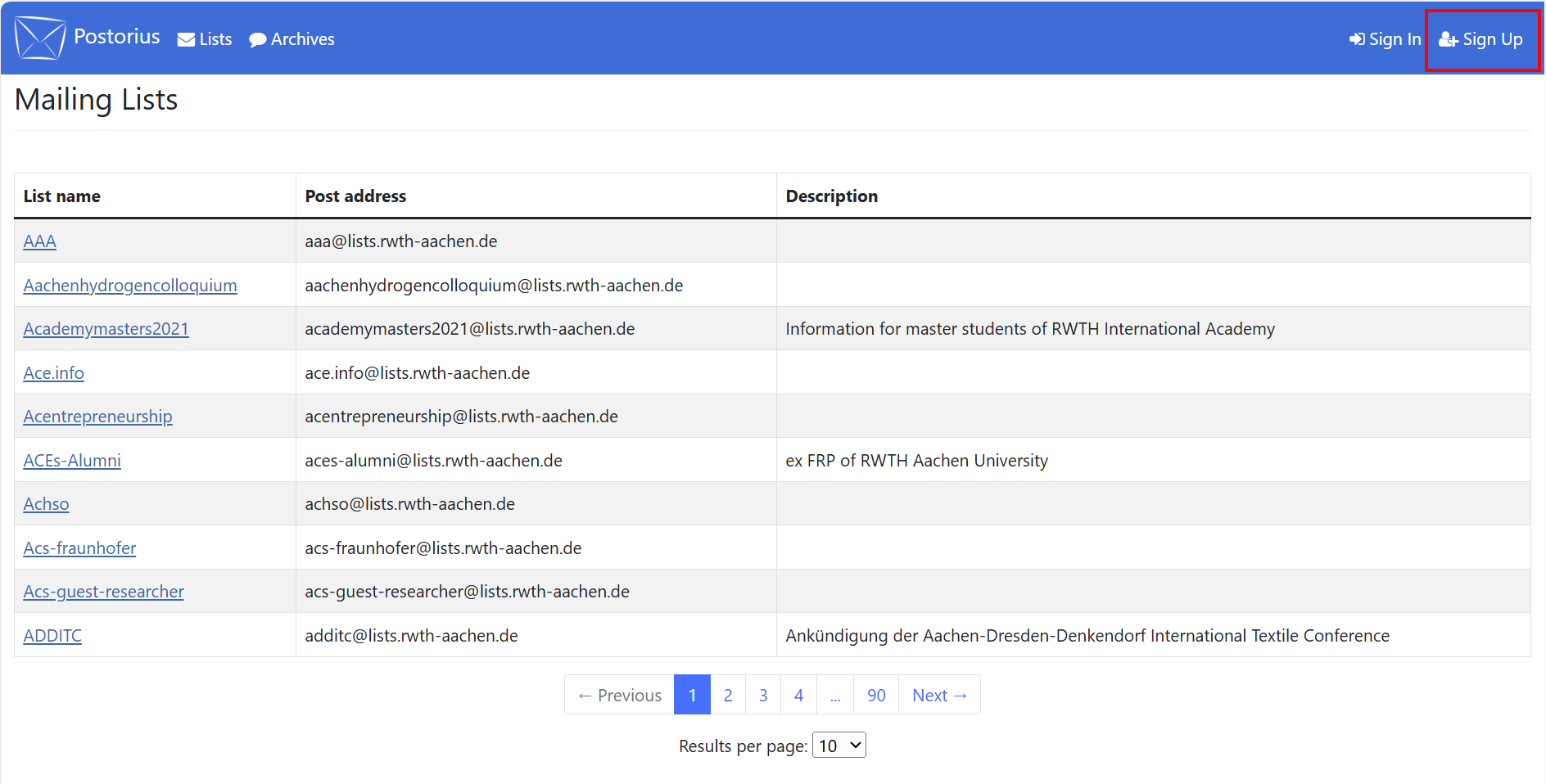
Step 3
Enter your email address and your chosen username in the corresponding fields. If you have several addresses, you need to enter the email address you want to use for managing your account and subscriptions.
Step 4
Enter a password and click Sign Up.
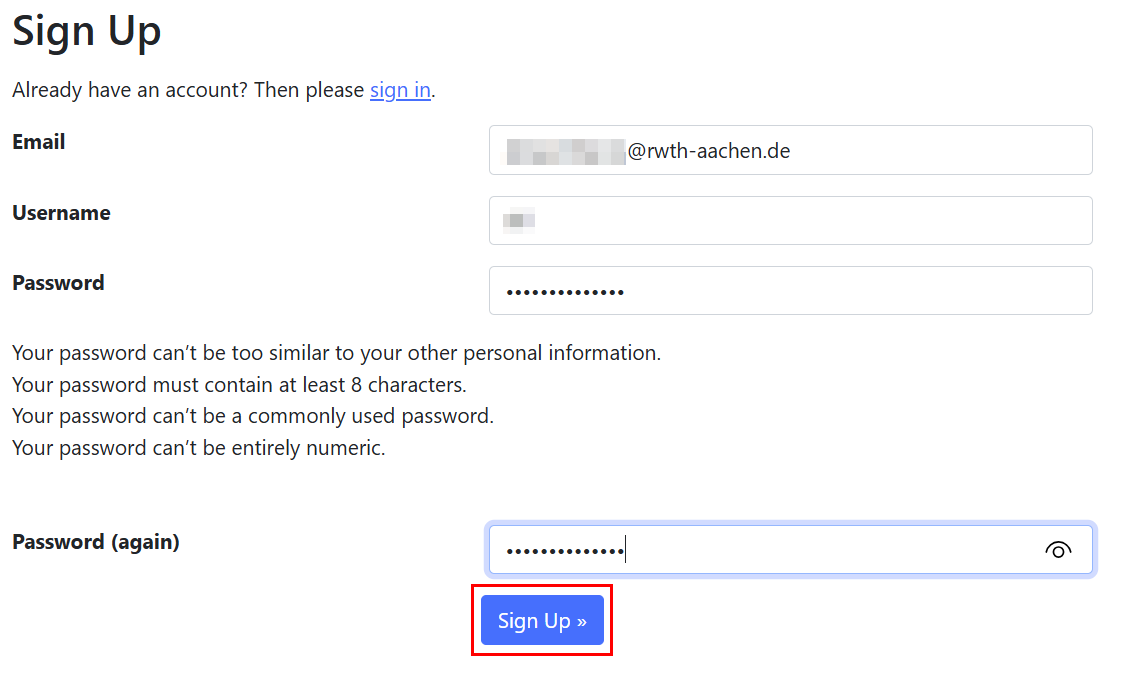
Step 5
You will receive a confirmation email with the subject line "[lists.rwth-aachen.de] Please confirm your Email". Click on the link in the email.
Step 6
Click Confirm

Your account has been created.
Login
Step 1
Open Mailman.
Step 2
Click Login in the top right corner.
Step 3
Enter either your email address or your username next to "Login".
Step 4
Enter your password and click Sign In.
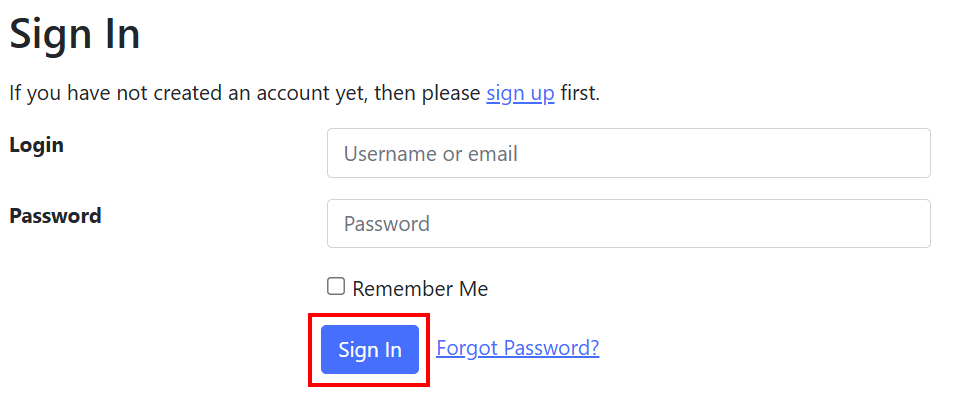
If you forgot your password, you can reset it.
