


Login to the RWTHapp

On this page, you can learn how to log in to RWTHapp as a student or staff member, or how to use it as an external user without logging in.
Students and Staff Members
Step 1
Download RWTHapp via the Apple App Store, the Google Play Store or F-Droid.
Step 2
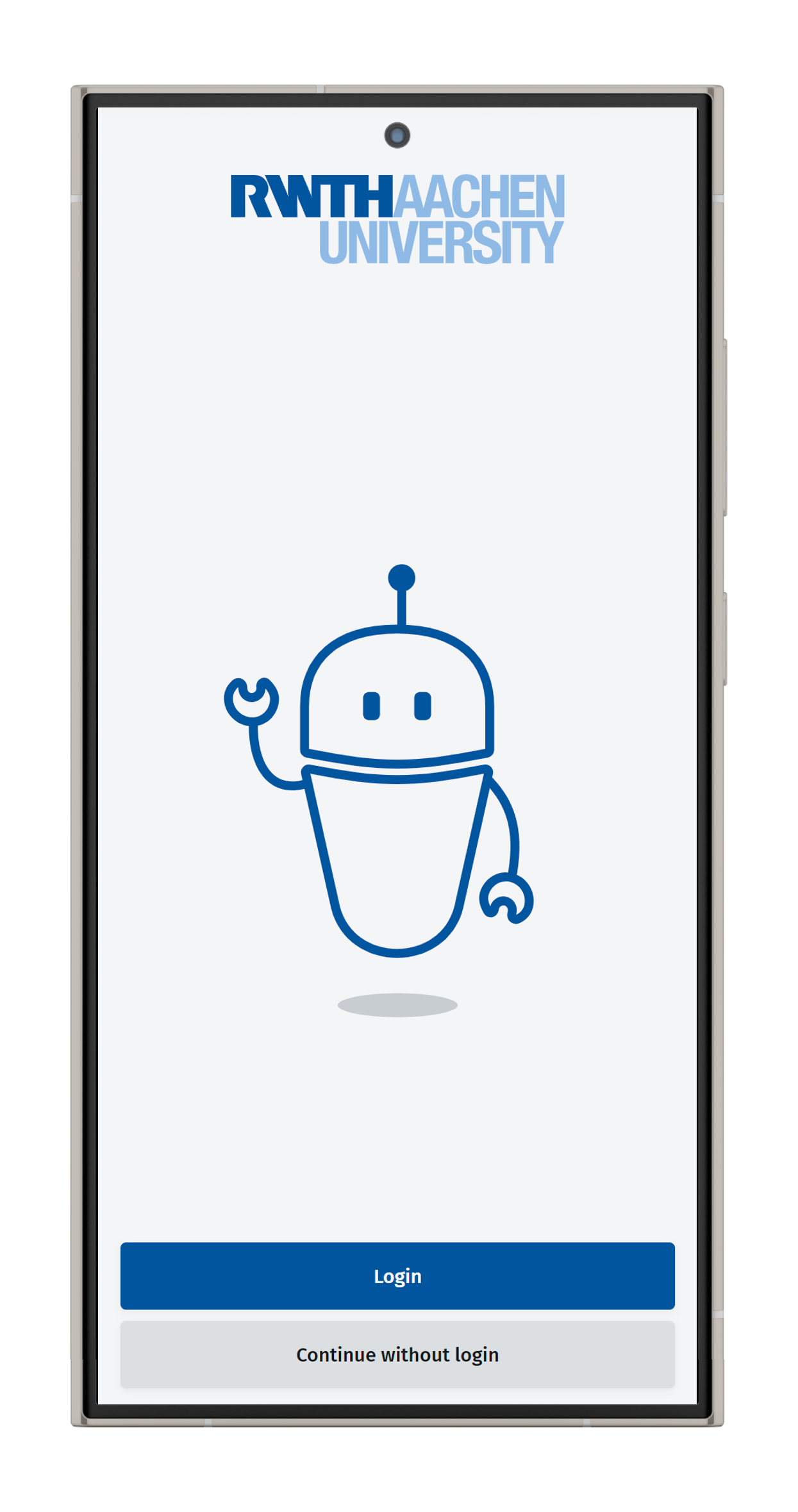
The first time you open the app, the login screen appears. Log in directly using Login, or continue by selecting Continue without login.
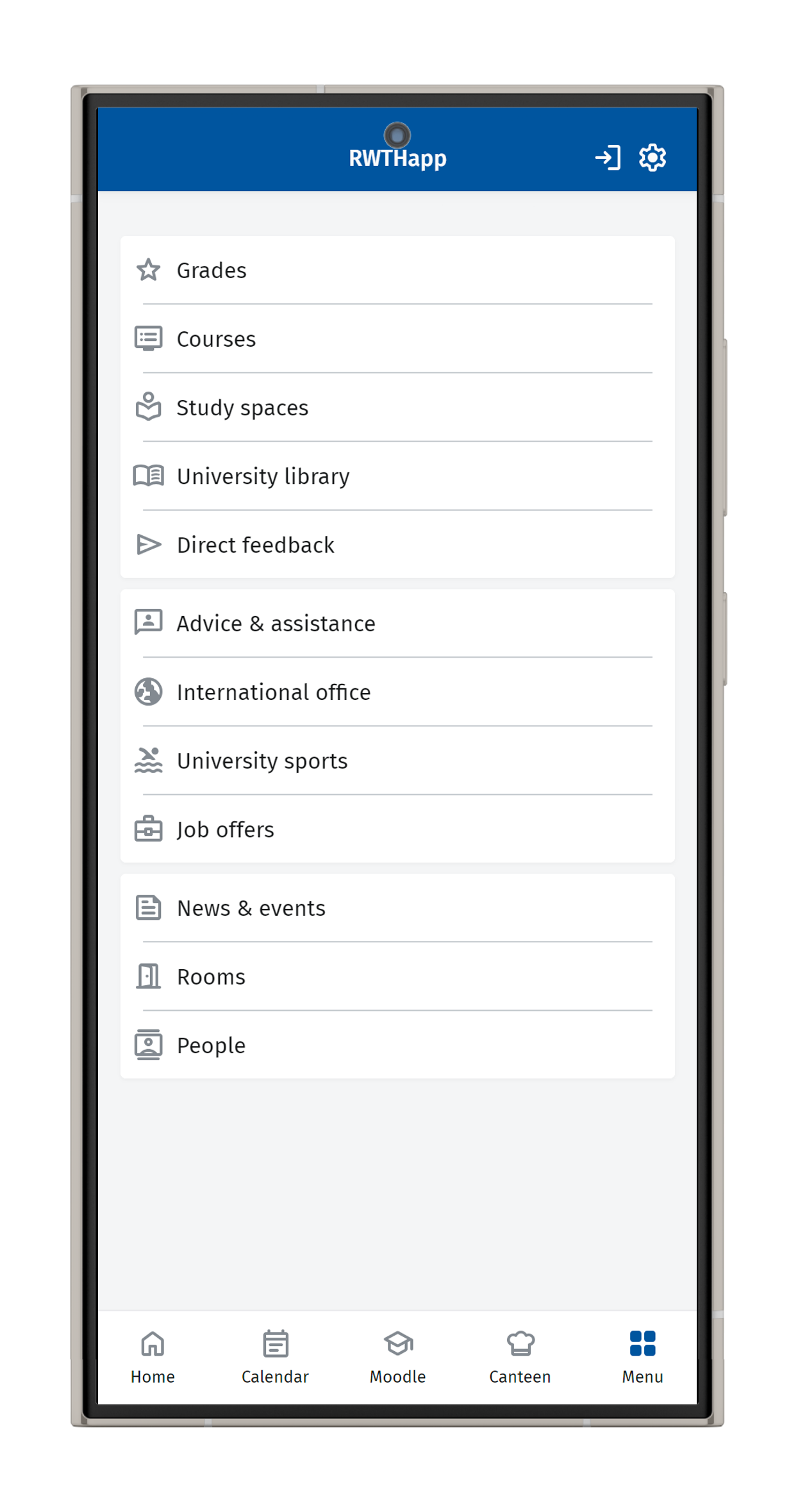
Use the login button in the menu at a later time if you choose to proceed without logging in now:
Step 3
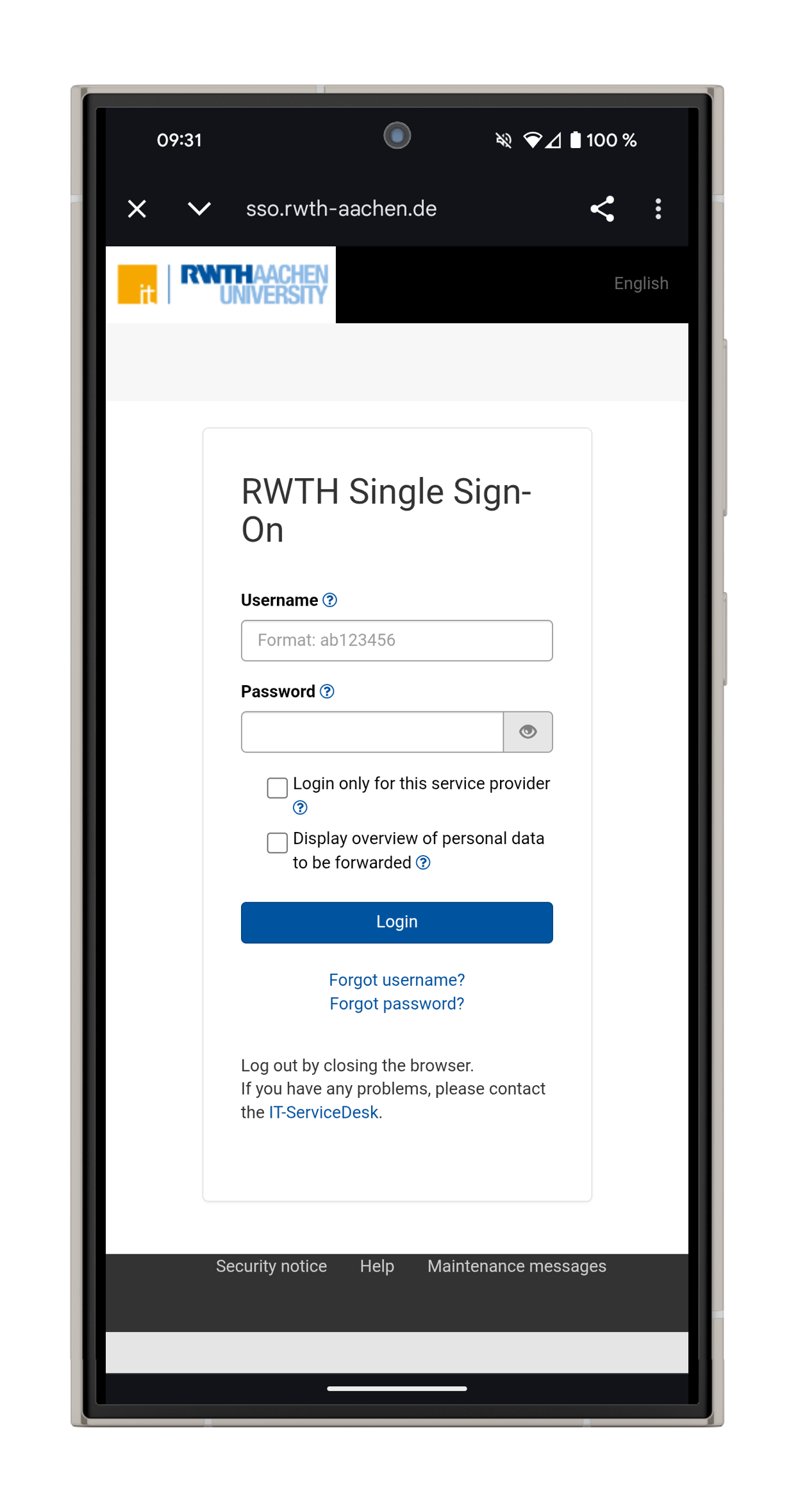
Your browser opens a separate window. Enter your username and password for RWTH Single Sign-On and log in:
Step 4
Select and enter a second factor for multi-factor authentication:

Step 5
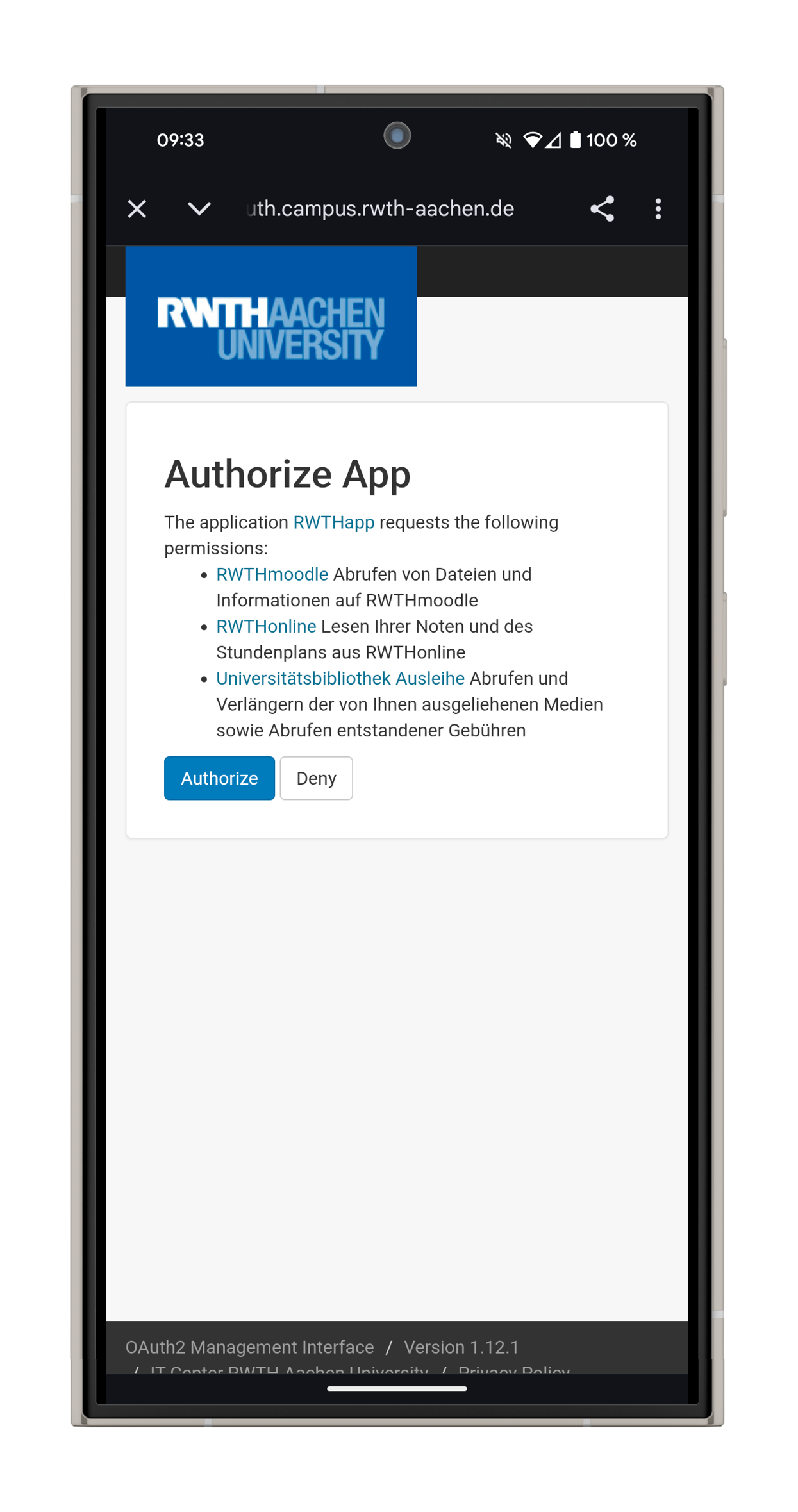
The app requires various permissions; grant them by clicking Authorize.
Log out of the app if you wish to revoke the authorization at a later time:
Step 6
After successfully authorizing the app, a confirmation will appear. You can subsequently leave your browser and return to the app:

External Users
Step 1
Download RWTHapp via Apple App Store, Google Play Store or F-Droid.
Step 2
The first time you open the app, the login screen appears. Continue by selecting Continue without login.
Use the login button in the menu at a later time if you choose to proceed without logging in now.
Using the app anonymously (without logging in) grants access to the following functions: Help & Feedback, Study Rooms, Mensa Menus, Job Offers, University Sports, International Office, News & Events, the Rooms and People searches, Student Representatives and Information for Freshmen.
