


Edit Management Roles

On this page, you will learn how to manage management functions.
- Using management functions
- Assign a leadership function
- Change a leadership function
- Add and remove people
- Add objects and comments
- Change the order of people, objects, and comments
- Expand the management box header
- Display notes
For additional information on organizational or content-related aspects, please see the FAQs on Leadership Roles (only available in german language).
Using management functions
Processes such as the delegation of signing authority or the final approval of third-party funding reports are tied to the highest decision-making authority within an organizational unit. The highest decision-making authority rests with the head of an organizational unit or their deputy.
As a rule, the head is the professor (academic sector) or the department head (university administration).
When assigning leadership functions, the positions of Organization Head and Deputy can be assigned to individuals at the respective institution in the directory.
Individuals with a leadership function thus have the following advantages:
- Clear digital authorization for various workflows
- Easier to find in RWTHcontacts through automatic tagging
Assign a leadership function
To assign a position in the directory, follow these steps:
Step 1
Click Leadership Functions in the menu column.
Step 2
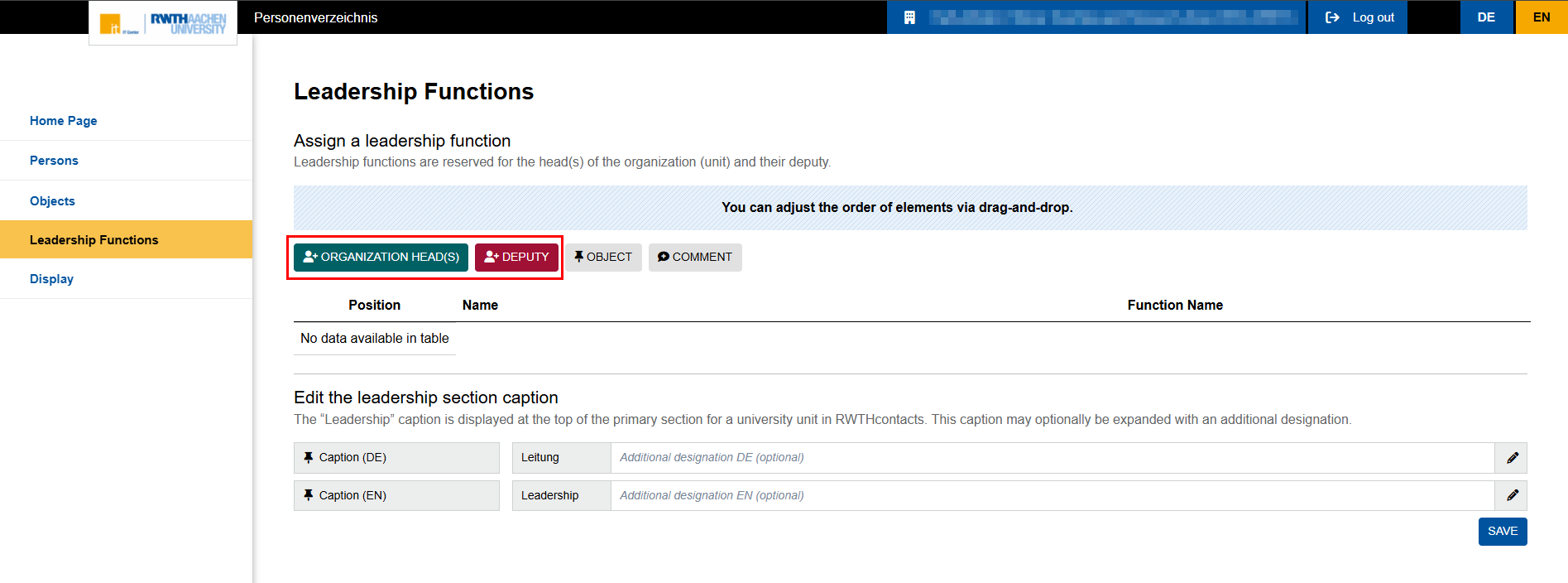
Click Organization Head(s) or Deputy to assign the appropriate position:
Step 3
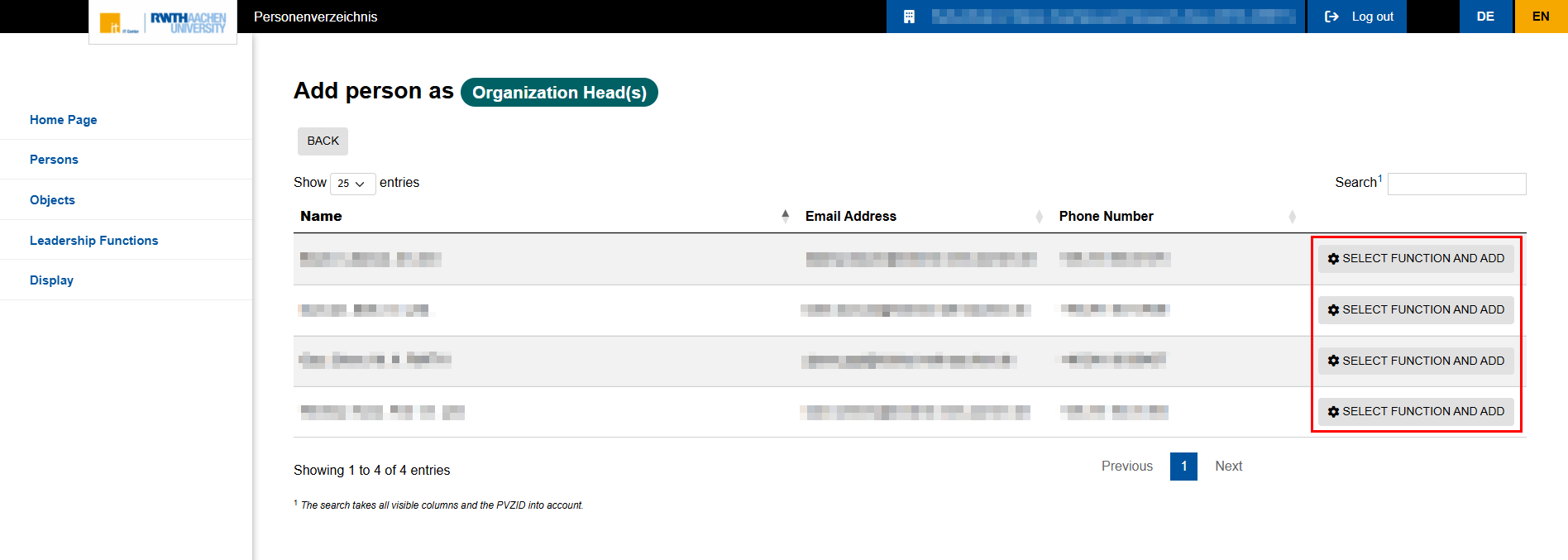
Click Select Function and Add to select the person.
Note: Only persons from the Persons menu item are available.
Step 4
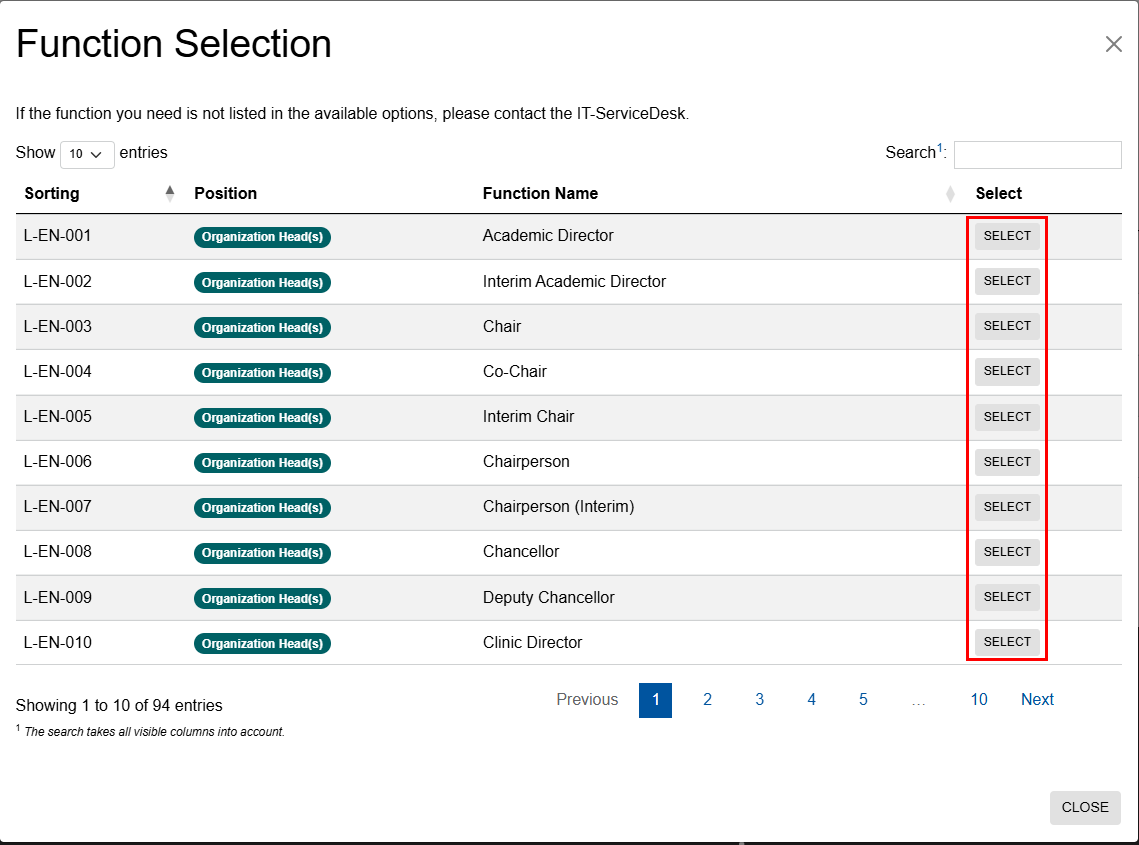
Click Select to choose the correct role name.
Note: Select the role that best fits your position or deputy role, as the role name will be displayed in RWTHcontacts.
Step 5
To avoid duplicate entries in the listings on RWTHcontacts, the intranet, and the internet, go to the Display menu item and delete all headings such as Management or similar.
Note: The changes take effect immediately in RWTHcontacts. You can check right away to see if your organizational unit’s contact information has been published in RWTHcontacts.
Change leadership function
You can change the selected function at any time. To do so, click the gear icon next to the respective person under the “Management Functions” menu item.
Add and remove people
Other individuals who are not assigned to the position of Head of the Organization or Deputy Head of the Organization cannot be assigned here.
You can remove a position from a person by clicking the red trash can icon.
Add objects and comments
Click on Objects or Comments to add them. Only objects from the Objects menu item are available. You can also add comments to objects by clicking the speech bubble.
We recommend using this feature sparingly so that the focus remains on the person themselves.
Changing the order of people, objects, and comments
You can change the order of people, objects, and comments at any time using drag-and-drop.
Expanding the heading of the line box
The heading of the line is always displayed as Line. If necessary, this display can be expanded with an additional term, for example, to Line – custom label The prefix “Line” is always retained for visual recognition.
Note on display
The line box is displayed first among the headings in RWTHcontacts (and, if applicable, other systems).
