


Authenticator app e.g. for Smartphone, Laptop or Desktop (TOTP)

This page describes how to set up an authenticator app for multi-factor authentication (MFA).
An authenticator app generates a new one-time password every 30 seconds.
Follow these steps to set up your app:
In this guide, we use the 2FAS-App, but you can use a different authenticator app.
1. Download authenticator app
Step 1
Open the app store on your device.
- Android: Google Play (opens in new tab)
- Apple: App Store (opens in new tab)
- Windows: Microsoft Store (opens in new tab)
Step 2
Download an authenticator app, such as:
- For smartphones: 2FAS (opens in new tab), Aegis (opens in new tab), Passwords (older version Passwords & Keychain) for iOS
- For desktops or laptops: 2fast (opens in new tab) for Windows, Otpkey Authenticator (opens in new tab) or Passwords (older version Passwords & Keychain) for macOS, TOTP extension of the KeePassXC Password Manager for all operating systems.
- If you want to use another app, make sure it meets the following criteria:
- 6- or 8-digit security code
- Hash algorithms SHA256, SHA512 or SHA1
2. Set up authenticator app
Step 1
Open the Token Manager (opens in new tab).
Step 2
Log in via RWTH Single Sign-On (username format ab123456).
Step 3
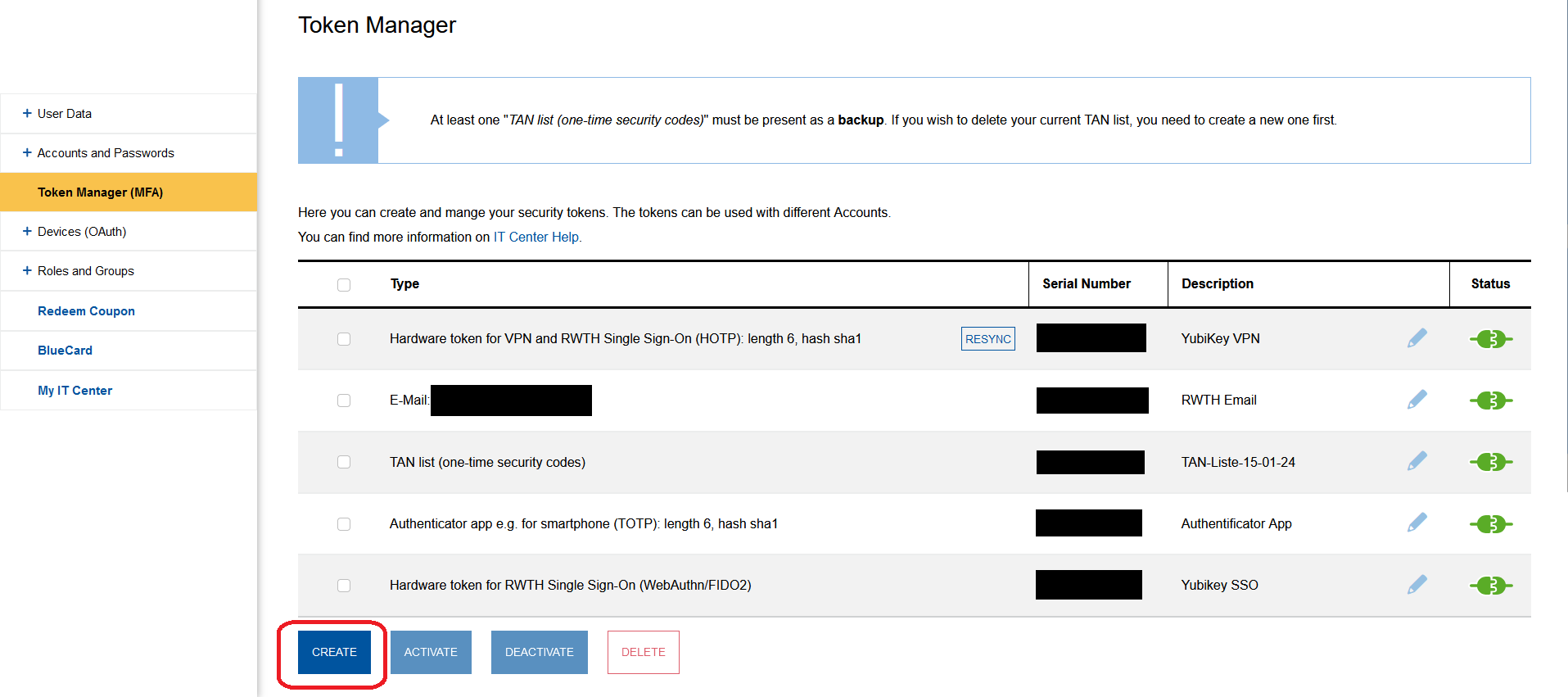
Click Create.
Step 4
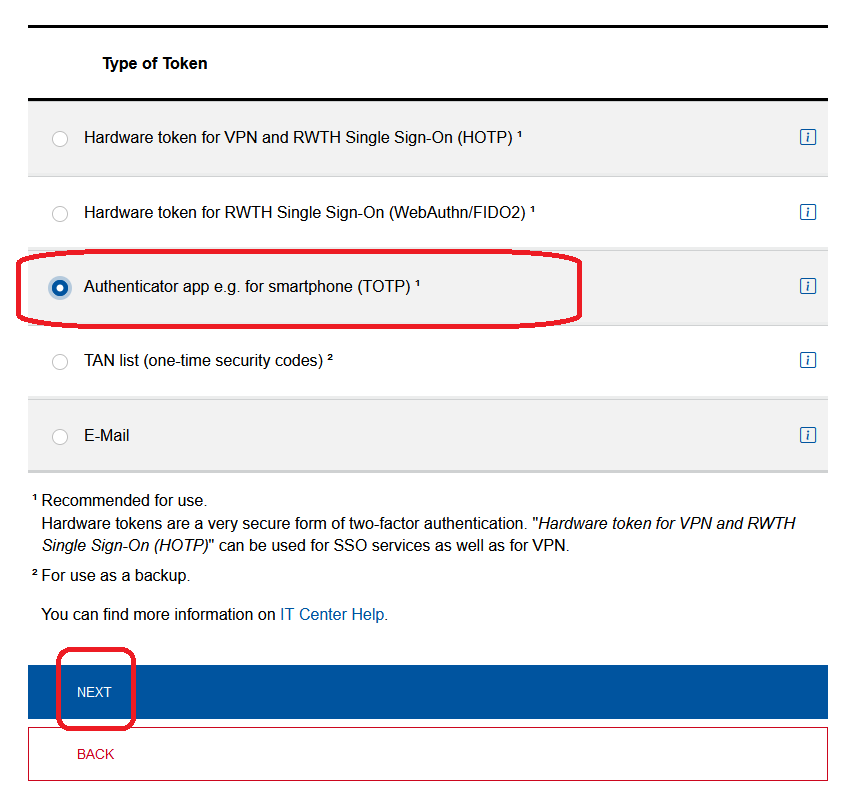
Under Type of Token, select Authenticator app e.g. for smartphone (TOTP).
Step 5
Click Next.
Step 6
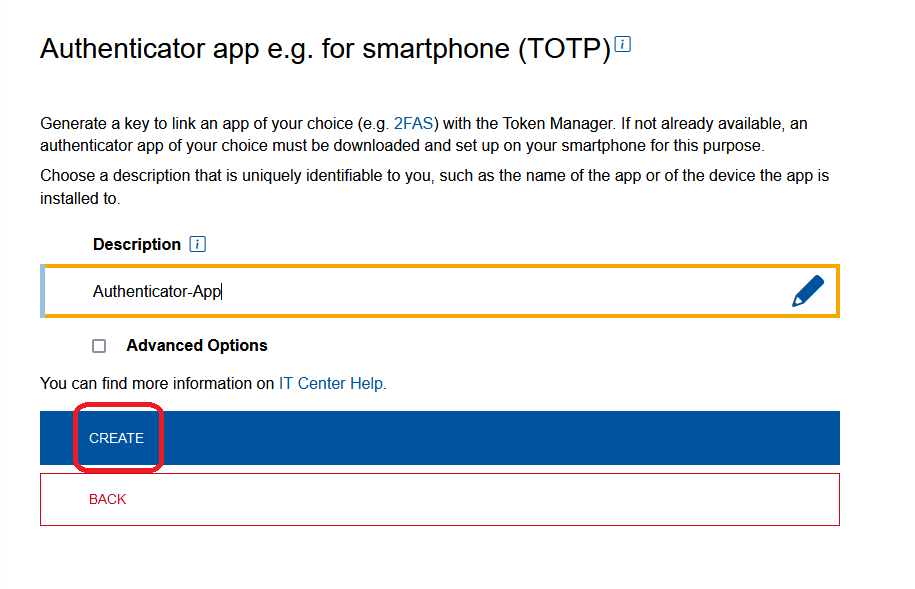
Enter a name for your app under Description (e.g. Authenticator App).
Optional
Select Advanced Options to change the length of your security code and hash algorithm.
Step 7
Click Create.
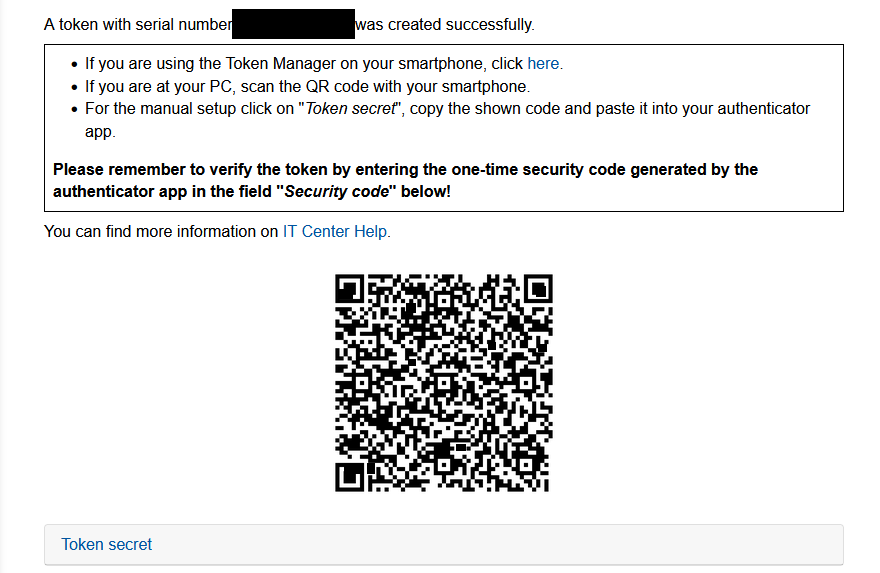
A QR code appears.
Step 8
Open your authenticator app.
Please note
We have taken screenshots in the 2FAS app for this guide. If you are using a different app, the process may be slightly different.
Step 9
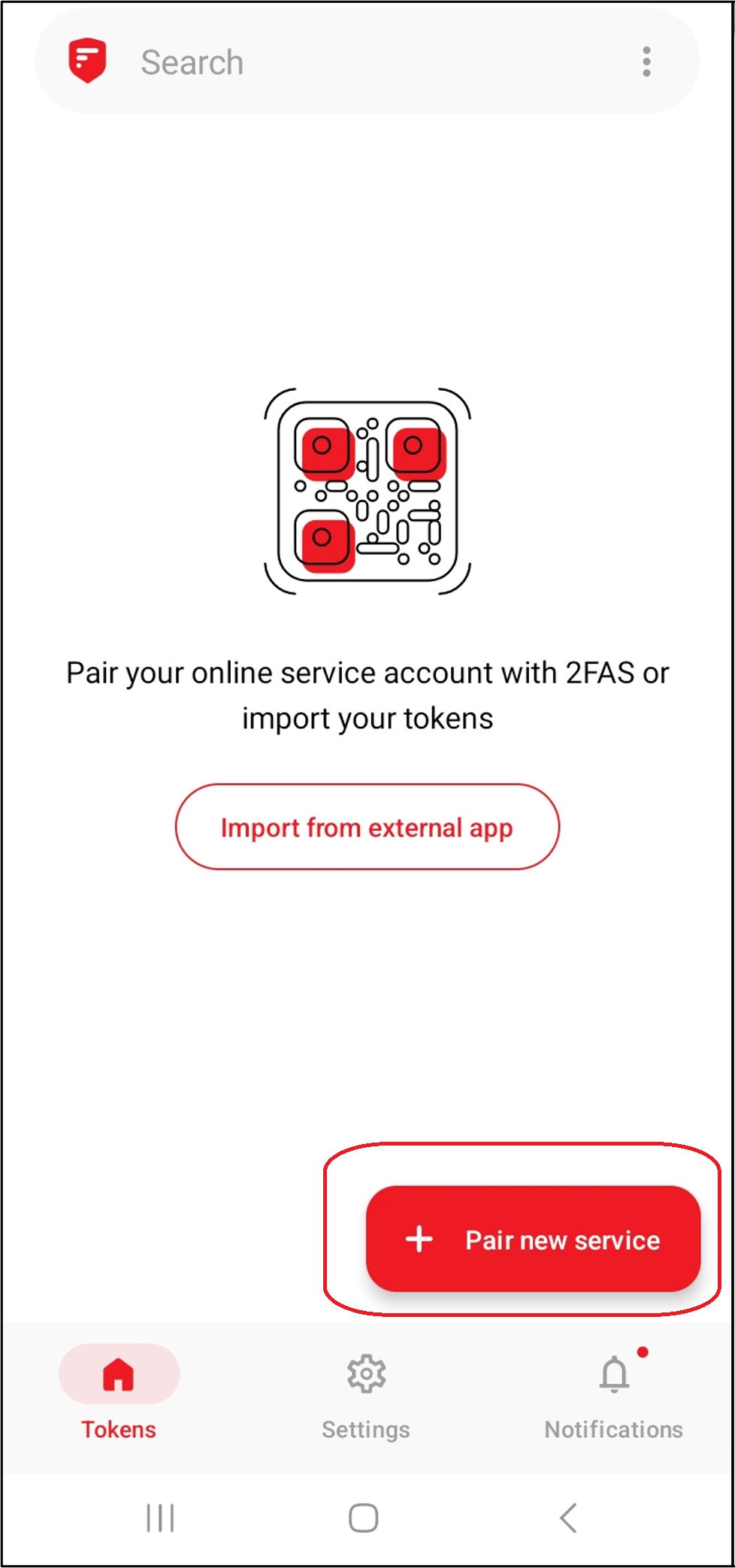
Tap the plus symbol.
Step 10
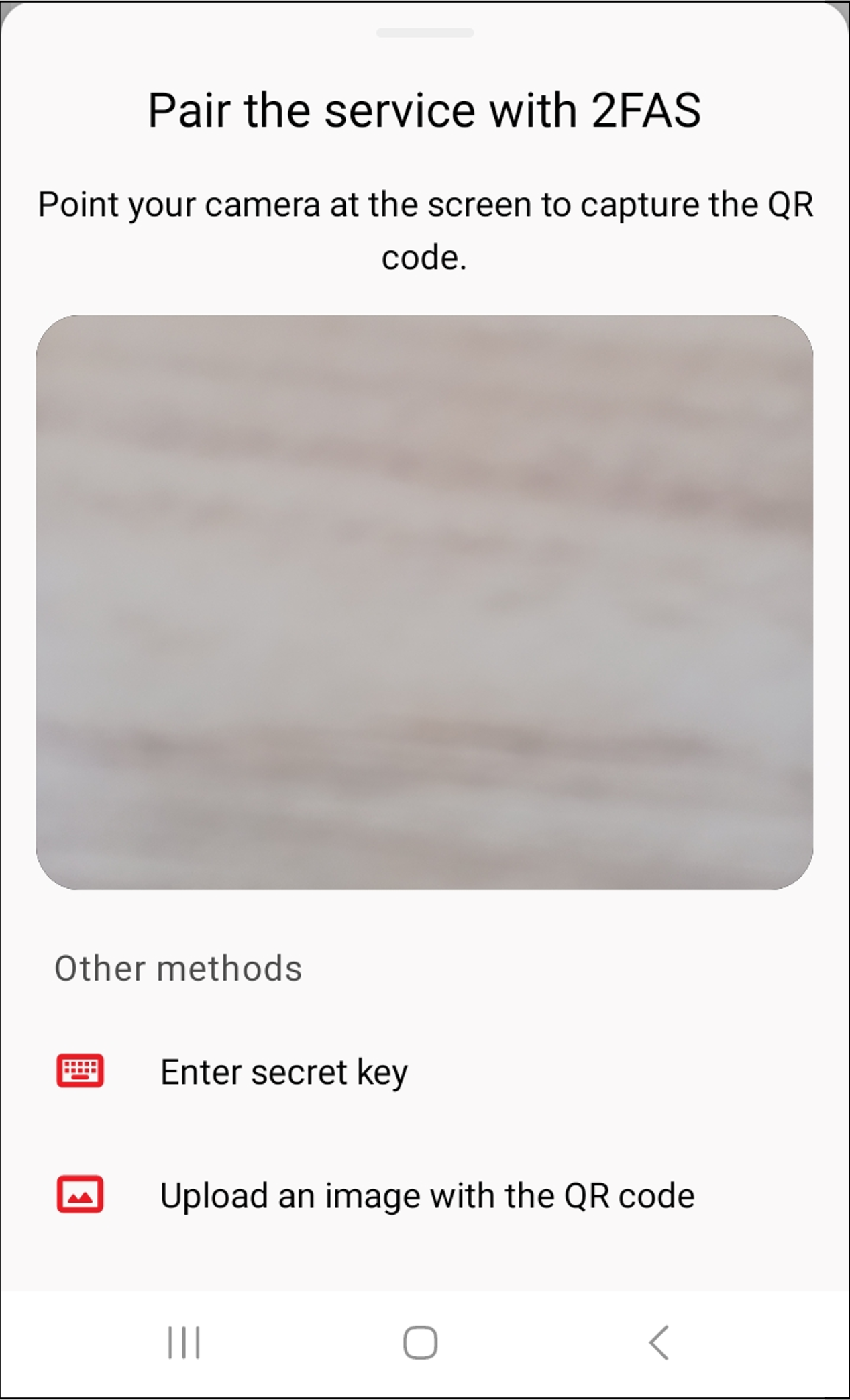
Scan the QR code using the app.
Alternatively, you can click Token secret below the QR code. A code will be displayed. Copy this code in the app under Enter secret key.
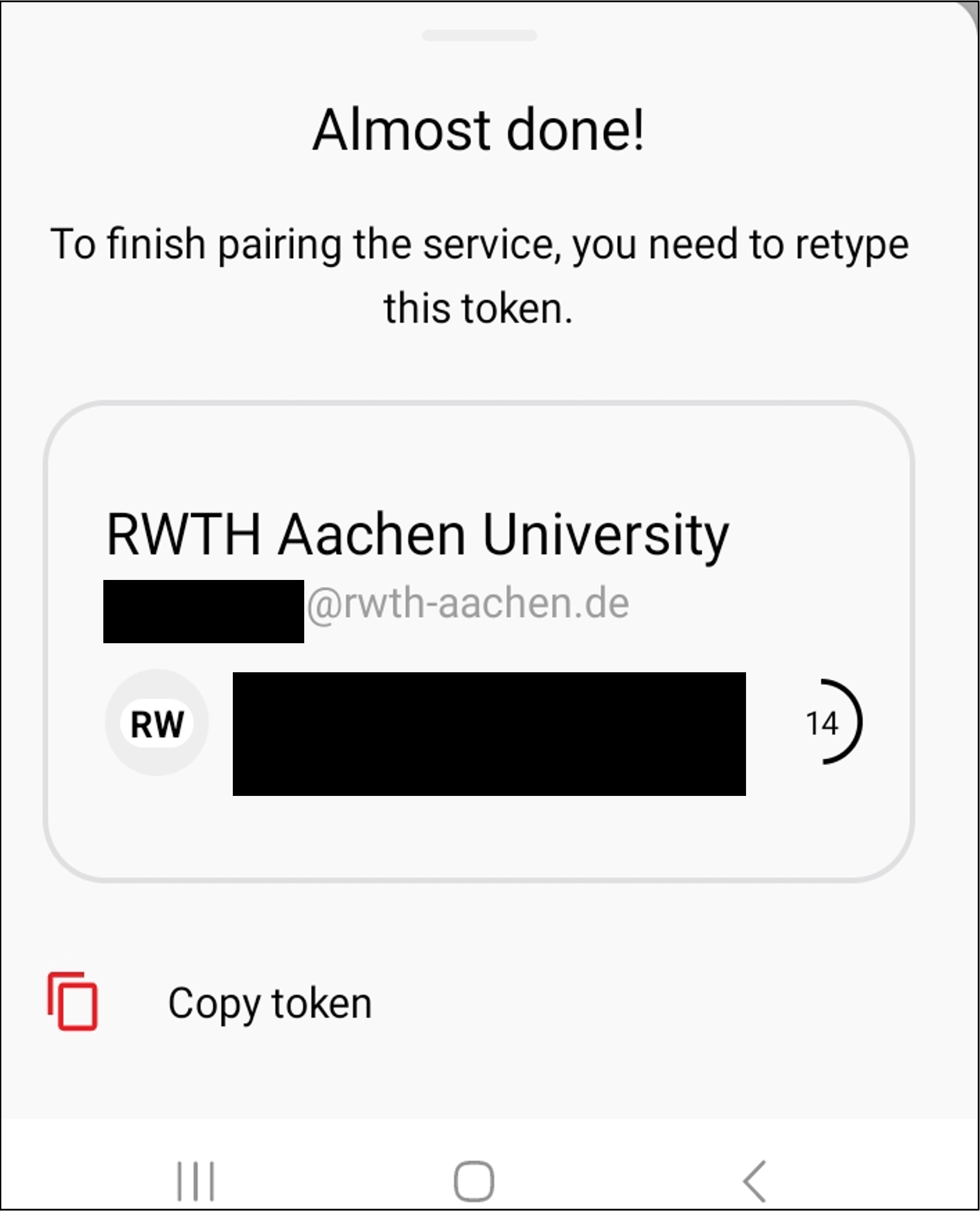
A code appears in the app.
Step 11
Enter this code in the Token Manager under Security code.
Step 12
Click Finish.

You have successfully set up your authenticator app.

Note
3. Login with authenticator app
When you are prompted to enter a one-time password, open the Authenticator app.
Copy the password displayed under RWTH Aachen University and paste it into the input field.
The passwords are valid for 30 seconds. If a code expires before you have entered it, simply use the next one.
Additional Information
- Help: How do I login with MFA?
- Help: my token does not work.
- Help: I lost my token.
- Please contact the developer directly if you have any problems with the application.
