


Authenticator app via KeePassXC for Laptop or Desktop (TOTP)


Note
This page describes how to set up KeePassXC Password Manager for multi-factor authentication (MFA).
1. Set up KeePassXC
Step 1
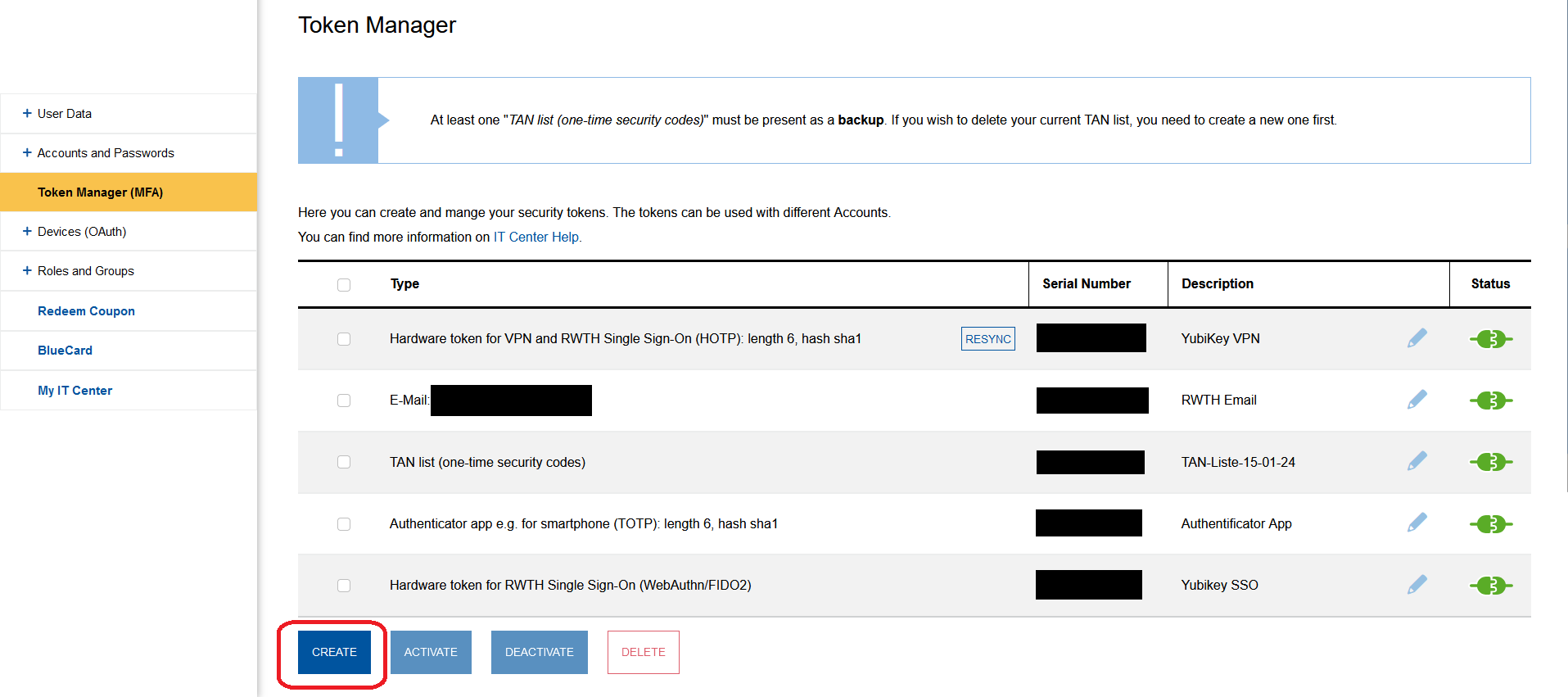
Open the Token Manager (opens in new tab).
Step 2
Log in via RWTH Single Sign-On (username format ab123456).
Step 3
Click Create.
Step 4
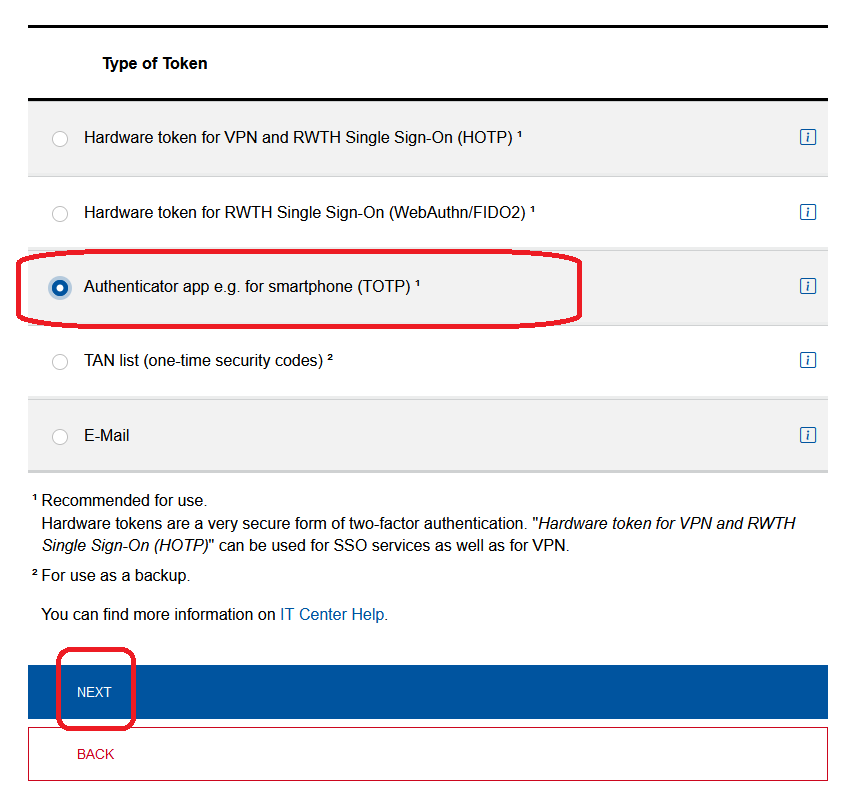
Under Type of Token, select Authenticator app e.g. for smartphone (TOTP).
Step 5
Click Next.
Step 6
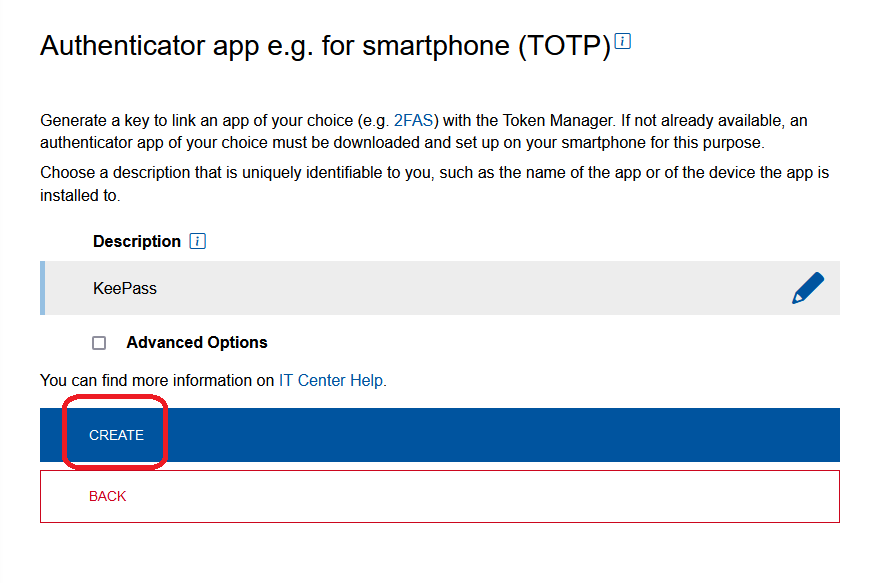
Under Description, enter a name for your app (e.g. KeePassXC).
Step 7
Click Create.
Step 8
Under the QR Code, click Token secret.
Step 9
Copy the Token secret.

Step 10
Open KeePassXC.
Step 11
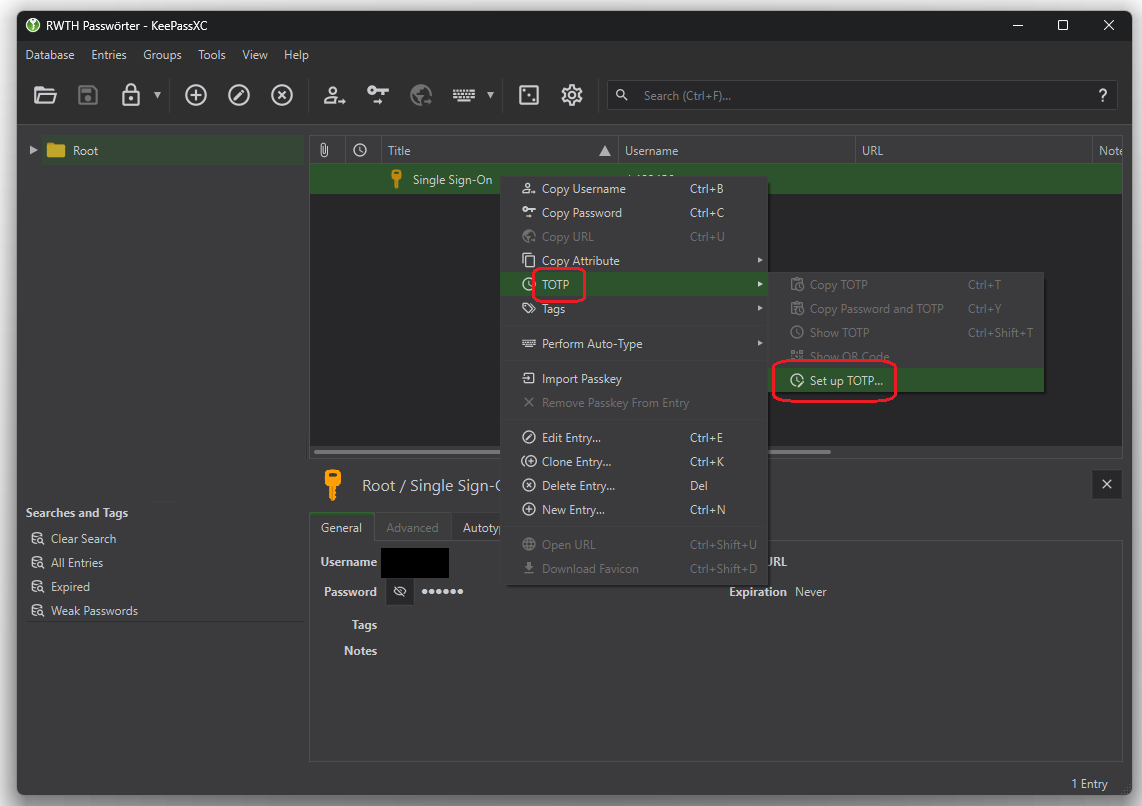
Right-click on an entry.
Step 12
From the dropdown-menu, select TOTP, then Set up TOTP.
Step 13
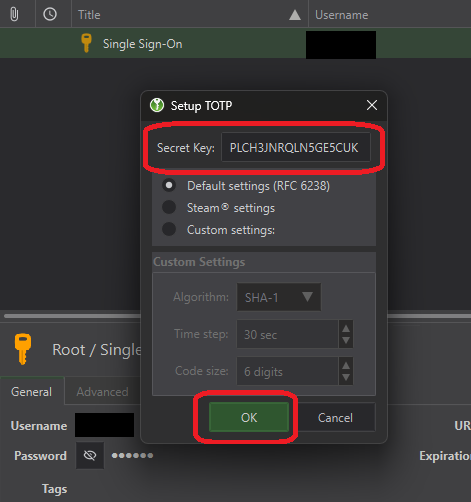
Enter the token secret under Secret Key.
Step 14
Click OK.
Step 15
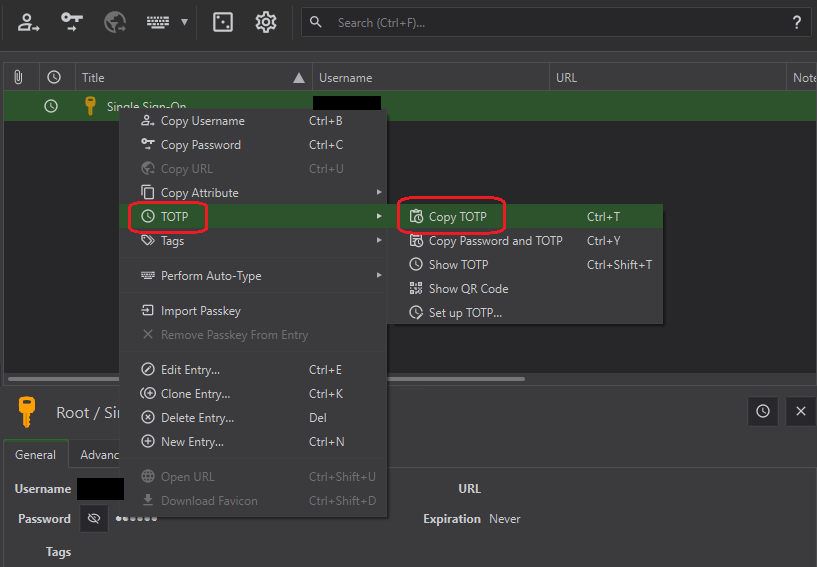
Right-click on the entry.
Step 16
From the dropdown-menu, select TOTP, then Copy TOTP.
Step 17
Enter the TOTP in the Token Manager under Security Code.
Step 18
Click Finish.

You have successfully set up KeePassXC.
Note
2. Login with KeePassXC
When asked to enter a one-time security code, please follow these steps:
Step 1
OpenKeePassXC.
Step 2
Click on the clock symbol in the table next to the name of your entry.
Step 3
Copy the displayed code and paste it into the input field for the one-time security code.
The codes are valid for 30 seconds. If a code expires before you have entered it, simply use the next one.
Additional Information
- Help: How do I login with MFA?
- Help: my token does not work.
- Help: I lost my token.
- KeePassXC user guide for MFA (opens in new tab)
- Please contact the developer directly if you have any problems with the application.
