


Activate Darkmode

On this page, you'll learn how to enable Dark Mode in the Cryptomator app.
To activate it, you need a supporter certificate, which you can obtain from the IT Center. Please contact the IT-ServiceDesk for this.
To activate dark mode, proceed as follows:
Step 1
Open the Cryptomator app.
Step 2
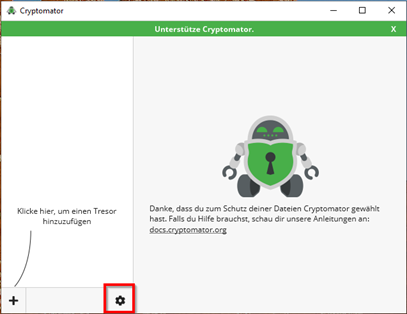
Click on the cogwheel icon at the bottom left of the start window.
Step 3
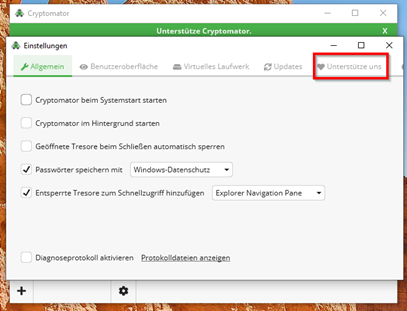
In the Settings window, click on the tab Support us in the top right-hand corner.
Step 4
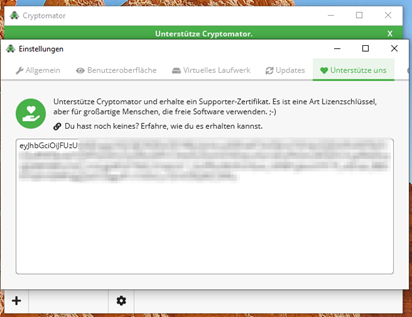
Paste the Supporter certificate into the free text field.
Step 5
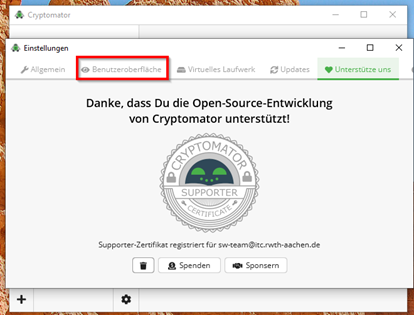
Click on the tab User interface.
Step 6
Select the Dark option under Appearance.
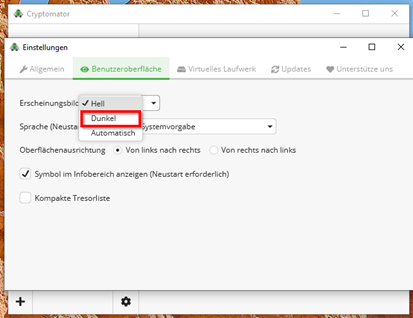
Dark mode is now activated.
