You are located in service: SharePoint Shared Services

Calender

Calender

 information

The Calendar serves as an overview of all upcoming events.

Add event

To add a new event click into the area of the respective day and select the option Add.

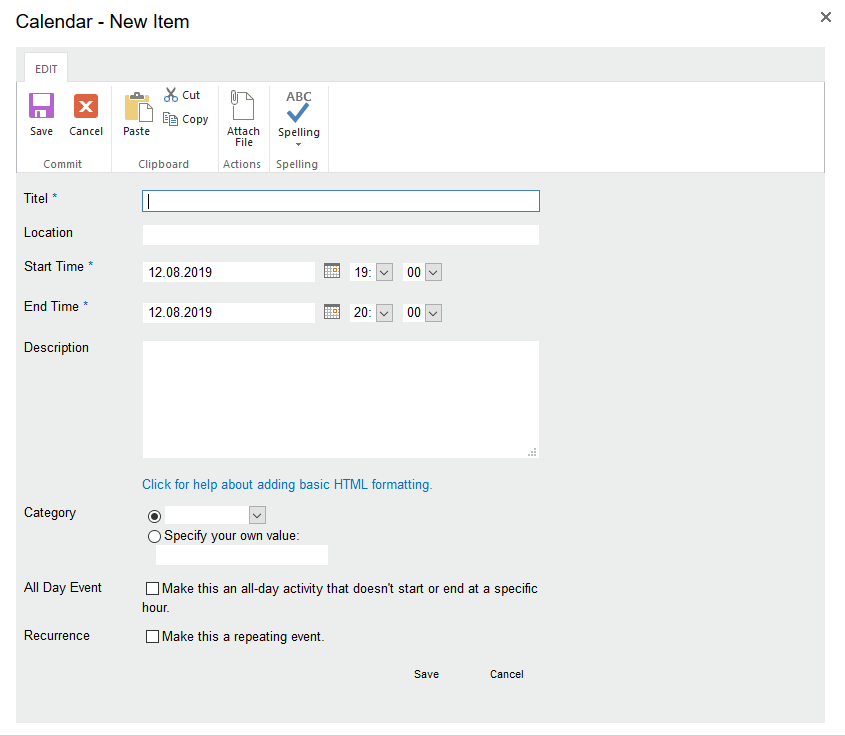
An input dialog is opened consequently, which you can use to enter key data regarding the event.
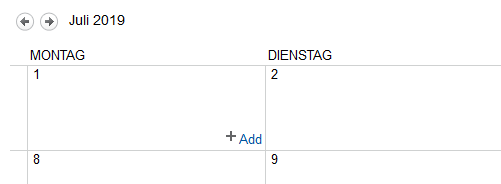
Screenshot of the calendar view. Below the "Monday" column is the field for the 27th. At the bottom of this field, the link "+ Add" is displayed.

Screenshot of the "Calendar - New Item" dialog window. Below the ribbon, the input fields "Titel", "Location", "Start Time", and "End Time" are arranged one below the other. Following these are the text field "Description", the "Category" selection, and checkboxes for "All Day Event" and "Recurrence". At the bottom right are the "Save" and "Cancel" buttons.


Define event series

Next to the self-explaining options you get the opportunity to set the event as a recurring event. Tick the checkbox "Make this a repeating event".

Now you can set the interval of repetition of the event. Do also note the possibility to set the time-frame in which the event is supposed to be active as a recurring event.
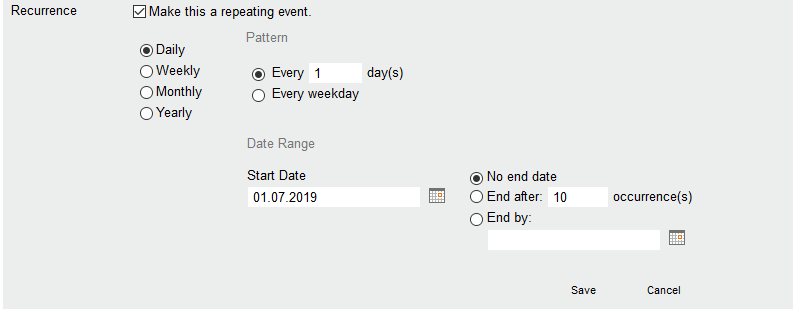
Screenshot of the "Recurrence" settings. Below the activated "Make this a repeating event" checkbox, two sections are displayed: "Pattern" at the top for selecting the interval (e.g., Daily), and "Date Range" at the bottom for defining the "Start Date" and the end of the series (e.g., "No end date" or after a number of occurrences).

last changed on 12/02/2025

How did this content help you?

Creative Commons Lizenzvertrag
This work is licensed under a Creative Commons Attribution - Share Alike 3.0 Germany License