
You are located in service: SharePoint Shared Services

Changing the display language
Changing the display language

 Detailinformation

The language can be changed in 2 different ways.


Change the language of your webbrowser

Since this procedure differs depending on your browser, you can find a list of common browser including links to the documentation:

Firefox: https://support.mozilla.org/en-US/kb/use-firefox-another-language

Google Chrome: https://support.google.com/chrome/answer/173424?co=GENIE.Platform%3DDesktop&hl=en


Change SharePoint Settings

You can personalize your SharePoint-Experience via the settings bar.

Step 1

Click on your username and then select "My Settings" from the drop-down menu.
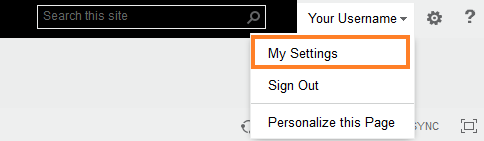
Screenshot of the SharePoint user menu under "Your username". The dropdown menu is open, showing "My Settings" as the top option. Below follow "Sign Out" and "Personalize this Page".

Step 2

On the User Information page, click "My Language and Region".
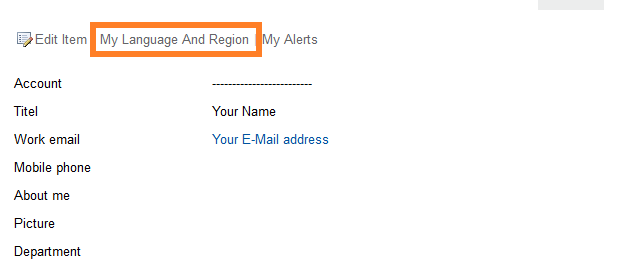
Screenshot of the User Information page. Above the personal data such as "Account" and "Title" is a menu bar. The link "My Language and Region" is located there between "Edit Item" and "My Alerts".

Step 3

In the "Edit Details" window, you can change your SharePoint display language in the Language and Region field.

Screenshot of the SharePoint page "Edit Details". Under the "Language and Region" tab is the "Language" section. It contains the "My Display Languages" field, below it the "Pick a new language" dropdown menu and the "Add" button.

last changed on 12/01/2025

How did this content help you?

Creative Commons Lizenzvertrag
This work is licensed under a Creative Commons Attribution - Share Alike 3.0 Germany License