User Group and Language Model Selection

This page describes how to select your user group, switch between the available language models, and view the applicable limitations.
Members of a university can hold multiple statuses at their institution – for example, a person may simultaneously be a member of staff and a student. In this case, it is possible that a person belongs to multiple user groups in KI:connect.
If you belong to multiple user groups, a selection menu will appear directly after login, allowing you to choose your user group. To switch your user group at a later point, simply click on your profile in the lower area of the chat history. From the menu that appears, select Switch user group to display the same selection menu again.
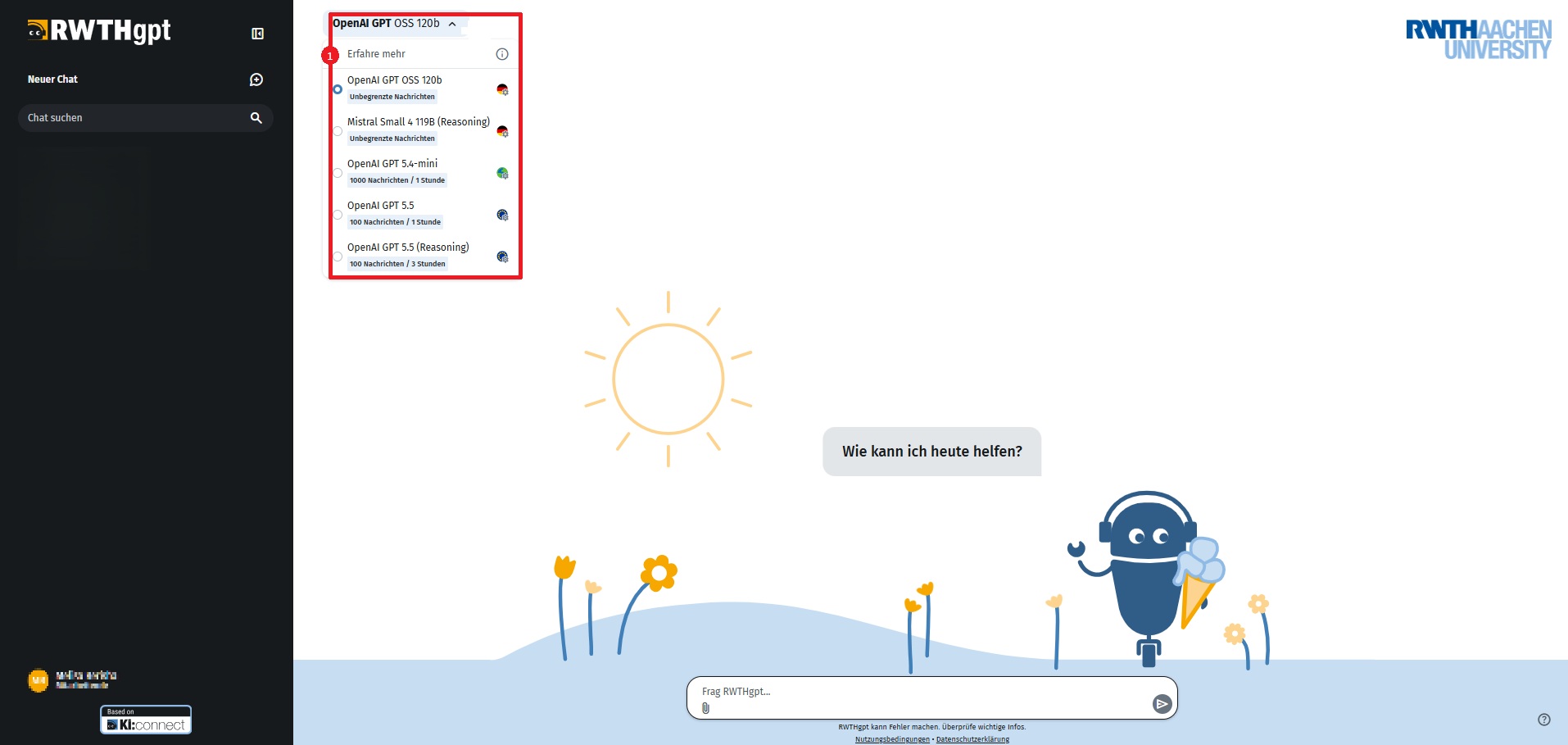
Depending on your user group, different language models with different limitations are available. Depending on the selected language model or AI tool, there are limitations on the number of interactions or the total length of interactions. These are displayed in the selection menu and highlighted in color during the conversation.
In the RWTHgpt web interface, you can choose between different language models and AI tools. When the service was launched, ChatGPT-3.5 and ChatGPT-4o were available, for example. Current language models are provided with updates to the application. Language models from other manufacturers and in-house models are now also available. Newly added language models and other innovations are published on our IT Center Changes Blog (opens in new tab).
An overview of the existing ChatGPT models and their strengths and weaknesses can be found on the OpenAI Platform (opens in new tab).
To switch between models, please follow these steps:
Step 1
Log in to the KI:connect web interface (opens in new tab) via RWTH Single Sign-On.
Step 2
You can see which model you are currently using at the top of the window, to the right of the black navigation bar.
Click on the small arrow next to it to expand the list of available models.
Step 3
From the list, select the model you would like to use. The limitations for each model are listed below the model name. Depending on the current status, these limitations may vary. Above the list, you will find the link "Learn more" (1). Clicking "Learn more" (1) takes you to the model overview (opens in new tab), where you can find all details about the available models and whether they are, for example, enabled for UI, API, or embeddings.