Chat Functions

This page describes which additional features you can use while chatting.
- Starting Chats
- Editing Prompts
- Copying Answers
- Chat History
- Editing, Sharing, and Deleting Chats
- Chat Lifecycle
- Uploading Files
- Exporting Chats
- Using Markdown Formatting and Code Blocks
Starting Chats
If you are using the RWTHgbt web interface for the first time, you can type a message into the input field (1) at the bottom of the screen to start your first chat. Please note: Pressing Enter sends your message. If you want to insert a line break within your prompt, use Shift+Enter instead. If you want to start a new chat while an existing chat is currently displayed, click on "New chat" (2) in the dark sidebar at the top left of the screen. The current chat will disappear and you will see an empty chat window again.

Editing Prompts
Individual prompts can also be edited. Hover your mouse cursor over a message you have written and select the edit icon at the lower right corner of the message. When editing a prompt, a new response version is created. Previous response versions are retained. This creates a tree structure of independent response versions, between which you can navigate using the arrow icons. Each response version uses exclusively the context of its own branch; other versions are not taken into account. This can be used to rephrase or modify the question, or to continue using the same chat after the global token limit has already been reached.

Copying Answers
You can select the desired text as usual and then copy it to the clipboard using the mouse or the corresponding key combination. In this case, the selected text is saved to the clipboard in HTML format so that formatting in the selected text, such as bold print or headings, is retained. This variant corresponds to copying content from a normal website.

Chat History
All past chats are displayed in the chat history in the dark sidebar on the left-hand side of the screen. Chats are sorted by date and time. The date and time of a chat are based on the last time it was changed, not the date it was created. So if you rename a chat or change its content, the chat moves back to the top of the chat history.
Click on a chat in the chat history (1) to load and display it.
You can also search your chats. To do this, click on the "Search chat" (2) input field and enter one or more search words. Both the titles and the content of all the chats you have created will now be searched. Chats in which the search terms appear are displayed together with a short excerpt from the search results instead of the entire chat history. Click on the desired chat to display it.
If you do not need the chat history on the left-hand side of the window or want to enlarge the text area, you can collapse the entire sidebar by clicking on the "Collapse" icon in the top left-hand corner.

Editing, Sharing, and Deleting Chats
Each new chat that you start is automatically assigned a name after the AI's first response. The name is generated based on the content of the conversation so far. You can change the automatically assigned name by moving your mouse over the chat title and clicking the three-dot icon (1) that appears next to the chat name. A menu will open, where you can click Rename (2).
Chats can be shared with other people, even if they are not members of your institution. To do this, move your mouse over the chat title and click the three-dot icon (1) that appears next to the chat name. A menu will open, where you can click Share (3). In the dialog window, click Create to generate a sharing link. The chat is now ready to be shared, and you can copy the displayed link to your computer’s clipboard using the copy icon and then send it to other people.
A shared link always displays the state of the conversation at the time it was last created or updated. Newer messages are not visible to recipients. If you would like the shared content to reflect the latest conversation, open the dialog window again via Share and click Update. The existing link remains unchanged but will display the updated conversation from that point onward.
Other people can continue the shared chat from the most recently shared conversation state within their own chat history. Any further conversation is not visible to you. However, the other person can share their conversation history with you again. You can also delete the shared link through the dialog window. The link becomes invalid immediately. If anyone tries to access it afterward, they will receive an error message.
Chats can be deleted at any time. To do so, move your mouse over the chat title and click the three-dot icon (1) that appears next to the chat name. Then click Delete (4). A dialog window will appear above the chat, where you must confirm the deletion by clicking Delete again. Please note that a deleted chat cannot be restored. If you decide not to delete the chat, click Cancel.

ChatLifecycle
All chats have a lifecycle that ensures that old and unused chats are automatically deleted after a certain period of time.
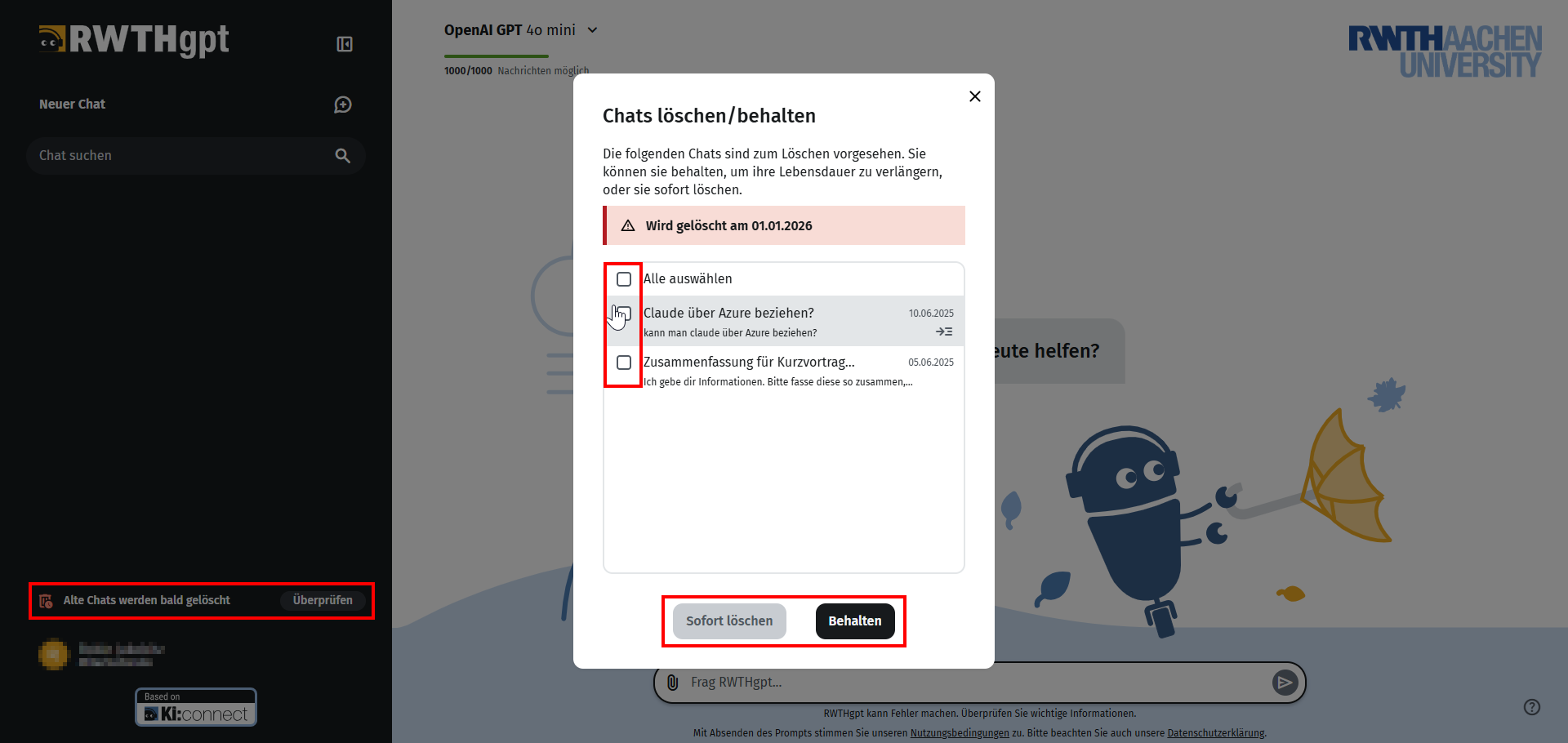
If chats meet these criteria, you will see the message Old chats will be deleted soon at the bottom left of the screen.
By clicking on Review, you can select whether or not you want the respective chats to be deleted.
Select the desired chats (you can also make a multiple selection or activate Select all) and choose Delete immediately or Keep, depending on what you want to do with the chats.
Deleted chats cannot be restored.
Uploading Files
Documents can be uploaded using the paperclip symbol to the left of the text input. Depending on the selected AI tool or language model, multimodal content (text & image) can also be used.
Once content has been uploaded, RWTHgpt can summarize and describe it and perform further tasks. When uploading any documents, especially copyrighted material or personal data (of third parties), please note the information on Terms of use and data protection agreements on this page.

Exporting Chats
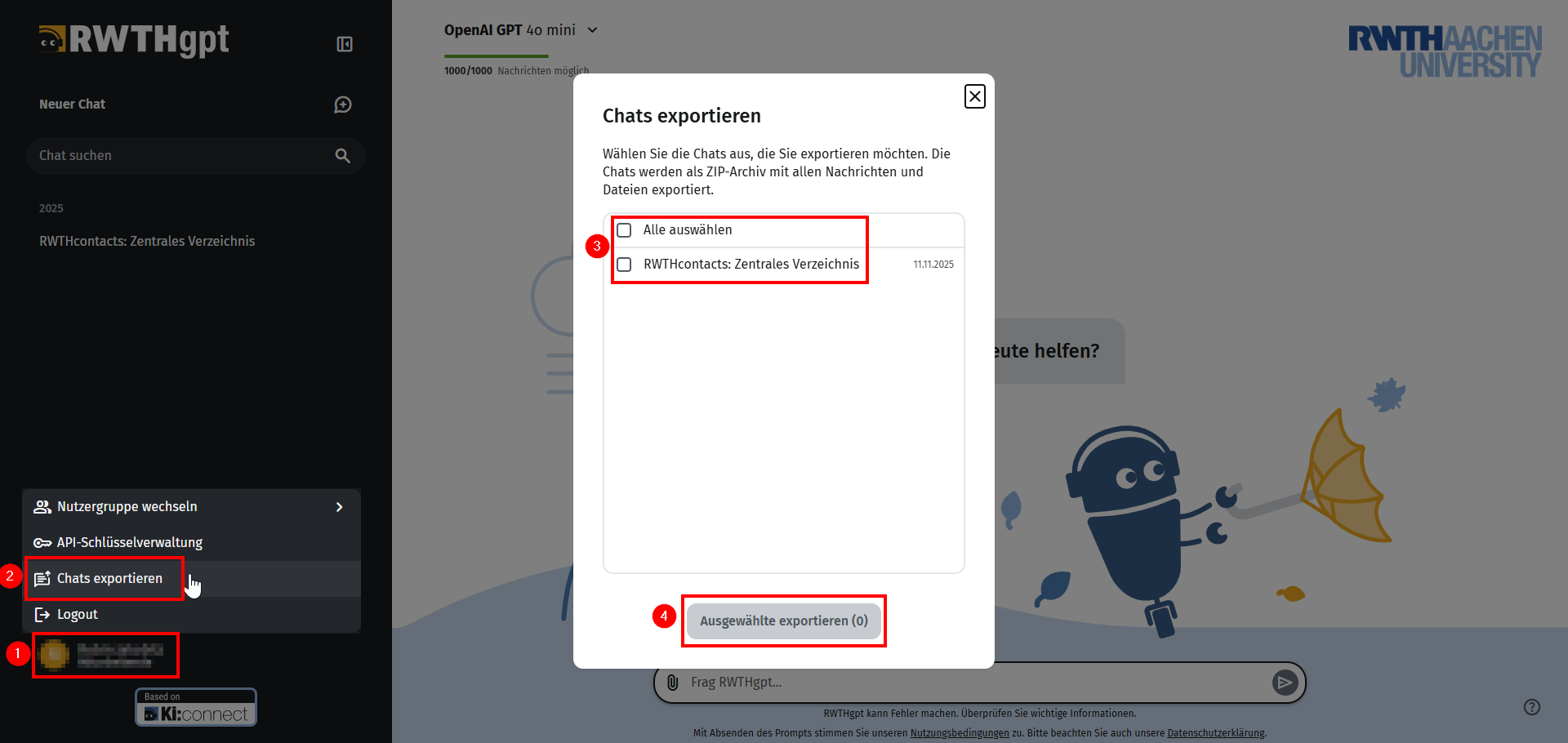
You can export entire chats and associated chat histories by clicking on your name in the lower left corner and then selecting Export Chats.
In the overview, you can select whether you want to export all active chats.
Select the desired chats (you can also make multiple selections or activate Select all) and click Export selected.
You can then save a zip file on your device that contains the summarized chats and interactions.
Using Markdown Formatting and Code Blocks
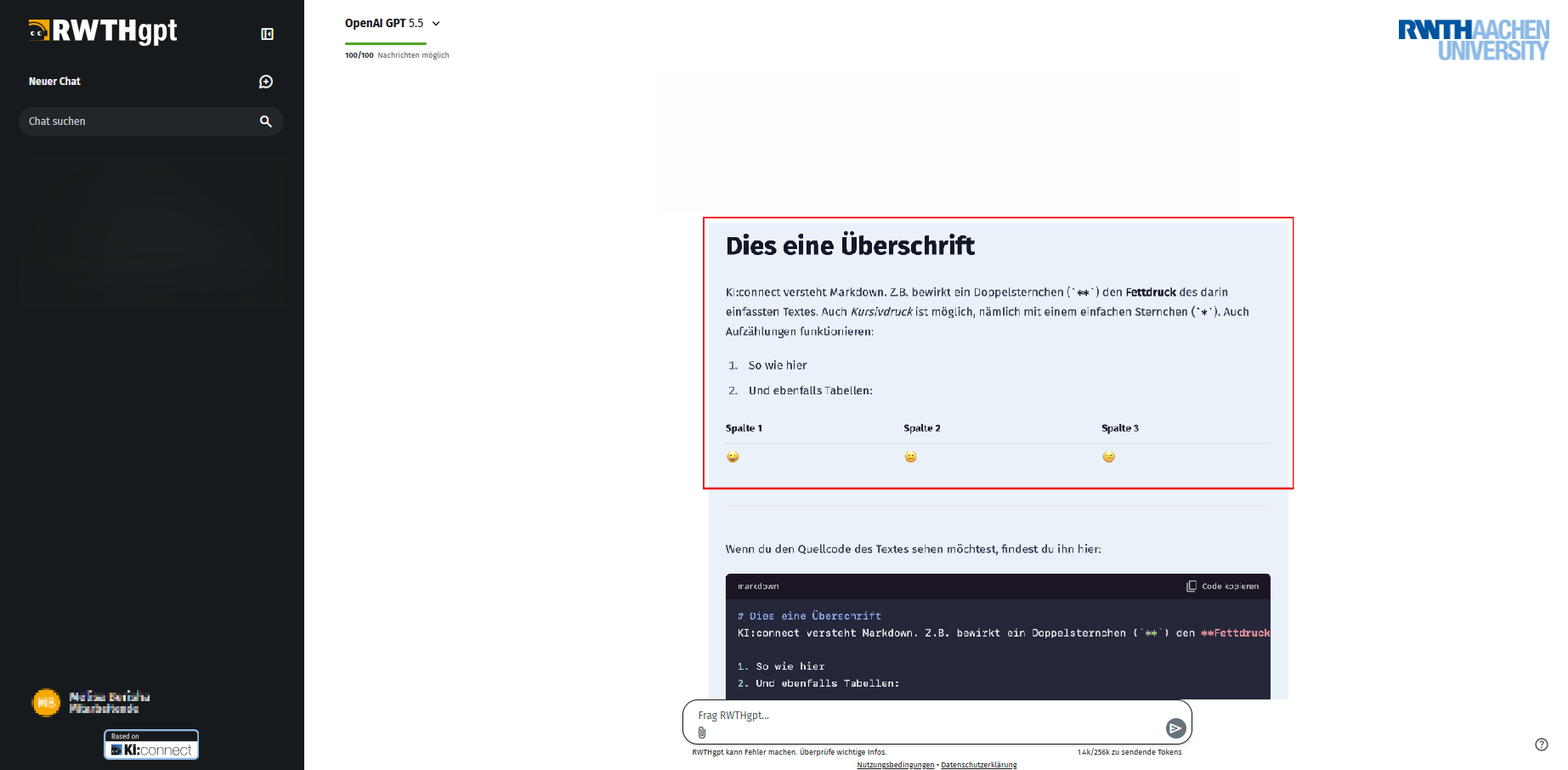
Markdown can be used in prompts to structure text and highlight content. Supported elements include, among others, headings, bold and italic text, bullet points, tables, and code blocks.
Using Markdown in prompts is recommended because AI models can interpret these formatting elements. A structured input can help the model better understand the content and generate more appropriate responses. If AI responses contain Markdown formatting, it is automatically detected and displayed with the corresponding formatting.
AI models can be used to create computer code. Any generated code is automatically displayed in a separate code block. This area includes syntax highlighting and its own copy icon, which allows only the contained code to be copied.
For more information about Markdown, please refer to the Markdown Guide (opens in new tab).