


Select standard token

You can set a configured token as the default token. The selected default token is automatically selected when you log in to Single Sign-On and remains in place regardless of the device or web browser.
To set a token as the default token, follow these steps:
Step 1
Log in to RWTH SelfService.
Step 2
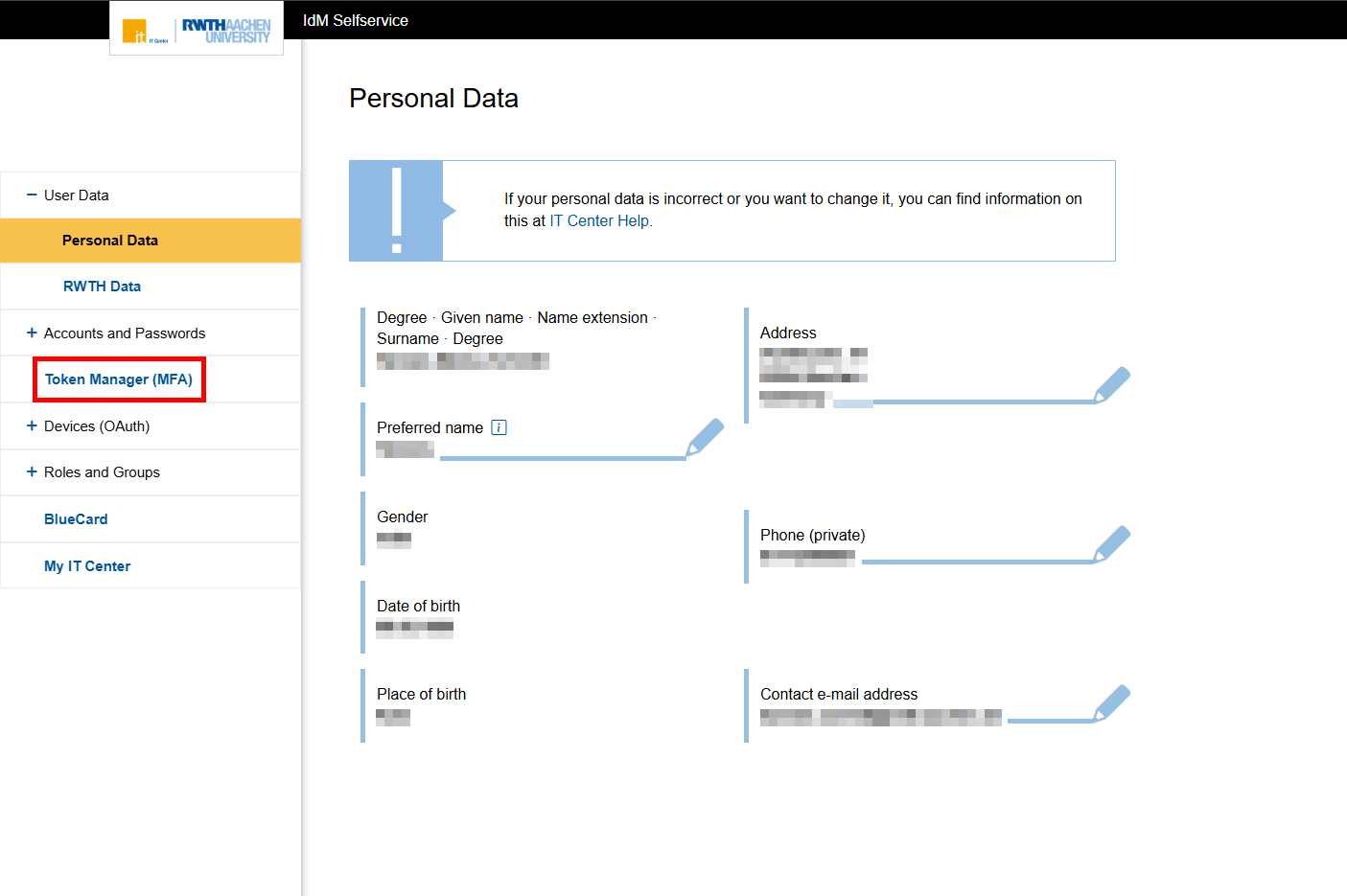
Click on “Token Manager” in the left column.
Step 3
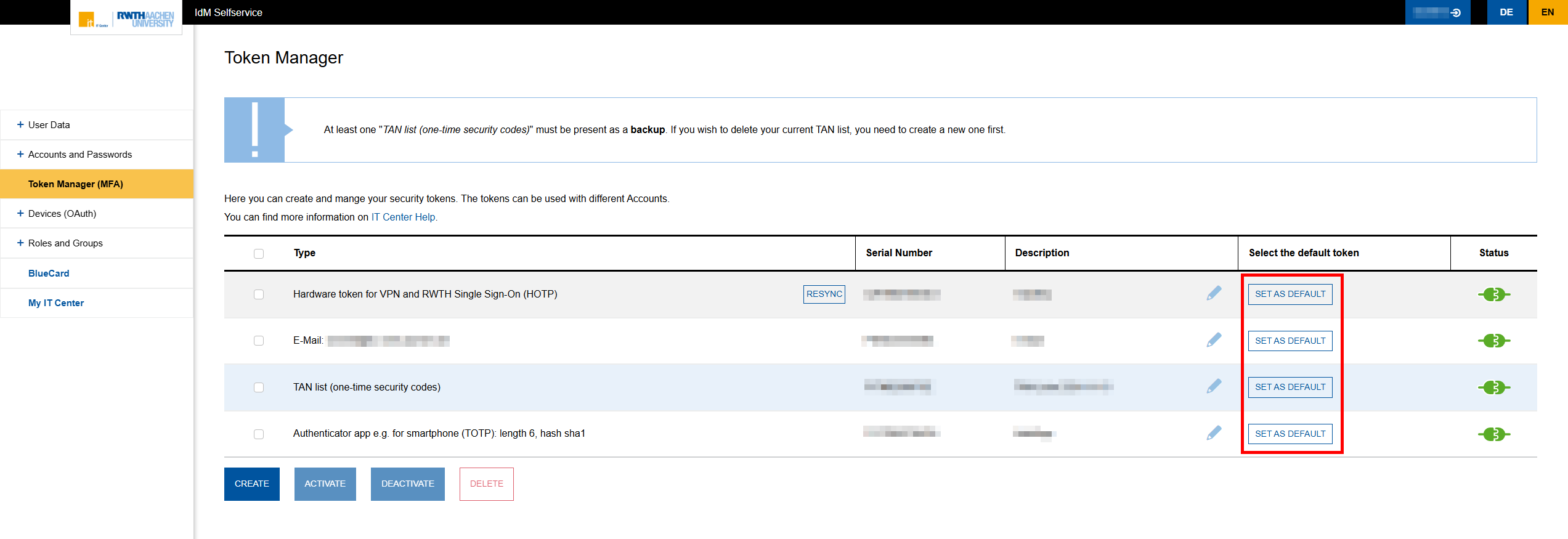
The token manager is displayed.
In the “Select as default token” column, click the Set as default button to set the respective token as the default.
Step 4
A message will then appear confirming that the token has been set up as the default token and will be selected automatically when you log in.
If you no longer want the token to be the default token, click the Remove as default button in the "Select as default token" column.
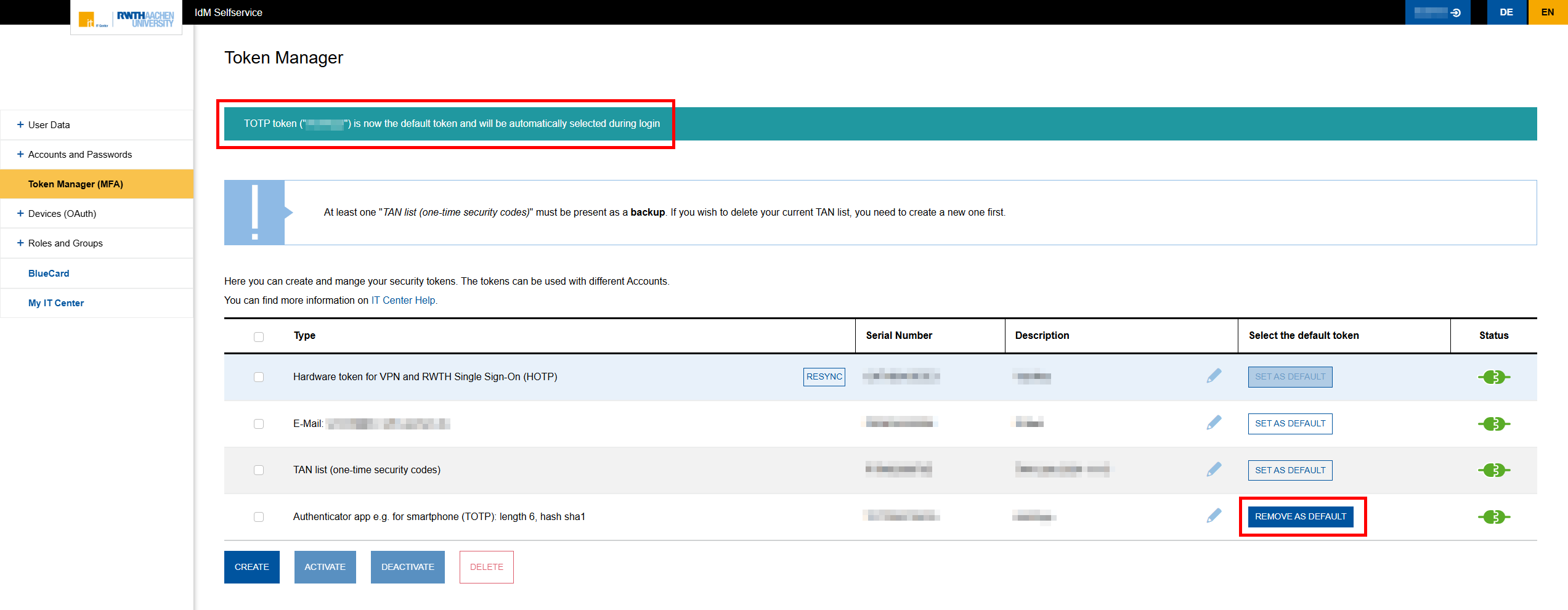
A message will then appear confirming that the token is no longer set up as the default token.
