User exit strategies

On this page, you will learn what should be taken into account when a person leaves an ELN team.
General information
Team members can be archived from a team when they stop working in the research group. Alternatively, access to the ELN can be disabled by setting an expiration date in eLabfTW. However, if a person is a member of multiple teams, the situation can be more complicated. The following flowchart illustrates the available options:
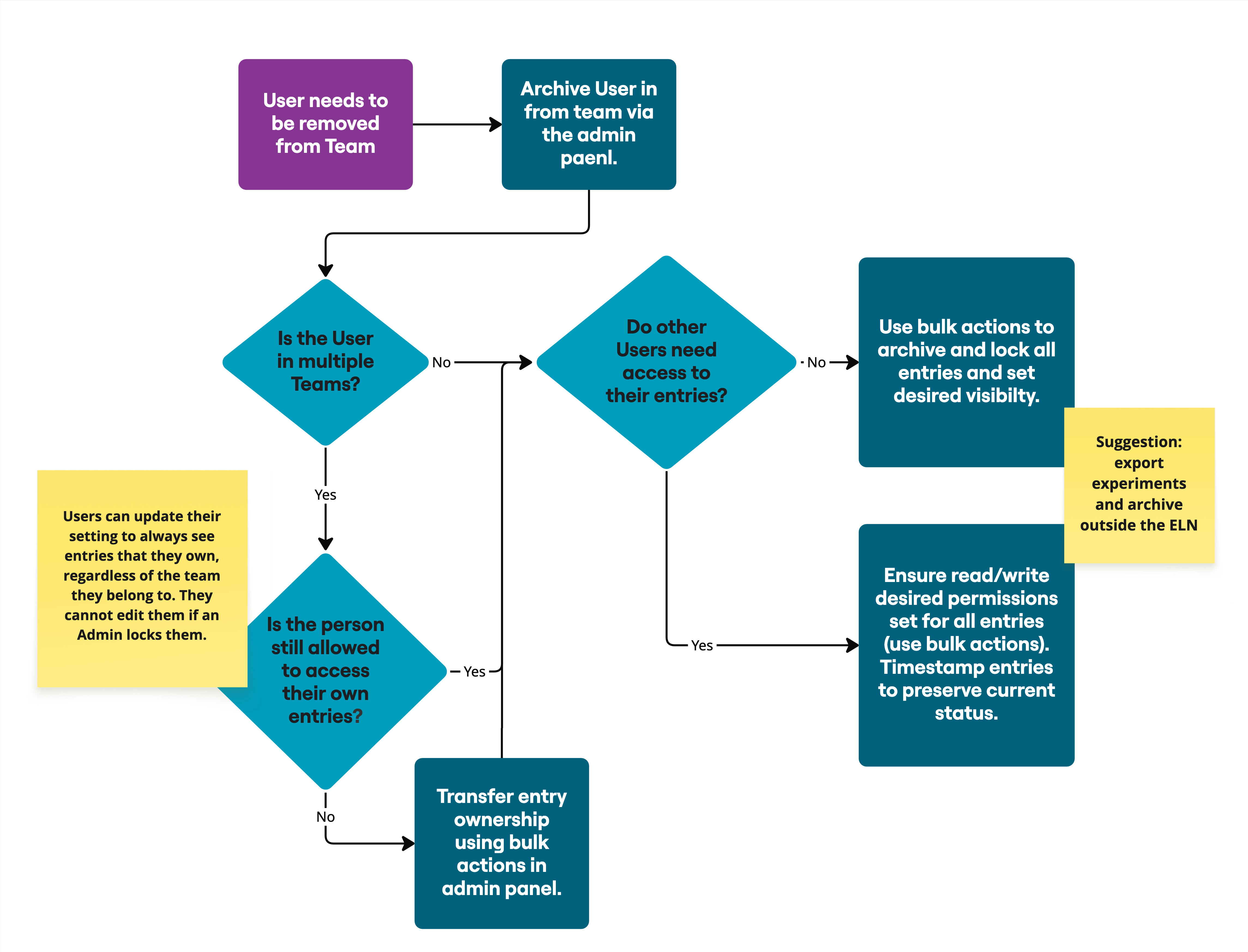
Once a person leaves the team, the following should be checked:
- This person's access rights to entries
- Read permissions
- Write permissions
Archived entries are only hidden in the default view.
If the person leaves RWTH Aachen, their access will expire once they no longer have access via Single Sign-On (SSO). As a best practice, people who leave the team should be archived to keep the team member list up to date.
Other aspects to consider
- A person can only be deleted if they do not own any entries. Deleting a person removes them from all teams.
- Archiving a person only archives them in the respective team.
- Setting the valid until date for a person applies this date to all teams of which they are a member.
- Since the minimum permission level in the RWTH Aachen instances is restricted to owners and admins, team admins retain read and write access to all entries assigned to their own team.
- The user settings include an option that allows a user to view entries regardless of which team they are currently logged in to. This means that they can also access entries from teams from which they have been removed, as long as they can still log in to the ELN through another team. They cannot edit entries that have been locked by an admin. Their entries can also be accessed via their URL.
Archiving users
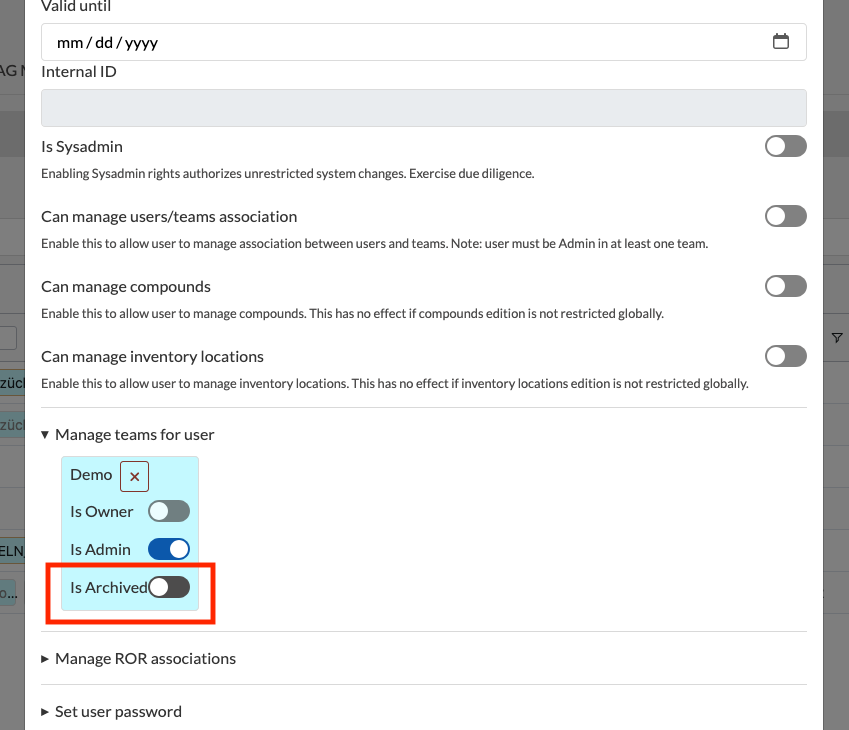
- To archive users from your team, navigate to the user menu via the Admin Panel.
- Find the person in the user list.
- Double-click the person.
- In the pop-up menu, expand Manage teams for user
- Enable Is Archived for your team.