How to use the ticket portal
This page describes how to use the ticket portal (opens in new tab).
- Overview of the ticket portal
- Create a new request
- Status of a request
- Reply from the IT-ServiceDesk
- Reply to the IT-ServiceDesk
Overview of the ticket portal
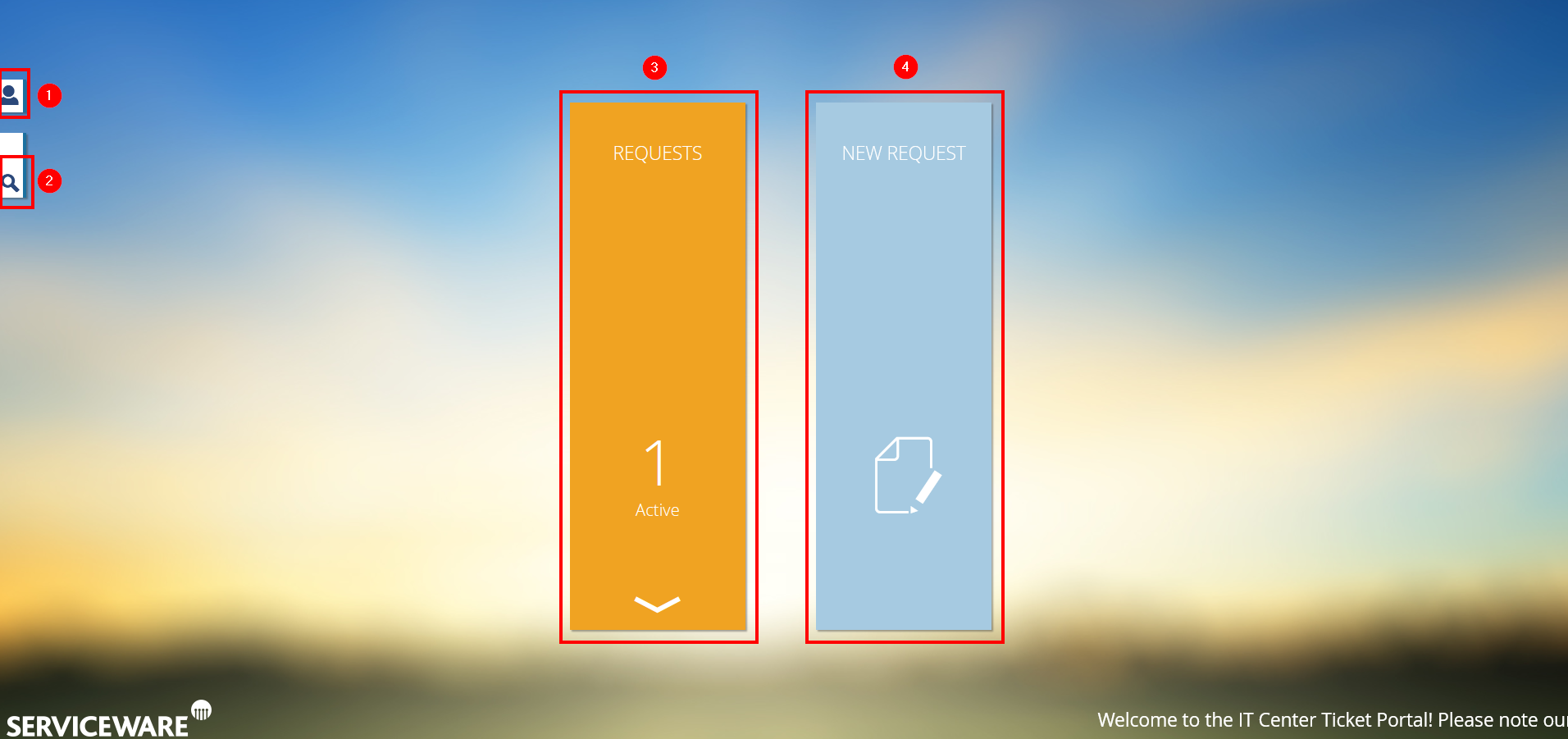
After logging into the ticket portal, you can do the following:
- Personal Information & Settings: Here you can:
- view your personal information,
- select the display language,
- log out of the ticket portal.
- Search: Click here to search through your requests (you can search for words and ticket numbers).
- Requests: Click here to view the requests you have sent to IT-Service Desk.
- New Request: Click here to submit a new request to the IT-Service Desk.
Create a new request
Step 1
Click on New Request:

Step 2
Under Category, select the appropriate topic. For example: Email, Access.
Step 3
Under Subject, summarize your request in 2-3 keywords. For example: Forgot E-Mail password
Step 4
Under Description, describe your request.
Step 5
Click on the plus sign under Attachment to upload files and images. For example, you can send a screenshot of an error message.
Step 6
Click on Send at the top left of the form:
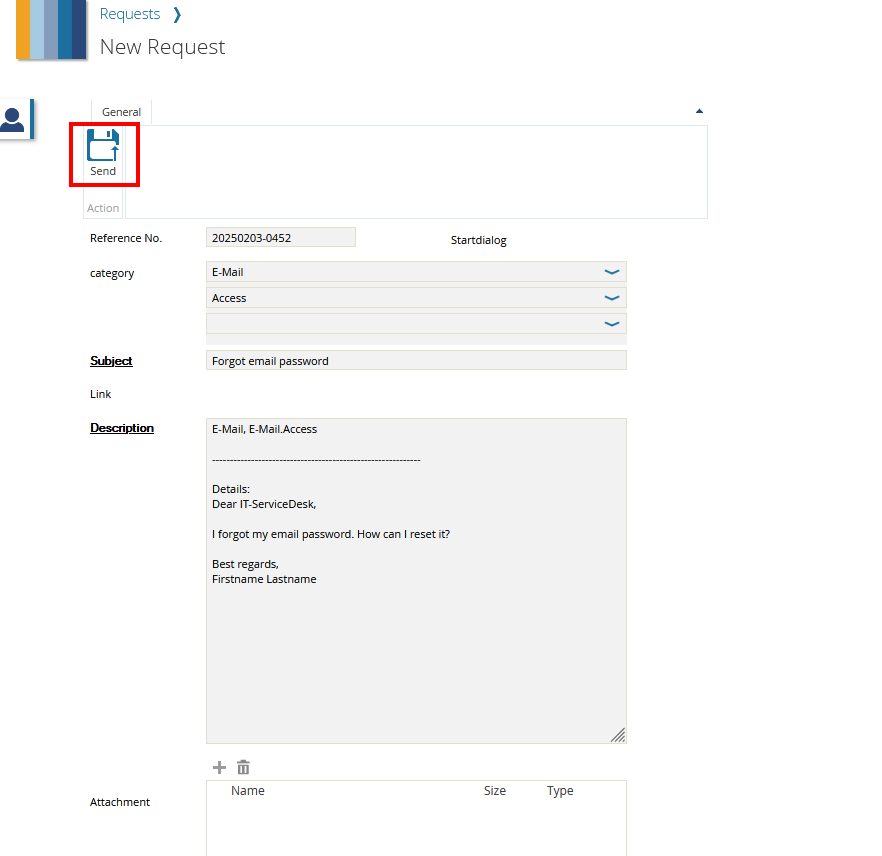
Your request will be automatically forwarded to the IT-ServiceDesk.
Status of a request
Step 1
Click on Requests:

Step 2
Your requests and their status are listed in a table.
- Open: Your request has been received.
- To check: Your request is being processed. You will receive a reply from the IT-ServiceDesk shortly.
- Waiting for: The IT-ServiceDesk is waiting for feedback (from you or a third party).
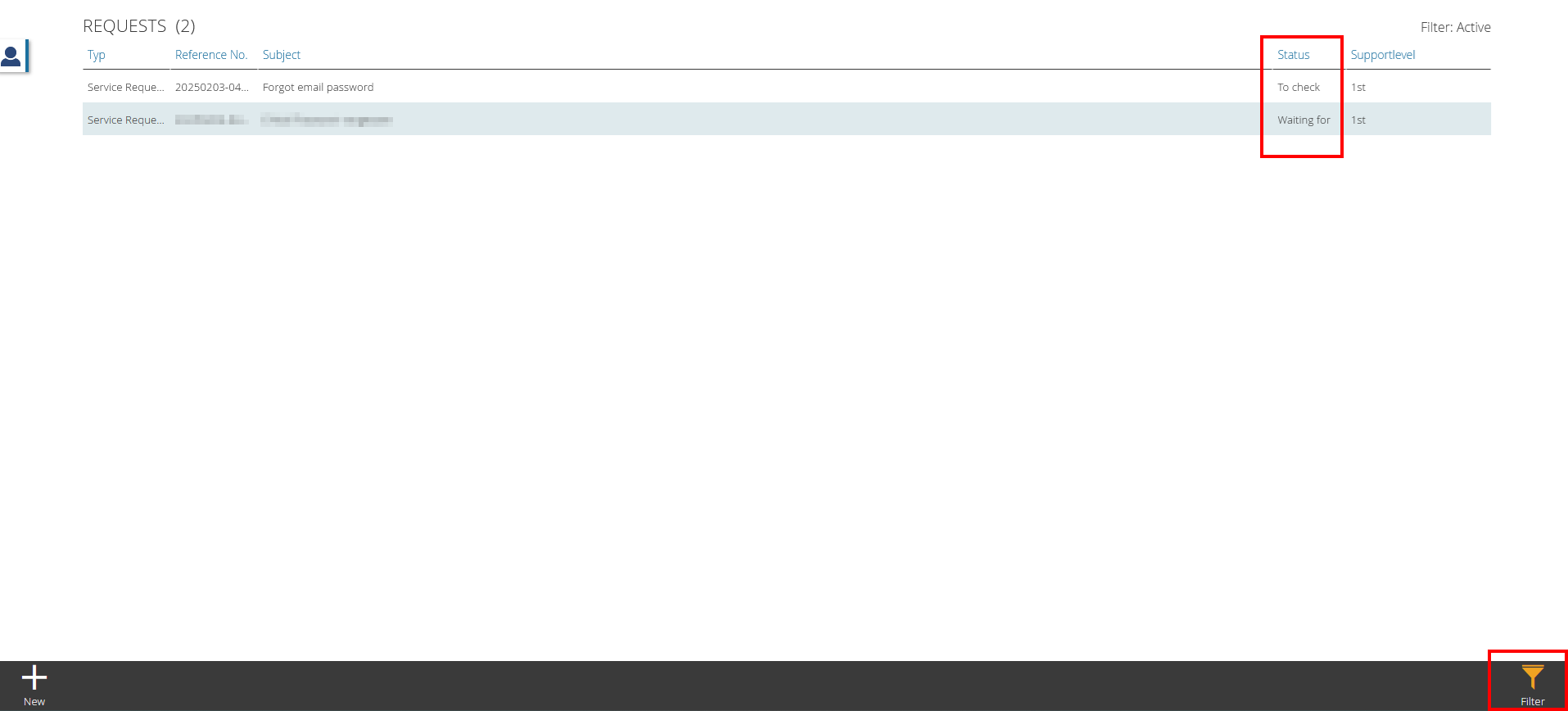
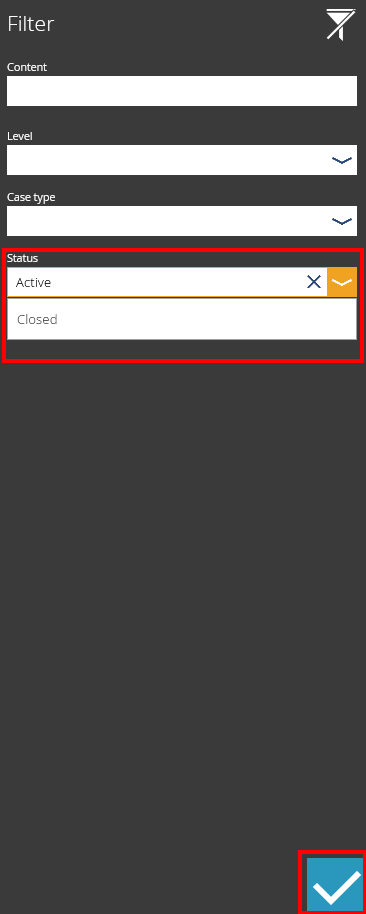
Please note: If you cannot find your request in the table, it has been closed. To view it, click the Filter button in the bottom right corner. Under Status select Closed and click the tick in the bottom right hand corner. You can still reply to a closed request:
Feedback from the IT-ServiceDesk
Step 1
Click Requests.
Step 2
Click on your request.
Please note: If you cannot find your request in the table, it has been closed. To view it, click the Filter button in the bottom right corner. Under "Status" select Closed and click the tick in the bottom right hand corner. You can still reply to a closed request.
Step 3
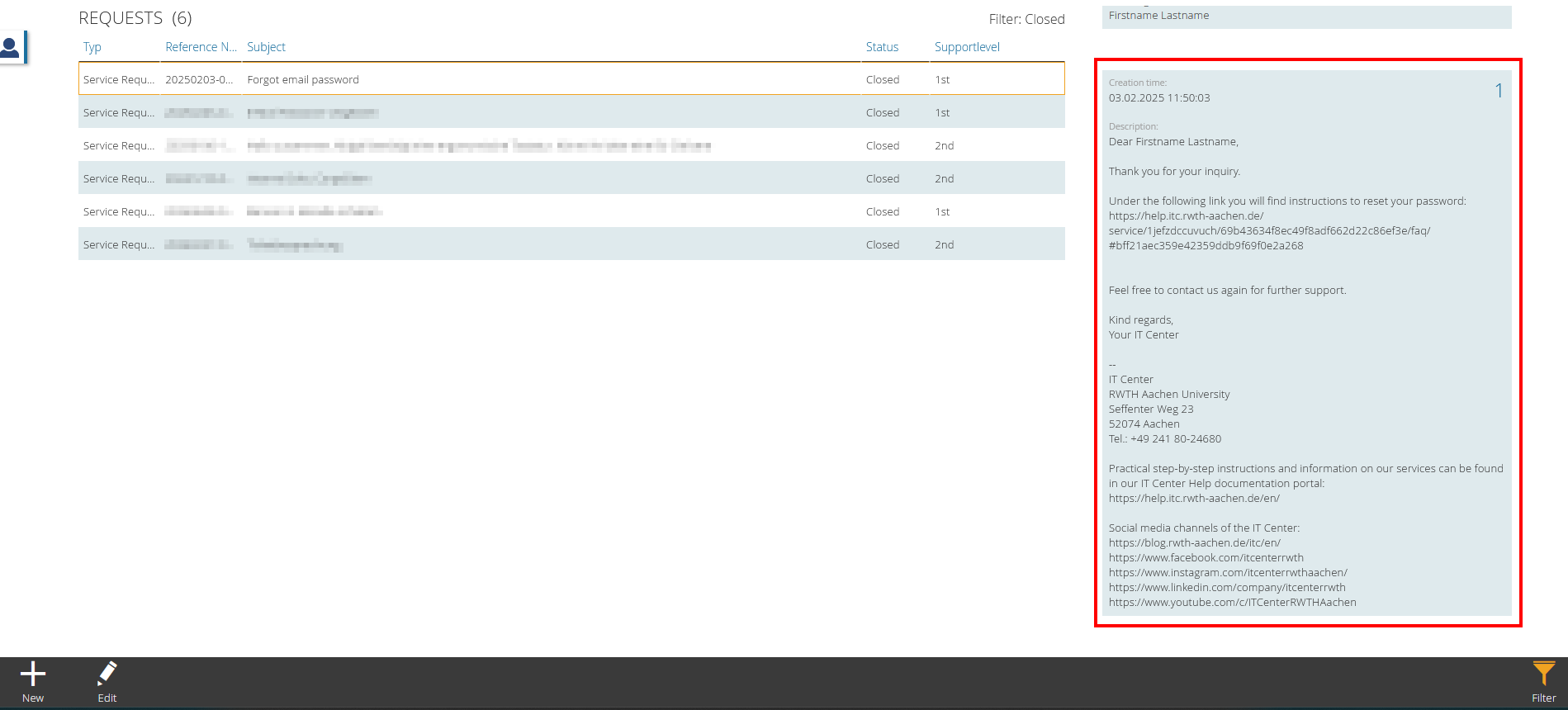
You can read the reply from the IT-ServiceDesk under Case Details:
Answering the IT-ServiceDesk
Step 1
Click on Requests:
Step 2
Click on your request.
Please note: If you cannot find your request in the table, it has been closed. To view it, click the Filter button in the bottom right corner. Under Status select Closed and click the tick in the bottom right hand corner. You can still reply to a closed request.
Step 3
Click Edit in the bottom left corner.

Step 4
Write your answer under Description. Click on the plus sign under Attachments to upload files and images.
Step 5
Click Send at the top left of the form.