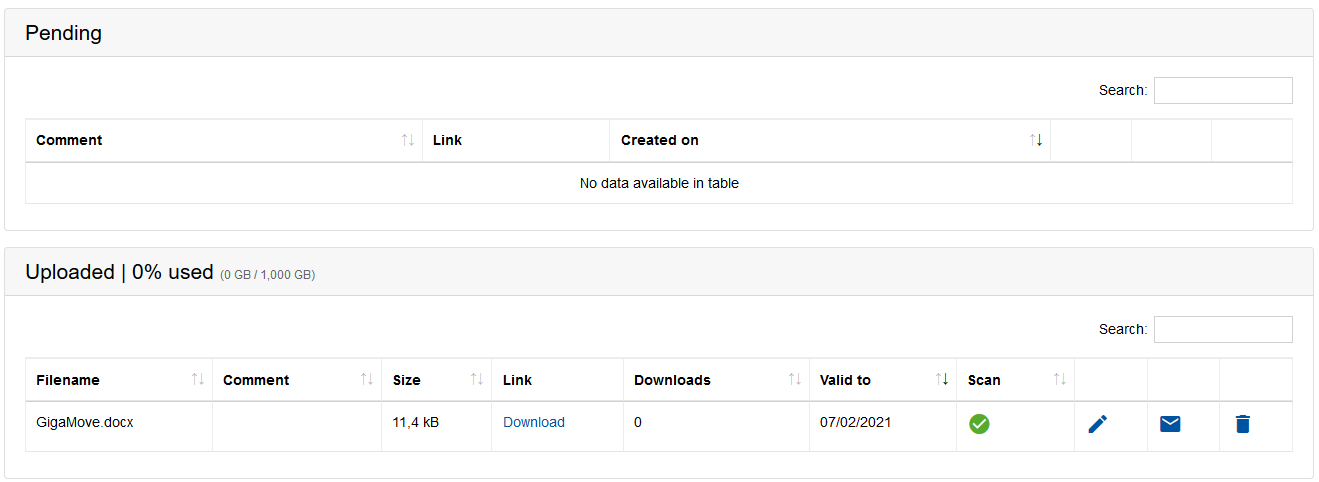
Request files in GigaMove

This page describes how you can request a file and manage requested files in GigaMove (opens in new tab).
Requesting a file
To request a file, please follow the steps below.
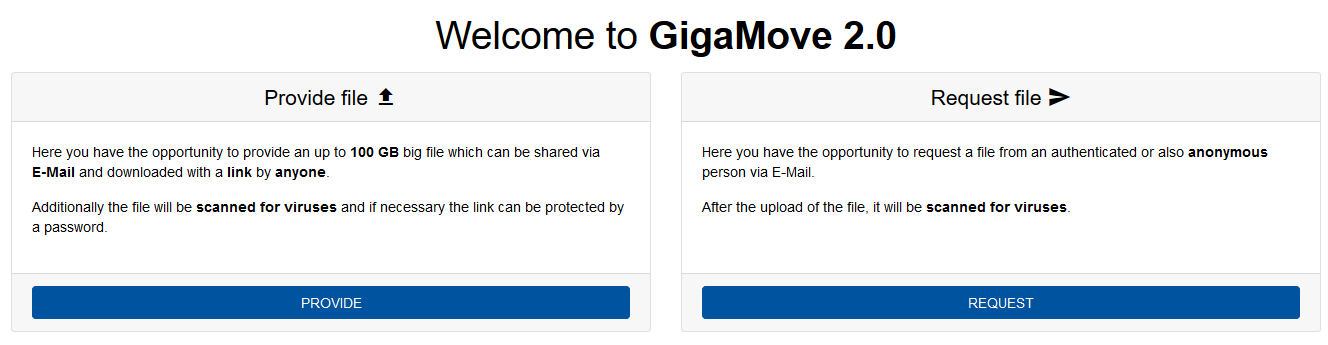
Step 1
Click on Request.
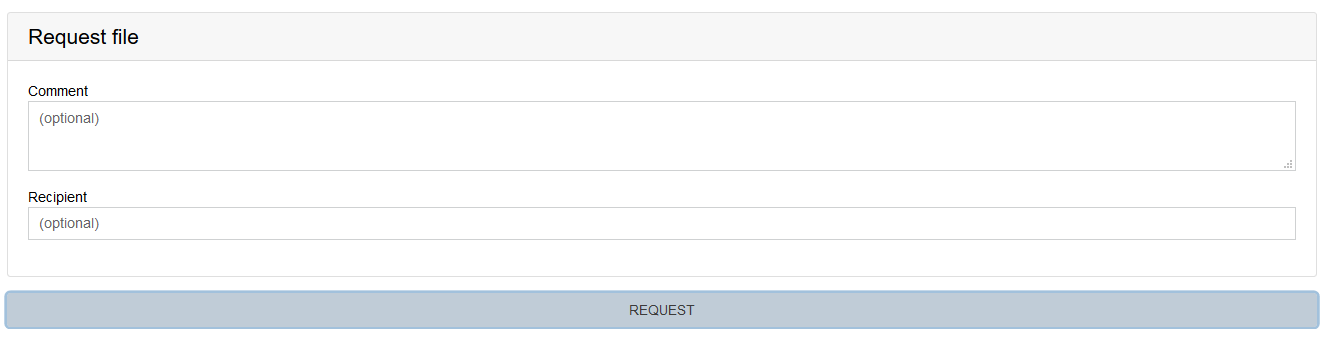
Step 2
Next, you can optionally enter a comment or an e-mail address to have GigaMove send an email directly.
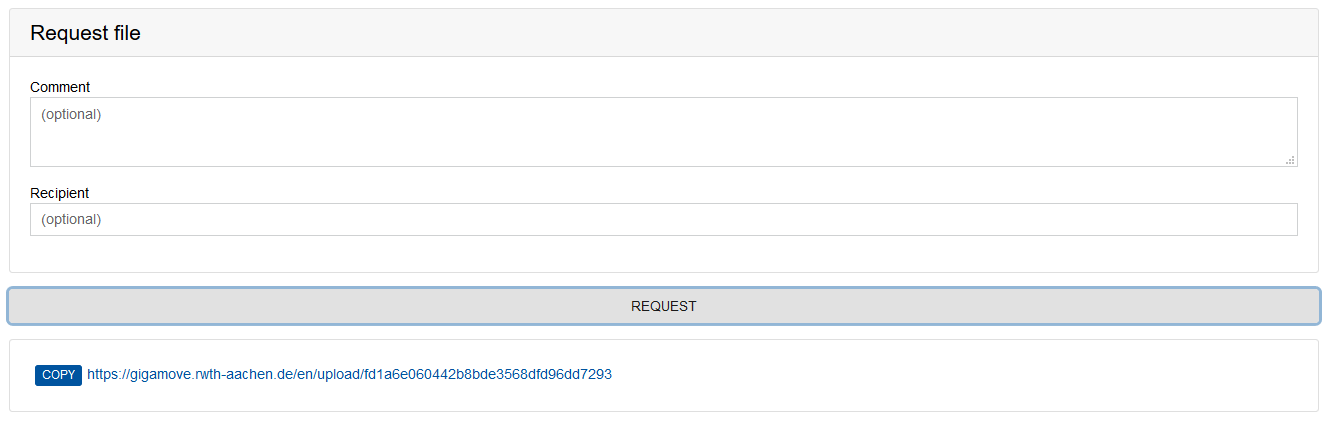
Step 3
Click Request to generate a link that you can pass on to the person from whom you would like to receive a file.
Step 4
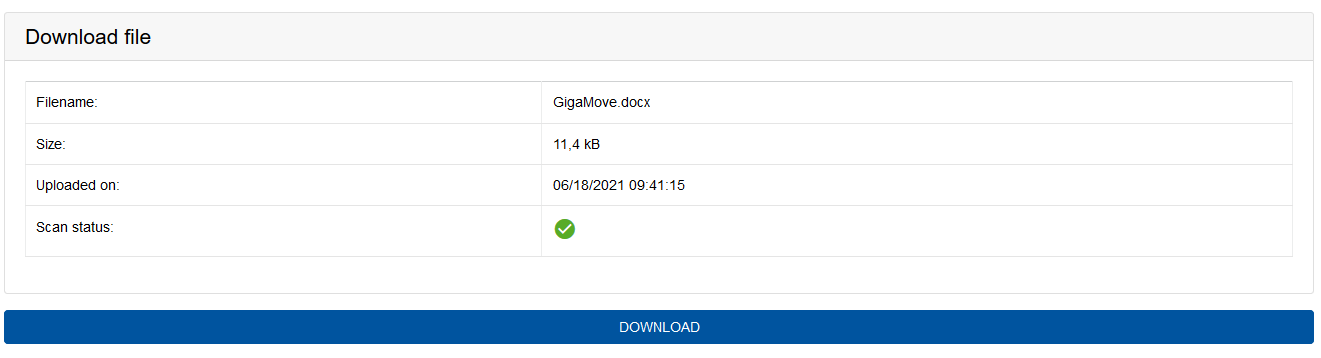
As soon as the recipient has uploaded a file for you, you will receive a notification email and can download the file via the link from the email.
To do so, click Download.
Managing requested files
Under Manage files – Requested, you can see which files you have requested.
- Under Pending are the files listed that have not yet been uploaded.
- Under Uploaded are the files listed that have already been uploaded.
In this section you have the following options:
- Download files
- Edit files (e.g. extend the upload link)
- Send an email with the link to request a file
- Delete files