


Creating an Administration Account

On this page you will learn, how to set up additional administration accounts in the Cisco Secure Endpoint Console.
Please follow the steps below:
Step 1
Open the Cisco Secure Endpoint Console (opens in new tab) and log in.
Step 2
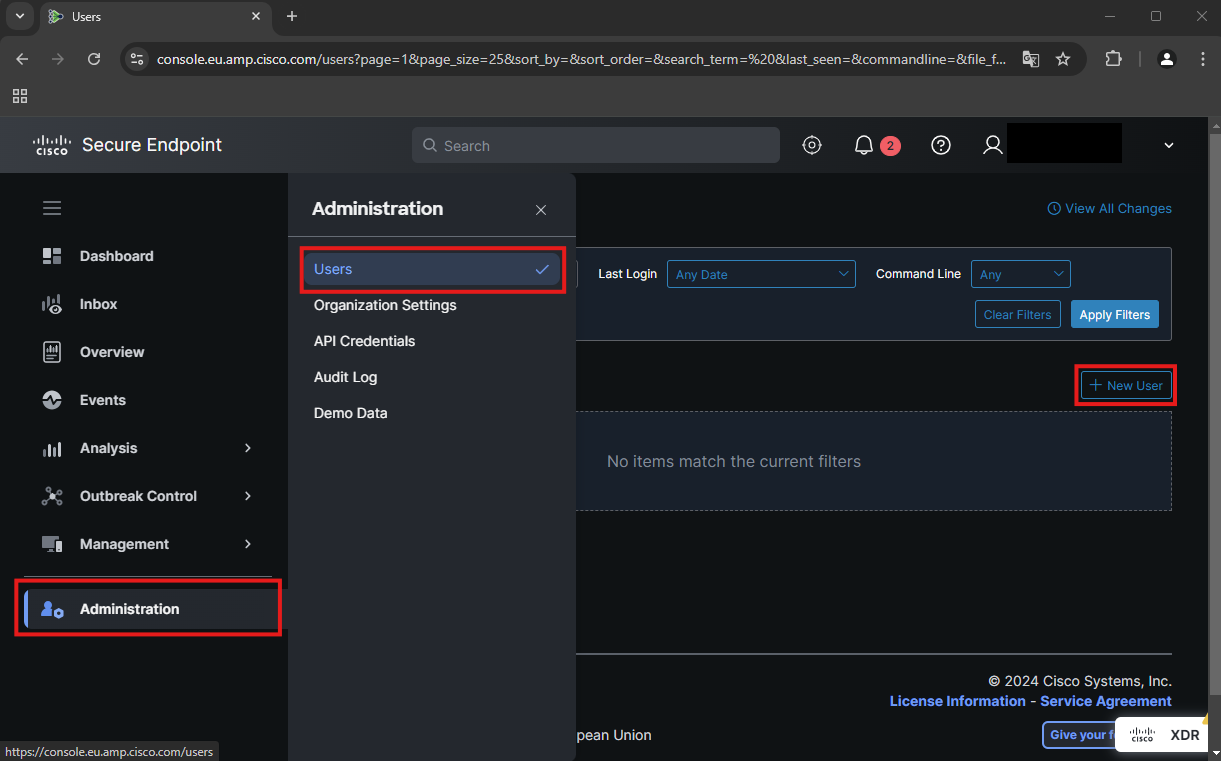
Then select the menu item Administration → Users and click on the +New User button.
Step 3
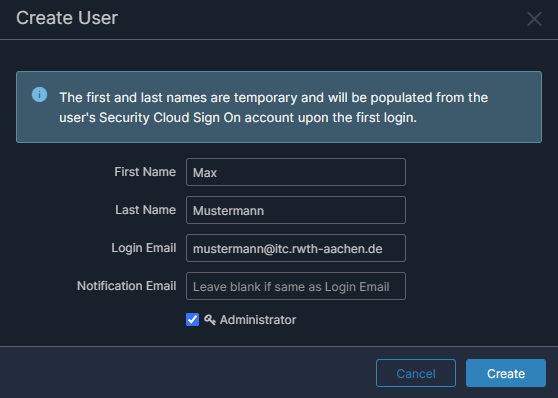
In the following dialog, fill in the first and last name and e-mail address fields.
Step 4
Next click on Create.
Step 5
An invitation will now be sent to the e-mail address provided. Accepting the invitation activates the account. You can find instructions on how to do this under Activating an admin account.
