Chat functions

This page describes which additional features you can use while chatting.
- Starting chats
- Editing prompts
- Copying answers
- Chat history
- Editing chats
- Chat lifecycle
- Uploading files
- Exporting chats
Starting chats
If you are using the RWTHgbt web interface for the first time, you can type a message into the input field (1) at the bottom of the screen to start your first chat. If you want to start a new chat while an existing chat is currently displayed, click on "New chat" (2) in the dark sidebar at the top left of the screen. The current chat will disappear and you will see an empty chat window again.

Editing prompts
Individual prompts can also be edited. To do this, hold your mouse cursor over a message you have written and select the edit icon at the bottom right of the message. When a prompt is edited, the response from RWTHgpt is also regenerated and adapted. The context of the previous messages is taken into account. This can be used to rephrase or change the question or to continue using the same chat after the global token limit has already been reached.

Copying answers
You can select the desired text as usual and then copy it to the clipboard using the mouse or the corresponding key combination. In this case, the selected text is saved to the clipboard in HTML format so that formatting in the selected text, such as bold print or headings, is retained. This variant corresponds to copying content from a normal website.

Chat history
All past chats are displayed in the chat history in the dark sidebar on the left-hand side of the screen. Chats are sorted by date and time. The date and time of a chat are based on the last time it was changed, not the date it was created. So if you rename a chat or change its content, the chat moves back to the top of the chat history.
Click on a chat in the chat history (1) to load and display it.
You can also search your chats. To do this, click on the "Search chat" (2) input field and enter one or more search words. Both the titles and the content of all the chats you have created will now be searched. Chats in which the search terms appear are displayed together with a short excerpt from the search results instead of the entire chat history. Click on the desired chat to display it.
If you do not need the chat history on the left-hand side of the window or want to enlarge the text area, you can collapse the entire sidebar by clicking on the "Collapse" icon in the top left-hand corner.

Editing chats
Each new chat that you start is automatically given a name after the first reply from the AI, which is derived from the content of the previous conversation. You can change the automatically assigned name by moving the mouse over the title of a chat and clicking on the three-dot icon (1) that appears next to the chat name. A menu will pop up in which you can click on Rename (2).
Chats can be shared with other people, even if they are not members of your own university. To share a chat, move the mouse over the title of a chat and click on the three-dot symbol (1) that appears next to the chat name. A menu will pop up in which you can click on Share (3). Click on Create in the dialog window. The chat is now ready for sharing and you can copy the displayed link to your computer's clipboard using the "Copy" symbol.
Chats can be deleted at any time. To delete a chat, move the mouse over the title of a chat and click on the three-dot icon (1) that appears next to the chat name. Click on Delete (4). A dialog box will now appear above the chat in which you must confirm the deletion by clicking on Delete. Please note that a deleted chat cannot be restored. If you do not want to delete the chat after all, click on Cancel.

ChatLifecycle
All chats have a lifecycle that ensures that old and unused chats are automatically deleted after a certain period of time.
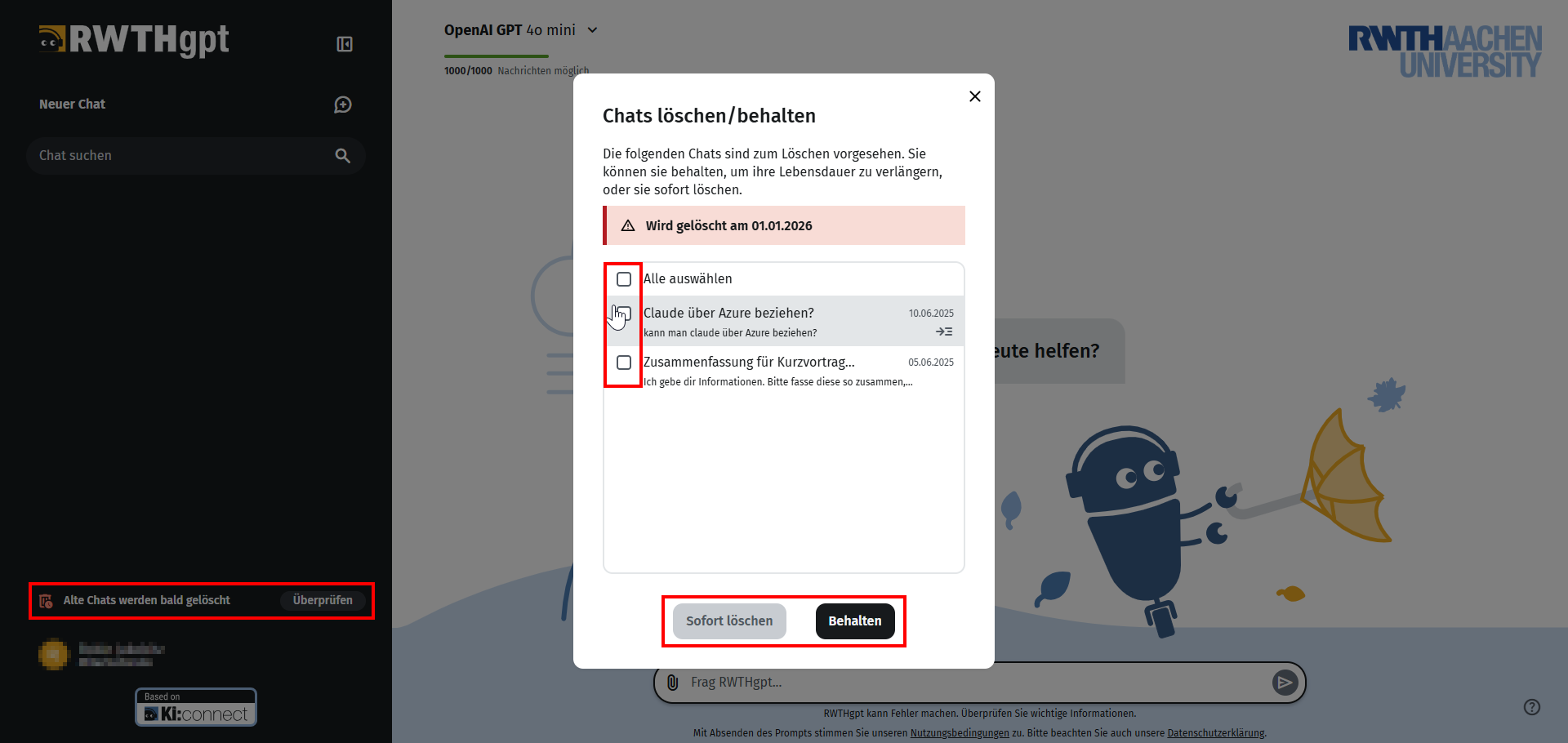
If chats meet these criteria, you will see the message Old chats will be deleted soon at the bottom left of the screen.
By clicking on Review, you can select whether or not you want the respective chats to be deleted.
Select the desired chats (you can also make a multiple selection or activate Select all) and choose Delete immediately or Keep, depending on what you want to do with the chats.
Deleted chats cannot be restored.
Uploading files
Documents can be uploaded using the paperclip symbol to the left of the text input. Depending on the selected AI tool or language model, multimodal content (text & image) can also be used.
Once content has been uploaded, RWTHgpt can summarize and describe it and perform further tasks. When uploading any documents, especially copyrighted material or personal data (of third parties), please note the information on Terms of use and data protection agreements on this page.

Exporting chats
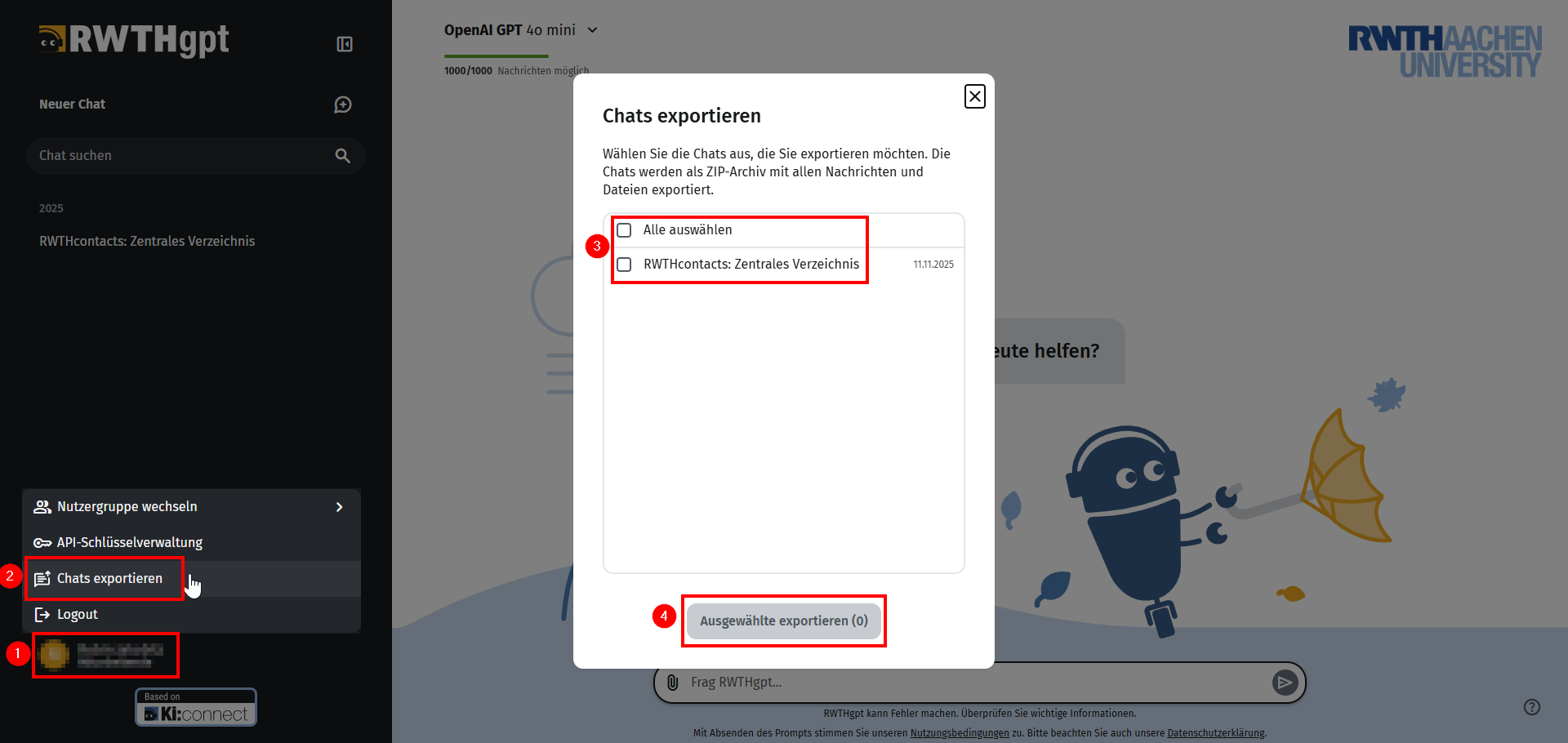
You can export entire chats and associated chat histories by clicking on your name in the lower left corner and then selecting Export Chats.
In the overview, you can select whether you want to export all active chats.
Select the desired chats (you can also make multiple selections or activate Select all) and click Export selected.
You can then save a zip file on your device that contains the summarized chats and interactions.