Remote support via TeamViewer

On this page, you will find information about remote support via TeamViewer.
TeamViewer enables remote control of desktop computers and laptops and can be used for support cases that are difficult to resolve without visual assistance.
For this purpose, the IT-ServiceDesk uses the IT-ServiceDesk QuickSupport tool. The advantage of QuickSupport is that it is ready to use immediately after download and does not require installation.
To use QuickSupport, please follow these steps:
Step 1
Download the IT-ServiceDesk QuickSupport (opens in new tab).
Step 2
Start QuickSupport by double-clicking the saved TeamViewerQS.exe file and running it.
Step 3
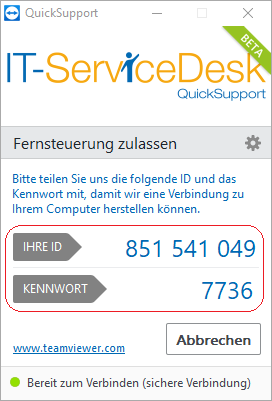
Accept the license agreement. You will then be shown a one-time ID and the generated password:
Step 4
Provide your contact person with the ID and password to start the remote support session.
The connection is now established via TeamViewer. Your screen image is transmitted, and remote control is possible if required.
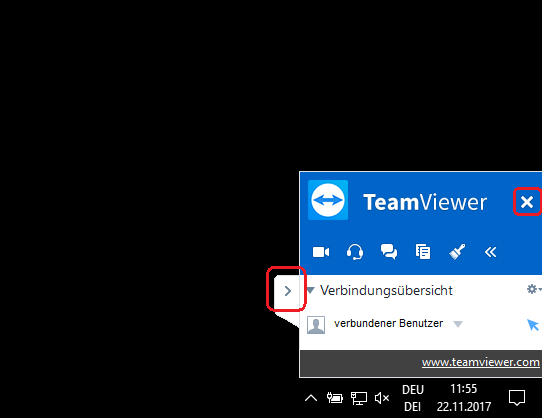
Once the connection has been established, you will see the TeamViewer window on your screen. This indicates that the transmission is active and that your device can be controlled remotely.
Click the arrow on the left edge to minimize the window. Click the X in the upper-left corner to end the current session: