You are located in service: Azure

Favourites

Favourites

information

Your favourites bar lists all your individually preferred services.

Screenshot of the left navigation bar. The favorites list area containing items like "All resources" is highlighted. An information pop-up displayed to the right explains managing "Favorites" and contains the navigation buttons "Back" and "Next" at the bottom.

By clicking on a specific point, you will get to the corresponding Azure service (in this example: All Resources and Virtual Machines)

All Resources

Screenshot of the "All resources" page. At the top are the command bar and filter options (e.g., "Subscription", "Type"). Below, a table lists the resources. The column headers are "Name", "Type", "Resource group", "Location", and "Subscription".

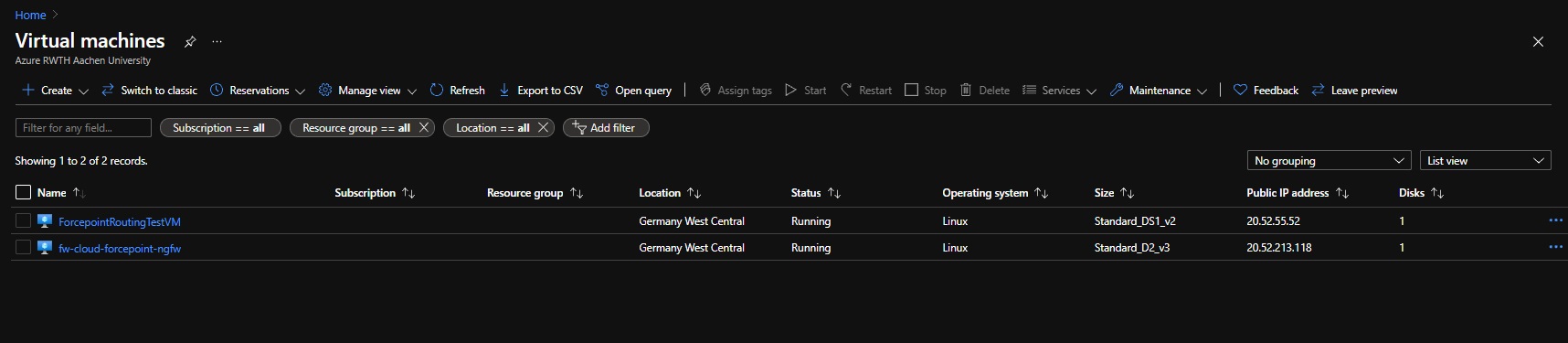
Virtual Machines

Screenshot of the "Virtual machines" page. At the top are the command bar (e.g., "Create") and filter options. Below, a table lists the virtual machines. The column headers include "Name", "Status", "Operating system", and "Size", among others.

Advisor

The Advisor is an overview provided by Microsoft, which shows possible optimizations in your use of Azure.
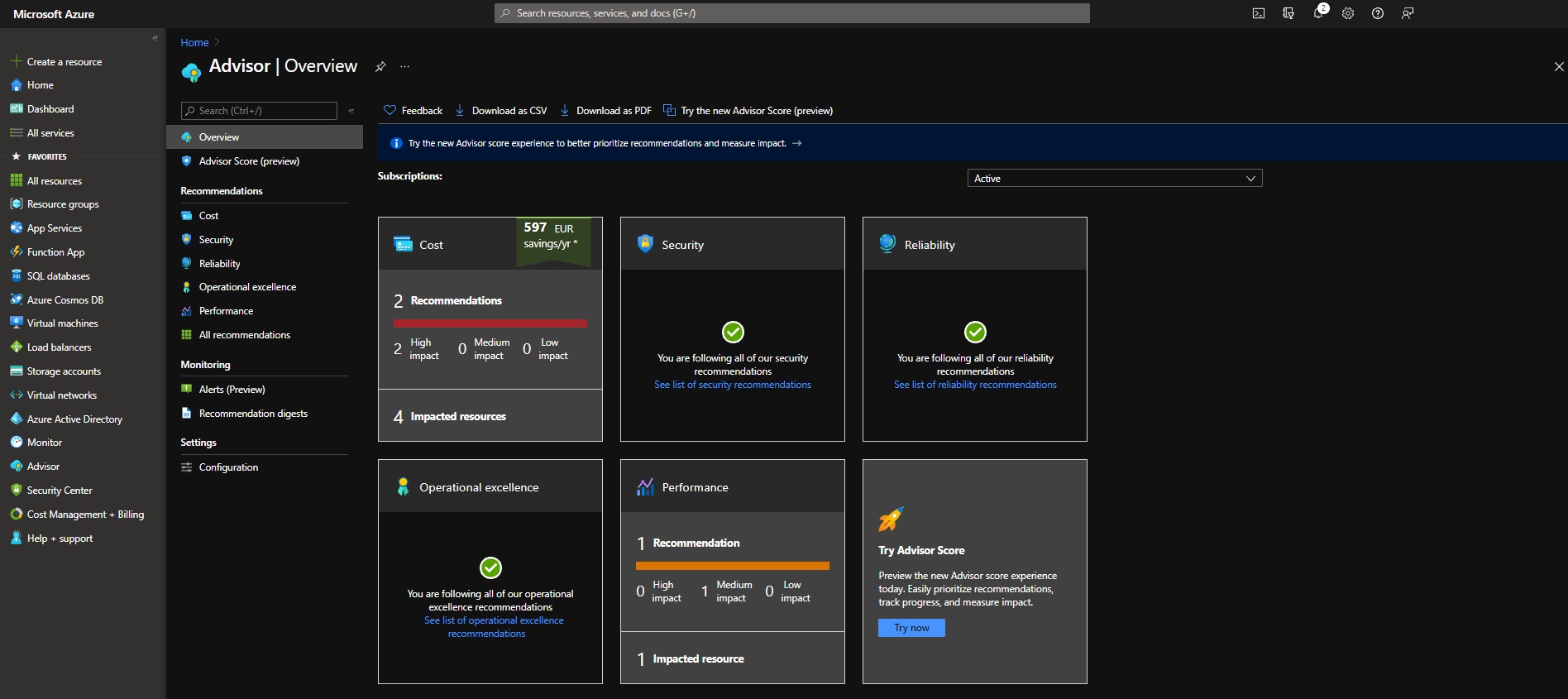
Screenshot of the "Advisor | Overview" page. In the main area, tiles with status information and recommendations are displayed in two rows. The top row contains "Cost", "Security", and "Reliability", the bottom row "Operational excellence" and "Performance".

Cost Management

The cost management provides an overview of current and predicted future costs. You can select different scopes (monthly, quarterly, yearly, etc.)
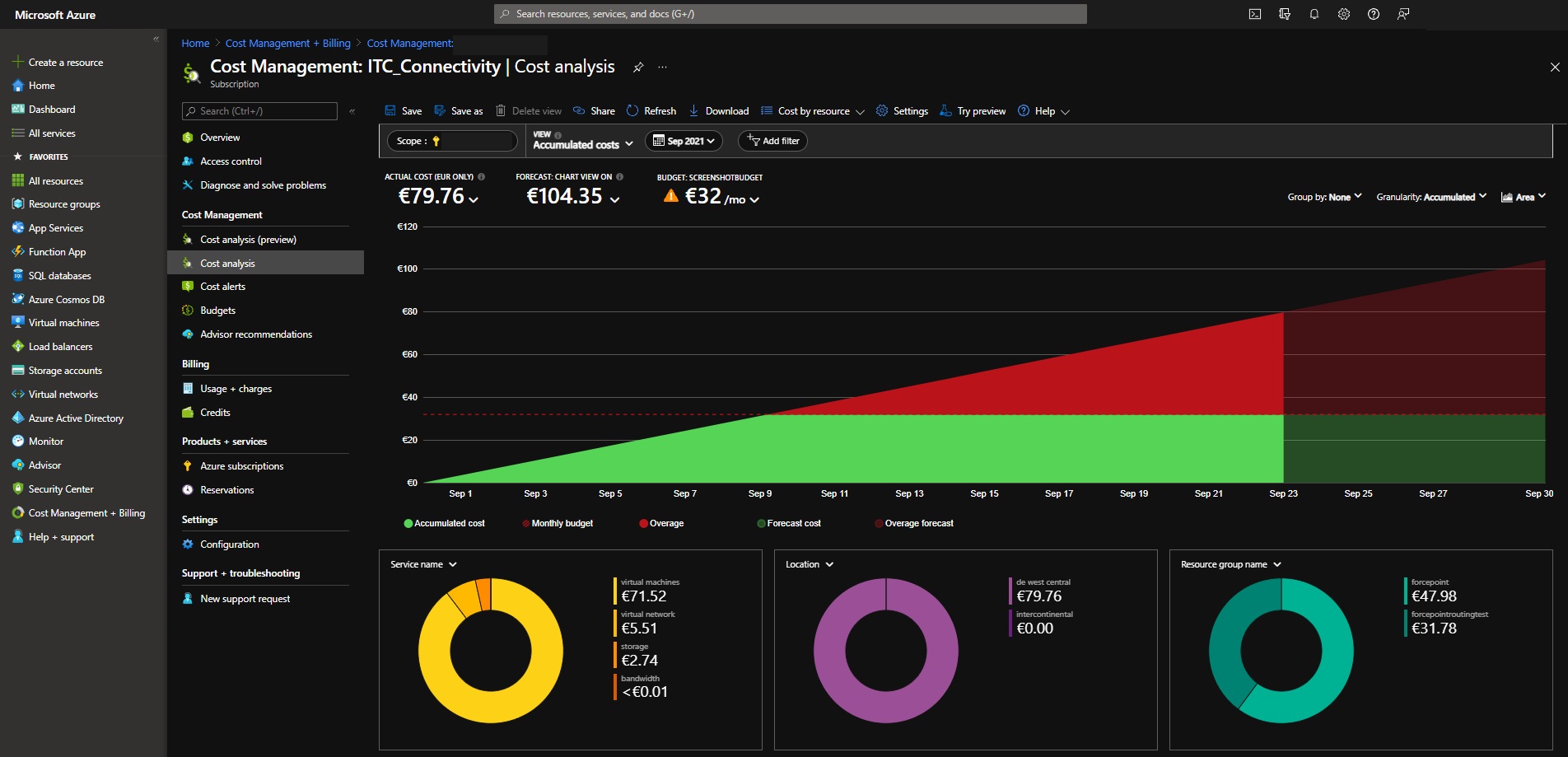
Screenshot der Seite „Cost Management | Kostenanalyse“. Im oberen Hauptbereich werden Kennzahlen zu „Tatsächliche Kosten“ und „Vorhersage“ angezeigt. Darunter visualisiert ein großes Flächendiagramm den Kostenverlauf. Ganz unten schlüsseln drei Ringdiagramme die Kosten nach „Service name“, „Location“ und „Subscription“ auf.

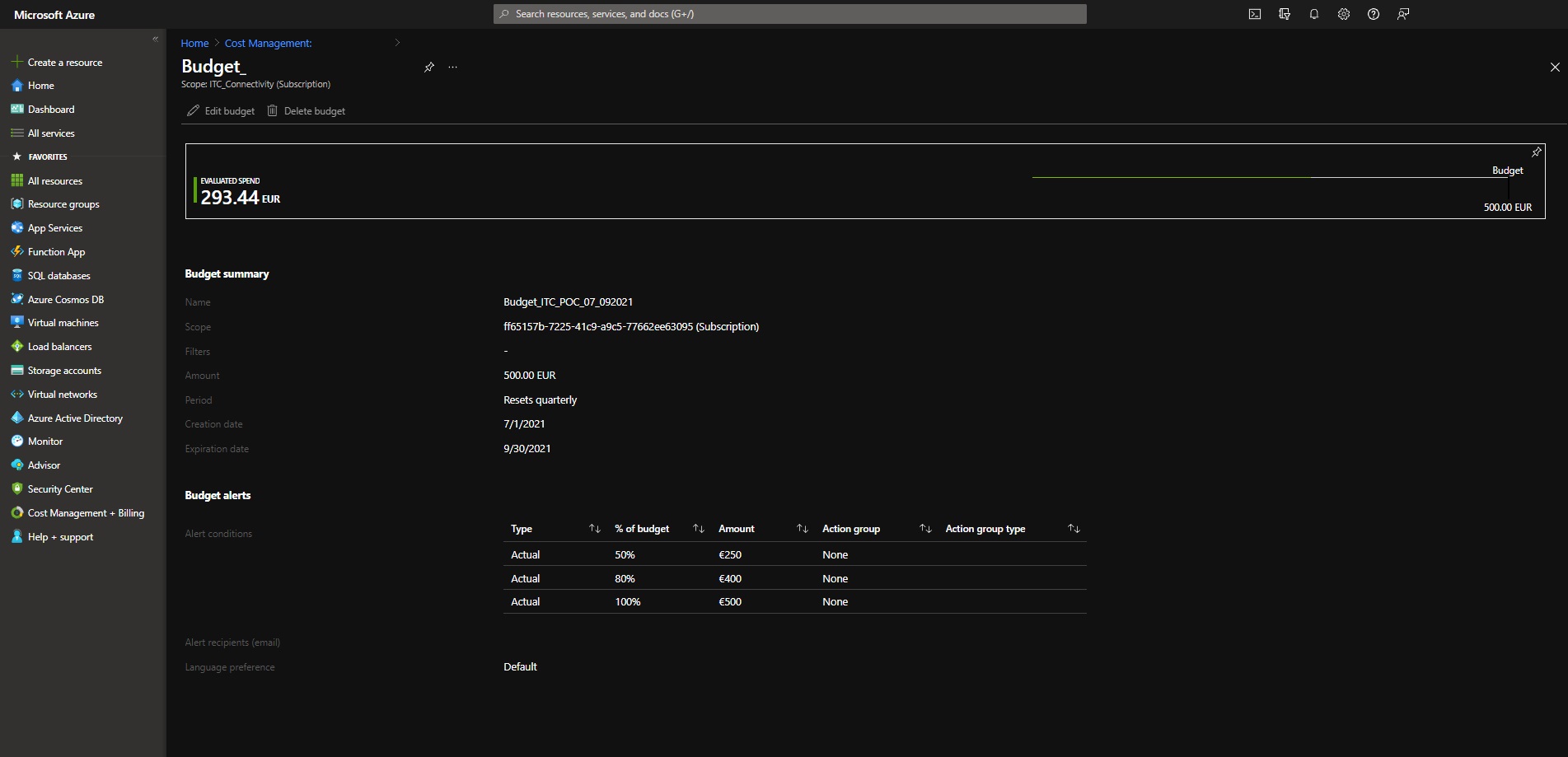
Screenshot of the detail view of a budget. At the top, a bar visualizes the current spending in relation to the total limit. Below that, the "Budget summary" lists details such as amount and time period. At the very bottom, the "Budget alerts" table shows the set warning thresholds (e.g., 50%, 80%).

last changed on 11/27/2025

How did this content help you?

Creative Commons Lizenzvertrag
This work is licensed under a Creative Commons Attribution - Share Alike 3.0 Germany License