


Groups

This page describes how to apply for groups in git.nrw.
Groups can be used to map and organize teams in git.nrw. Through top-level and sub-level groups, organizational structures can be separated from each other. A top-level group is intended for the highest administrative unit:
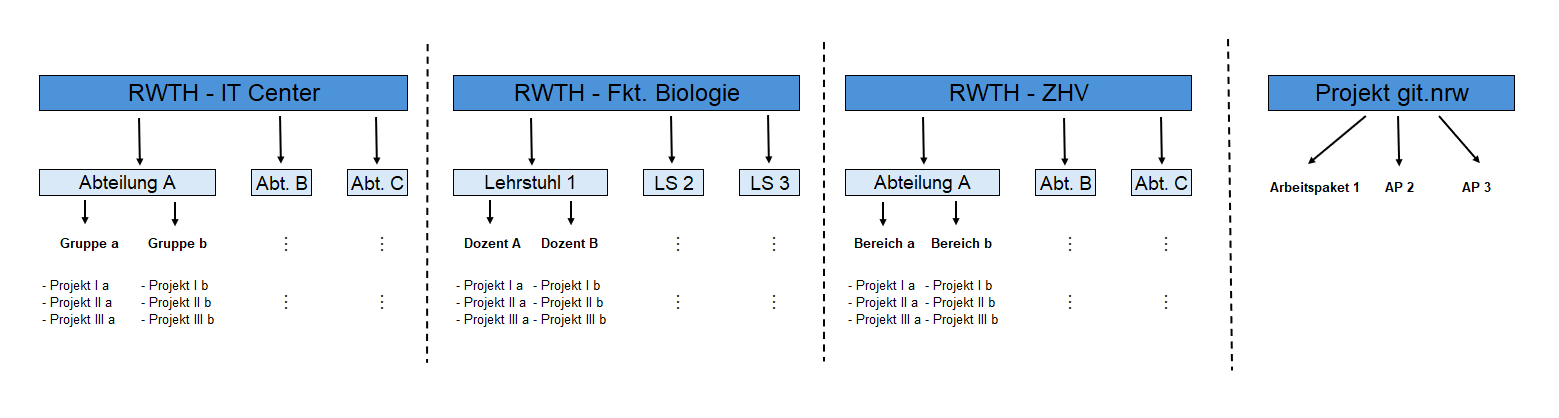
Further advantages of groups:
- The quota of 10 personal projects does not apply to groups.
- Projects within the group are accessible to all members of this group, an invitation process is not necessary.
Creating groups:
Apply for a top-level group
You can apply for a top-level group via the git.nrw support form.
Please provide the following information:
- At least two owners for the top-level group. These users must already have an account in git.nrw. The following data are required:
- Name
- E-mail address
- A name of the top-level group:
- Please use the RWTH-„Einrichtung“ prefix, e.g.. „RWTH - IT Center“.
Inter-institutional groups (e.g. for special research areas) can also be set up on request.
Create a top-level group with RWTH-TLG
RWTH-TLG users who are members of RWTH Aachen University can use the RWTH-TLG App to create top-level groups in git.nrw.
Requirements
Naming convention: Group names must begin with the prefix RWTH-. RWTH-TLG is set up to automatically add this prefix to newly created top-level groups. If a top-level group with a different prefix is required, please use the contact form for the git.nrw project.
Group owners: Every group requires a minimum of two owners. These people must already have a git.nrw account in order to be selected as owners in the RWTH-TLG app. An additional git.nrw internal service account, "rwth-groupmanager", is used in order to create a new group and is also added as a group owner. This account can be removed after the initial creation of the group.
Create a group
Please follow these steps to create a new top-level group using RWTH-TLG:
Step 1
In RWTH-TLG, click on "OAuth-Login" at the top right or use a button within the app. You will be redirected to git.nrw. Select "git.nrw University Login" as the login method on git.nrw.
Step 2
You will be redirected to the RWTH Single Sign-On. Use your credentials to log in.
Step 3
After the first login you will be prompted to authorize RWTH-TLG. Click on "Authorize RWTH-TLG". You will subsequently be redirected back to RWTH-TLG.
Step 4
Click the "Create group" tab on the left to create a top-level group. Enter the desired name in the "Group name" field.
Hint: You can create multiple groups at once by writing group names on their own lines or separating them with commas.
Step 5
Your own account will automatically be added as an owner. Choose at least one additional group owner, then click on "Create group".
Important: Please ensure that there are always a minimum of two people entered as group owners, not including the service account. This guarantees the continued existence of the group and the projects contained within.
Apply for a sub-level group
Please contact the owner of the respective top-level group to apply for a sub-level group.
The respective organization is responsible for the arrangement of sub-level groups.
We do not advise to create projects within a top-level group!
